How to Backup Apple Mail to iCloud Account ?


If you are a Mac user, you must have used the Apple Mail application for email management. And there might be some incidents when backing up the emails is essential, either to protect the important content, attachments or the account data. Apple Mail stores vital information in the default location that users cannot access. If you use Apple Mail on macOS or iOS, learning to backup Apple Mail to iCloud is the best way to safeguard the emails and to get access across devices.
Get a different approach to save Apple Mail to iCloud accounts from here, since there is no straightforward method. Follow the steps provided here to identify the most suitable option based on your situation.
Why Do Users Want to Backup Apple Mail to iCloud?
Before we get into the solutions, let’s understand the root needs that drive users to save Apple Mail to iCloud.
- Prevent Data Loss: Several reasons could lead to data loss, such as accidental deletion, OS crashes, malware attacks, etc. Therefore, users prefer any medium that ensures data safety.
- System Migration: If any upgradation is done, that is, switching to a new Mac or reinstalling macOS, and users want the emails to be restored to the new system without any manual effort.
- Access Across Devices: Users back up Apple Mail to iCloud to get access to the emails across the Mac devices, that is, iPhone, iPad, another Mac, etc. All emails in one place. When any issues like Apple Mail not showing all emails occur, backing up is the best option.
- Long Term Email Archiving: Even though Apple Mail stores the emails locally in the system, some users prefer storing the important emails in iCloud without relying on the default Mac.
For more details, check out – Does Apple Mail store emails locally?
Does Apple Mail Automatically Backup Emails to iCloud?
This is the most misunderstood aspect of Apple Mail. No, Apple Mail does not automatically back up emails to an iCloud account. Here’s what actually happens:
If you are using an iCloud Mail account, the emails are stored on Apple’s iCloud servers and synced across devices. In that case, iCloud acts as a mail server, not truly a backup.
If you are using Apple Mail with other email services such as Gmail, Yahoo, Outlook or a POP account, Apple Mail does not automatically store or back up the emails to iCloud. The email remains on the original mail server or locally on the device, depending on the account configuration.
Method 1: Manually Backup Apple Mail to iCloud Account?
As we now know that there is no auto backup option here, the manual method involves enabling iCloud Mail sync so the emails are stored and updated onn the Apple’s cloud servers. It does not create any backup that is downloadable, but ensures the emails are continuously saved in iCloud.
How to Backup Apple Mail to iCloud on macOS?
- Click the Apple menu and open System Preferences (System Settings on the new macOS version).
- Select Apple ID and click iCloud.
- Turn on Mail from the list of iCloud Services.
- Open the Mail app on Mac.
- Ensure the iCloud email account is added and enabled.
Once it is enabled, Apple Mail will sync emails with iCloud automatically.
On iPhone or iPad, how to save Apple Mail to iCloud
- Open Settings on the device.
- Tag Apple ID at the top.
- Go to iCloud and toggle Mail to on
The emails will now be synced and stored in the iCloud account.
Limitations: There is no suitable option to export emails selectively.
How to Backup Apple Mail to iCloud Direct?
If you want a more structured and reliable approach to save Apple Mail emails to iCloud account, use the Apple Mail Converter. It has the IMAP option that can be used to move the emails to the iCloud account after configuring properly. Download the desired software from the links.
5 Steps to Save Apple Mail Emails to iCloud
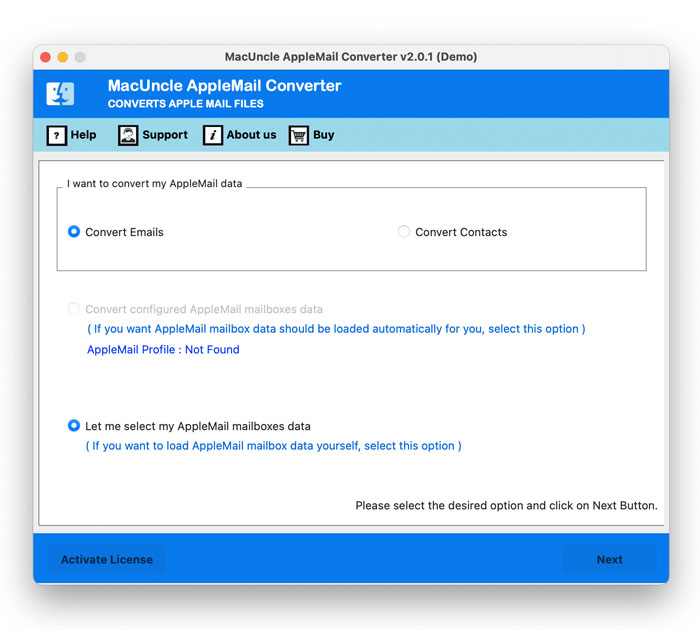
- Start the software and select the desired option as shown here.

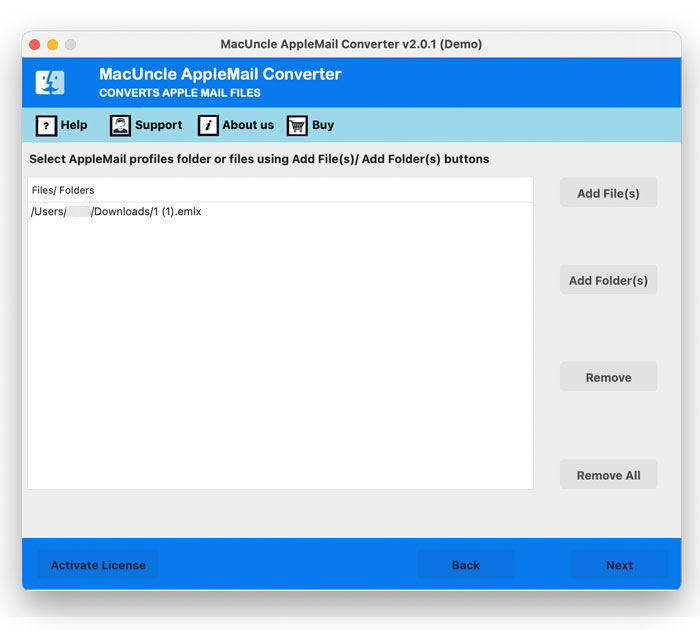
- Add Apple Mail files using the Add buttons. Press the Next button.
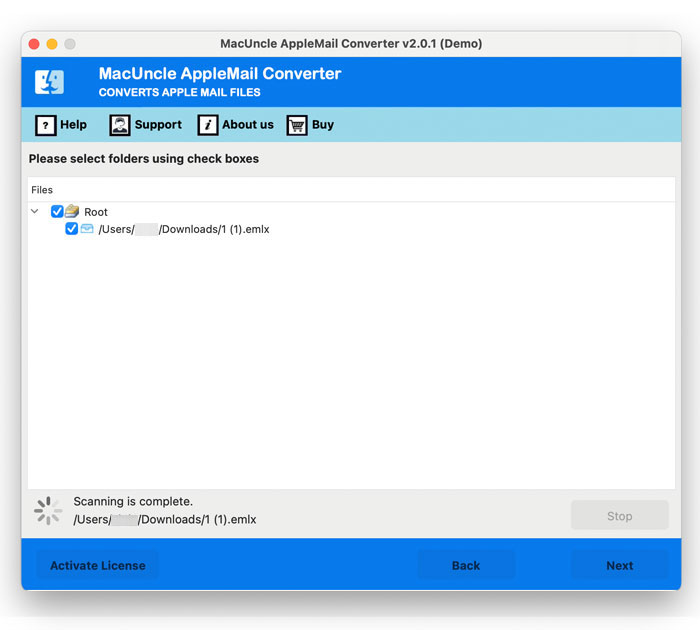
- Choose the desired file from the list. Again, press Next.
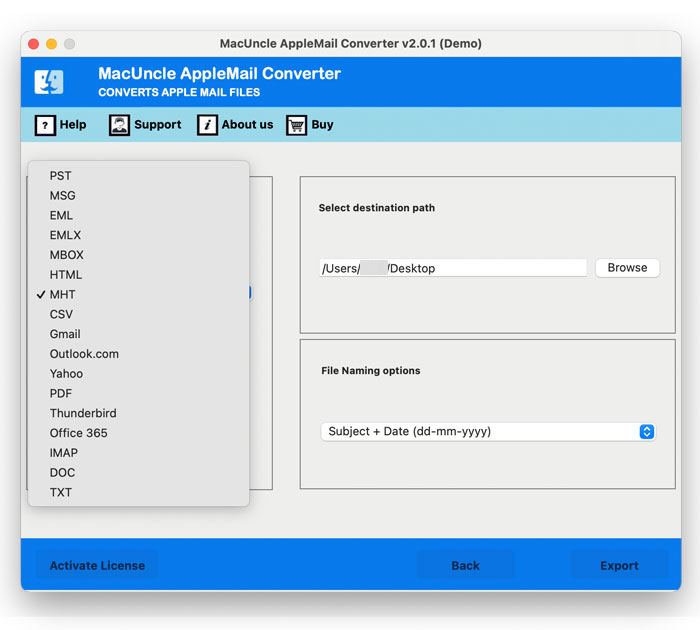
- Now, choose IMAP and enter all the IMAP details.
- Press the Export button to start the migration.
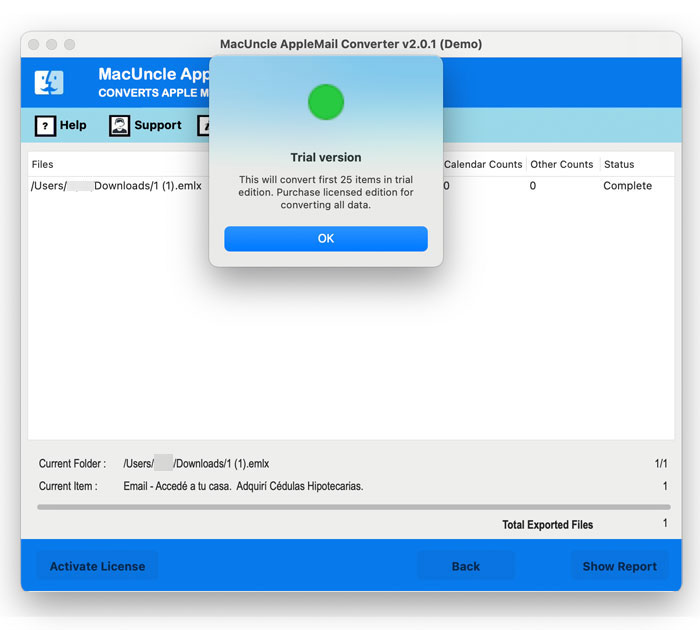
Is the Automated Method Better for Backing Up Apple Mail to iCloud?
Here are some of the major advantages of using the tool over the manual method:
- Bulk Backup of Apple Mail Emails to iCloud: At once, you can save the emails to iCloud using the IMAP configuration within the tool. Select whole folder(s) and then transfer the emails directly to the iCloud account.
- Selective Folder Backup: Unlike the manual method, which requires repeated user intervention, the automated method performs backup processes quickly and efficiently. This is ideal for users who have large mailboxes.
- Maintains the Folder Hierarchy: The software is designed in a way that maintains the originality of the email folders. The method ensures the emails remains organized after being backed up to iCloud.
- Reduce Risk of Data Loss: With the recommended software, the chance of missed emails or incomplete backup is very minimal. It offers a quick and direct backup of Apple Mail to iCloud.
Conclusion
Getting a perfect solution to back up emails is a critical step in protecting the data. Whether you choose the manual sync method or the automated method to backup Apple Mail to iCloud, that ensure important emails are always safe and secure and accessible from any device. For complete protection of the email data, it is best to rely on the suggested software for accurate results. Follow the steps outlined in the write-up to confidently save emails from Apple Mail to iCloud.