How to Backup Apple Mail to iCloud Account ?


If you are an Apple user, then it is certain that you must have been using Apple Mail for managing emails. And sometimes, backing up emails becomes an issue when the crucial content of emails, their attachments, or the account data needs to be saved in a safe place. Apple Mail keeps important information in default settings, which even users are unaware of. If you have been using Apple Mail on your macOS or iOS, then saving the emails in iCloud can be a great option for backing them up and getting access across your devices.
Here you’ll see things from a different perspective when you need to save your emails in your iCloud account, as there’s no built-in functionality. Judge for yourself to see what fits your needs from the solutions below:
Why Do Users Want to Backup Apple Mail to iCloud?
Before we head to any of the solutions, let us figure out the problem of why users opt for saving Apple Mail to an iCloud account.
- Protecting Data from Loss: Data loss may occur due to accidental deletion or a system crash, a virus, or various other types of malicious attacks. Thus, any medium that assures security will be preferred by the user.
- Transferring Data to a New System: It happens during an OS upgrade on the Mac or when the system is reinstalled, when all users desire to access their emails without the need to copy them manually from their old computer.
- Accessing Emails from other Devices: Most of the time, users save emails to their iCloud account so that they are accessible from different devices like their iPhone, Mac, iPad, etc. In these situations, if your emails disappear, there is always a copy in iCloud that helps resolve the Apple Mail not showing all emails issue.
- Long-term Archiving of Emails: Apple Mail actually stores the emails in the storage on the machine itself. However, sometimes users also want to copy their essential emails to iCloud besides the default Mac storage.
For more details, check out – Does Apple Mail store emails locally?
Does Apple Mail Automatically Backup Emails to iCloud?
This is the most misunderstood aspect of Apple Mail. No, Apple Mail does not automatically back up emails to an iCloud account. Here’s what actually happens:
If you are using an iCloud Mail account, the emails are stored on Apple’s iCloud servers and synced across devices. In that case, iCloud acts as a mail server, not truly a backup.
If you use Apple Mail and another email account (e.g., Gmail, Yahoo, Outlook, or POP), Apple Mail doesn’t back up emails to iCloud or save the emails locally in iCloud. Emails are stored on the original server or locally on the device, depending on the configuration of the account.
Method 1: Manually Backup Apple Mail to iCloud Account?
As we now know that there is no auto-backup option here, the manual method involves enabling iCloud Mail sync so the emails are stored and updated on Apple’s cloud servers. It does not create any backup that is downloadable, but ensures the emails are continuously saved in iCloud.
How to Backup Apple Mail to iCloud on macOS?
- Click the Apple menu and open System Preferences (System Settings on the new macOS version).
- Select Apple ID and click iCloud.
- Turn on Mail from the list of iCloud Services.
- Open the Mail app on Mac.
- Ensure the iCloud email account is added and enabled.
Once it is enabled, Apple Mail will sync emails with iCloud automatically.
On iPhone or iPad, how to save Apple Mail to iCloud
- Open Settings on the device.
- Tap your Apple ID at the top.
- Go to iCloud and toggle Mail on
The emails will now be synced and stored in the iCloud account.
Limitations: There is no suitable option to export emails selectively.
How to Backup Apple Mail to iCloud Direct?
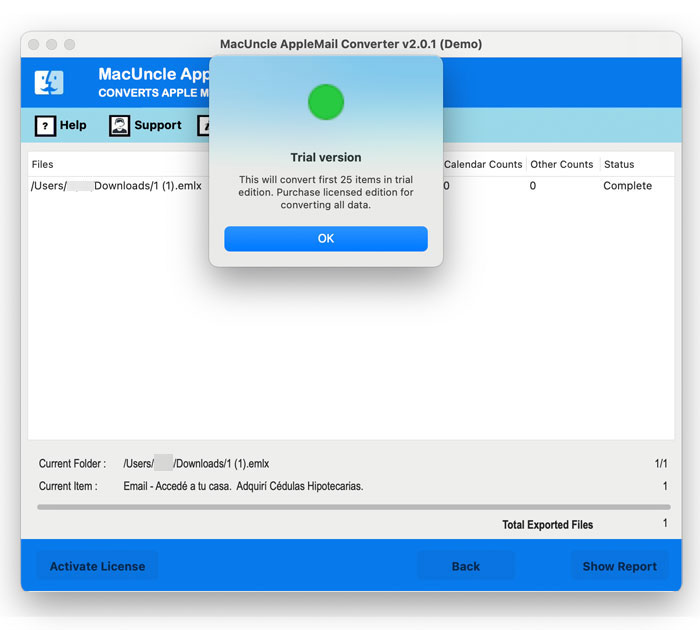
If you want a more structured and reliable approach to save Apple Mail emails to an iCloud account, use the Apple Mail Converter. It has the IMAP option to move the emails to the iCloud account after configuring it properly. Download the desired software from the links.
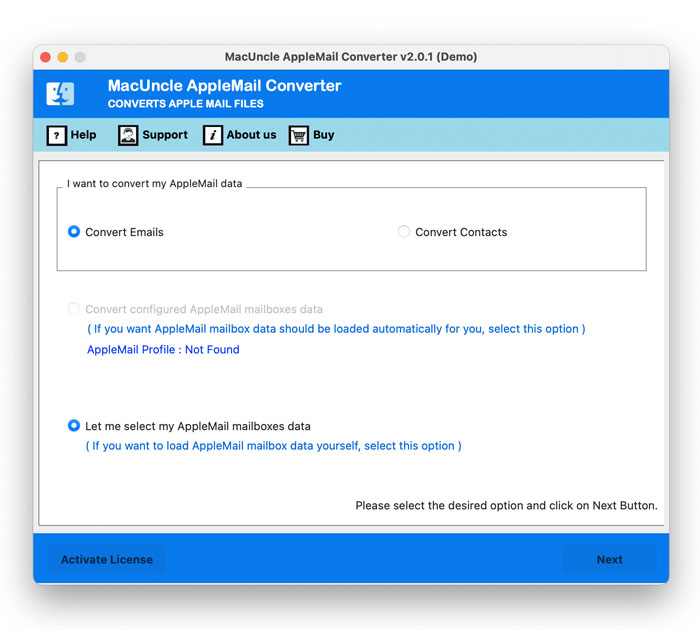
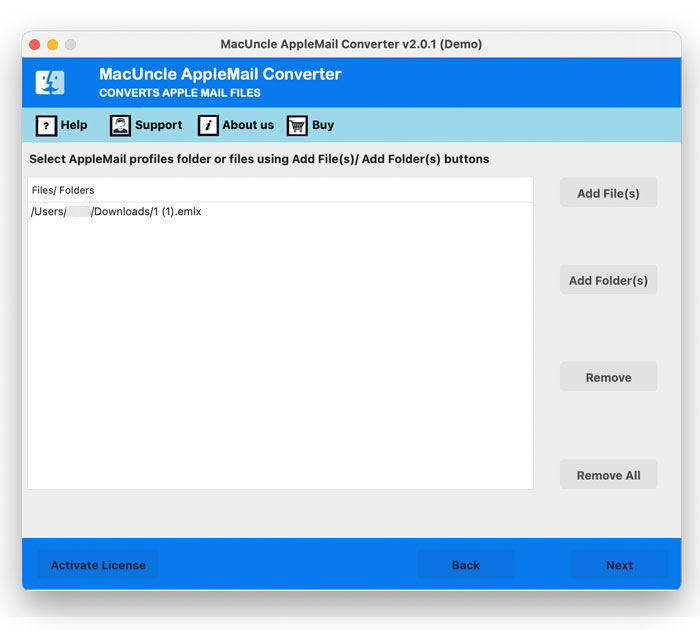
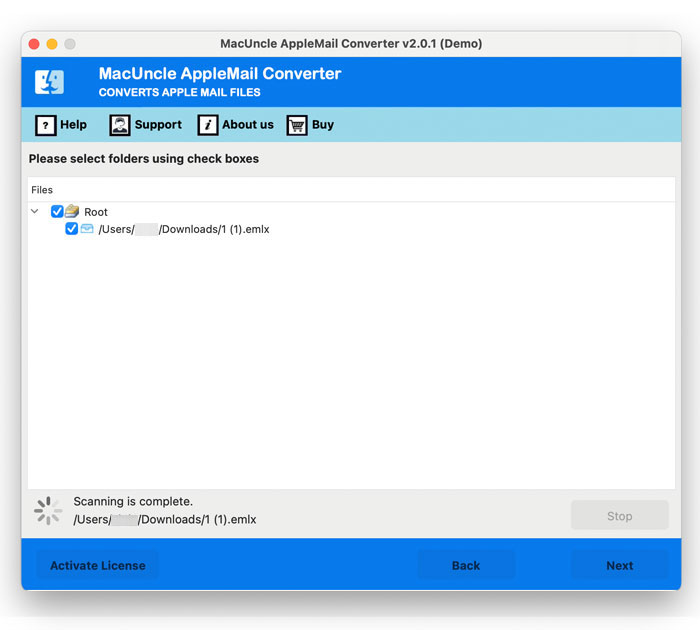
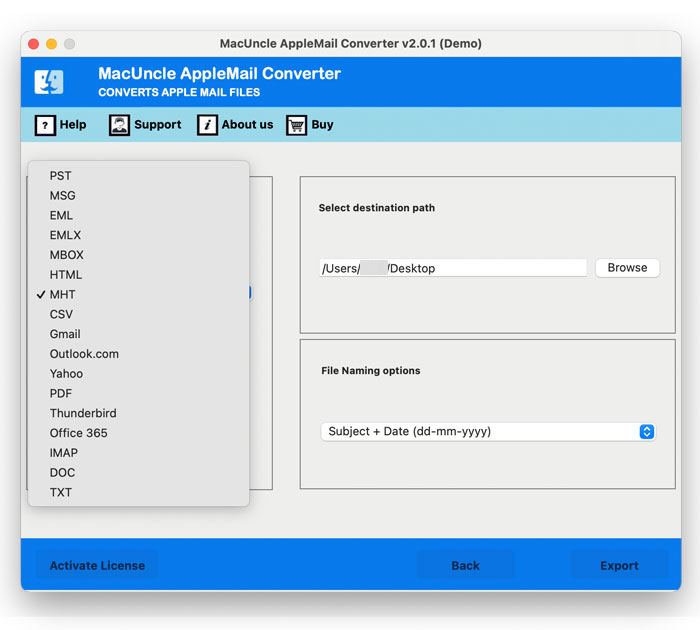
5 Steps to Save Apple Mail Emails to iCloud
- Start the software and select the desired option as shown here.

- Add Apple Mail files using the Add buttons. Press the Next button.
- Choose the desired file from the list. Again, press Next.
- Now, choose IMAP and enter all the IMAP details.
- Press the Export button to start the migration.
Automated Method – Is it More Preferred Over the Manual Method?
How come the automated method is best for migrating emails from Apple Mail to iCloud?
- Bulk Backup: With selected batches of files or folders, we can save the emails to iCloud. We can perform batch conversion without the need to repeat the steps. Transfer the emails directly to the iCloud account.
- Maintains the Folder Structure: Yes, the tool maintains the folder structure throughout the migration. The imported data in iCloud will have the original hierarchy.
- Reduce Risk of Data Loss: With the software, the chance of missed emails or incomplete backup is very rare. It offers a quick and direct migration from Apple Mail to iCloud.
FAQs
Q) Does Apple Mail auto-back up emails to iCloud?
A) No, Apple Mail on its own does not auto-backup emails in iCloud. With an iCloud Mail account, Apple servers synchronise your emails across devices. However, sync is not the same as a proper backup.
Q) What is the difference between sync and backup for emails?
A) Synchronisation is when changes made to any device carry over to all of them. When an email is deleted on one device, that deletion may also sync to all of your connected Apple Mail clients. Backup, however, is a distinct copy of the emails which may be restored after all original copies have been lost.
Q) Is it possible to back up just my important emails to iCloud?
A) Yes. You can copy and drag important emails or entire folders into your iCloud Mail account within Apple Mail. That way, you can store a minimal version of the important emails you wish to keep.
Q) If I delete an email in iCloud Mail, will it disappear everywhere?
A) As iCloud Mail works by way of synchronisation, deletion on one of your Apple devices will affect all of your other Apple Mail accounts that are connected to iCloud Mail. In order to maintain protection against any form of loss, you will need a backup copy.
Q) Are my emails stored locally on my Mac?
A) Yes. In many instances, your emails can be stored locally on your Mac, depending on which form of email account you have (IMAP, POP, or iCloud). Folders under “On My Mac” will only exist on the particular computer on which they are kept unless a backup copy is made elsewhere.
Q) Can I access my iCloud Mail on different Apple devices?
A) Yes. If you sign in to iCloud Mail using the same Apple ID, then all of your Mail will be visible across the Mac, iPhone, and iPad devices as well as via the web application of iCloud.
Conclusion
Getting a perfect solution to back up emails is a critical step in protecting the data. Whether you choose the manual sync method or the automated method to backup Apple Mail to iCloud, this ensures important emails are always safe, secure, and accessible from any device. For complete protection of the email data, it is best to rely on the suggested software for accurate results. Follow the steps outlined in the write-up to confidently save emails from Apple Mail to iCloud.