How to Backup Bluehost Emails – Export All Emails Easily


For many businessmen, bloggers & other users dealing with Bluehost, precious info is always the most precious thing they have. As is well known, Bluehost is one of the most dependable hosting services. But the risk associated with having just one place where all data is stored is quite high. And what’s going to happen when Bluehost experiences server outages, hacker attacks, or the worst-case scenario- Bluehost deletes data accidentally? For ensuring your info isn’t lost, you have to make your own copies locally. Here, in this blog, we will be covering all aspects, starting from the manual Bluehost email backup process and ultimately suggesting a professional tool to export emails from Bluehost.
Understanding Bluehost Email Backup
Bluehost email backup is actually a copy of the emails that are saved on some other server apart from the Bluehost cloud ones. If something goes wrong with your Bluehost login or a cyber attack takes place, retrieve the business email data without any loss.
Why Users Want to Backup Bluehost Emails?
It is believed that hosting companies take care of all aspects. But when you look into Bluehost’s backup policy, you are bound to find that they perform only basic backups, but nothing is guaranteed. There are some reasons why you need to export emails from Bluehost as a backup for that data & website on Bluehost:
- Crucial files & folders of Bluehost emails might be deleted mistakenly.
- Ransomware & other cyberattacks could make you lose access to live sites.
- In case you are considering transferring to another firm, you might need portable copies of your critical email data.
- In case of downtimes, if Bluehost fails to restore your account instantly, then having a backup at the time would greatly support you.
Manual Methods to Process to Back Up Bluehost Email Data
For backing up Bluehost emails manually, you need to follow this manual Bluehost email backup process:
Method 1: Backing Up via Email Client – Use IMAP
This is the most reliable free method for users, as most users have Thunderbird.
Steps to Backup Bluehost Emails using Thunderbird.
- Download and install Thunderbird.
- Open Thunderbird and go to Account Settings > Account Actions > Add Mail Account.

- Then, enter the name, Bluehost email address and password.
- Choose IMAP when prompted.
- Bluehost IMAP Server: mail.yourdomain.com, port 993, SSL/TLS.
- SMTP Server: mail.yourdomain.com, port 465 or 587.
- Then, let the Thunderbird sync all the folders.
- After syncing, go to File > Export to export the folder as *.eml or *.mbox.

- Store the exported files in a labelled folder.
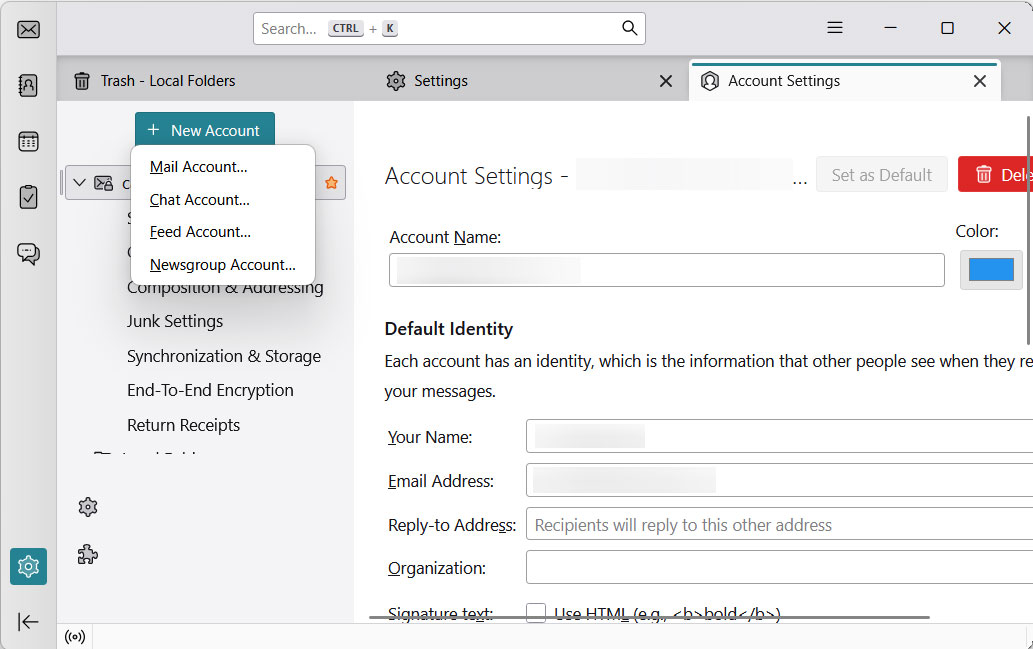
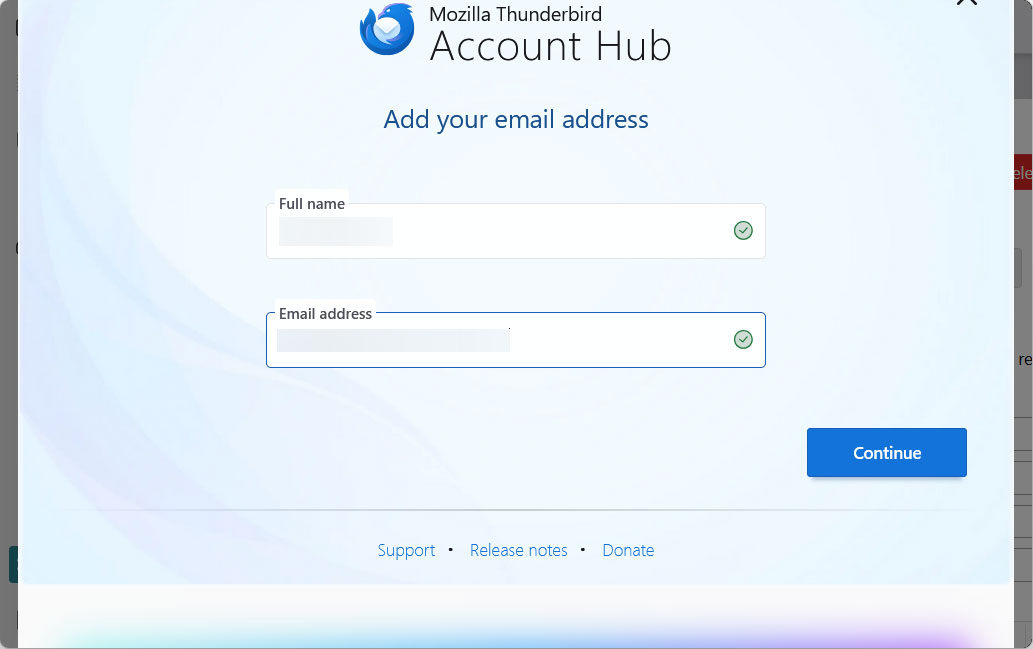
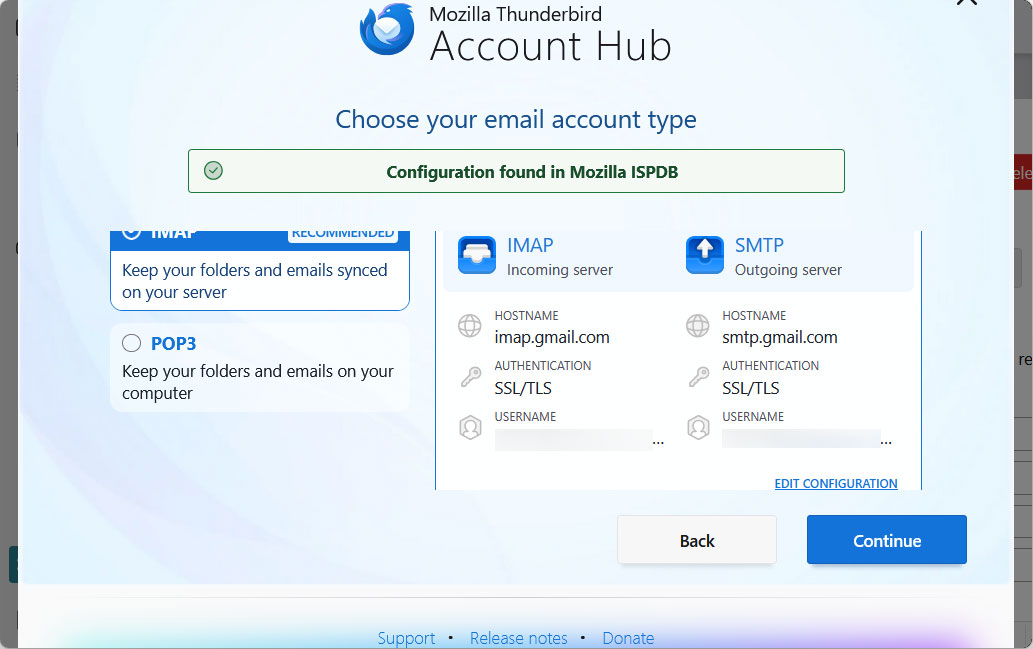
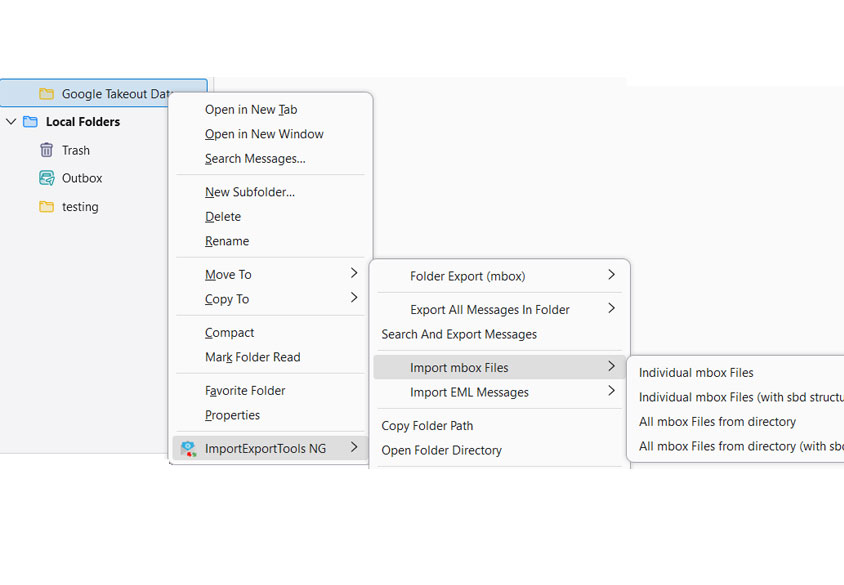
Method 2: Exporting Bluehost Emails (Roundcube/Webmail)
Steps to do this are described below:
- Log in to the Bluehost Webmail (usually via Roundcube).
- Select the specific email.
- Click on the More > Export.
- The selected email would get downloaded as an .eml file.
Limitations:
This manual process comes with many limitations, specifically when we talk of Bluehost emails:
- A lot of time is demanded to carry out these steps again & again, weekly/monthly.
- It is quite hard to retrieve Bluehost emails in MS Outlook or Mozilla Thunderbird because of several email limitations.
- Corruption risk is very high, way beyond your imagination; large ZIP files mostly get damaged while downloading.
Best Bluehost Email Backup Solution for Expert Intervention
Your time & effort could be saved considerably by investing in a reliable professional Bluehost email backup utility, such as the Email Backup tool, designed to bypass all such manual limitations & provide a foolproof process. Better than the manual way, which only saves your data to your desktop without any further work, this software helps export emails from Bluehost in easy-to-use formats such as PST/EML/MBOX/OLM.
Simple-to-Execute Steps to Backup Bluehost Emails
Executing this easy process is uncomplicated by performing the following steps:
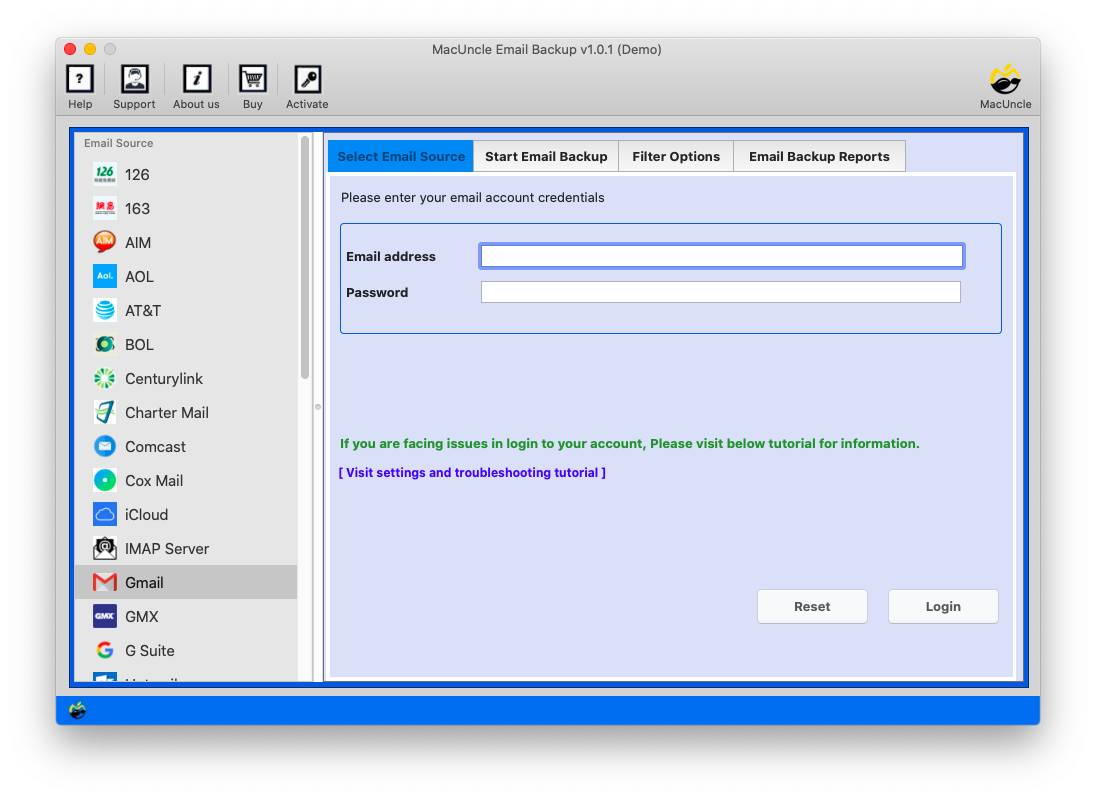
- Download & launch the tool.

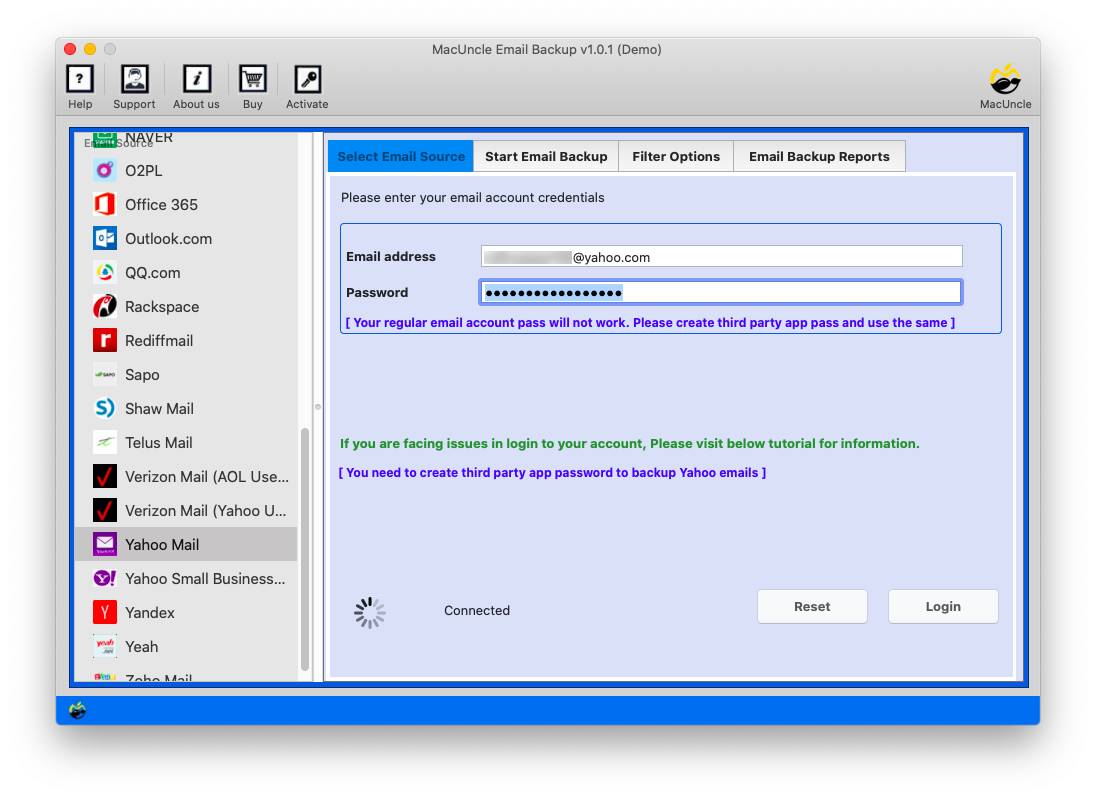
- Then, enter Bluehost email credentials & click the Login button.
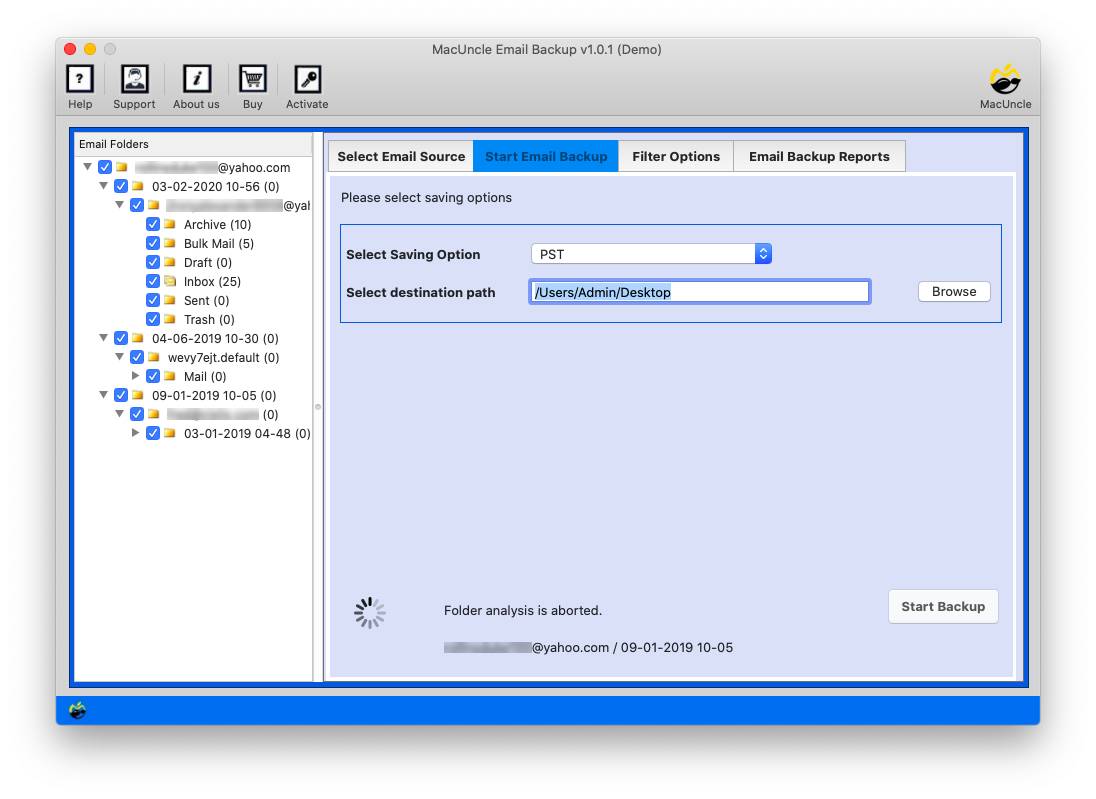
- Pick a desired saving option like PST/PDF/MBOX, etc.
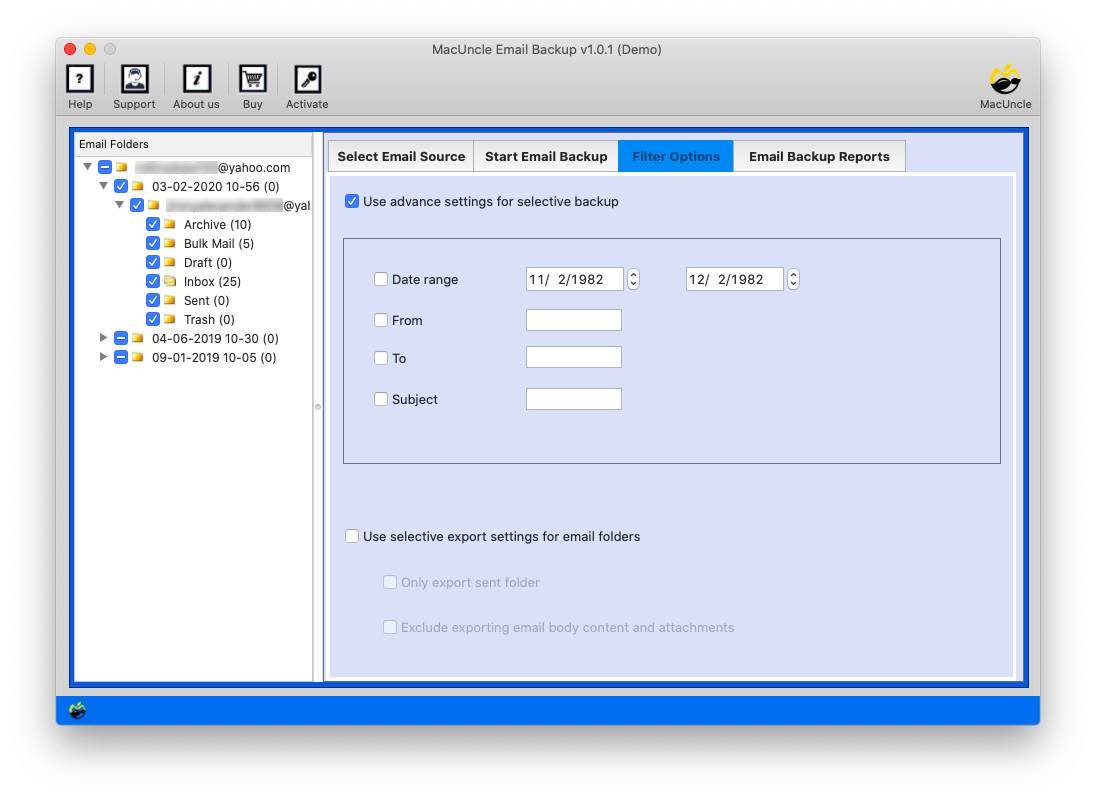
- Then, apply the Advanced Filters for selective backups.
- Press the Start Backup button to initiate the process.
Benefits You Gather from This Tool
Procuring this tool is an ultimate benefit proposition. Here’s why:
- Maintains data integrity.
- Keep all your Bluehost email attachments, metadata (To, From, Date), and folders intact during the backup process.
- User-preferred interface requires no such technical expertise to learn about databases or FTP clients on the part of the end-user.
Conclusion
Learning about doing a Bluehost email backup seems like a feat to try for all those in need of such a process. Your quest to find the ways brought you close to the manual approach as well as the professional one; now the decision rests with you to make an intelligent choice with perfection in mind.