How to Convert HEIC to PDF On Mac in Batches?


In this article, we will understand how to convert HEIC to PDF on Mac. Stay with this blog to learn, as there are many ways to do it, but you can decide which method suits you best. In this blog, you will get all the information related to converting HEIC to PDF. Now, why do users need to convert HEIC to PDF? Because HEIC files are mainly used on Apple devices, if users want to share data with someone who is not an Apple user, they won’t be able to access the file. That’s why users prefer converting their HEIC files into PDF format. So, with the help of this blog, let’s learn how we can convert HEIC files to PDF.
What’s the Difference Between HEIC & PDF?
HEIC: The High-Efficiency Image Container (HEIC) is an image format primarily used on Apple devices. It stores high-quality photos in a smaller file size but has limited compatibility with non-Apple devices.
PDF: Portable Document Format is a universal file type for sharing and printing documents or images. It works on all devices, preserves formatting integrity, and provides robust security features, including password protection and device restrictions.
Easily Convert HEIC to PDF Using an Automated Solution
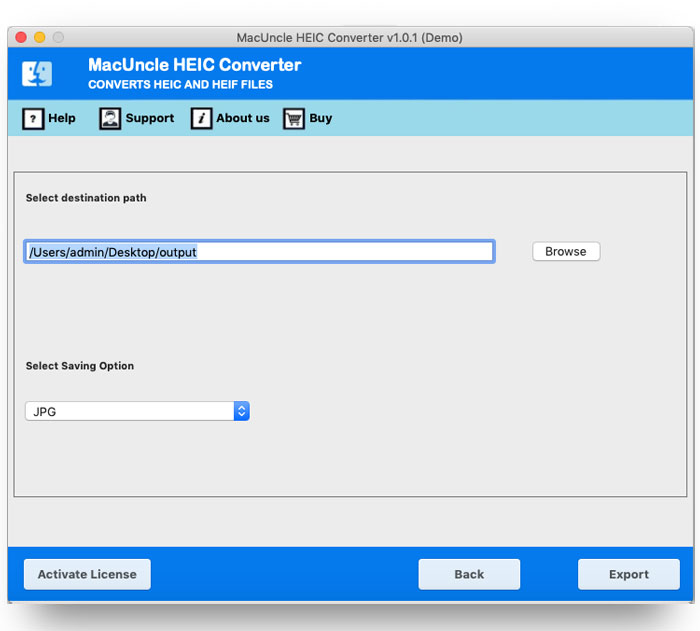
If you want to convert your HEIC files to PDF on Mac without any manual effort, you can use this HEIC Converter without wasting time. With this tool, you can easily convert your HEIC files to PDF without any data loss. This software also includes several advanced features that help you complete the process in just a few clicks.
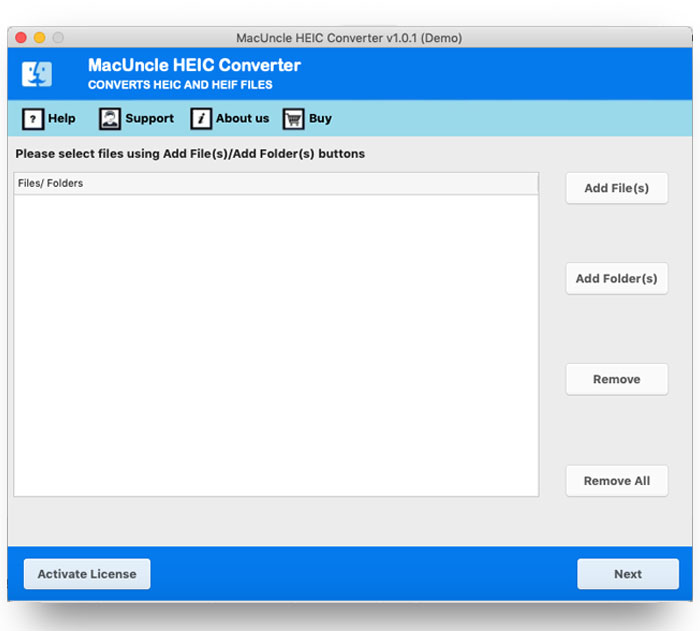
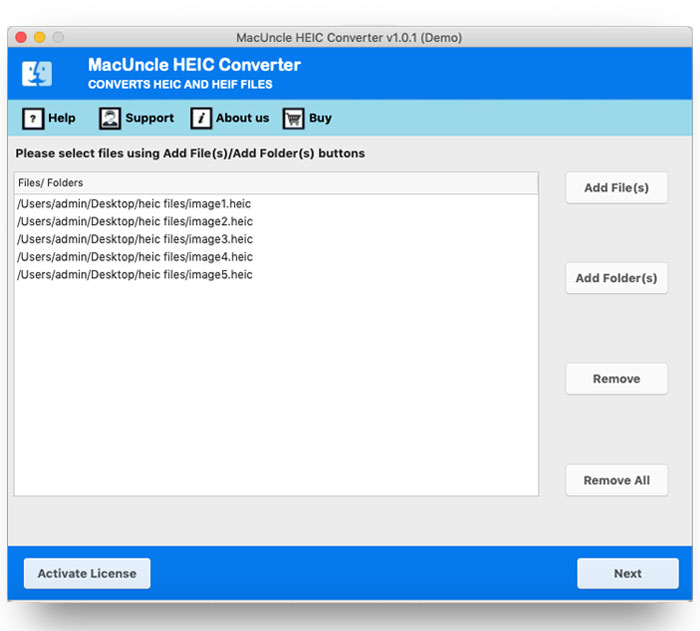
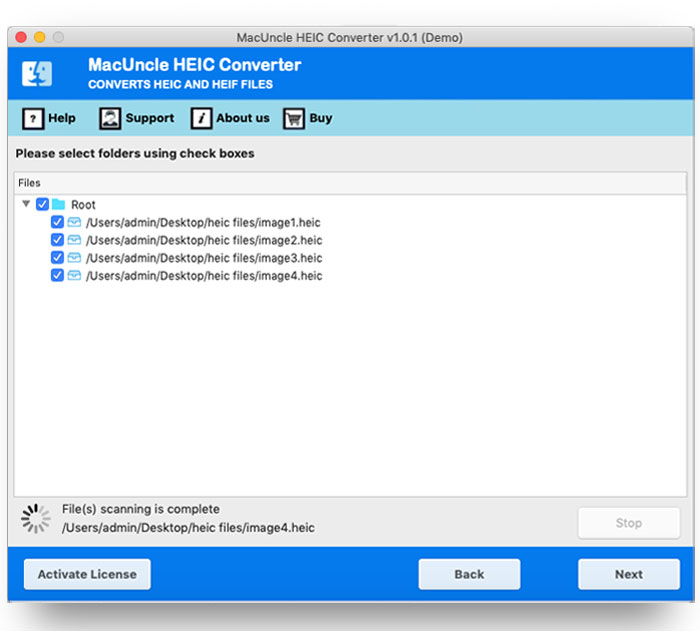
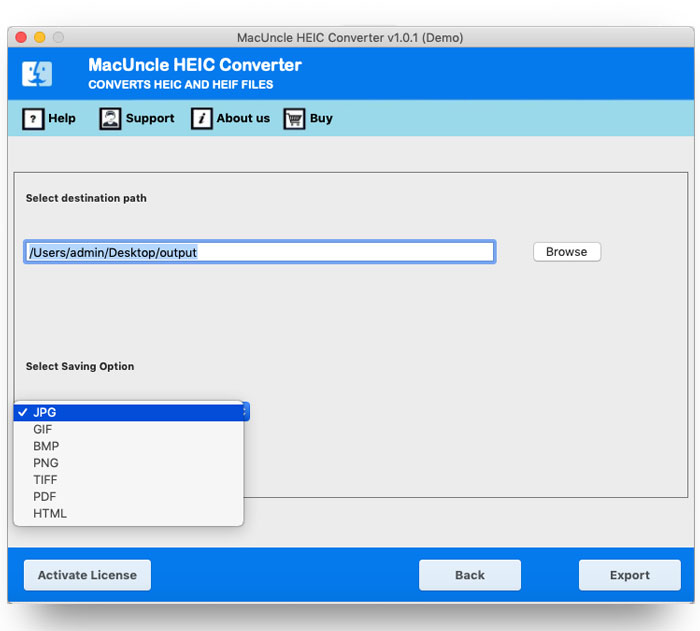
Below are some steps explaining how you can use this tool. And if you still face any issues, you can contact our support team to find a quick solution to your problem. Now, let’s understand the steps to use it.
How to Use This Tool?
- Firstly, install the HEIC to PDF converter on your device.

- Secondly, choose HEIC files or folders from your database.
- Thirdly, select the check box and click on the next button
- Then, choose PDF from the saving option.
- After that, choose a location to save your resultant data.
- Lastly, tap on the convert button to complete the conversion
Reasons to Get a Software to Convert HEIC to PDF on Mac
- Bulk Conversion: The tool lets you upload single or multiple HEIC files using dual add options and convert them to PDF within minutes.
- Accurate Results: Even after batch conversion, it preserves EXIF data and other essential details.
- No Requirements: No extra software or service is needed; the tool guides you through every step, from uploading to saving files.
- Demo Version: Before purchasing, you can try this tool for free and convert up to 25 HEIC files to PDF.
- Live Chat: If you face any issues while using the software, you can contact the support team through live chat to quickly find a solution to your problem.
Using the Manual Method to Convert HEIC to PDF Files
We have explained some manual methods that you can use to convert HEIC images into PDF files.
For Windows
- Firstly, open the HEIC image on the Photo app.
- Secondly, press Ctrl+P or tap on Print.
- Thirdly, select Microsoft Print to PDF as the printer.
- Then, choose a location and a new name for your final data.
For Mac
- Now, open the HEIC image in Preview.
- Then, go to file and choose export as PDF.
- After that, select a location and click on save.
Drawbacks of Using This Manual Method
- Enables the conversion of only a single file at a time and does not allow for batch conversions.
- It can take time when bulk HEIC images are involved.
- Offers no ability to preserve image quality or make adjustments to a variety of conversion options.
- May deny the ability to function or will prompt the need for codecs in certain Windows versions.
- Provides little functionality compared to the higher-end provided by professional converter tools.
- Not suitable for HEIC to PDF conversion on bulk or multiple images all at once.
Conclusion
In conclusion, as you have read in this blog, there are several methods you can use to convert your HEIC files to PDF. However, the manual method comes with several drawbacks, which is why we recommend using an automated solution. With this method, you can complete the conversion without worrying about data loss. By using its advanced features, you can easily convert HEIC to PDF on Mac in just a few simple steps.
FAQs
Q1) Does this tool work on Mac OS 10.14?
A1) Yes. The software is compatible with all the latest editions above 10.8 Mountain Lion, and the Windows OS version is also available.
Q2) How can I remove the watermark in the converted files?
A2) It is because you are using the demo edition. To obtain HEIC files in PDF format without any watermark, get the application’s Pro package.
Q3) I got the trial edition from the main page, but it is showing “can’t be opened because Apple cannot check it for malicious software.” How to open this tool if it is showing this?
A3) The warning message is showing due to security reasons with the Mac operating system.
Read More: Convert HEIC to HTML