Convert OST to vCard in Batches | Perform Secure Conversion


For individual users & professionals who make use of offline Outlook very much, the OST (Offline Storage Table) files tend to play a very significant role. Such files tend to locally preserve almost all MS Exchange mailbox info. But when people require migrating their contacts, certain limitations come up. Under such circumstances, the procedure to convert OST to vCard really becomes vital as VCF files effectively manage Outlook’s contact info. Here, in this blog, we will discover both manual techniques for converting these contacts and a reliable professional tool to quickly & safely convert OST to VCF with no complexity at all.
VCF is a universally accepted format that’s supported by iPhone devices, Gmail, Android devices, iCloud, & several CRM platforms, serving multiple purposes. If you wish to move your contacts between different email clients or want to switch to a new device, these .vcf files would be very helpful to you. You can review the two approaches discussed here and pick the one that best suits your case. Before moving forward with the conversion processes, let us first check why the need for such conversion arises.
Major Reasons to Convert OST to VCF
Many professionals need to convert OST to VCF format for several different reasons, some of which are described below:
- Universal Compatibility: VCF is a widely accepted format to store contacts as well as address books. It is accepted by virtually every device, email client and CRM.
- Easy Sharing: vCard files enable people to share their contacts individually & in bulk, too.
- Device Migration: People moving from MS Outlook to some other app, such as Apple Mail or Gmail, require their contacts in this VCF file format.
- Platform Switching: At the time of account migration, data backups, & contact migration activities, .vcf files tend to provide awesome flexibility that’s much-needed.
The greatest problem, however, is in accessing & extracting data from OST files as they tend to remain linked to some specific Outlook profile or to an Office 365/MS Exchange email account.
Before You Begin!
To have a seamless migration experience, you must follow the suggestions given below before finally starting the conversion:
- Remember to have a backup of your OST files’ data, specifically if these files belong to an inactive profile or an old Outlook profile.
- Always remove any obsolete & unwanted contacts beforehand to avoid the clutter later.
- Do verify that your contact fields are mapped properly at the time of conversion.
Quick OST File Location:
Not sure where the OST file is? Check the locations below:
- On Windows 10/11: C:\Users\[YourName]\AppData\Local\Microsoft\Outlook\
- On Windows 7/8: C:\Users\[YourName]\Documents\Outlook Files\
Note: The Outlook data file is always hidden. To view the AppData Folder, in File Explorer, go to View, Show Hidden Items. You can open up the exact Outlook Path File > Account Settings > Data Files.
How to Convert OST to vCard Efficiently?
Even though many different ways are given online for this very purpose, we have just listed the most feasible & practical ones that are secure & reliable at the same time. Manual options are undoubtedly free, but these come with some challenges.
Manual Methods to Export OST Contacts to VCF Format
This particular section talks about all the manually available options to export contacts from the OST file to vCard on both Mac machines and Windows systems.
Method 1: Export Outlook Contacts to VCF Using Windows Outlook
Best For: Export of a handful of contacts from a running Outlook program.
It is a three-step process to save Outlook contacts from an OST:
- Open the current active Outlook profile.
- Go to Contacts/People.
- Choose the contacts that you want to export.
- Click File > Save As.
- Choose the vCard Files (*.vcf) format here.
- Finally, determine the destination location, set a file name, and then click Save.
- Repeat these procedures for every VCF file.
Limitation: MS Outlook actually permits saving just 1 contact at a time. So, processing a large number of contacts manually seems out of the question as it becomes too tedious & highly cumbersome.
Method 2: Drag and Drop to Export Multiple VCF Files at Once
Best for: Export all contacts at once (rather than a single VCF per contact)
- In Outlook’s People view, select multiple contacts.
- Open File Explorer alongside.
- Drag the selected contact from Outlook to the File Explorer.
- With this, Outlook will create individual *.vcf files for each contact.
This is how to mass export contacts in Outlook 2016, 2019 & 365. It still produces ‘individual’ VCF files for each contact rather than a single .vcf with all contacts, but it is considerably faster than Save As for up to 50 or so contacts.
Method 3: 2-Step Procedure (OST → CSV → VCF)
These steps will allow you to convert OST contacts to vcard by first converting OST to CSV and then converting the CSV file to VCF. Even though this process is too lengthy and gives very limited assurance only, it is a free way to do this, so some users give it a try.
Step 1: Export Contacts from OST to CSV via Outlook
- In Outlook, go to File > Open & Export > Import/Export
- Choose Export to a file and then click on the Next button.
- Choose Comma-Separated Values and press Next.
- Select the Contacts folder and then Next.
- Choose a folder and file name and press Next, then Finish.
Step 2: Convert OST Contacts to VCF from CSV
Once your OST contacts get stored in CSV format, Windows Contacts can now be utilised for completing this process of conversion.
- Launch File Explorer, and then go to C:\Users\Contacts.
- Then, select Import.
- Then, go back and add the CSV file generated earlier.
- Moreover, order your contact fields precisely.
- After that, pick all the contacts or only a few.
- Now, click Export.
- After this, choose the VCF format.
- The final step is to save all your data to a desirable place.
Note: One other way is to import this CSV to Google contacts (contacts.google.com Import), then export the contacts as a VCF file. All the contacts will then be exported together to one VCF file, which you can then import to Apple Mail, iCloud or a mobile device.
Limitations: It’s quite lengthy for an issue which needs a quick resolution. Field mapping while CSV import is prone to errors. The quality of the final VCF file depends on the mapping of the fields in the CSV. Needs an existing Outlook profile with Exchange access.
How to Convert OST to VCF on Mac OS?
Best for: Mac users who have been handed an OST file from a Windows PC.
Important: OS X does not natively support OST files. You cannot open a Windows OST file directly using the Contacts app on the Mac, and also Outlook for Mac-none of them can open a Windows OST file.
To handle OST contacts on a Mac, you need to convert your OST to a Windows environment (Method 1 or 2, or use the automated tool below) and then move the VCF or CSV to your Mac.
- Transfer using a USB drive, AirDrop, or even email to access them further using the Mac Contacts app.
- On the Mac, open the Contacts app.
- Go to File > Import and select the VCF file.
The contacts will be automatically imported.
Automated Tool to Convert OST to vCard in Batches
When manual ways appear intricate & cumbersome, the OST File Converter provides a superior alternative to try, most definitely. This tool tends to support both selective and bulk conversion of OST files. It can even process your OST files irrespective of the mail app you use. The tool even handles inaccessible, orphaned, damaged, & even other users’ OST files.
Convert OST Contacts to vCard Format in 4 Steps
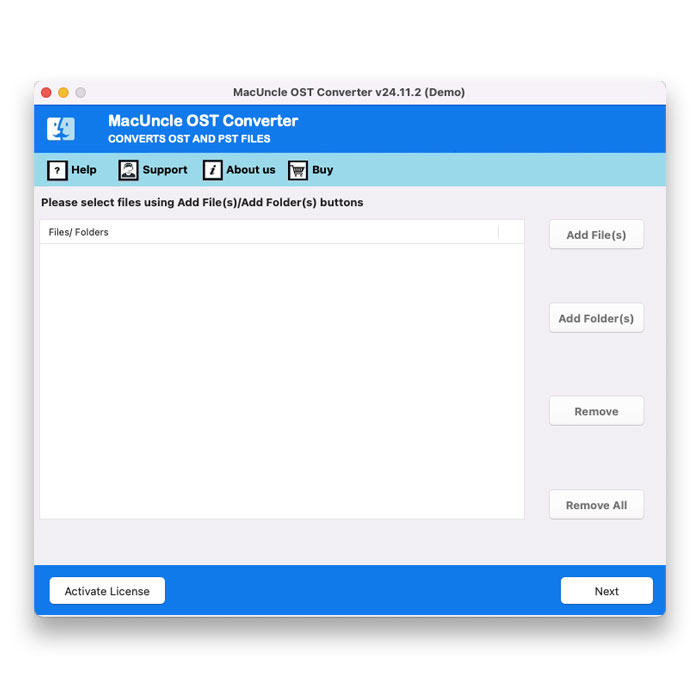
- Start the tool on the Mac Machine.

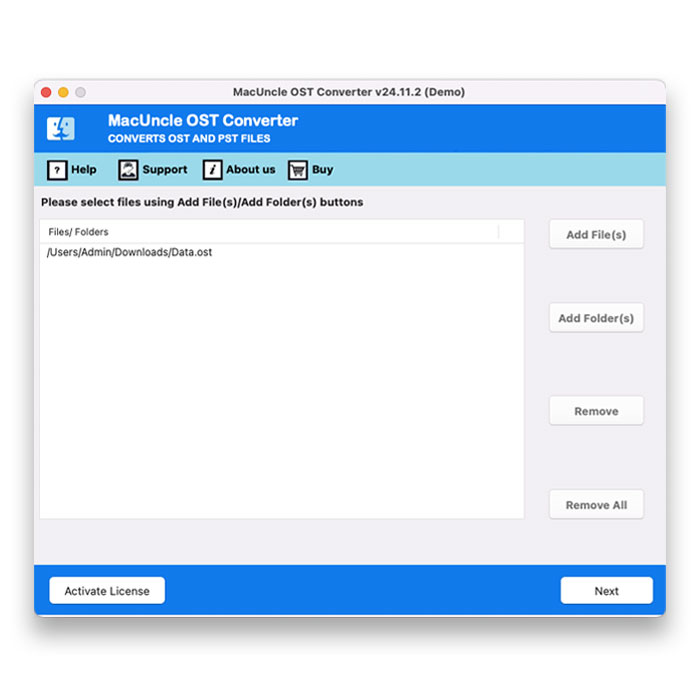
- Then, add OST files by either using the Add File or Add Folder option.
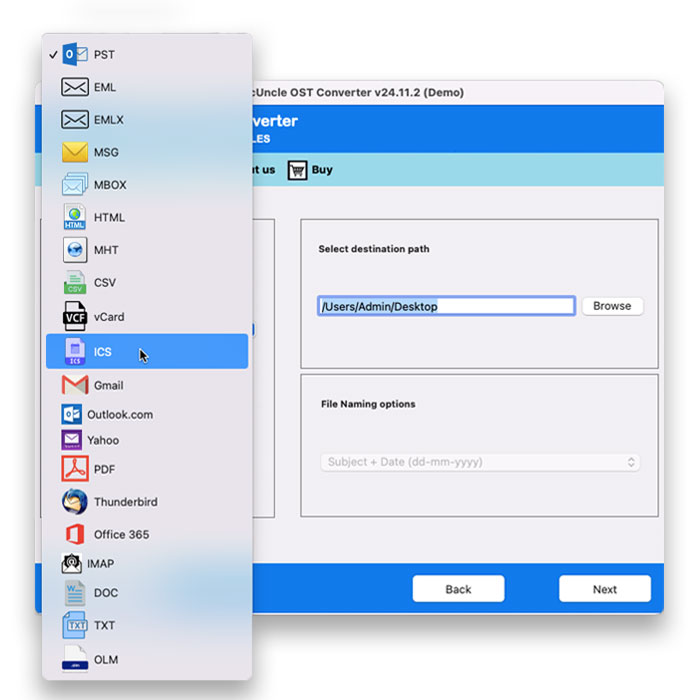
- Next, select vCard format from the available export format options.
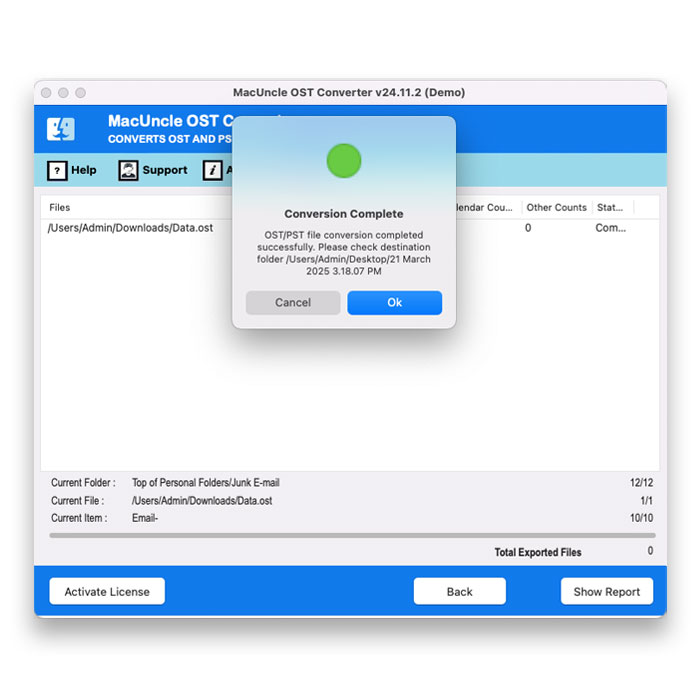
- Now, press the Export button to initiate the process.
FAQs
Q) Is it possible to export multiple contacts from an Outlook OST into a single VCF file?
A) Yes, it is possible. You can use the professional OST Converter utility to export any number of contacts from OST into one single VCF file with no loss of info.
Q) Is MS Outlook needed to convert OST to vCard?
A) If you use the automated tool, then in that case, Outlook installation isn’t required. But for manual conversion, you need Outlook to do the process.
Q) What if my OST file is from an old or deleted account?
A) Outlook cannot access an orphaned OST file without the original Outlook profile or account. Unlike the manual method, the automated method opens and converts the orphaned OST files with the original profile.
Q) Is it possible to import the converted file onto an iPhone or an Android?
A)Yes, VCF is the default contact format in Android as well as iOS. Transfer the VCF on iPhone AirDrop, or open it in Mail or Files and import. For Android, copy VCF, import using the Contacts app, or first import into Google Contacts.
Q) What is the size limit of OST files? Is there any size limit?
A)MS Outlook manual methods are limited by whatever OST Size can be opened in Outlook (realistically, 50GB before issues occur in Outlook). The tool has no restrictions on the number of files to be converted and is consequently designed for large OST files.
To Sum Up
If you need to convert OST to vCard, then you now also know that the free manual methods exist, and that they cannot be used for bulk conversion of mailboxes. Then you will need to go forward with the professional utility for bulk conversion of contacts.