How to Convert PDF to Locked PDF Safely and Securely?


If you are searching for how to convert PDF to locked PDF, then this blog will be beneficial for you, as we will discuss the best proven ways to lock PDF documents. PDF file is a widely used file format for sharing important information online. A PDF is a Portable Document Format, created by Adobe to present documents in a more reliable way by preserving fonts, images, layout. PDFs are ideal for sharing, printing, and copying data online. You can also convert PDF to locked PDF in so many ways.
As PDF includes so much important and confidential information of the users whether personal or professional, they are conscious about their data. That is why most of the users search for the safe ways to easily convert PDF to locked PDF. When you lock a PDF with a password, you add a layer of protection to your data. When you lock a PDF file, you restrict others to edit, copy, or print your PDF file. In this blog, we will walk you through the safest methods to lock PDF files.
Why Do We Convert PDF to Locked PDF?
- For protecting sensitive and confidential information of professional business users.
- We lock PDFs to prevent data from unauthorized editing, copying, and printing.
- Users may lock PDF files to control accessing and sharing of the document.
- Locking PDF files maintains data integrity and meets security standards.
Useful Tips Before You Lock PDF
- Set a strong password with letters, numbers, and special characters.
- Keep a backup copy of the original PDF file with yourself for the future.
- Avoid sharing your PDF password through unsecured channels.
- Always use trusted tools to lock your PDFs and test the lock after locking.
Manual Methods to Convert PDF to Locked PDF
You can convert your PDF to locked PDF manually using online tools.
Method 1: Convert PDF to locked PDF using online tool:
- Firstly, open any reliable online tool on your PC or phone.
- Now, find the Select Files option to add normal PDFs.
- And, upload your PDF file to lock it with a password.
- Then, enter a strong password and confirm it
- Lastly, click Protect or Set Password and download the locked PDF.
Method 2: Convert PDF to locked PDF using Adobe Acrobat
- Firstly, open your PDF in Adobe Acrobat.
- Then, go to Tools > Protect (or File > Properties > Security).
- Now, choose Password Security or Encrypt with Password.
- Afterwards, set a Document Open Password or Permissions Password.
- And, check “Restrict editing and printing,” and choose what to allow.
- Finally, click on OK to save the password protected PDF file.
Drawbacks of Using Manual Methods
- These methods have limited control over encryption and permissions.
- The manual methods are dependent on internet connection.
- Time-consuming for locking PDFs in bulk, as converts manually.
- Leads to data loss or data theft, as files are uploaded online.
- Formatting and file size can be changed during locking the PDF.
Professional Method to Convert PDF to Locked PDF
To overcome these limitations, you can use a reliable and professional solution. We should suggest you choose the MacUncle PDF Lock & Unlock Tool which is designed to convert PDF to locked PDF with 100% safety of the document. This tool allows users to lock PDF documents with strong passwords.
Using this tool you can also set restrictions such as printing, copying, and editing in your PDF file. The software supports bulk PDF processing while maintaining the originality of the PDF document. It is a very easy-to-use and simple solution which is appropriate for both beginners and business professionals.
How to Use This Tool
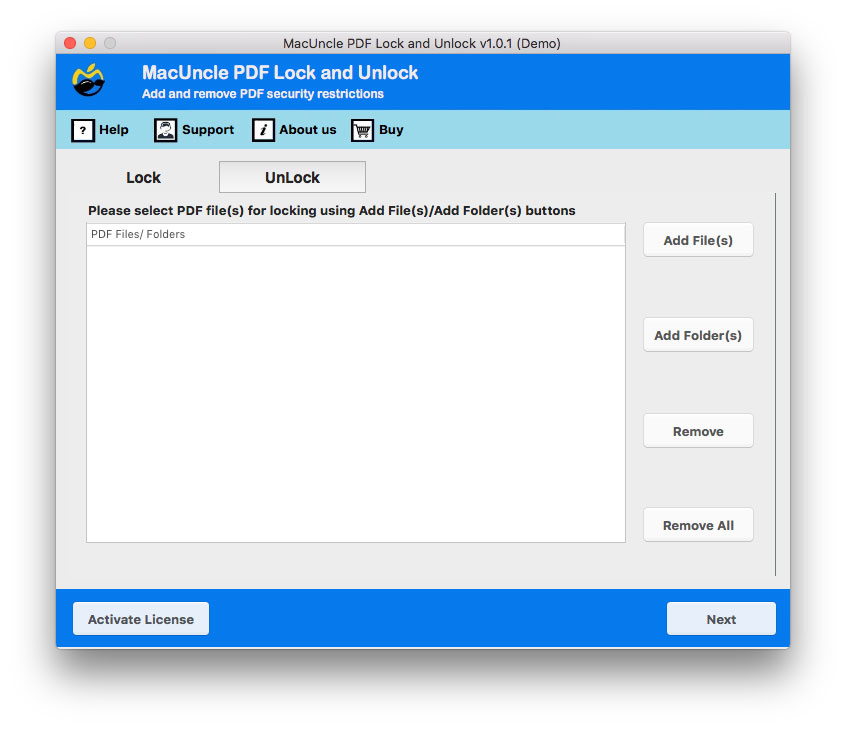
- Firstly, download and install the software on your PC.

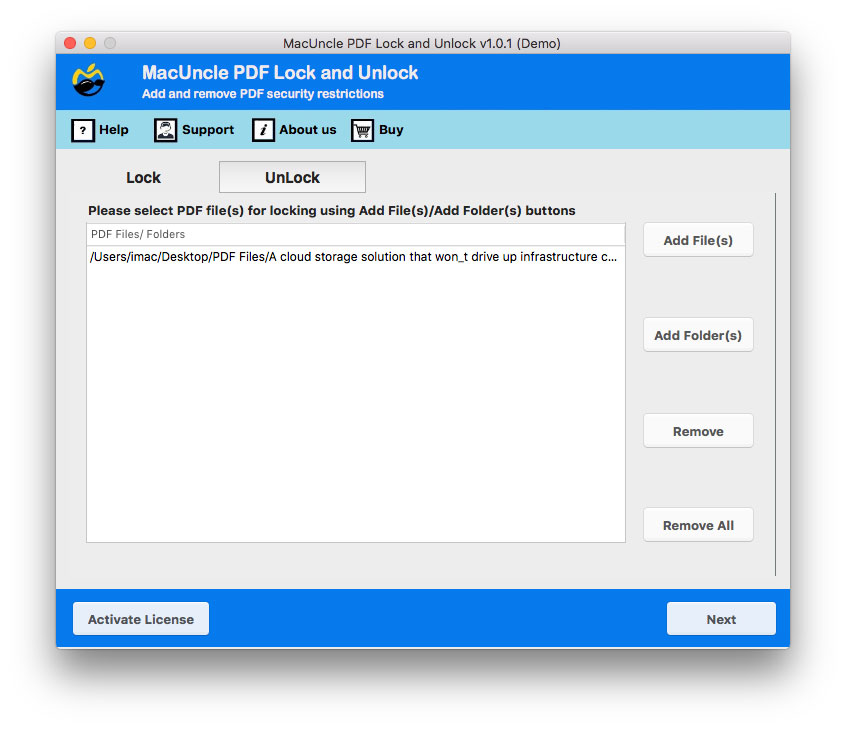
- Secondly, select PDF files via “Add Files” or “Add Folders” option.
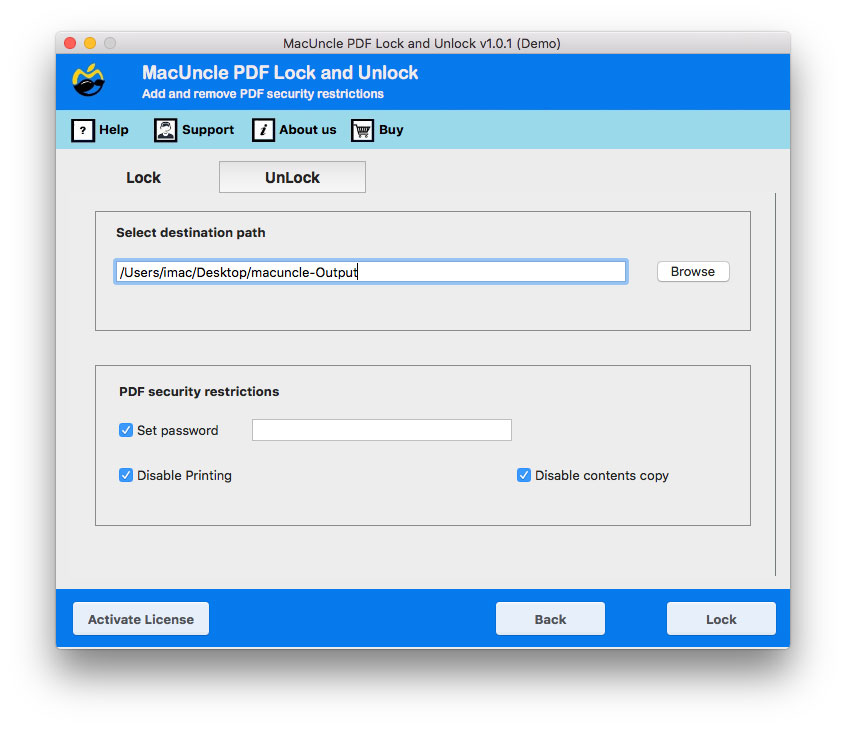
- After that, browse location to store the resultant locked PDF files.
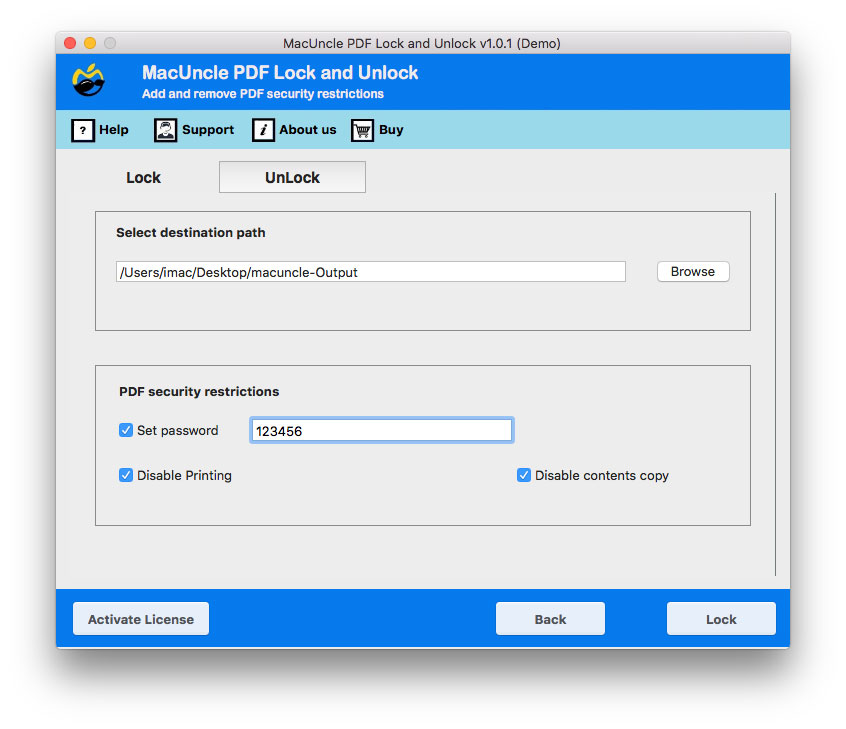
- Then, set password for PDF without any specific boundary, and disable printing and copying option.
- now, click on Lock button to convert PDF to locked PDF.
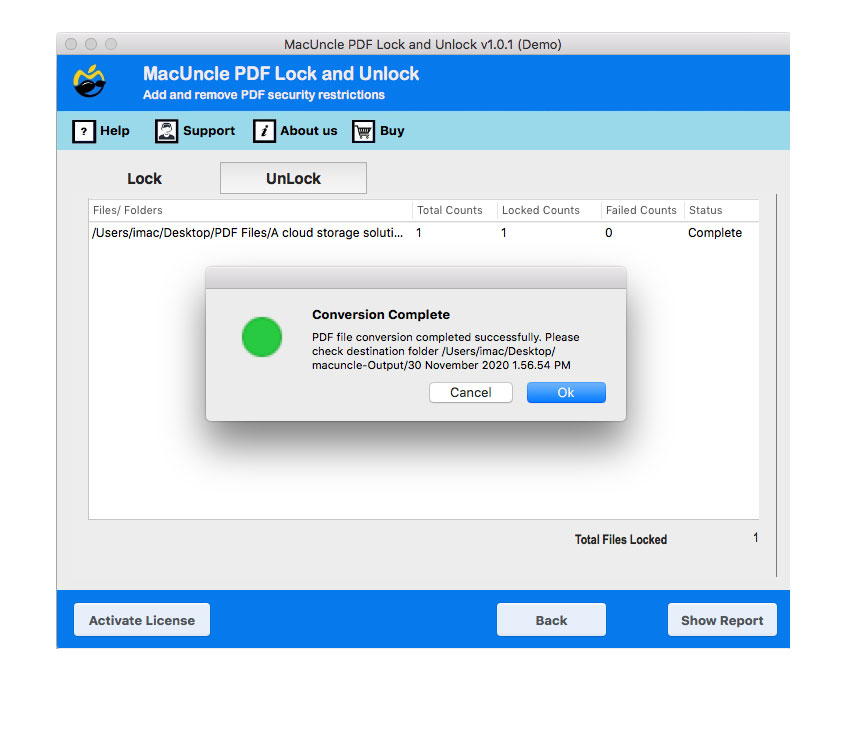
- Finally, your PDF document will be encrypted with a secure password, click OK.
Key Features of the Professional Tool
- Safe to use: It converts PDF to locked PDF safely and securely.
- Bulk processing: This tool locks multiple PDF documents at once.
- Dual option: Provides user-level or owner-level passwords to lock files.
- Set limits: It allows you to restrict the file from editing, copying, or printing.
- Preserves data: This tool preserves the original quality of the PDF file.
- Standalone utility: It is an independent tool, works without depending on any third-party.
Conclusion
In conclusion of this article, we have provided the best ways to convert PDF to locked PDF for safer data sharing and accessing over the internet. We have shared manuals and professional ways to lock PDF documents. While the manual methods can work for you, they have multiple disadvantages as we have discussed above also. To tackle these limitations and restrictions, we have provided you with the professional solution which does not have any limitations and restrictions while locking your PDF file. Whereas, the professional tool ensures better encryption and privacy for locking PDF documents. This tool is beneficial for long-term PDF protection and large PDF data for business professionals. It is accurate and more reliable for a safe and secure PDF locking process.