How to Convert RPMSG to PDF Format?


Emails protected with .rpmsg (Rights-protected Message) files are commonly used in Microsoft Outlook and Exchange environments to secure vital information. The type of email message restricts certain actions such as forwarding, printing, or copying to ensure data privacy and confidentiality. However, this protection will also make it difficult for users to view or share the content outside Outlook. To get hold of the information or to share it in a readable format, users seek a solution to convert RPMSG to PDF format. Converting these files is not as easy as it may seem or be claimed. However, in this article, we will give the best solutions to convert the decrypted email data while keeping data integrity intact.
To access or share this information in RPMSG, users often look for ways to convert RPMSG to PDF. But we must know that an encrypted RPMSG file cannot be converted directly. RPMSG files are encrypted and permission-protected; accessing them outside of Microsoft Outlook is challenging. Therefore, the most reliable option we have is the PDF file format. They can be read on other devices, stored for documentation purposes, etc. The PDF not only ensures universal accessibility but also helps in retaining the original layout, metadata, and attachments of the emails. Altogether, it makes a secure and convenient option for archiving or sharing important email data.
Overview of RPMSG File
The RPMSG file is a special type of message that is encrypted and created by MS Outlook’s Information Rights Management (IRM). It is used to restrict the recipient’s ability to forward, copy, or print the message content, which can be done by the sender.
Typically, an RPMSG file is an encrypted email attachment that contains a protected message body and the metadata. When a recipient gets the email message, they can open it in Outlook, which automatically decrypts and displays it — provided the user has the right permission. However, if you try to access it outside Outlook or a Microsoft-authenticated viewer, the content appears unreadable and encrypted. That’s why users want to convert RPMSG files to PDF format. It cannot be done with a normal Outlook process because the RPMSG files are protected by Microsoft Information Rights Management (IRM), and before the content can be exported and saved in a different format, that restriction must be removed.
Why Convert RPMSG to PDF Format?
Here are the reasons why users prefer to convert RPMSG files into a PDF document.
- Universal Compatibility: A PDF file can be opened on any OS, such as Windows, macOS, iOS, or Android, without the need for Microsoft Outlook.
- Offline Access: Above all the reasons, getting offhand on an email message offline is a solid reason. Without the need for an internet connection, we can view MSG files with ease.
- Maintain Layout & Metadata: Even after converting, the original message formatting will be preserved in the PDF files, such as hyperlinks, sender/receiver details, and attachments. However, we need to identify the approach that offers the best results.
- Simple Sharing: One can easily share or print a PDF file without any kind of concern for permission or encryption issues.
What are the Challenges to Convert RPMSG to PDF Format?
Manually converting RPMSG files to PDF is not possible. Since the message files are encrypted, you can’t just open and print them like any other files to PDF. Outlook’s export or print features won’t work if there is a viewing restriction; otherwise, we can manually convert MSG files to PDF one by one.
However, to handle this challenge, you must have permission to the files and then proceed with the methods.
How to Open RPMSG Files Without Outlook Desktop App
Desktop Outlook is not the only way to open the protected message. It completely depends on how the message was received and what type of protection was applied. One of the following options will work before we move to the conversion:
- Outlook on the Web: For a Microsoft 365 work or School account, sign in to outlook.office.com. For a personal Microsoft account, use outlook.live.com. Open the protected email after signing in. OWA can open supported protected messages without the desktop Outlook app.
- Microsoft Purview message Encryption viewer: If the protected message is sent to Gmail, Yahoo Mail, or another email account that isn’t Outlook or Microsoft 365, look for a “Read the message” button or link in the email. Selecting it opens Microsoft’s encrypted message portal in the browser, where you need to sign in and verify your identity with a passcode before viewing the protected content.
- Outlook mobile app: Outlook for iOS or Android can open supported protected messages. Sign in with the account that received the message, then open the protected message directly in the mobile app.
- Contact the sender: If these options don’t work due to the protection having expired, access has been revoked, or you don’t have permission to access the document, ask the sender to resend the message without protection or with a higher permission level.
Once you successfully open and read the protected message content, you can export or save the message content using the appropriate conversion method below.
Using the Professional Tool to Convert Decrypted RPMSG to PDF
Before we go with the tool, it is important to ensure that the RPMSG files can be opened and decrypted in Microsoft Outlook using the valid permissions. The tool can neither convert encrypted RPMSG files directly nor can it bypass Microsoft security restrictions.
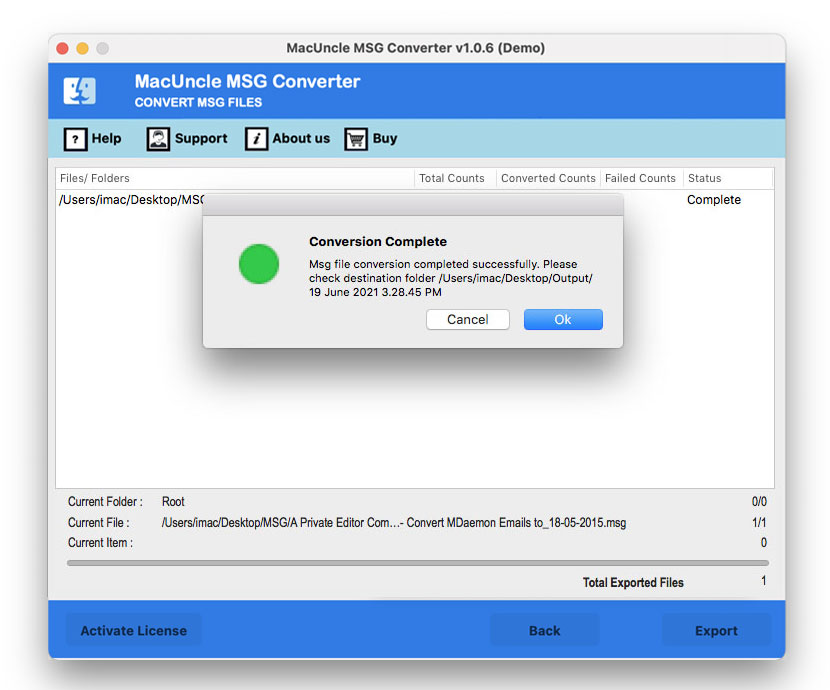
Once the RPMSG email files are accessible and saved in a supported format, the professional tool MSG Converter can be used to convert the email data to PDF format. The tool is capable of converting and saving the file in PDF format without changing the original content. It allows batch conversion and keeps the email attributes like the sender details, attachments, and formatting. It guarantees productivity, data protection, and correctness; thus, it can be used in business and legal sectors.
How to Convert RPMSG to PDF Format After Decryption?
Download and complete the installation of the software. Now, follow the steps to convert RPMSG to PDF:
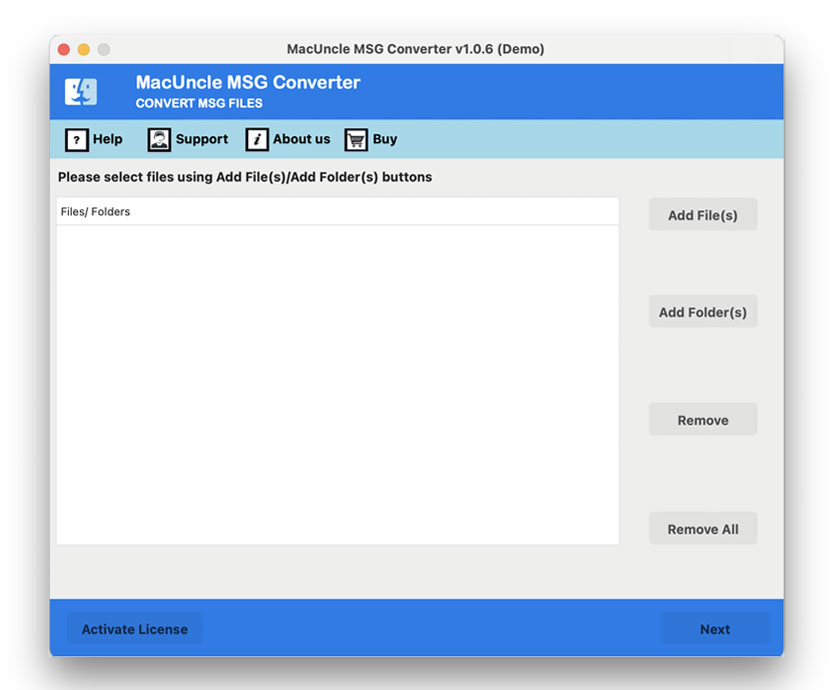
- Start the software on the system.

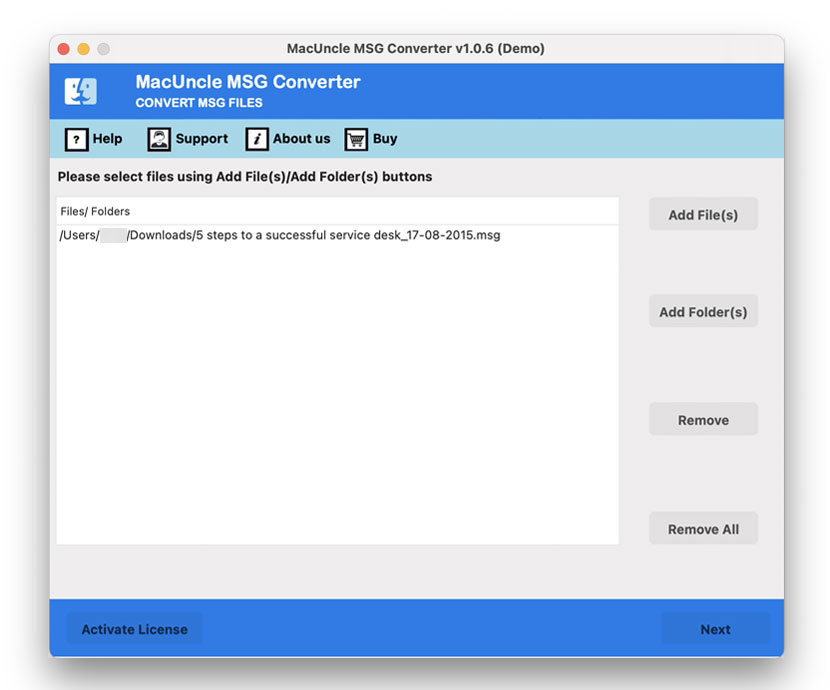
- Add decrypted Files to the interface. Press the Next button.
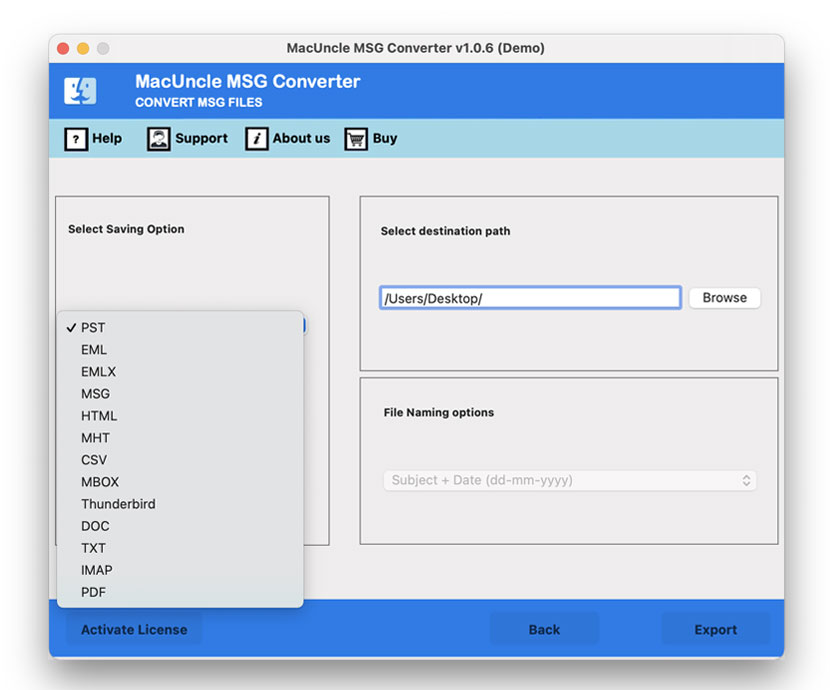
- Select the PDF file format from the options.
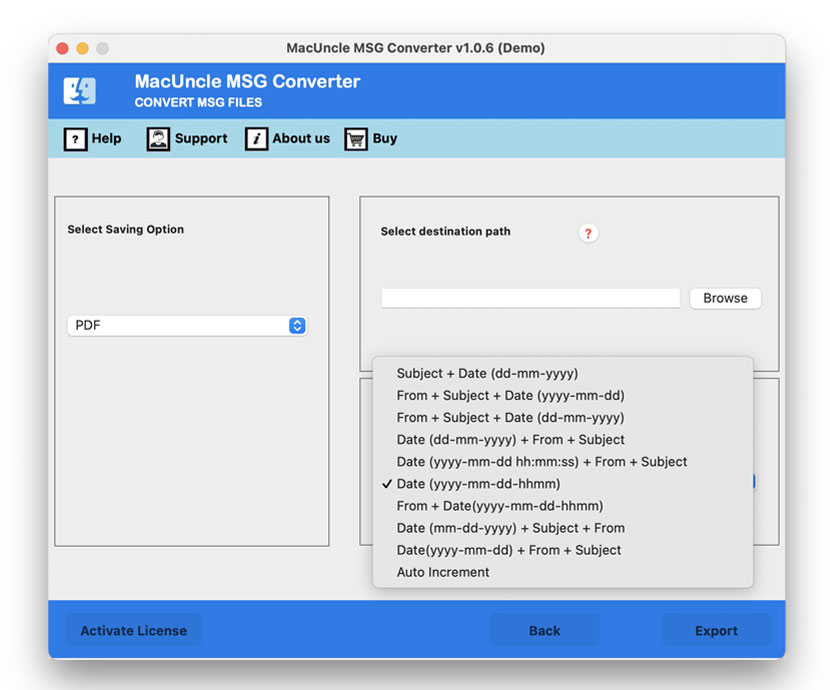
- Set a destination location and press the Next button.
- Press the Export button to start the conversion.
Manual Method to Convert RPMSG to PDF Format
Note: The manual method only works if you have the necessary permission to open and print the RPMSG file. It is only possible if the sender has not restricted any of those actions.
Follow the steps:
- Open the RPMSG email in Outlook.
- Go to File > Print.
- Select Microsoft Print to PDF.
- Choose the folder and click Save.
Note: As we said earlier, it only works for files that do not have any restrictions. Also, this can only be done for a few emails; to convert batches of decrypted email files, use the automated method.
Check out the other article: How to open RPMSG file in Gmail?
FAQs
Q) What does the .rpmsg file mean?
A) An RPMSG file is a Restricted Permission Message. It is a format created by Outlook for emails that are protected with Information Rights Management. It bundles the message body, metadata, and rights management policy into one encrypted attachment.
Q) Are RPMSG and MSG files the same?
A) No. MSG is the standard Outlook message format. RPMSG wraps the message in IRM encryption and usage restrictions. It is not possible to open or convert RPMSG files without permission.
Q) Why won’t my RPMSG file open?
A) There are usually 3 reasons: You are opening it outside Outlook without decrypting it first, your account does not have permission, or the sender’s license has expired.
Q) Does converting an RPMSG file to PDF change the original email content?
A) No. If everything is done correctly, that is, via Print to PDF after decryption or with a dedicated tool for batch conversion, all the data will be well preserved. Only the file format changes.
Conclusion
If you convert RPMSG to PDF, it ensures that the important Outlook messages are accessible, printable, and easy to share without the encryption restrictions. Manual conversion is not possible, depending on the type of restriction the message has. Firstly, we need to get the decrypted email data from Microsoft Outlook and use the tool to convert the files. The tool securely transforms the decrypted RPMSG message into the standard PDF format while preserving the details and the original email message.