How to Delete All Emails in Roadrunner Email?


Quick Answer: To delete all emails in Roadrunner, sign in to Spectrum Webmail with your Roadrunner email address and password, open the required folder, tick the select-all checkbox, and click the Delete button. Later, empty the Trash folder to remove the message permanently. Repeat these steps for each folder. If the requirement is to clear a large Roadrunner mailbox, then use the MacUncle tool that connects over IMAP and permanently deletes any selected folder without the need for additional deletion from the Trash folder. Also can delete with filters, so only remove the batches of emails as per the filtered option.
Like any other email service, Roadrunner will also accumulate a vast amount of emails over time. And with that, it can be difficult to manage them, and it will also not allow new emails to come through. All the promotional emails, spam emails, old emails, large emails, etc., will consume the mailbox and make it chaotic and cluttered. That means the user needs to learn the method to delete all emails on Roadrunner Email.
As we said before, if the requirement is to delete all mail at a time, we can go with the manual method by using the Spectrum Webmail interface or an automated method. Manual method is of use for those who wants to delete emails directly from the mailbox and automated method makes it easier to delete large number of mails at a time.
Let’s proceed to talk about the reasons and procedure to delete emails on Roadrunner in detail.
Reasons to Delete All Emails in Roadrunner
Before you go to delete all the emails from the Roadrunner account, we should be aware of the reasons why it is necessary to delete each and every email from the Roadrunner account.
- Free up mailbox space in the account. Removing unnecessary messages and attachments can reduce mailbox clutter.
- Keeping the inbox clean and make the important conversation easier to locate. This can improve email organization.
- Delete outdated newsletters, spam, promotional messages, etc.
- Protect your data by deleting any conversation that contains this info.
- This might happen if you change email providers or make a backup.
Roadrunner mailboxes are available under Spectrum. Log in to Spectrum Webmail to access your Roadrunner Mailbox using your current email address and password.
Method 1: Delete All Emails in Roadrunner Manually
The Roadrunner’s delete option can be used to delete all emails. Follow the steps below:
First, click on the sign-in page of the Spectrum webmail portal and log in using the Roadrunner ID and password.
- Go to the email folder you want to delete.
- Select the checkbox in the list of messages.
- Select the Delete icon; the selected emails will move to the Trash folder.
- Repeat the steps for all the required folders.
- Lastly, open the Trash folder and empty it permanently.
Pro Tip: To delete multiple emails from the Roadrunner account, hold the Cmd or Ctrl key and select the individual emails that you want to delete before deleting.
Limitations: The manual approach works if you want to delete emails from a small mailbox, but it won’t work with thousands of emails. The Select All option allows you to select a page with multiple messages, so we have to use this feature multiple times. Webmail could hang while performing this method when deleting large emails. There is no option to filter by date or sender.
Method 2: Delete All Roadrunner Emails Faster
To overcome this limitation, we can use the tool EmailRaser, which can delete multiple emails from the Roadrunner mailbox. Use the IMAP Server option to connect the Roadrunner webmail to the software interface. Once it is connected, it will find the folder, and we can delete all Roadrunner emails with a single click. With this, the user doesn’t have to do an additional step to empty the trash, as it permanently deletes the emails.
How to Delete All Emails in Roadrunner?
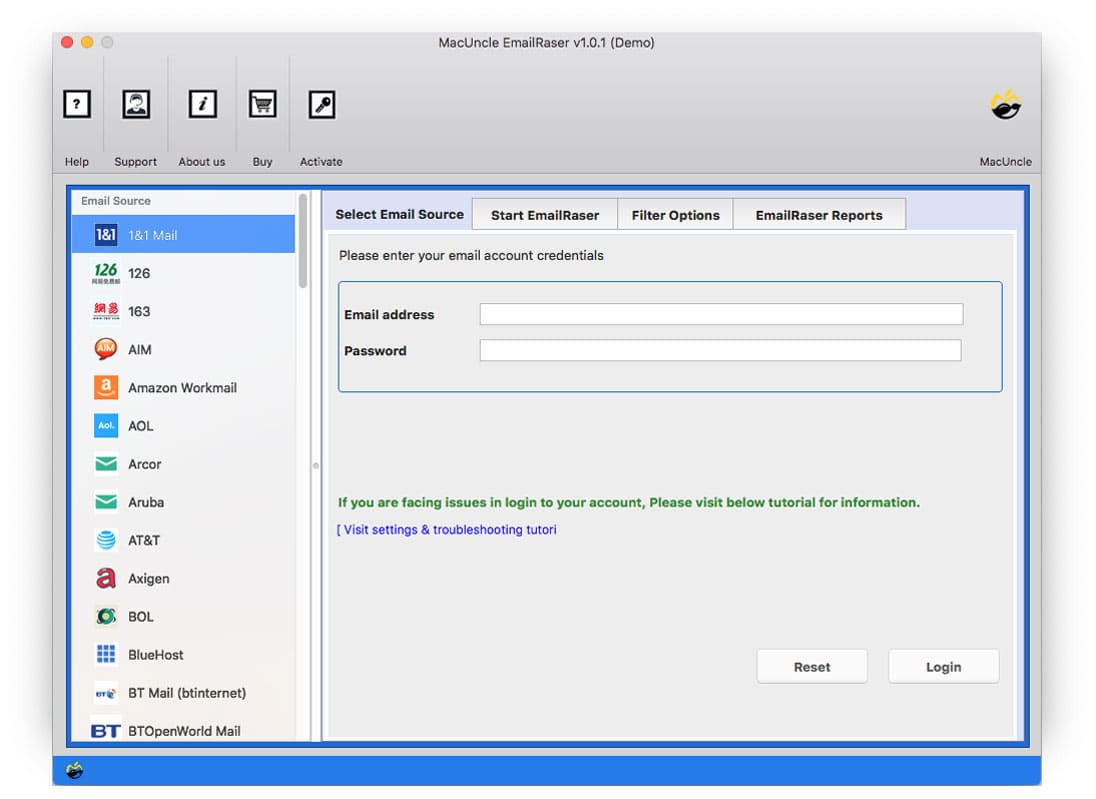
- Launch the software on the Mac.

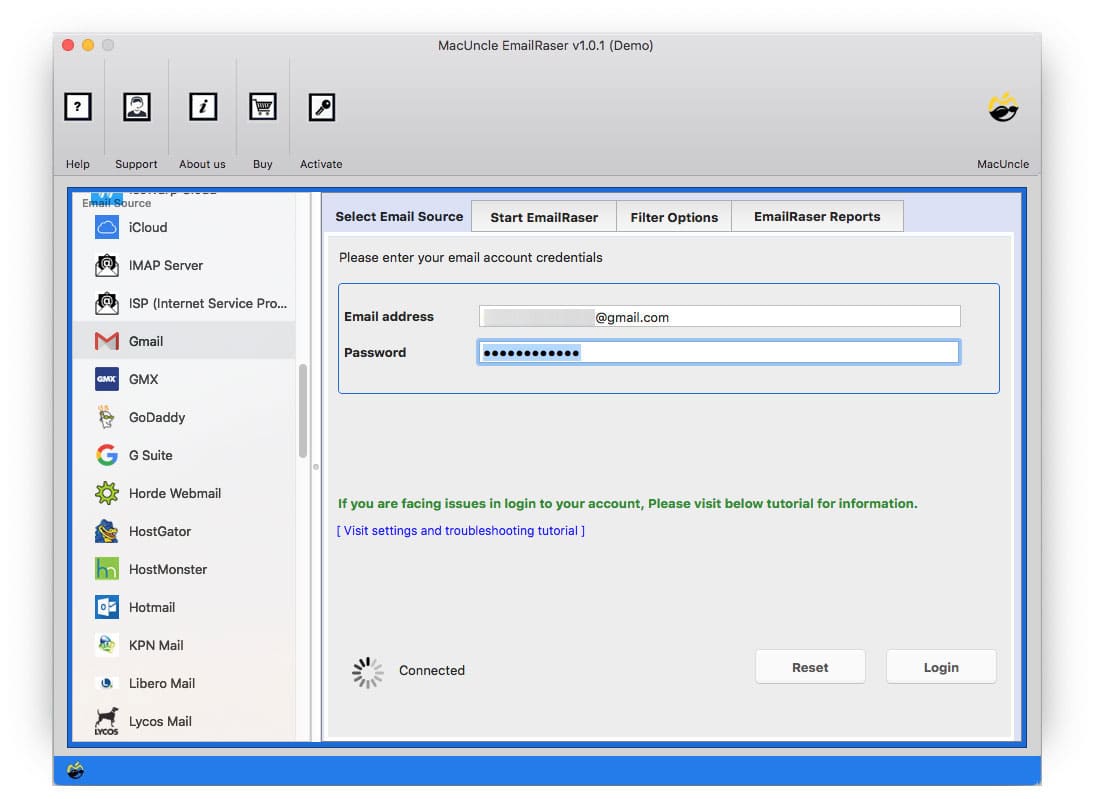
- Select IMAP Server from the options. Enter the Roadrunner credentials. Press the Login button.
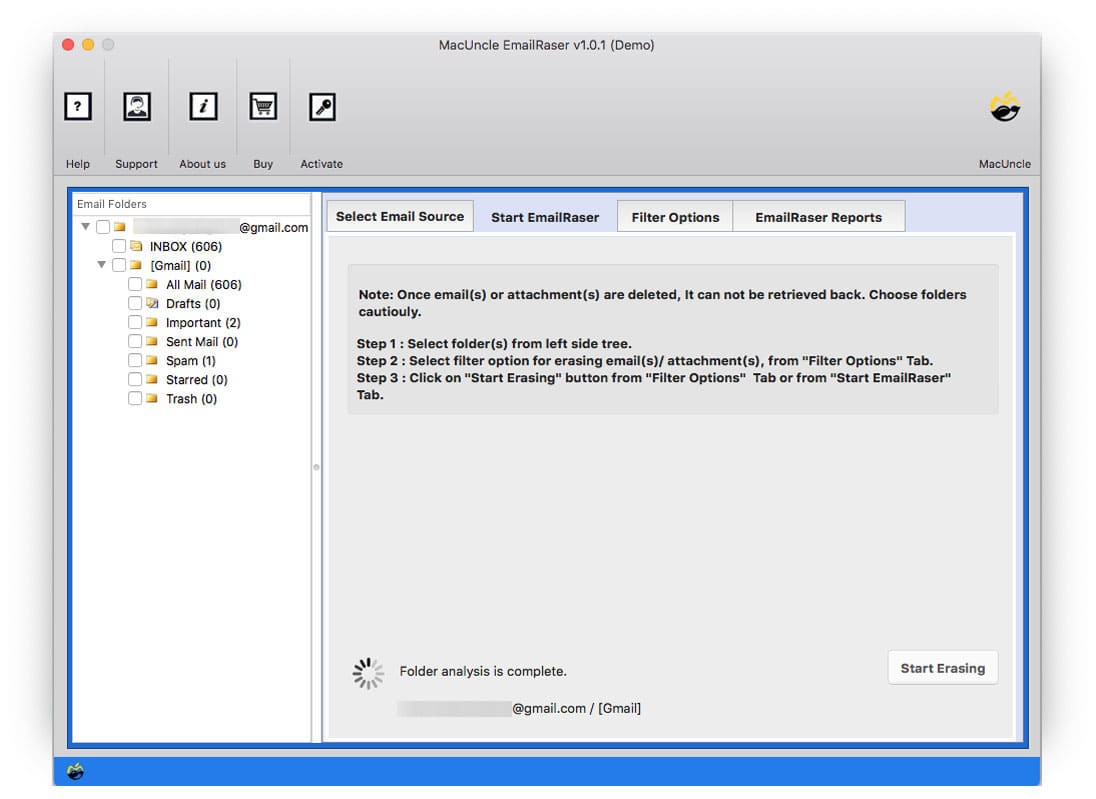
- Now, select the desired emails from the list.
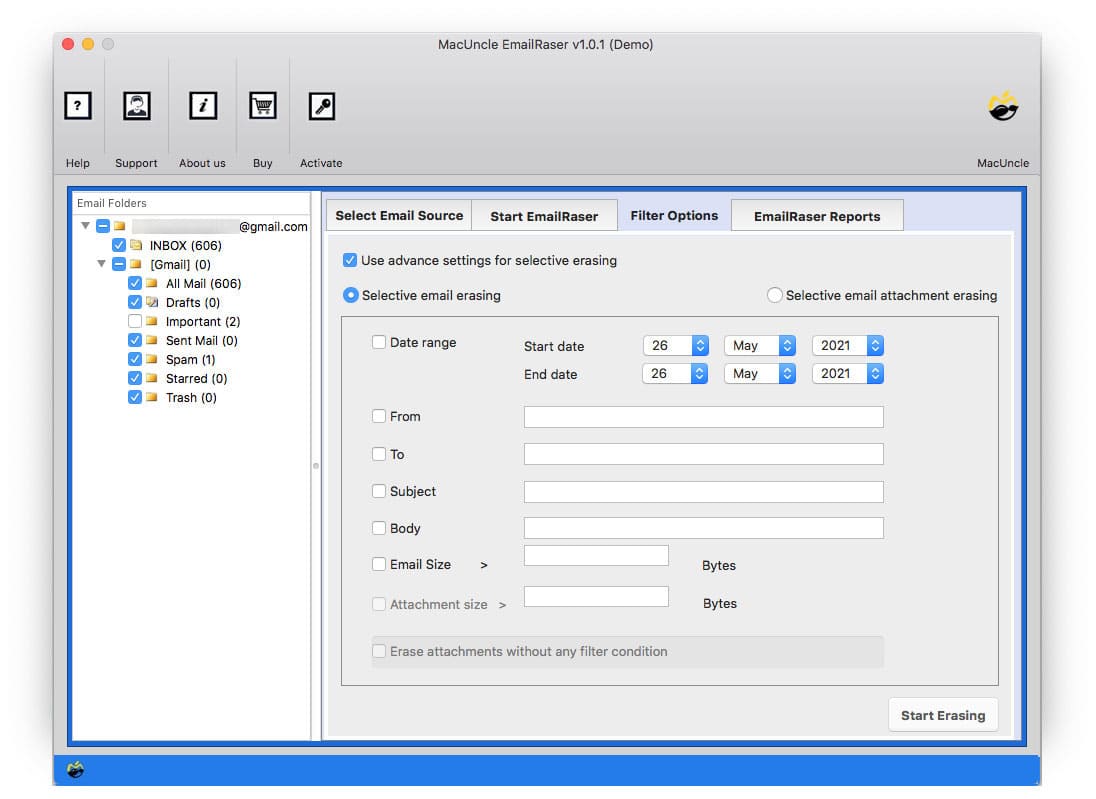
- Go to the Filter option to delete emails selectively.
- Press the Start Erasing button to start the process.
FAQs
Q) Can you delete all your emails in one go using Roadrunner?
A) Unfortunately, not directly with webmail. As you can only select all emails on the current page, you will need to repeat this process. The tool allows you to delete all your emails in the folders you choose in one go.
Q) How do I quickly delete my Roadrunner emails?
A) Use the MacUncle tool to delete your emails in bulk from multiple folders.
Q) Are my emails permanently deleted if I delete them in Roadrunner?
A) When using webmail, your emails will be moved to the Trash folder. They can only be permanently deleted by emptying your Trash. Using EmailRaser, they will be permanently deleted from the server. Make sure to save any important emails first.
Q) Can I just delete old emails in Roadrunner?
A) Yes, using the Date Range option in the recommended tool, you can delete any emails that were sent before a certain date.
Conclusion
To delete all your emails in Roadrunner, you simply need to select one page of emails and then delete them. Also, you will need to empty your Trash folder. This approach works fine when you have just a few emails in your mailbox. But when you have thousands of emails, the process becomes very slow. A much better and faster solution for deleting all your emails in Roadrunner on your Mac is MacUncle EmailRaser. It enables you to delete several folders at once and also offers some advanced filtering.