How to Export Apple Mail Emails to PDF?


Apple Mail is the default email app on every Mac computer, and most of its users have years’ worth of mail in it. Emails with clients, invoices, project approvals, personal records – it is all safely stored in one place. However, issues such as closed accounts, replaced Macs, corrupted mailboxes, or full storage can happen and cause data loss. Eventually, some users want their emails stored somewhere else in a more permanent, shareable, and accessible manner. And one of the most universal formats for storing information is PDF. Let’s find out how to export Apple Mail emails to PDF format.
Portable Document Format (PDF) preserves the layout of a document on any screen, requires no software to open, and can’t be modified accidentally. This is why PDFs are often used for record storage, compliance, and legal discovery. The reasons for converting Apple Mail to PDF are multiple:
- Archive important emails before cleaning up a mailbox or purchasing a new Mac.
- For use as evidence in legal cases, audits, or eDiscovery.
- Share emails with Windows, Outlook, mobile phone users, or others who don’t use Apple products.
- Have an offline, secure storage of invoices, contracts, and approvals.
- Clear the iCloud or hard disk while keeping a readable backup.
Fortunately, there are ways to convert Apple Mail to PDF. In this guide, we discuss the built-in ones first. We also highlight their limitations and describe an automated solution for converting emails to PDF in bulk.
Manual Method 1: Use “Export as PDF” in Apple Mail
Apple Mail has a built-in feature that allows you to save the currently opened message as a PDF. This method is suitable for saving one message at a time and is faster.
- Open the Mail application on the Mac.
- Select the desired email message from your message list.
- Click File > Export as PDF to open the saving window.
- Name your file, select the preferred location, and click Save.
Your PDF will contain the message’s address, recipients, date, subject, and body with images. However, you’ll need to repeat the procedure for each email you want to save. This approach is good when you need to save one or two messages.
Manual Method 2: Export Apple Mail Emails to PDF via Print Option
macOS Print option can save any emails as a PDF, and also we can use the steps to export multiple emails at once.
- In Mail, select one email, or hold Command and click to select multiple emails.
- Press Command + P or select File > Print.
- Click Show Details if you want to change the paper size, orientation, or if you want to print headers.
- Open the PDF drop-down at the bottom-left, and select Save as PDF.
- Name the file, choose a location, and click Save.
Pro tip: To save an entire folder like this, open the mailbox and press Command + A to select all and print to PDF. Note that it will produce a single document, and it can be slow for big mailboxes.
Useful for: Printing a small batch of emails to keep as one file.
Limitations: The tool is only appropriate for casual users, and not for enterprises that need to archive entire mailboxes on a regular basis. It requires exporting each message separately, and you can’t save any attachments or folders. Besides, it is impossible to organize and auto-name the exported files.
Automated Method: Export Apple Mail Emails to PDF
Apple Mail Converter is an efficient tool to batch convert all emails in Apple Mailboxes to independent PDF files, which can maintain all attachments, folder structure, and email data. Using the tool eliminates the repetitive manual steps.
Steps to Export Apple Mail Emails to PDF Format
Download and install the Apple Mail converter on the Mac.
Note: First of all, you should locate the Apple Mail Mailbox; for more details, check out where Apple Mail is stored on Mac. By default, it is stored in ~/Library/Mail/ on your Mac computer. The program allows you to automatically detect the default mailbox. Besides, you can manually export the desired mailbox from Mail using File > Export Mailbox and import the created .mbox folder.
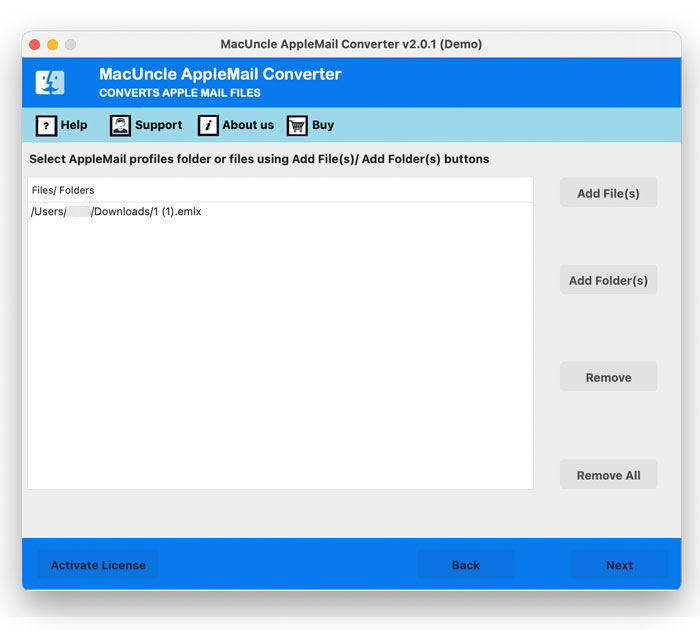
- Start the tool and add Apple Mail files using any Add button. Press the Next button.

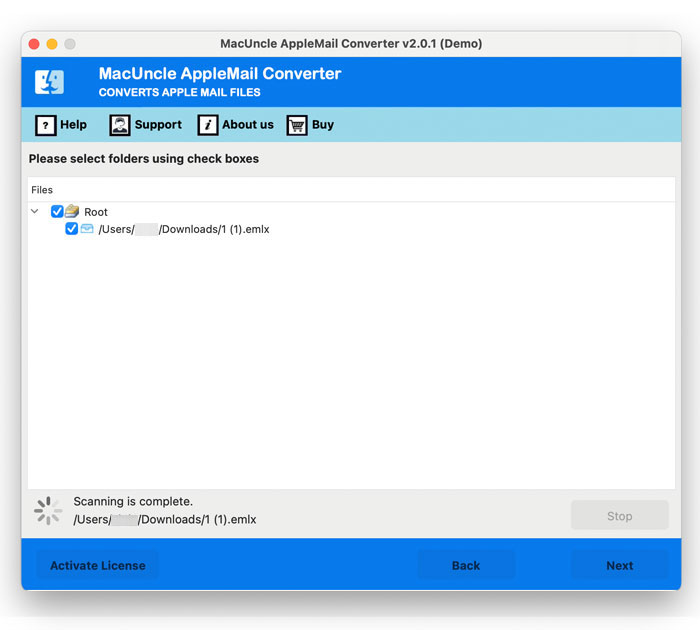
- Now, preview the loaded folders and emails and use the checkbox to select. Again, press Next.
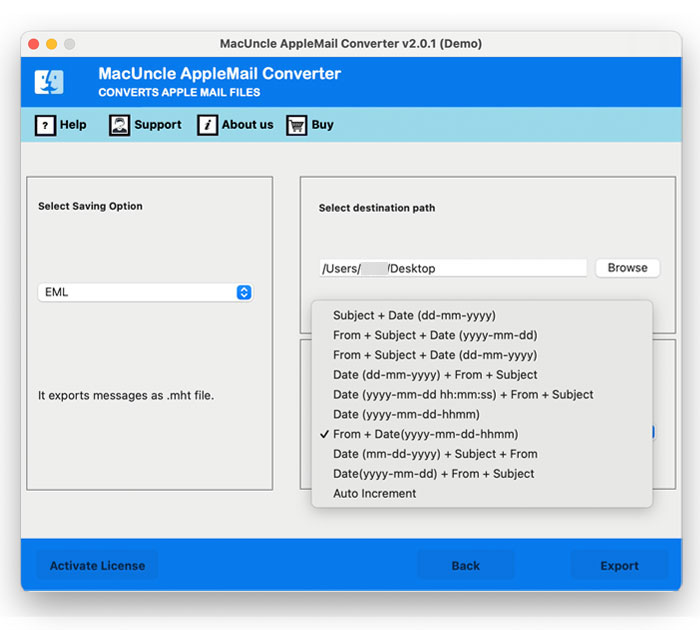
- Choose PDF from the Save option.
- Use the file naming option and set a destination location to store the converted Apple Mail emails.
- Press the Export button to start the process.
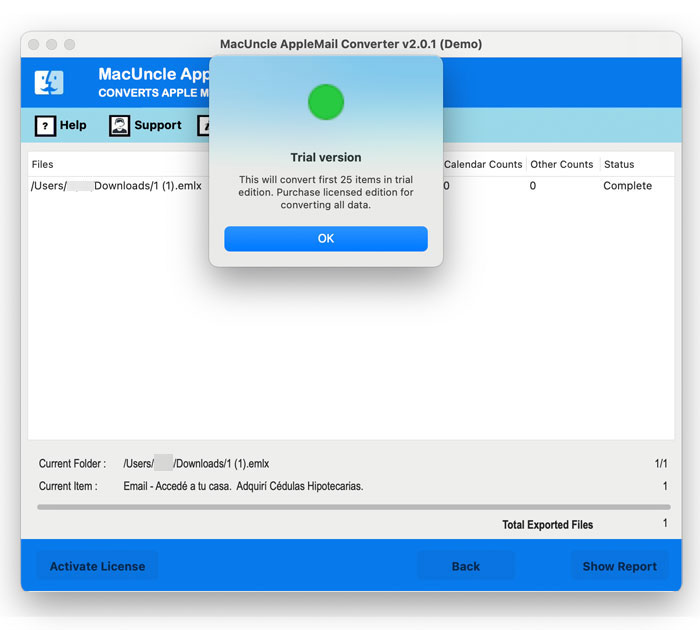
Tip: Run the trial conversion on a few files first to check the layout and the working process before converting the full archive.
Conclusion
Apple Mail’s Export as PDF and Print to PDF features are perfectly suitable for occasional use, but they become excessively time-consuming when one has to print large quantities of messages. With Apple Mail Converter, you can export all your emails quickly and without loss of any data. Download our free trial version and convert your first messages into PDF today!