How to Export Evernote to OneNote Notes on Mac & Windows?


If you’re thinking of exporting Evernote to Microsoft OneNote, you’re not alone. Rising subscription costs, a restrictive free tier, and limits on device syncing have pushed many users to look for alternatives.
In the meantime, Microsoft OneNote has continued to climb as a preferred note-taking option by offering completely free, unlimited storage; the ability to sync across multiple devices (Windows, Mac, iOS, and Android); unlimited note storage; and integration with Microsoft Outlook, Teams, etc., so it can be used for both personal and professional reasons. If you are looking for a powerful yet affordable alternative to Evernote, make the move to OneNote.
Why Migrate Evernote to OneNote?
- No cost, no limit: OneNote provides unlimited notebooks and snippets for free, while Evernote limits storage for paid subscribers.
- Microsoft Ecosystem: OneNote integrates perfectly with Outlook, Teams, Word, and OneDrive.
- Cloud Sync: Notes are available instantly on all devices as long as the account you sign in to has a Microsoft account.
- Better Organisation: OneNote implements a notebook-section-page structure, which is much more suitable for note management.
How to Export Evernote to OneNote Manually?
- Firstly, open Evernote on your Mac or Windows.
- Then, select single or multiple notes/notebooks.
- Go to File > Export Notes, and save as an .enex file.
- Download and open the OneNote Importer Tool (this is the official Microsoft tool).
- Log in to the Microsoft account.
- Now, browse and select the exported ENEX file.
- After that, select your “Notebook” in OneNote to import.
- Lastly, click Import to import your notes.
Disadvantages of the Manual Method
- Attachments like PDFs and images don’t always transfer correctly
- Formatting inconsistencies and missing content can occur
- Dealing with hundreds of notes one batch at a time is time-consuming.
- Syncing errors post-import large notebooks.
If you want to migrate Evernote to OneNote in bulk while retaining all notes, attachments, and structure, then using a professional tool rather than relying only on the manual process may be a good solution.
Read more articles: How to move notes from Evernote to Samsung Notes?
Professional Method to Export Evernote to OneNote
If you’re seeking an uncomplicated method for exporting Evernote to OneNote, a professional migration tool is recommended. From Evernote’s native .enex format, this Evernote Converter can also convert notes into TXT, RTF, or DOC/DOCX formats, which can then be easily imported into OneNote. It is perfect whether you would like to migrate several notes or entire notebooks.
With this tool, when you convert Evernote to OneNote, you don’t have to worry about losing formatting, attachments, tags, and structure. Fast, safe, and reliable, you can say goodbye to the stress of learning how to import Evernote to OneNote.
How to Use the Evernote to OneNote Converter
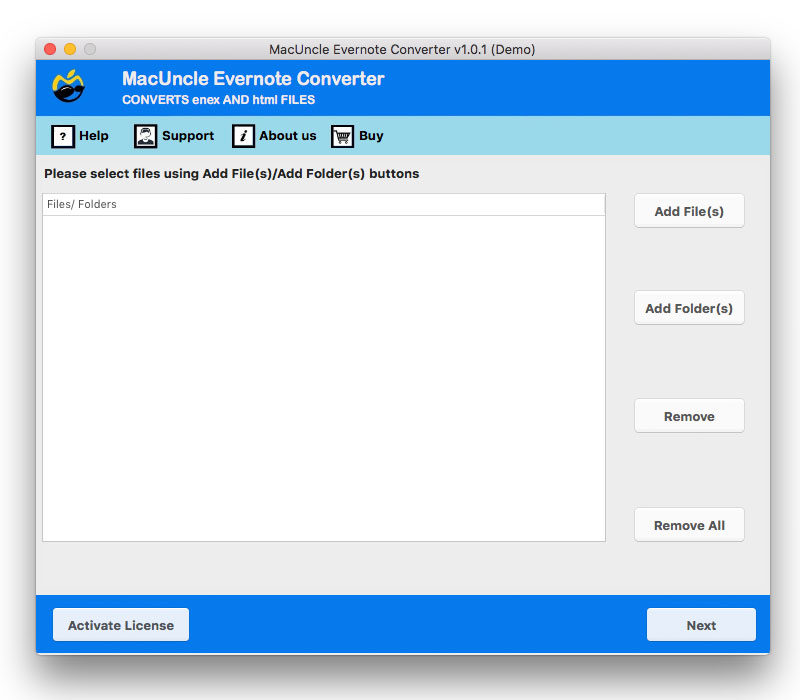
- Firstly, open the converter on your Mac.

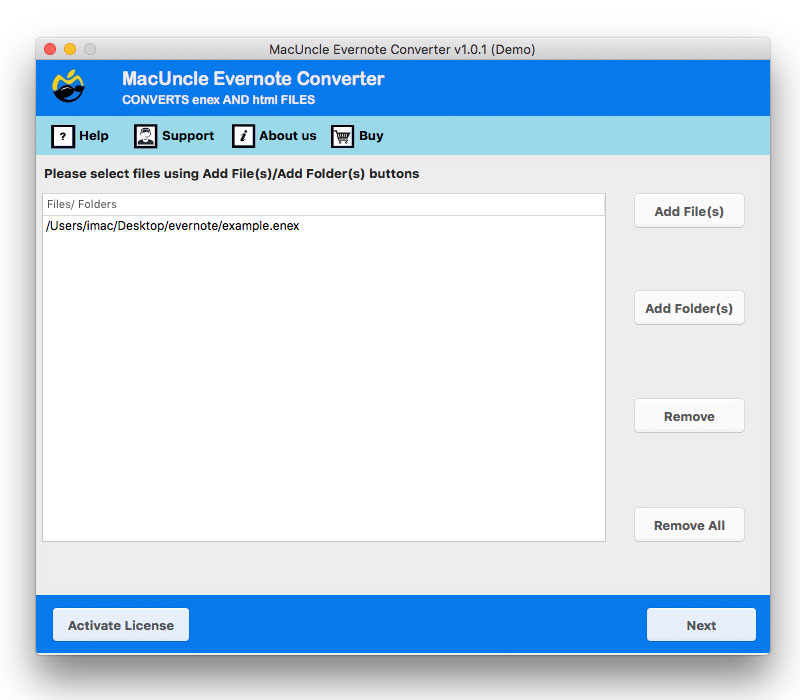
- Now, add .enex data files using Add Files or Add Folders.
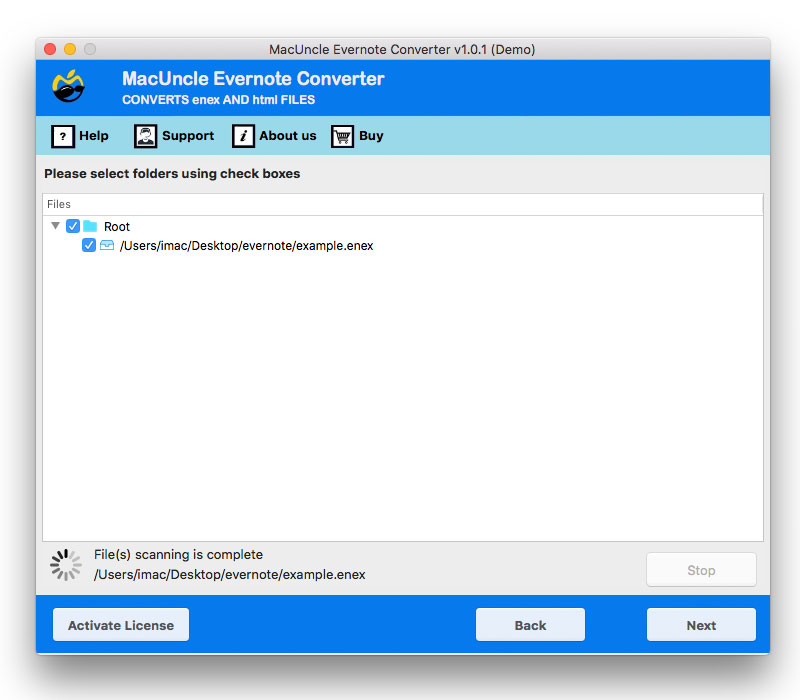
- Next, select the desired folder from the list using the checkbox. Then click on the Next button.
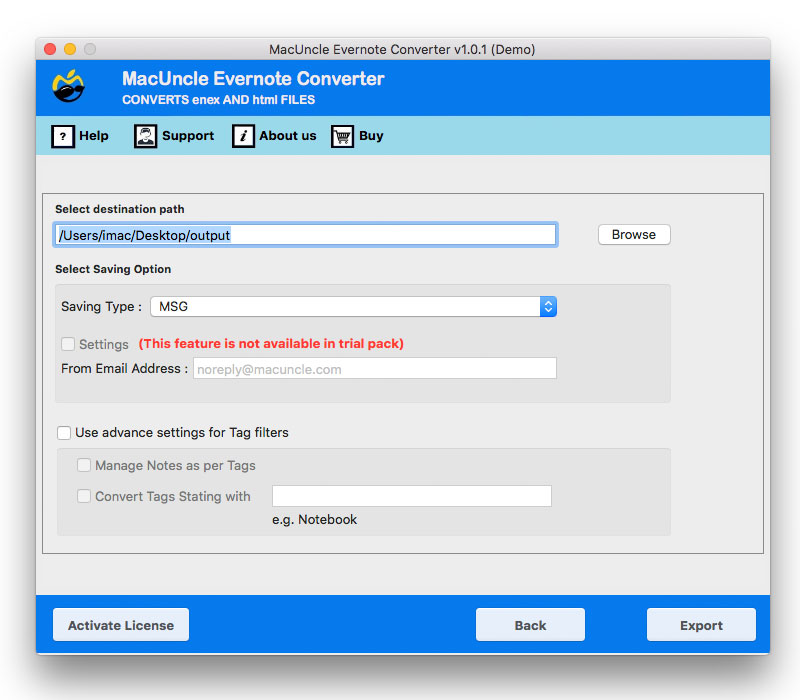
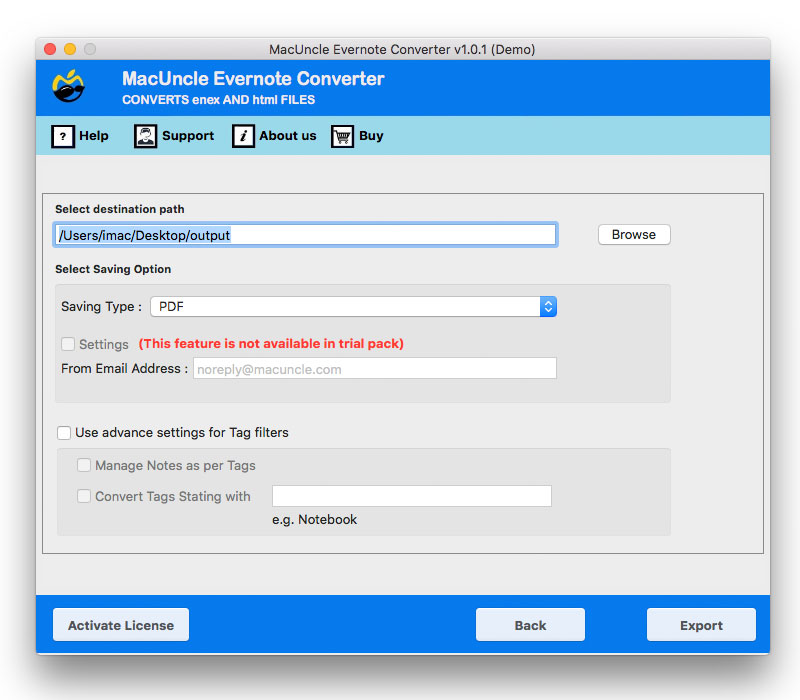
- Click on the Browse button to select your destination location.
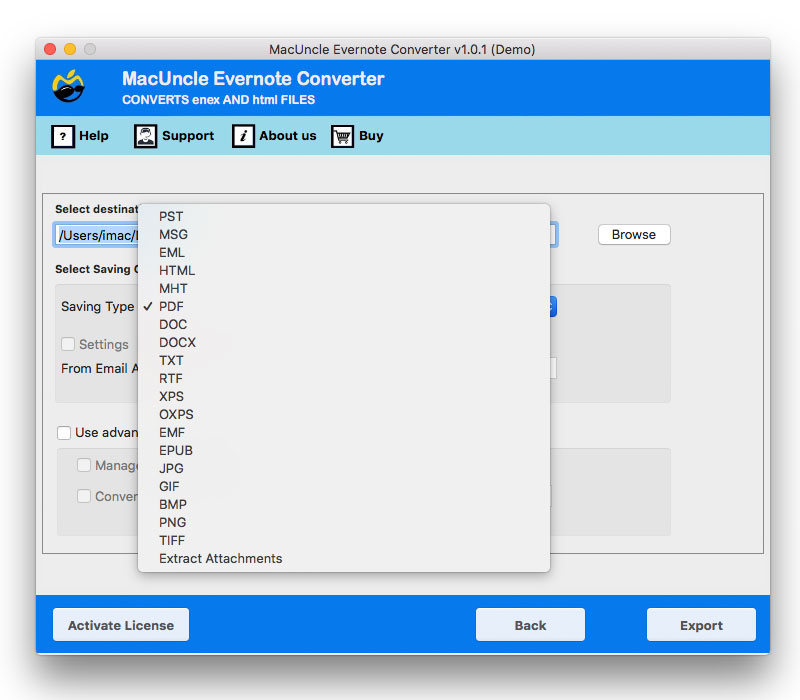
- Select DOC/DOCX from the Select Saving option to convert Evernote files.
- Choose from Manage Notes as per Tags and Convert Tags. Start with that, and then click on the Export button.
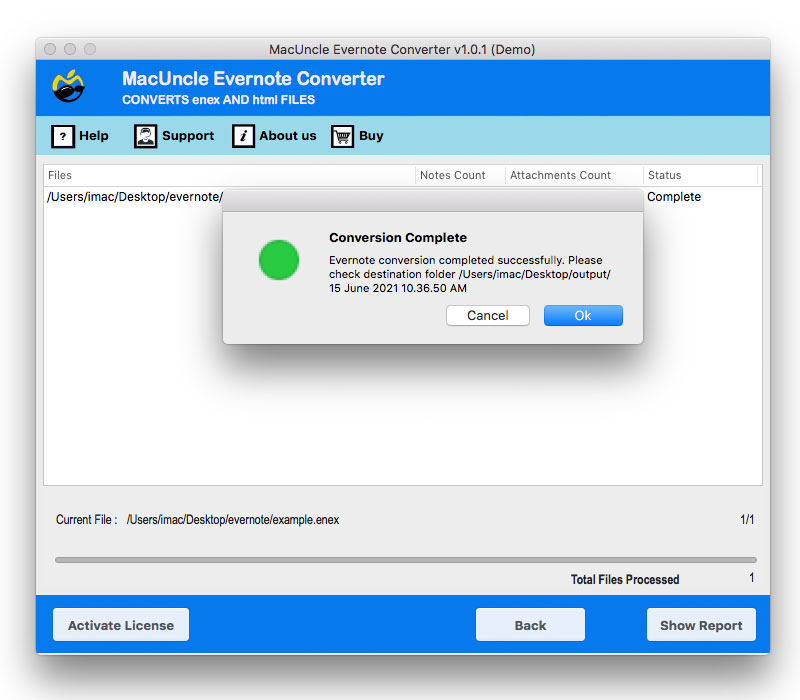
- After the Evernote conversion, you will see a few messages with a log report pop up.
Benefits of a Tool to Export Evernote to OneNote
- Transfer individual files or entire notebooks to facilitate the migration.
- A standalone application to facilitate the migration without additional assistance.
- Retains the formatting, images, and attachments when moving Evernote to OneNote.
- Safeguards your data during migration.
- Bulk migration is much more efficient than selecting notes.
- Organises your notes to fit into OneNote’s navigation structure.
- Makes it easy to import the ENEX file without excessive navigation within the interface.
Tips to Remember
If you want to migrate Evernote to OneNote and ensure your notes are safe, here are some tips:
- Back up your Evernote notebooks first before starting the migration.
- You want to use the ENEX format because Microsoft’s OneNote Importer tool supports it.
- If you’re doing a large migration, you should use professional software.
- Make sure to log in to your Microsoft account, which allows for your notes to sync on Windows, Mac, iPhone/iPad, and Android.
FAQs
Q) Will my Evernote tags remain when migrating to OneNote?
A) OneNote and Evernote handle tagging very differently, and when you migrate, your tags will likely convert into a text note (or into a page title, depending on your migration method). Third-party migration software generally gives you more control over how tags will be handled.
Q) Is it free to move my Evernote notebooks to OneNote?
A) The OneNote Importer Tool by Microsoft is free, and for small numbers of notes and attachments, it is effective. However, for large notebooks with a lot of file attachments, it’s usually more effective (and much quicker) to use the recommended software and pay for it.
Q) Do I have to have Evernote installed to migrate my notes?
A) You do not, as long as you have already exported your notebooks from Evernote as ‘.enex’ files. The converters and the OneNote Importer both operate directly on ‘.enex’ files.
Q) Can I migrate from Evernote to OneNote on a Mac?
Yes, you can. The manual migration method and the suggested software here work on a Mac. Since OneNote itself is available on the Mac, you will be able to complete your export, conversion, and import on that one operating system.
Conclusion
The built-in ENEX import method works well for small migrations. If you’re moving a large Evernote library — especially one with heavy attachment use or complex notebook structures — a dedicated migration tool is worth the investment to avoid data loss and formatting issues.
Read More: Export Evernote to Apple Notes