How to Export Thunderbird Emails to EML Format?


Mozilla Thunderbird is the most widely used desktop email client and is trusted by millions due to its flexibility and open-source reliability. However, we sometimes end up in a situation where we need to export emails for different reasons – that is, backup, migration, archiving, or switching to a new platform. One of the most demanded file formats is the EML format, as it is an accepted format for individual email messages supported in Outlook, Apple Mail, and a dozen other clients.
Get the steps from here for both manual and automated methods to export Thunderbird emails to EML, and choose the one that fits your comfort level and the number of emails.
Why Export Thunderbird Emails to EML?
The reason varies from user to user. There are some common needs that users prefer the EML format.
- Universal Compatibility: Mac or Windows users can easily open EML files with the supporting email client, such as Apple Mail or Outlook, respectively.
- Preserves Email Structure: EML files consist of all the email details that will be kept intact. Therefore, rather than a simple documented format, an EML file keeps the originality of the email message with header, Body, attachment and metadata.
- Migration-Ready: You can easily bulk export and migrate emails using EML files.
How to Export all Emails from Thunderbird to EML?
Here we will go step by step from a single file extract, frequent and small-scale needs, to a large number of mailbox processing. You can use any of these methods to create EML files from a Thunderbird account. For quick and instant conversion of Thunderbird emails to EML, go straight to the Professional Approach – Method 3.
Method 1: Use Thunderbird’s Built-in Features
Thunderbird does not have a direct “Export to EML” option, but we can save the individual messages manually using the Save option. Here we will use
Save Single Emails as EML
- Open Thunderbird and click on the email you want to export.
- Go to File > Save As > File from the top menu.
- Choose the destination folder on the system.
- Click Save.
Thunderbird saves the message in an EML file automatically
- Save Multiple Thunderbird Emails as EML
- Open the folder containing the emails to export.
- Select multiple emails using Ctrl+A.
- Press Right click > Save As.
Now, Thunderbird will save all the emails separately in EML file format.
If the requirement is the entire mailbox or hundreds of emails across multiple folders, move to the add-on or the automated method mentioned below.
Method 2: Using the ImportExportTools to Export Thunderbird Emails to EML
For users who need to export all the emails from Thunderbird to EML in bulk, the ImportExportTools NG add-on is the best and free solution. Since Thunderbird offers this tool, it integrates easily and adds a dedicated export option to the menu.
Step 1: Install ImportExportTools NG
- Open Thunderbird and click the Menu.
- Go to Add-ons and Themes.
- Search for ImportExportTools NG.
- Click Add to Thunderbird and confirm the installation.
- Restart Thunderbird when it is prompted.
Step 2: Export Single Folder to EML
- Select and right-click on the desired mail folder.
- Select ImportExportTools NG > Export all messages in folder > EML format.
- Choose the destination folder and click Ok.
Now, the add-on will export email in the folder as a separate *.eml file.
Step 3: Export all Folders
To export the entire mailbox with subfolders.
- Right-click on the account folder.
- Select ImportExportTools NG > Export all messages in the folder and subfolder > EML format.
- Choose a destination folder and let the add-on process all messages.
This is the most efficient method compared to the first one, as it can easily perform bulk exports and handle thousands of emails without any performance issues.
Check out the related article on how to fix the import MBOX greyed out issue in Thunderbird.
Method 3: Thunderbird to EML Export via Professional Tool
Now, we need to talk about how to export large mailboxes, which can be done easily in corporate migration, and where we can preserve the metadata and folder hierarchy. Use the Thunderbird File Converter. A Tool that can be used to convert emails as well as contacts from Thunderbird.
How to Export Thunderbird Emails to EML in 100% Accuracy?
Download and install the desired version of the tool from the above demo version links:
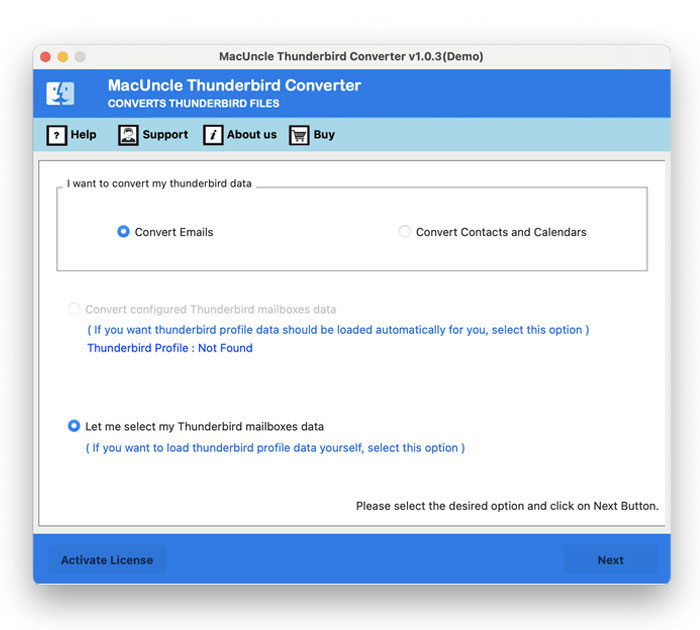
- Launch the software and select “Convert Emails”. Press the Next button.

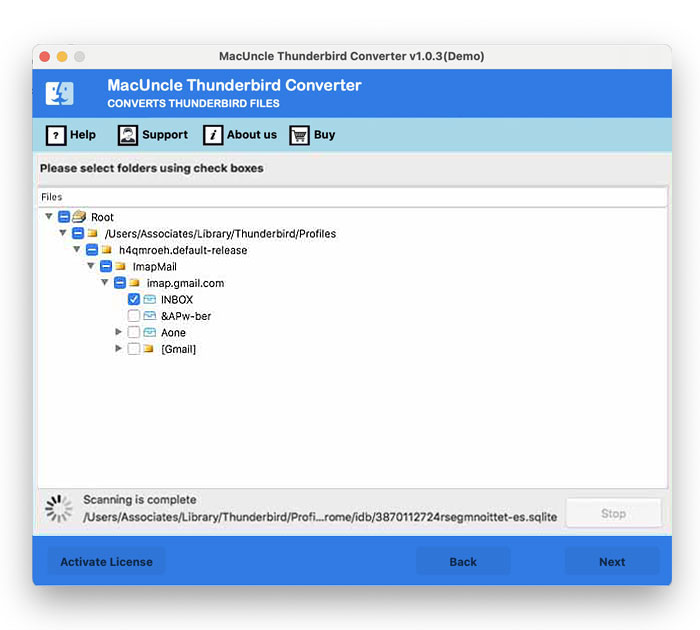
- Choose the desired folder using the check box.
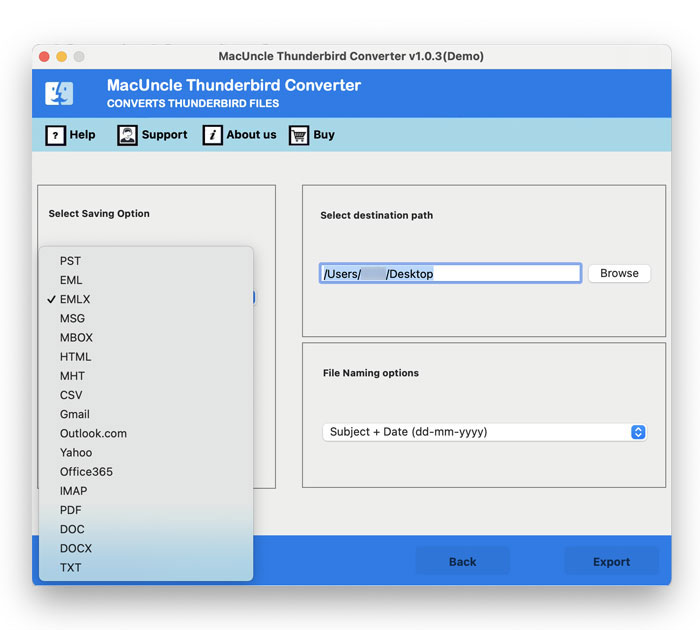
- Now, select EML from the saving option.
- Browse a location to store the converted EML file.
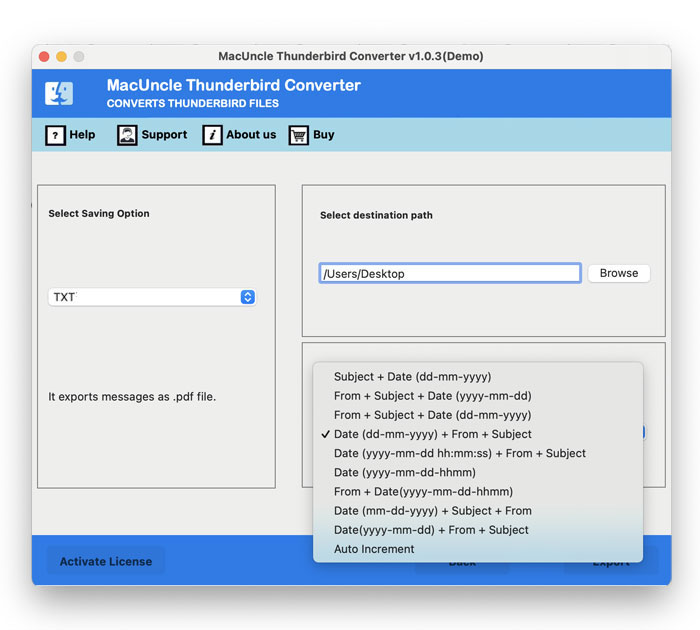
- Finally, press the Export button to start the conversion.
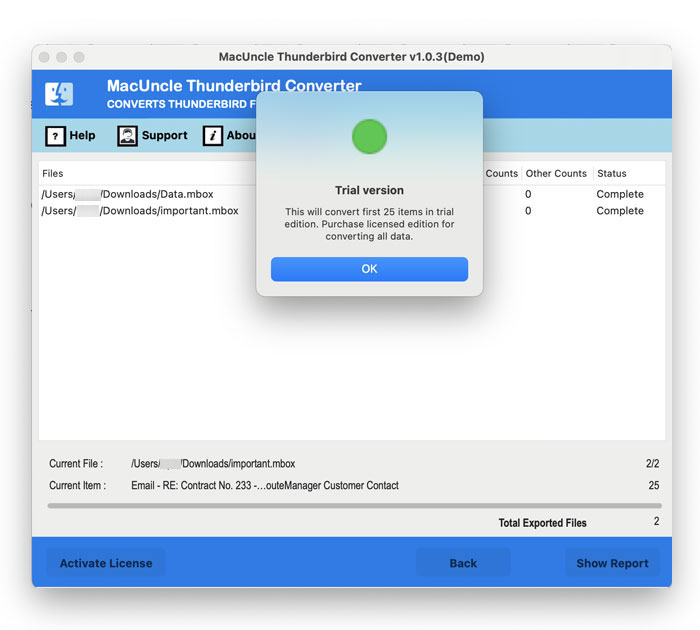
Use the same tool to transfer Thunderbird emails to new computer, without the need for any additional support or technical knowledge.
FAQs
Q) How do I export Thunderbird emails to EML format?
A) You can export with 3 different methods: the built-in “Save As” option, or use the ImportExportTools NG add-on. For large mailboxes, a third-party tool is the most reliable option.
Q) Can I convert Thunderbird emails to EML for free?
A) Yes. Thunderbird’s built-in options allows to create EML files at no cost. However, the free method comes with limitations as it can’t process large mailboxes or multiple folders.
Q) Will attachments and inline images be preserved when exporting to EML?
A) Yes, exporting to EML format preserves attachments and inline images.
Q) Does exporting to EML maintain the original folder structure?
A) When using the manual method, the folder structure may sometimes change. The tool suggested in the above article preserves the original folder structure during the export process.
Q) How to export just a single email from Thunderbird as an EML file?
A) Follow the steps:
- Open Mozilla Thunderbird.
- Right-click on a specific message > Save As.
- Browse a location to save the files.
- The emails will be saved as a *.eml file.
Conclusion
Exporting Thunderbird emails to the EML file format is a straightforward process when you use the right approach, depending on the number of emails you want to extract. To simply export an email message from Thunderbird using the built-in Save option is the best; for occasional and small-scale export using an add-on is better, with no cost. For IT admins, anyone dealing with large mailboxes and complex folder structures, using the suggested tool is absolutely better, as it delivers speed and accuracy.