How to Fix Outlook Data File Cannot Be Accessed Error (0x8004010F)


Outlook Data File cannot be accessed error: Troubleshooting error 0x8004010F in 2007, 2010, 2013, 2016, 2019 and O365. If, in addition to the error “Cannot access Outlook data file (0x8004010F)”, Outlook also stopped opening your e-mail, do not be discouraged – this is a completely normal situation, because this is one of the most common error messages for the program, and the most likely culprit is the PST or OST file. In this tutorial, we’ll analyse what causes this problem and the most probable ways to solve it – from simple ways and quick tricks to more advanced repair techniques for your mail.
What Does Outlook 0x8004010F Mean?
This error message usually looks like this: Error while task ‘[your email] – Sending’ reported (0x8004010F): ‘Could not open Outlook data file.’ The error message suggests that Outlook has encountered a problem with the data file (.pst or .ost) storing your mail, calendar items and contacts. Because Outlook accesses and uses only one file containing this data, any minor issue with it (wrong path, damage, interference from sync processes, etc.) can cause mail sending and reception to fail.
Common Causes of Outlook Data File Cannot Be Accessed
- The PST/OST file has been moved or renamed or is deleted. The data file has become corrupted and also overgrown. Profile parameters in Outlook are directed at a file path that is unavailable or not valid.
- The PST file (personal folder) may be corrupted and cannot be read by default.
- The file was locked by Antivirus or a backup file.
- Microsoft Outlook failed to exit gracefully (crashed, killed by an operating system due to a defect, etc) and the file is now damaged.
- Unable to connect to an Exchange account or IMAP account. Startup sync of an already configured account fails. This sync error corrupts the OST.
- Issues with file permissions following an update of the operating system or change of user account.
- When you identify the possible causes, the following solutions are where you can proceed, from simplest to most difficult.
How to Fix the Outlook Error 0x8004010F?
Knowing what generally causes this error, here’s how to fix it. You’ll see that the solutions below are in order from the quickest & easiest first to the more involved repair options, so it’s advisable to go down the list instead of diving straight into the heavy-duty repair. For most people, they get their issue fixed on the first couple of solutions – creating a backup and reboot, checking the file location or fixing permissions. If that doesn’t work, then the later points will take care of repairing corrupt files, PST files that are too large and creating a backup so you’re protected next time.
Fix 1: Restart Outlook and Your Computer
It may be too simple, but closing Outlook (rather than minimising it), restarting the computer and then opening the program solved a large number of the issues. This cleans up any temporary locks or wrinkles which may have triggered a false “cannot be accessed” error.
Fix 2: Check the Data File Path
If the PST/OST file has been moved or renamed, Outlook cannot locate it.
- Open Outlook.
- Go to File> Account Settings.
- Click the Data Files tab.
- Select the affected file and click Open File Location.
- Confirm the file actually exists at that path.
If the file is lost, then locate the file (perhaps it has been moved or perhaps a copy of it is in another folder or drive) and link it again or have it restored through a backup.
Fix 3: Set the Correct Default Data File
Occasionally, the problem is caused because Outlook is referencing the incorrect file.
- Go to File > Account Settings > Account Settings.
- Under the Data Files tab, select the correct PST/OST file.
- Click Set as Default.
- Restart Outlook.
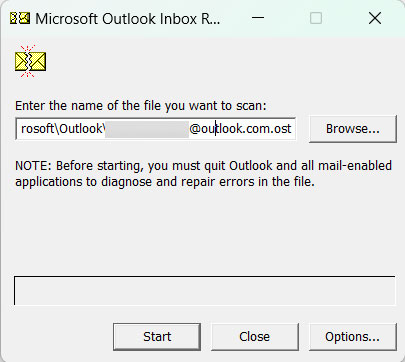
Fix 4: Run the Inbox Repair Tool to Fix Outlook Data File Cannot Be Accessed
If you are receiving errors because of corrupt PST/OST files, Outlook has a built-in repair utility.
- Close Outlook.
- Locate ScanPST.exe. Common paths (varies by Outlook version):
- C:\Program Files\Microsoft Office\root\Office16\SCANPST.EXE
- C:\Program Files (x86)\Microsoft Office\root\Office16\SCANPST.EXE
- Open ScanPST.exe and click Browse to select your PST/OST file.
- Click Start to scan for errors.

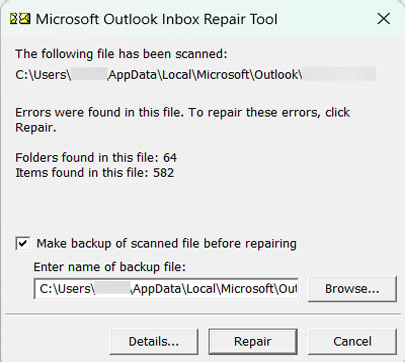
- If errors are found, click Repair.
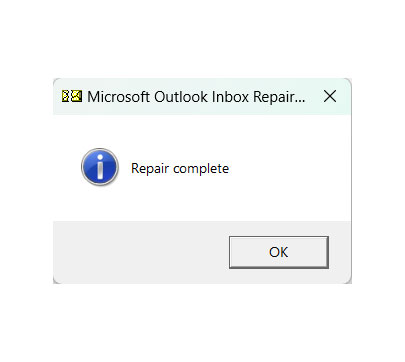
- Once complete, restart Outlook and check if the file opens normally.
Note: Always back up the PST file before running ScanPST since repair of a heavily corrupted file may result in data loss.
Fix 5: Recreate the OST File (For Exchange/IMAP Accounts)
If the file in question is an OST (not PST), it is just a local copy or cache of your mailbox, so it can be removed without fear – Outlook will recreate it.
- Close Outlook.
- Navigate to the OST file location (usually C:\Users\[username]\AppData\Local\Microsoft\Outlook).
- Rename or delete the .ost file.
- Reopen Outlook – it will recreate the OST file and resync your mailbox from the server.
Note: This needs to be done with an active internet/server connection to do the resync and may take a while with large mailboxes.
Fix 6: Check File Permissions
If the lack of correct read/write permissions to the folder containing your PST/OST file causes issues:
- Right-click the folder containing the data file.
- Go to Properties > Security.
- Ensure your user account has Full Control permissions.
- Apply changes and restart Outlook.
Fix 7: Temporarily Disable Antivirus
Antivirus or backup applications lock the PST/OST files while scanning. It is possible that this results in the error. Disable the software temporarily (or exclude your Outlook data file folder from scanning) and check if Outlook opens the file normally.
Fix 8: Reduce PST File Size
PST files that are older (ANSI) are limited to 2 GB. Over 2 GB, the files become corrupt and inaccessible. If your PST is close to or over 2 GB: Archive old emails to a different PST file (File > Tools > Clean Up Old Items, or the Archive option). Just to let you know, you should also look into migrating to the newer (and much more capable) Unicode PST format supported by Outlook.
Back Up Data after Outlook Data File Cannot Be Accessed
Many of the reasons for error 0x8004010F – file corruption, large PSTs, corruption due to an Outlook crash, etc. – are far less damaging if you have recent backup copies around. Instead of waiting for the next “cannot open data file” message to come along, it’s worthwhile to put a real backup system in place after you have dealt with your current problem.
An Email Backup Tool designed for this purpose can help here, by automating the task of continuously saving a good copy of your PST (or exporting it to a separate, secure format), so you can be assured that the data is always safe, even should the active file be compromised again.
FAQs
Q) Will I lose my emails when fixing this error?
A) Not necessarily. Small irregularities in file path and permissions will not result in data loss. If the file is corrupt, some procedures to repair the file (including ScanPST) will result in loss of some data. This is why backing up the file is necessary.
Q) What is the difference between repairing a PST file and an OST file?
A) A PST file is your real local data (and is for repair, not deletion). An OST file is simply a cached copy of your online mailbox (which can be safely wiped out and rebuilt without permanent data loss, as the data still exists on the server).
Q) Can antivirus software really cause this Outlook 0x8004010F error?
A) Yes. When you scan your file in real time, it can lock a PST/OST file in mid-manipulation, making Outlook think that the file is unreachable.
Q) How do I prevent this error of “Outlook data file cannot be accessed” in the future?
A) Reduce file size and keep your PST running smoothly by minimising the size of your PST file, use the proper button to exit Outlook, avoid using drag-and-drop to move or rename PST files, and back up regularly.
Final Thoughts
Yet again, error 0x8004010F is related to Outlook losing its connection to the data file, this time one or more of corruption, moving the file, incorrect permissions or some other programme locking it. Check the simple things first, such as file path and default data file, then simply try again after restarting; then try ScanPST if corruption is suspected. Finally, if the simple solutions haven’t been successful, you can always use a dedicated PST repair tool to get things back to normal.