Fix Outlook Error 0x8000ffff: What are the Causes and Effective Solutions


Among the various email clients that are available, Microsoft Outlook is the one that is most commonly used for the management of both professional and personal communication. It is, however, a fact that the application, like any other, is susceptible to technical problems, although it may have more of these problems. One of the regular and annoying issues is the Outlook error 0x8000ffff. The fact that this error occasionally interferes with the email operations and, thus, the users are unable to send, receive or even open the Outlook data files is a big inconvenience.
The blog will explore what the Outlook error 0x8000ffff is, the common causes, symptoms and proven methods to fix it. The guide is to optimise to help users and administrators resolve the issues efficiently while safeguarding the data.
What is Outlook Error Code 0x8000ffff?
Outlook error 0x8000ffff is generally known as an unexpected failure error. It often appears when the Outlook application fails to perform a particular operation due to any internal corruption, system-level issues and configuration conflicts. This error occurred while:
- Launching Outlook.
- Sending or receiving emails
- Importing or exporting the mailbox data.
- Accessing OST or PST files.
The error message can vary, but this usually includes the code Outlook 0x8000ffff, which indicates a critical failure in Outlook’s operation.
How to Know Outlook Error 0x8000ffff?
When the error occurs, the user may notice the following symptoms:
- Outlook crashes or freezes frequently.
- Email fails to send or receive.
- PST or OST file access is denied.
- Synchronisation errors with Exchange or IMAP accounts
- Sudden termination of Outlook processes.
Recognising these signs early can prevent damage and any further complications.
What are the Causes of Outlook Error 0x8000ffff?
To resolve a problem correctly, it is first essential to understand what caused it. Below are some of the reasons that can lead to the Outlook error 0x8000ffff issue:
- Corrupted Outlook Files: One of the reasons for the error to occur is when files like PST or OST are corrupted due to any internal reason. The corruption that occurs due to large file size, a sudden shutdown, Malware attack could cause damage to the PST or OST files.
- Faulty Outlook Add-ins: As always, the third party ad-ins could conflict with the Outlook functionality, which can cause errors such as Outlook error code 0x8000ffff. Therefore, starting Outlook in safe mode usually helps.
- Incomplete or Damaged Outlook Installation: If the installation of Microsoft Office or Outlook was performed improperly or if the files are missing, the user may experience errors when working with the application normally.
- Antivirus or Firewall Interference: If antivirus or firewall configuration is very aggressive, it may restrict the running of Outlook activities, resulting in operational failure that leads to Outlook error 0x8000ffff.
- Windows System File Corruption: If the problem lies within the Windows system files that are corrupted, it may disrupt Outlook and eventually show a fault indication.
- Account Configuration Issues: An incorrectly configured email account or defective Outlook profile may be the reason for the Outlook 0x8000ffff error.
How to Fix Outlook Error 0x8000ffff?
Below are the most effective methods to resolve the error. Try the sequence to identify what works best for the situation you are in.
Method 1: Restart Outlook and System
Sometimes the error comes from temporary glitches. Restarting Outlook and the system is frequently a solution to most error messages, as it closes background conflicts and renews system resources.
Method 2: Launch Outlook in Safe Mode
We can run Outlook in safe mode with add-ins disabled, thus do the following steps:
- Press Windows + R.
- Type outlook.exe /safe.
- Press Enter.
If the Outlook works fine without showing any errors, disable the add-in one by one to identify the problematic ones.
Method 3: Repair Outlook Files (PST/OST) to Fix Outlook Error 0x8000ffff
Microsoft provides an inbuilt tool called the ScanPST.exe to repair corrupted PST files.
How to repair Outlook Files:
Microsoft built a utility to fix corrupted personal storage (.pst) files.
- Close Outlook completely.
- Navigate to the Office installation folder.
- Find and run SCANPST.EXT.
- Select the Outlook data file and click Start.

- If any error is found, click on the Repair.
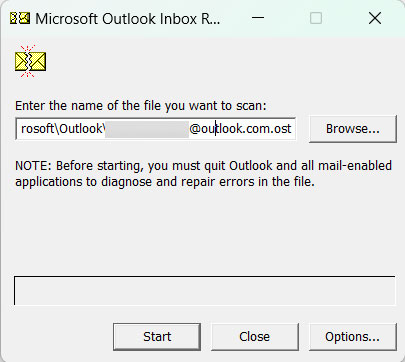
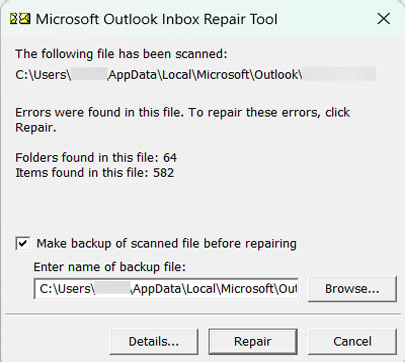
Limitations of ScanPST:
- Cannot repair severely corrupted files.
- Risks of data loss
- Often fails with large PST files.
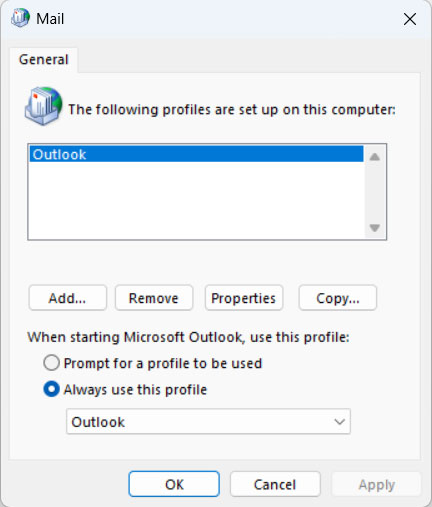
Method 4: Set up a New Outlook Profile to Resolve “Outlook Error 0x8000ffff”
If an Outlook profile is corrupted, it can bring about various issues, including error 0x8000ffff.
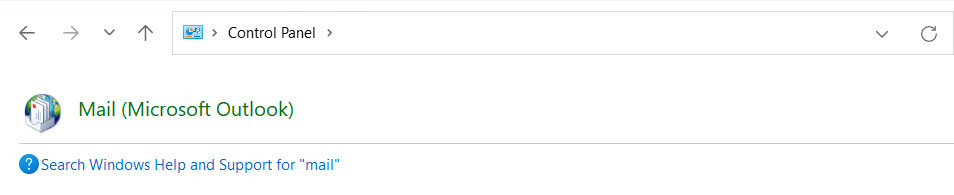
- First, access the Control Panel.

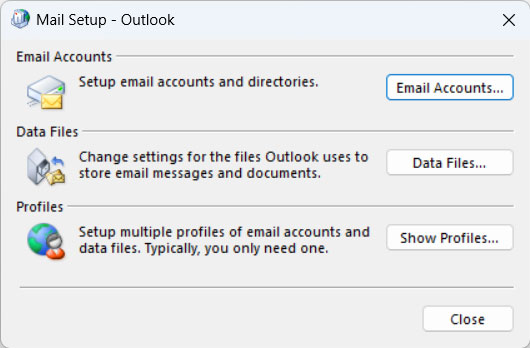
- Navigate to Mail > Show Profile.

- Click Add to make a new profile and name it.

- Make this the default profile.
- Close and open Outlook to see if you still get the error.
Method 5: Turn off Antivirus Temporarily
Try running Outlook after temporarily disabling your antivirus or firewall software. If the error goes away, you should consider adding Outlook to your security software.
Don’t forget to turn on antivirus protection after you have finished testing.
Method 6: Repair Microsoft Office Installation
A damaged Office installation can trigger Outlook error 0x8000ffff.
- Open Control Panel.
- Go to Programs and Features.
- Select Microsoft Office.
- Click Change>Outlook Repair/Online Repair.
Use a Professional Tool to Prevent Errors like Outlook error 0x8000ffff
If none of the above manual methods work or if the PST files are corrupted, then using the professional tool – PST Converter is the safest option. The tool is designed to handle complex Outlook files. The utility allows exporting Outlook data to various file formats like MBOX, EML, PST, etc., without losing data integrity. Then it smartly repairs the corrupt PST or OST files and recovers emails, contacts, tasks, calendars, etc., without losing data.
Conclusion
Outlook error 0x8000ffff is one of the common Outlook issues which could bring your regular email communication and work to a standstill. Corrupted Outlook data files, problematic add-ins, broken Office installations, and antivirus interruptions could cause the error. Once the users are familiar with the symptoms and underlying causes, they can get the right troubleshooting methods to fix the issues. In the event that the manual method is unsuccessful or data security becomes a worry, opt for a professional tool. It not only repairs but also protects mailbox data. Use the way that is described in the guide, as well as the means of prevention, to successfully resolve the Outlook error code 0x8000ffff.