Thunderbird UID Fetch Server Error: Causes, Fixes, and Automated Solutions


Thunderbird is one of the widely used email clients, with advanced features such as search option, multiple add-ons, flexibility and support for IMAP and POP accounts. It is recognised in the technical world. Like any other email client, Thunderbird users also encounter issues, among which we are going to discuss today is the Thunderbird UID Fetch Server Error. It might look too technical; however, it is the error that would prevent emails from syncing with Thunderbird correctly. With this error, it can disrupt workflows and cause delays in important meetings.
The write-up here has all the required details about the error that is why it occurs, and how to fix it step by step.
What is Thunderbird UID Fetch Server Error?
The error occurs when Thunderbird fails to retrieve the messages from the IMAP server. Let’s break it down. What is Thunderbird UID? It is a unique identifier. In Thunderbird, a UID is assigned by the server to each email message in the mailbox. It is used to track which emails are new or already downloaded, to avoid downloading duplicate emails, and to sync emails correctly across devices, among other purposes. Therefore, the error indicates a problem with fetching email data using the message Identifier.
What are the Common Causes of Thunderbird UID Fetch Server Error?
Before going any further, we need to find the root cause before attempting any fixes. The common causes are:
- Corrupted IMAP Folder Index: Thunderbird relies on local index files to keep track of the server messages. When the files get corrupted, the UID could be mismatch which can lead to an error.
- Server Side Mailbox issues: Any time there remains an issue at the mail server, like a wrong UID mapping or mailbox corruption, can result in a UID fetch failure.
- Lack of Proper IMAP Settings: Using incorrect port numbers, encryption types, or authentication methods may cause Thunderbird to not fetch messages properly.
- Oversized or Damaged Mailboxes: When the mailbox grows excessively large or even contains damaged email data, Thunderbird may struggle to synchronise messages properly with the IMAP server.
- Antivirus or damaged mailboxes: Security software might block the IMAP connections, or it can hamper the data exchange between Thunderbird and the server.
- Outdated Thunderbird Version: Having an outdated version will also lead to errors like the Thunderbird UID Fetch Server Error.
Check other related solutions: Find out other fixes for – Thunderbird inbox mail not showing
How to Fix “Thunderbird UID Fetch Server Error”?
Here are some of the proven steps to overcome the issue. Go through each of the steps below to understand which one suits you the best.
Repair Affected Email Folder
- Open Thunderbird.
- Right-click on the affected folder.
- Click on Properties.
- Select Repair Folder.
- Wait for the Thunderbird to rebuild the Index.
After completing the steps, restart Thunderbird and check if the issue is resolved or not.
Manually Delete *.msf Index Files
The folder repair didn’t work. Try deleting the *.msf index files to fix Thunderbird UID Fetch Server Error.
- Start by closing Thunderbird.
- Navigate to the Thunderbird profile folder.
- Locate the folder related to the email account.
- Delete the .msf file for the problematic folder.
- Restart Thunderbird.
Compact Folder to Reduce the Mailbox Size
A large mailbox can trigger UID fetch failures.
- Go to the File > Compact Folder.
- or Right click on the folder and select Compact.
Increase Server Timeout Settings
The timeout value may cause Thunderbird UID Fetch Server Error during slow connections.
- Go to Settings > General.
- Scroll to Network & Disk Space.
- Increase the server timeout value.
- Save changes and restart Thunderbird.
Disable Antivirus Temporarily
The security programs can sometimes block IMAP traffic.
What we can do:
- Disable email scanning.
- Add Thunderbird as a trusted application.
- Restart Thunderbird and test
If this resolves the issue – “Thunderbird UID Fetch Server Error”, keep the scanning disabled.
Verify IMAP Server Settings
Incorrect settings in the IMAP are the major cause of UID fetch errors:
Check the following:
- Incoming server type: IMAP.
- Port: 993 (SSL) or 143 (non-SSL).
- Authentication: Normal password.
- Connection security: SSL/TLS
Always ensure the settings are with the email provider.
Re-add the Email Account in Thunderbird
If none of the above methods work, recreate the account in Thunderbird. What are the steps:
- Back up the Thunderbird profile.
- Remove the affected email account.
- Restart Thunderbird.
- Add the account again with the correct server settings.
This often resolves any synchronisation issues.
Best Tip to Resolve “Thunderbird UID Fetch Server Error”
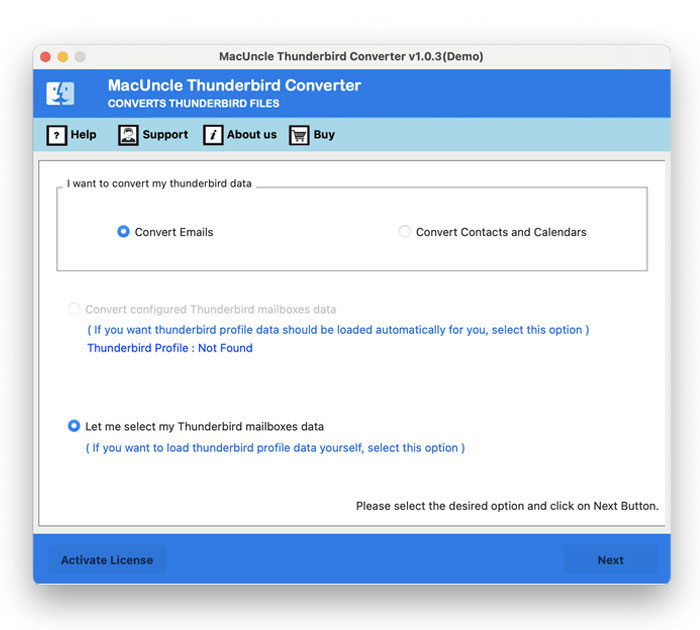
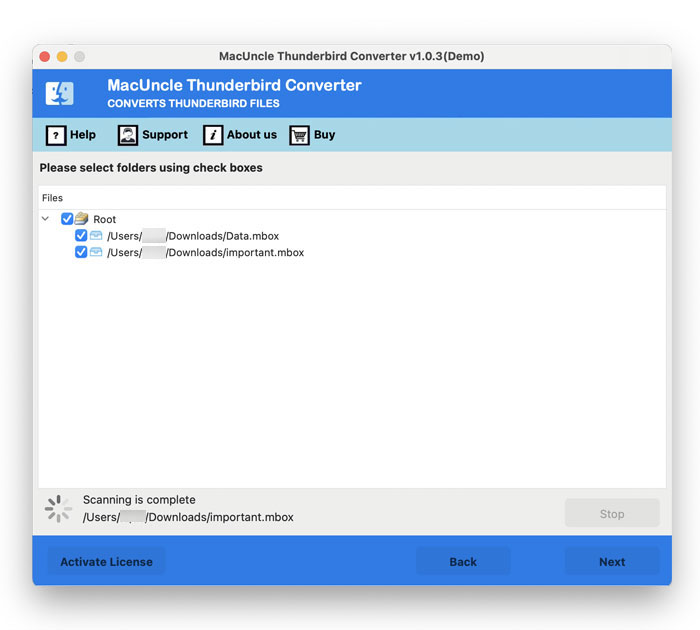
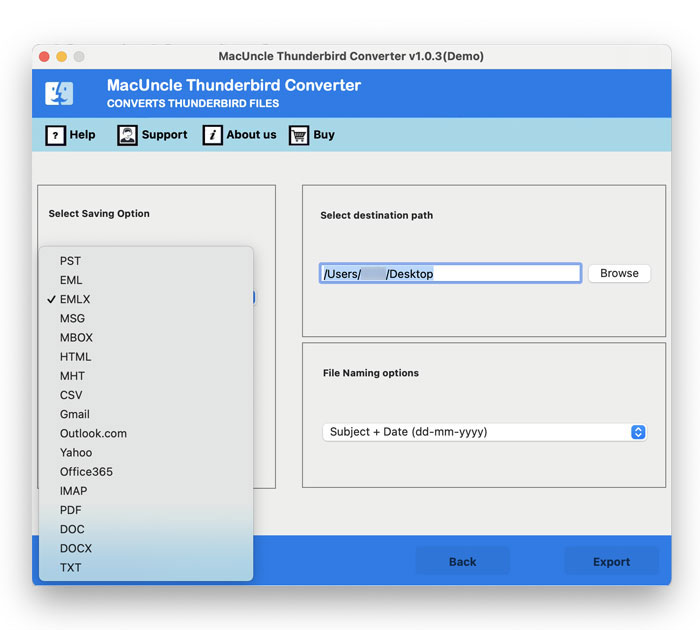
If none of the above methods work, ensure to back up the important emails from the Thunderbird account. We can use the Thunderbird Converter, which allows us to export and save emails safely in different file formats or even migrate to another email client. It prevents any data loss and ensure continue access to the mailbox even if the error persists. The tool allows to safeguard emails from the Thunderbird account.
Follow the steps:
- Start the tool and follow the steps.

- Choose the desired option as shown in the screenshots.
- Now, select the desired folder from the list.
- Choose an option from the list of saving formats.
- Press the Export button.
FAQs
Q) Is Thunderbird UID Fetch Server Error a server-side issue?
A) It can be both a client-side and server-side issue. However, in most of the cases, repairing folders or rebuilding the index fixes the issue.
Q) Can I resolve this issue by switching to POP3 as a solution?
A) Switching to POP3 could avoid UID issues, but it removes server-side synchronisation benefits. However, IMAP is still recommended.
Q) Does UID Fetch Error delete emails from the account?
A) No, the error does not delete emails, but if the emails are not coming through without any backup may cause data loss.
Conclusion
It is quite frustrating to encounter the Thunderbird UID Fetch Server Error; however, it is mostly reparable by means of simple steps such as repairing folders, correcting IMAP settings, or adjusting settings. Read through the solutions in the manual, and you will be able to enjoy seamless email synchronisation and restart using Thunderbird without any disruption. Understanding how Thunderbird works with the IMAP servers will assist you in solving the problems more quickly.