How to Download Google Takeout to External Drive on Mac?


Some users need to export Google Takeout to External drive due to many reasons. Exporting Google data using Google Takeout is a useful method for backing up important files, emails, photos, and documents. However, many users prefer to store this exported data on external device and we will learn step-by-step methods to download google takeout to external drive .
Managing and securing digital data have become increasingly important in today’s environment. Many individuals and organizations rely on cloud services to store emails along with multiple other files. While cloud storage provides convenience and accessibility, it is always a smart decision to maintain a local backup of importing information.
One of the most effective ways to download and backup your Google data is Google Takeout. This service allows users to even export Google Takeout to External Drive. Let us move forward and learn how you can complete this process while ensuring the data safety and integrity.
What is Google Takeout?
Google Takeout is a data export service offered by Google itself. This service allows users to download copies of their data from multiple Google services. Takeout allows users to create a complete archive of all the information stored across different Google platforms.
Through Google Takeout, you can smoothly export data from multiple platforms such as Gmail, Google Photos, Google Drive, Google calendar, Google Contacts, YouTube, Google Keep, Google Map etc. the process results in packed into ZIP or TGZ archive files, making it easier to download and store the information with security.
Major Reasons to Export Google Takeout to External Drive
- Freeing Up Local Storage Space: While downloading a large Takeout archive you can choose a local folder or any external device to create a safe backup.
- Data Archiving for Business: Organizations and businesses often need to archive their emails and other related files in order to keep a record.
- Migrating Data to Another System: When a user needs to switch to another or new computer to store Google Takeout data on an external drive and later you can transfer it to the new system.
- Protection Against Account Issue: Sometimes Google accounts get compromised, suspended or may accidently delete.
- Long-Term Data Backup: Making a physical backup of all the important data can help you to manage your data with ease and keep it safe throughout the process.
How to Export Google Takeout to External Drive with Safety?
There are two phases to download Google Takeout to External Drive. In the first phase we will see how to export data from Google Drive and in the second phase we will learn how to import that Google Takeout files into External drive. Below are the steps you need to proceed with.
Phase 1: Export the Google Takeout Data
- Initiate with opening Google Takeout on your device and login to your account.
- Now, deselect all the options and select on the “Mail” option.
- After that, move to the bottom and click on the “Next Step“.
- Choose the “Send download link via email” option.
- Now, select frequency and file type as .zip and File Size.
- Now, click on the Create Export option, and when the export process gets completed, move to your Gmail and click on the “Download Archives” option to get the Google Takeout file.
Now that you have exported all the .zip files, you can extract the downloaded file and it will be saved as .mbox into your storage. You can convert these files into a compatible file format so that whenever you need to access them or migrate them to another location or email platform, it will be easy for you to complete the process.
Phase 2: Migrate Google Takeout Data to External Drive
With the best MBOX Converter solution you can convert this MBOX file to a compatible file format that will make it easy for you to access your data safely and also migrate it wherever you need to. It offers quick and safe steps and offers to convert your entire data in bulk while saving a lot of your time and effort.
You can download this solution directly on your machine and start using it. It offers an easy-to-use interface that is even easy for a user to understand and proceed to get an accurate result according to their requirements.
Quick and Easy Way to Use this Solution
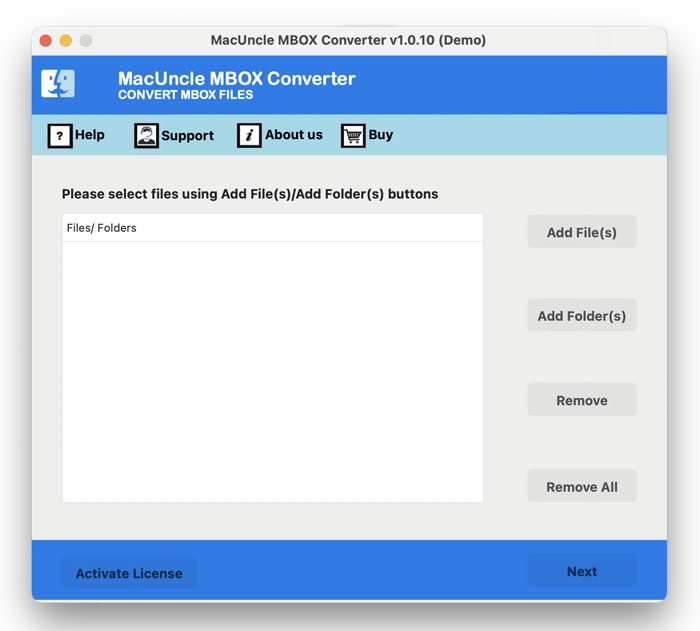
- First download and install the solution on your system.

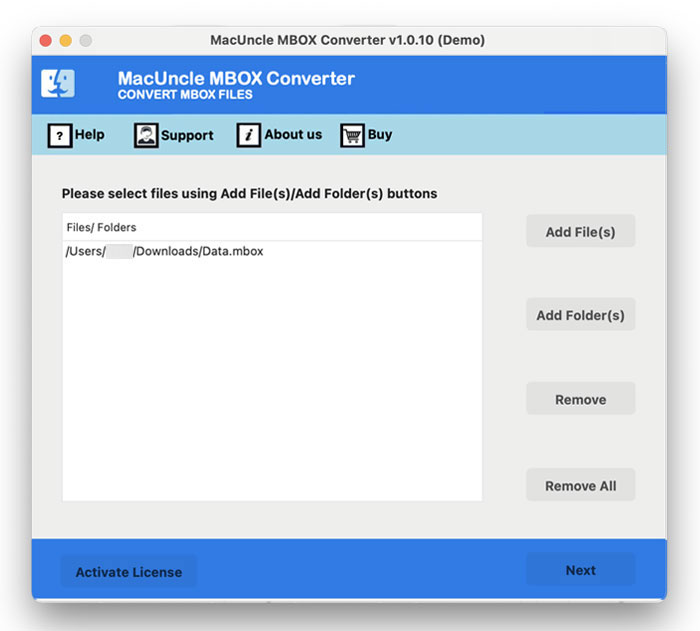
- Now, choose the option to load your Google Takeout files.
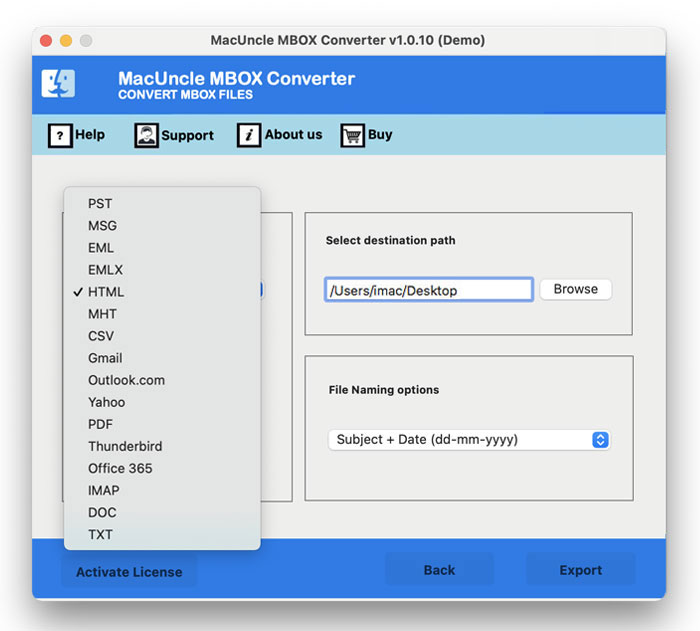
- Now, choose any file format you desire to convert your Google Takeout file into, choose a Destination Folder, and an option from File Naming options.
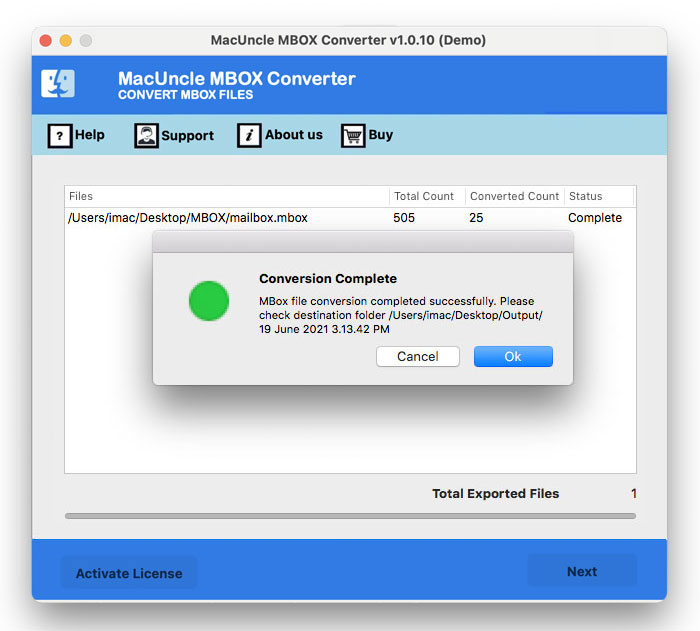
- Lastly, click on the Next button and complete the process.
Why Professionals Choose This Solution
- Bulk Conversion: This solution helps users to convert their files in bulk, no matter if you have a large amount of data.
- Export Options: It offers users to export Google Takeout data to PST, PDF, EML, MSG, HTML and many more.
- Data Integrity: It preserves and maintains the formatting, attachments, metadata and folder hierarchy during the process.
- Advanced Filter Options: Offers users to export data selectively through these filters as per their requirements.
- Maintains the Structure: Maintains the originality of the entire data, doesn’t make any changes in the formattings.
Need More Help?
In case you need any assistance regarding this process or this solution you can get in touch with our Technical Support Team any time. They can guide you and help you with your queries 24/7.