iCloud Mail Not Syncing on Mac? Here’s How to Fix It Instantly


What to do if iCloud simply refuses to sync on your Mac and mail items don’t show up, already read messages still look as if they haven’t been read, and the attachments are not visible? Surely you won’t be surprised to read that you are not the only one who has experienced this issue. Now, after the macOS Sonoma and Sequoia updates, this problem seems to have become very common. Apple’s background sync, network permissions, and security configurations are the main upsets post-update.
First, we must know why iCloud Mail is not syncing properly on macOS, and then follow the steps accordingly to resolve the issue. Here, we have mentioned all the possible methods that work for users with or without technical skills.
Why is iCloud Mail Not Syncing on Mac OS?
Why has this problem come up recently, and why did it happen in the first place? Find out what’s really going wrong.
- macOS update problems: Sonoma and Sequoia changed how the background mail service works, which broke the sync settings for a lot of users.
- Full iCloud Storage: When iCloud storage is almost full, Apple’s servers won’t accept any new mail at all. There won’t be a fix until the space is cleared.
- Expired iCloud Session token: The Mac silently stops syncing when it loses its authentication handshake with Apple’s server.
- Corrupted Envelope Index: Apple Mail keeps all the metadata in files on your computer. The syncing might stop working if it gets corrupted.
- Network or firewall Issue: Some ISPs block the ports Apple Mail uses to communicate with the iCloud servers.
How to Fix “iCloud Mail Not Syncing on Mac”?
We can use different approaches to fix the issue with iCloud Mail not syncing with the Mac. Below are the steps we can use, from simple to advanced.
Fix 1: Check iCloud Mail is Enabled
After the macOS update, it silently disables iCloud Mail. We need to check if iCloud Mail is enabled or not.
- Click the Apple menu > System Settings.
- Click the Apple ID name at the top.
- Select iCloud > Show More Apps.
- Find Mail in the list and make sure the toggle is ON.
This forces the fresh sync handshake between the Mac and iCloud servers. Give it 2-3 minutes and check if the new mail appears.
Fix 2: Check iCloud System Status
Before we spend time on the troubleshooting steps, first confirm if Apple’s server is actually up.
Visit Apple’s System Status Page and look for iCloud Mail. If the status is orange or yellow, then the issue is on Apple’s side. Wait till it gets fixed, as other fixes will not work.
Fix 3: Check the iCloud Storage if iCloud Mail Stopped Syncing on Mac
If the iCloud storage is full, the mail might stop syncing completely.
- Go to the System Settings > Click on Apple ID.
- Select iCloud > check the storage bar at the top.
- If it is almost full, free up the space by deleting old photos, files or any unused iCloud drive.
Use EmailRaser to completely delete the unwanted data from your macOS with ease. Once the space is available, the sync resumes automatically within a few minutes.
Tip: Read the article here to understand more about the storage space and get solutions to “can’t get emails icloud storage fill” issue.
Fix 4: Force Quit and Relaunch Mail
A simple and most effective fix for “iCloud Mail Not Syncing on Mac” is to force quit, which clears any hung background processes.
- Press Command + Option +Esc to open Force Quit.
- Select the Mail from the list and click Force Quit.

- Wait for 10 seconds, then reopen the Mail.
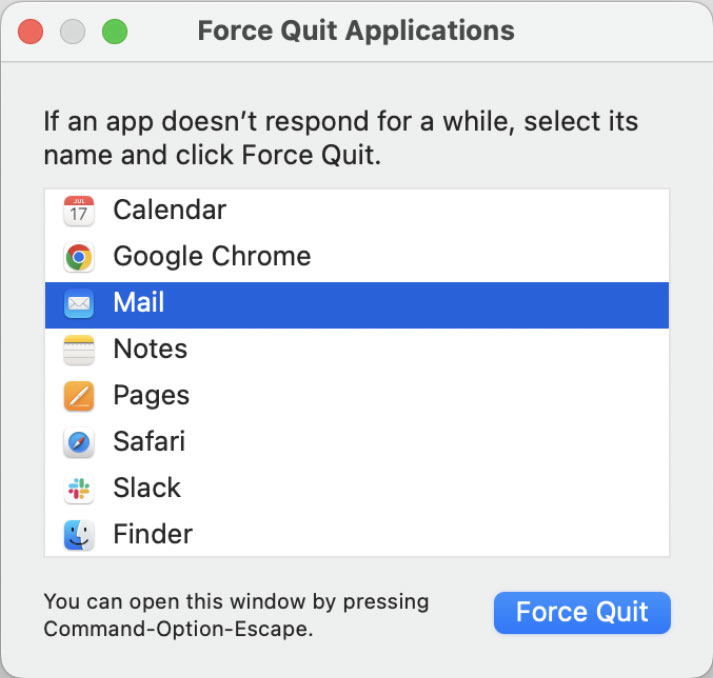
If the mail starts appearing after this, the app has a stuck background thread. If the issue persists or happens again, move to advanced fixes.
Fix 5: Sign Out and In to the iCloud
An expired or corrupted iCloud session is the most common cause of mail sync failure after macOS updates.
- Open System Settings > Click the Apple ID.
- Scroll down and click Sign Out.
- Wait for a few minutes.
- Sign back in with the Apple ID and password.
- Make sure the Mail is checked when selecting the data to keep/sync.
After signing back in, go to the Mail > Settings > Account and confirm the iCloud account is listed and active.
Fix 6: Rebuild the Mailbox to Fix iCloud Mail Not Syncing Properly
If mail syncs partially, some emails show, and others might be missed. The Envelope index is likely corrupted. Rebuilding it forces the Mail to redownload everything from the server. The emails are not being deleted during the process.
- Open the Mail app.
- From the left sidebar, select the mailbox that’s not syncing.
- In the menu bar, click Mailbox > Rebuild.

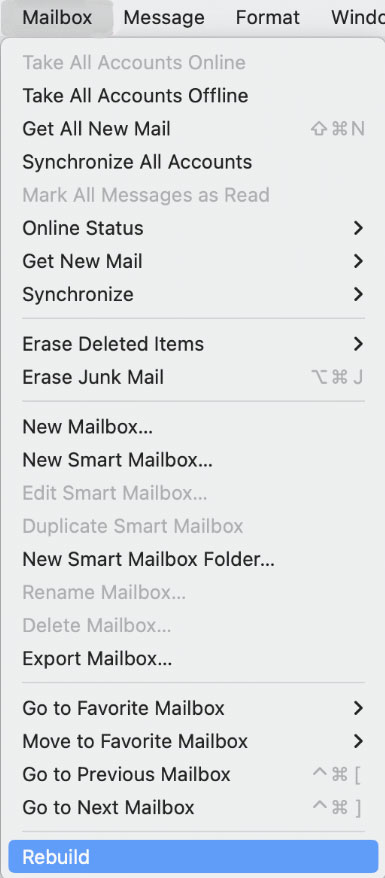
Wait till the process finishes, it can take a few minutes depending on the mailbox’s size.
Fix 7: Reset the Spotlight Indexing for Mail
Mail uses Spotlight to search and index the emails. If you have a corrupted Spotlight index causes messages to be missed even when they are technically downloaded.
- Open System Settings > Siri & Spotlight.
- Click the Privacy tab.
- Click the + button and add the Macintosh HD.
- Once added, select it and click – to remove it.
It triggers a full Spotlight reindex of the drive, including the Mail data. The process takes a few hours. Mail search and sync should be restored once it is complete.
Fix 8: Remove and Re-add iCloud Account in Mail
If the above fixes didn’t work, try removing and re-adding the account. This will reset all of your connection settings and resolve the syncing issue with iCloud Mail:
- Go to Mail > Settings > Account.
- Choose an iCloud account.
- To take it off, click the – button.
- Confirm that you want to remove it.
- Reboot the Mac.
- Open Mail, go to Settings, then Accounts, and click the + sign to add it back.
- Select iCloud and log in with your Apple ID.
Mail will download all of the emails again from the server. Wait a few minutes, or even longer if your inbox is big.
Fix 9: Set Mail to Check the New Messages Automatically
After the macOS update, Mail’s fetch setting sometimes resets to manual, meaning it only loads the new emails when you manually refresh.
- Open Mail > Settings > General.
- Find the Check for new messages dropdown.
- Set it to automatic.
Ensure the mail stays in sync in the background without the need to click refresh each time.
Fix 10: Update macOS to fix “iCloud Mail Not Syncing on Mac”
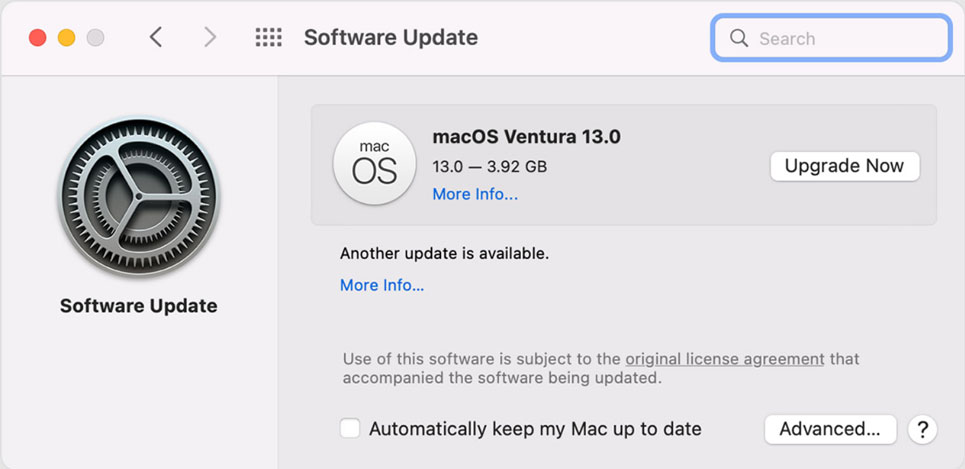
Apple frequently issues security patches and minor updates to fix Mail sync bugs. One common hidden cause is using an old version of macOS.
- Click System Settings > General > Software Update.

- Download updates and install them.
- Restart the Mac and check if Mail syncs correctly.
Nothing Worked? Back up the Important Emails Professionally
Even after trying the above fixes, iCloud Mail is still not syncing. The safest move is to create a local backup of the emails before they get lost or cannot be accessed properly. Use the Email Backup Tool to save important emails locally so you can access them anytime.
What the Tool can do:
- Start the software on the Mac OS.

- Now, choose iCloud from the options. Enter the login details and press Login.
- Select any option from the saving options and destination path.
- Go to the Filter option for selective backup.
- Press the Start Backup button.
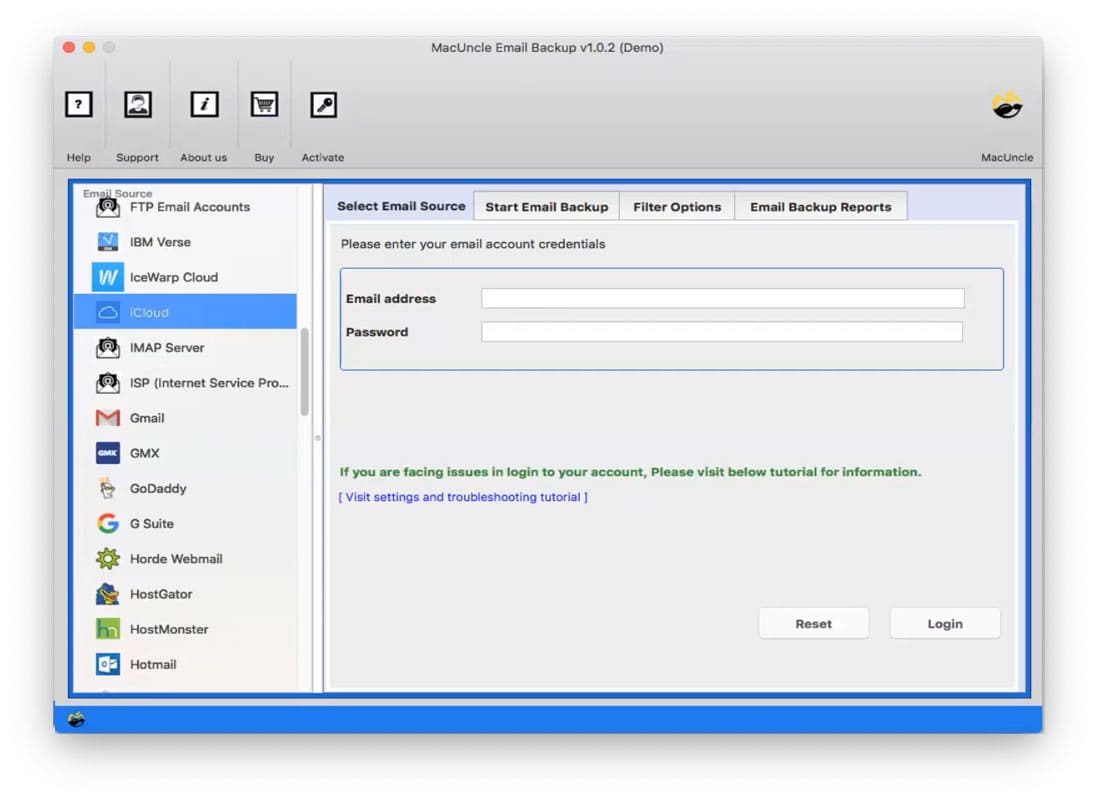
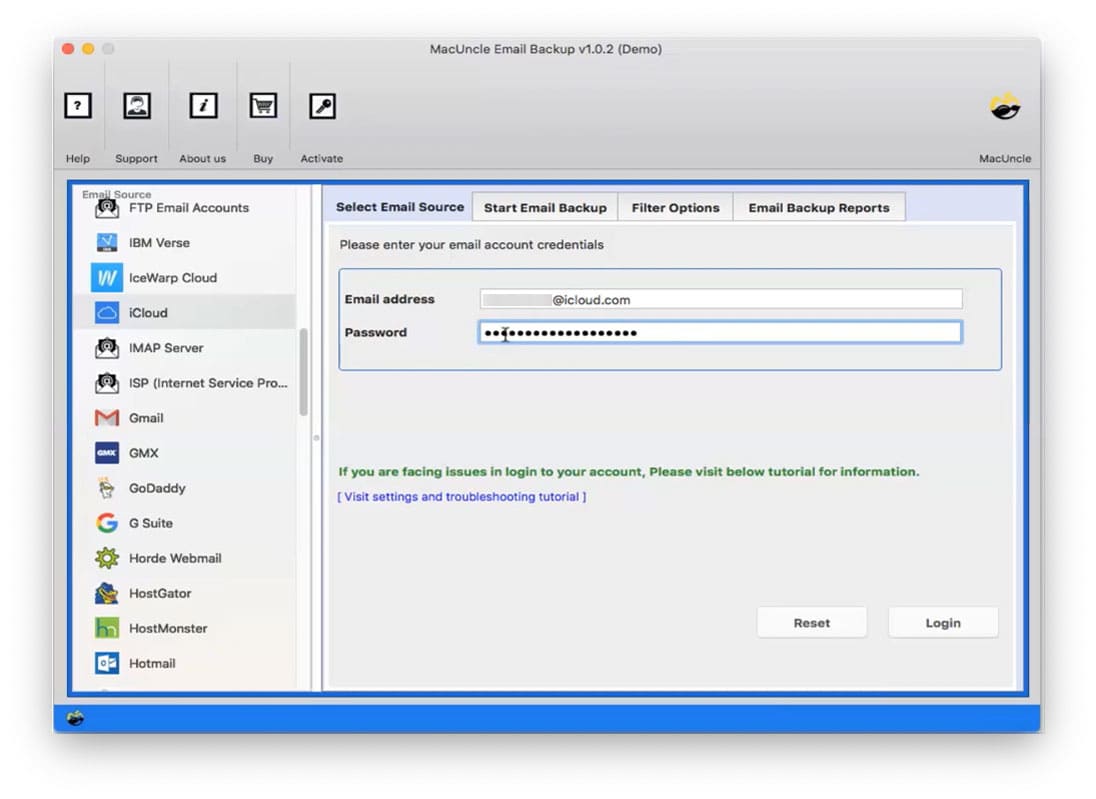
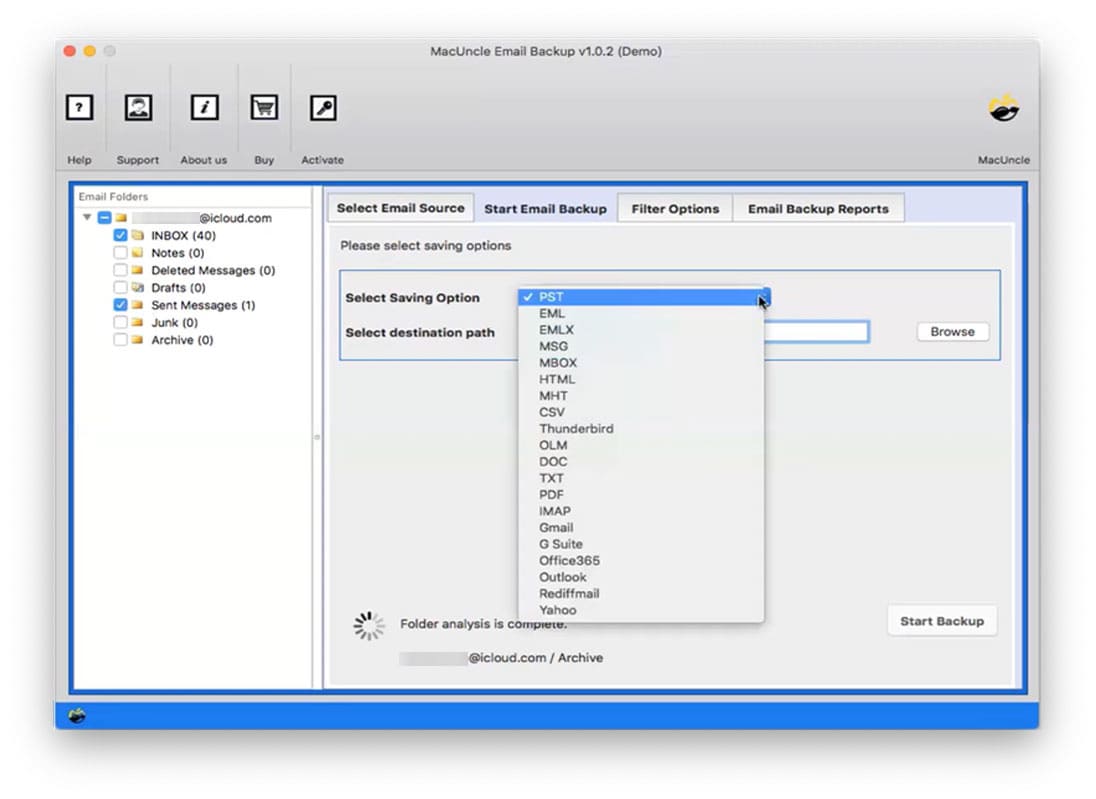
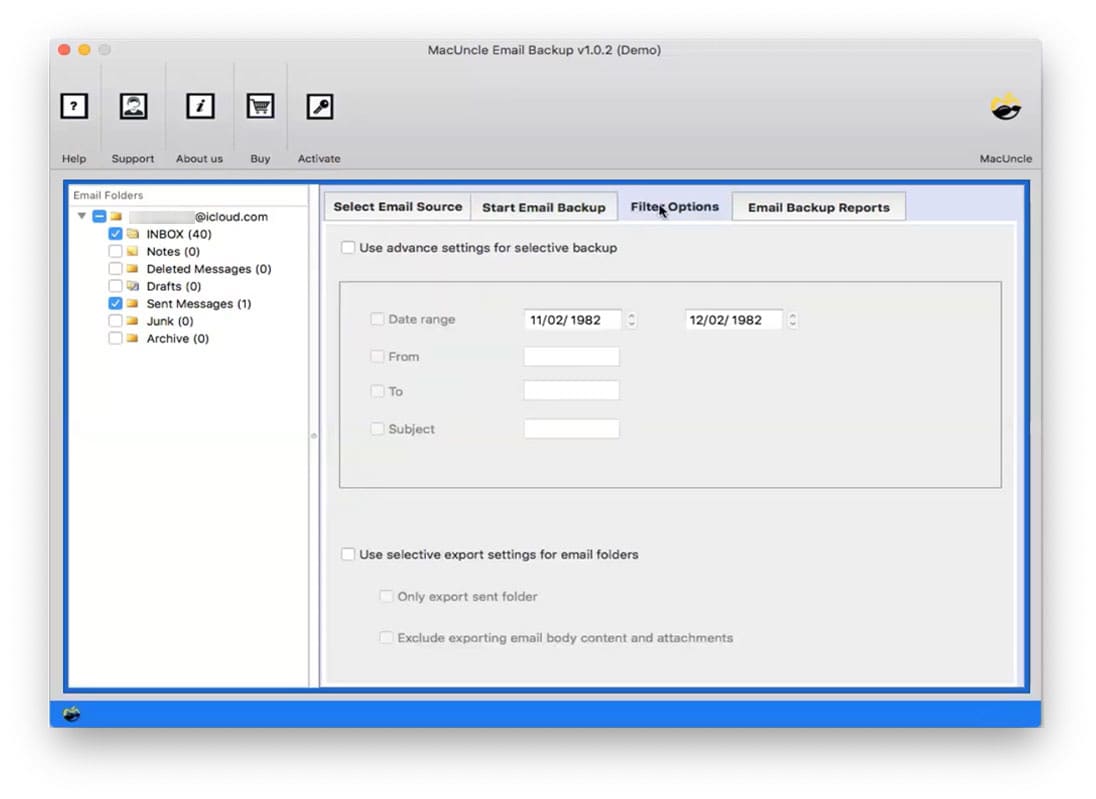
Once it is completed, all the emails are saved locally on the Mac, completely independent of iCloud sync. This is important if you are dealing with recurring sync failures.
Conclusion
iCloud Mail not syncing on Mac is a frustrating issue, but it is fixable with one of the above-mentioned steps. First, we start with quick fixes – checking the iCloud toggle and storage, and then move to the mailbox rebuilds or resetting the account. In some cases, one of these fixes will restore the sync within a few minutes. If the issue is coming back after the macOS update, it is a sign that we need to move to deeper troubleshooting involving Mail configuration. Regardless of the fixes mentioned here, it is advised that users extract the important emails from iCloud Mail to keep the data safe and accessible.