How to Import EML Files to cPanel Webmail ?


Email migration is a problem that is often faced by owners of websites, businesses, and administrators. The answer to one of the most frequently asked questions is a guide on the safe and efficient ways to import EML to cPanel. EML files save single email messages with headers, attachments, and metadata and are very popular with email clients such as Outlook, Windows Mail, and Thunderbird.
This guide is a complete manual for file import in the case of EML files to cPanel webmail, performed manually or through automated methods. The article is a proper filing system for you, regardless of whether you want to restore the backup, archive the message, or migrate the emails. Once you have gone through this information, you can decide what method will fit your situation best.
What are EML Files?
An EML file is a standard email file format that saves single email messages. It includes email header, message body, attachments, and Metadata. Since EML files are the ones that store emails separately, they are usually the ones that become the source of email backups, forensic analysis, and email migration processes.
What are cPanel Emails?
cPanel is a widely used web hosting control panel that utilises IMAP and POP3 protocols to offer email services. The emails that are stored in cPanel are in Maildir format and not EML. The variation in formats is the main reason why importing EML to cPanel needs either a precise conversion or dependable steps.
Why Users Want to Import EML to cPanel?
There are several reasons why users search for a method to import EML to a cPanel account.
- Migration of emails from the desktop client to the web hosting.
- Archive important email communication safely.
- Moving Emails between hosting providers.
- Centralise the email access for teams.
- Restoring old or deleted emails
Challenges When Importing EML to cPanel
Before we start with the methods, we need to underline the challenges when importing the EML files to the cPanel account. We must know the limitations:
- cPanel does not provide a direct EML import option.
- We must convert EML first and then import.
- Incorrect permissions can cause email access issues.
- Transferring a larger number of EML files can be daunting and time-consuming.
Keeping these challenges in mind, we have constructed two different manual methods and an automated method for quick migration.
Method 1: Import EML to cPanel using Webmail
It is one of the simple method to move a small number of EML files to cPanel webmail accounts.
With the cPanel Webmail, we can import EML files.
- Log in to cPanel.
- Open Email Accounts.
- Click Check Email next to the target email account.
- Choose Roundcube Webmail.
- Open the folder where you want to import the email.
- Click on the More option and choose EML file.
- Click on Upload.
Method 2: Import EML to cPanel using IMAP
This is the most reliable way to use the Thunderbird Account
First, you need to upload EML files into the email client and then sync them to the cPanel using the IMAP configuration.
- Configure the cPanel email account in Thunderbird.
- Create a folder in Thunderbird.
- Drag and drop EML files into the local folder.
- Draft the emails from the local format to the IMAP folder.
- Let the sync complete.
Method 3: Instantly Import EML to cPanel in Batches
Finally, to overcome all these limitations, for single or batch file migration, use the MacUncle EML Converter. The tool is designed to work in a way that would directly upload the EML files to the cPanel webmail account. We can use the IMAP option to import the EML files by entering the correct IMAP details.
Note: Else, use convert EML to MBOX format, and then import the individual files into the cPanel Account directly.
How to Import EML to cPanel Accounts?
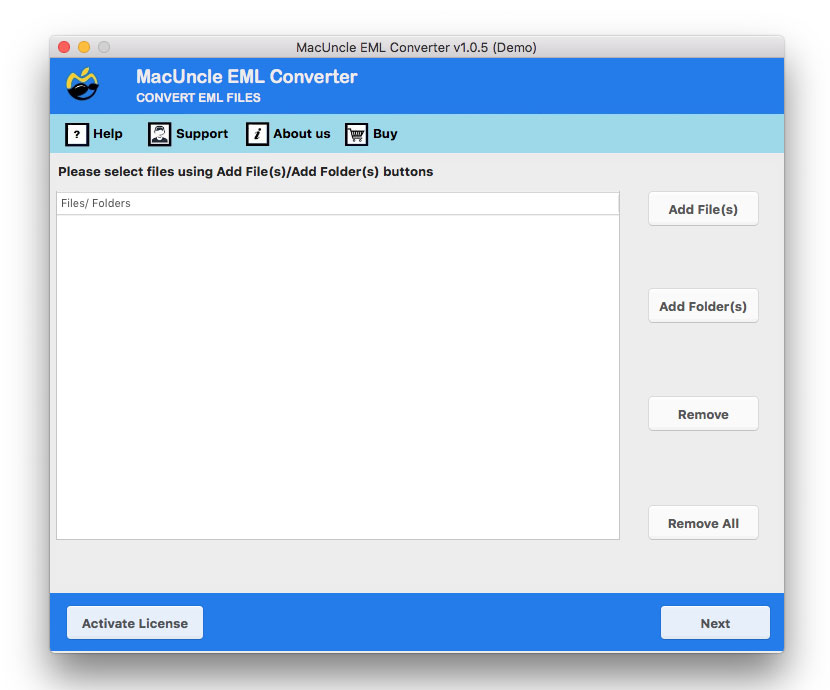
- Start the software on the system.

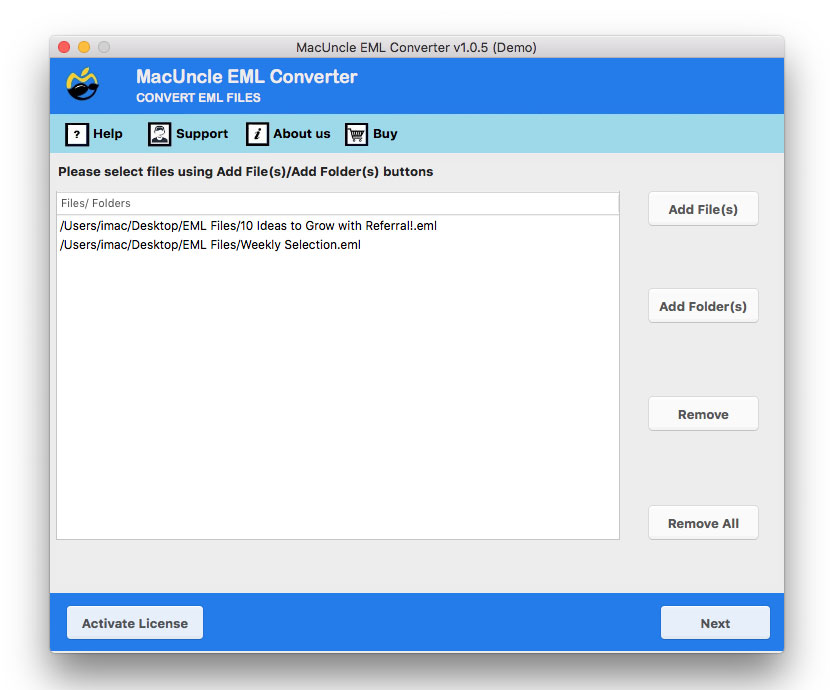
- Add EML files using the different options. Press the Next button.
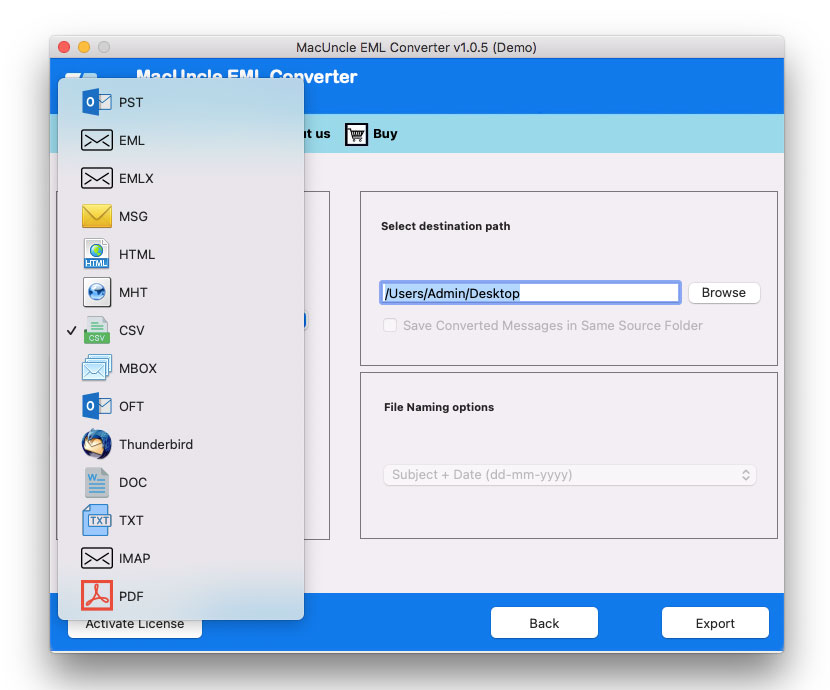
- Select the IMAP option and enter the correct details.
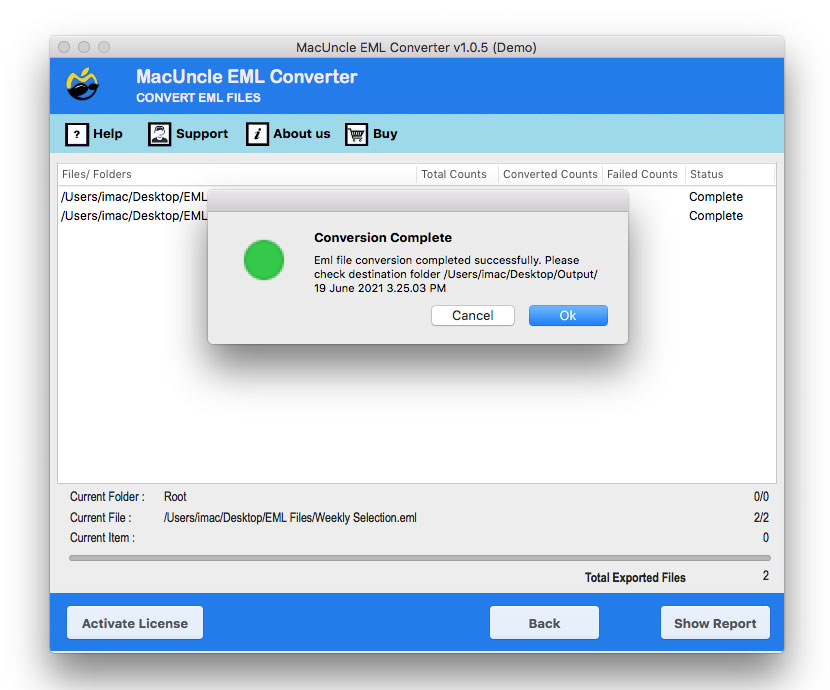
- Finally, press the Export button to import EML to cPanel.
Conclusion
When you try to import EML files to cPanel, it looks like a complicated task, but once you figure out the right way, it turns out to be the simplest operation. It doesn’t matter if you choose webmail, IMAP synchronisation, or the suggested tool; every method has its own explanation. In case there is a small number of files to be imported, then manual methods are good enough. But for large or business migration, the IMAP-based or the automated method is the most recommended one. Simply follow the steps to instantly import EML to cPanel without losing any data.