How to Import EML to IMAP Account? Step-by-Step Guide


By importing EML files into an IMAP account, you can centralize the email data and make it accessible from anywhere with a good internet connection. It is useful when backing up important communication, migrating to new services, etc.
This guide will explain some good methods to import EML to IMAP on Mac & Windows system, including a manual approach as well as a professional solution and you can choose whichever suits your needs and technical capabilities.
Ever Been in Such Situations?
You found some old folders of email files on your machine. These were in the EML format. Now, you wish to access these straight from your IMAP email account, but you do not know how to transfer your data.
Or you have switched from one particular email app to another, but that new app only supported IMAP, and your old email files are in the EML format. What to do now? You need to import EML files into IMAP server successfully without even losing attachments and for this you need to choose a solution that is capable enough to complete the process safely.
Why Do Users Need to Import EML to IMAP?
The necessity to import EML to IMAP comes up as EML files are local; they could easily get lost or corrupted, or even remain inaccessible in the absence of any supporting app. IMAP format tends to allow easy access to emails from all devices, anywhere and anytime!
As per Statista (Year 2024), more than 4.59 billion people globally tend to use emails as of the year 2024. IMAP tends to remain the most preferred format as it keeps email data synced across many devices.
A Practical Example
Just suppose that you had been using Windows Live Mail in your office in the past. All your work-related emails were stored in .eml files. Now, your office shifts to Gmail (which works on IMAP). To keep all your emails safe and fully accessible, you need to import EML to an IMAP server.
Situations Where You Will Need This Process the Most
Below, you will find some of the most common scenarios where such a conversion is needed:
- While changing your email service provider, but wanting to keep old emails intact.
- While moving from a desktop-based email application to a cloud-based service.
- For forensic purposes or compliance reasons, where old email records are needed in IMAP.
- To avoid any accidental loss of some email data that had been saved only on a local drive.
Manual Mechanisms to Import EML to IMAP
There are 2 main manual mechanisms that you can try:
Mechanism 1: Making Use of Thunderbird
- Firstly, you must install Thunderbird.
- Then, configure your IMAP account there in Thunderbird.
- After that, drag & drop your EML files into the configured IMAP folder.
Pros: This is a free-to-try mechanism with no extra software required.
Cons: This mechanism is somewhat time-consuming. It also works poorly if you need to import EML to IMAP in bulk, and there is also a risk of data loss.
Mechanism 2: Making Use of MS Outlook
- First of all, you must open MS Outlook.
- Now, you need to configure your IMAP account.
- After that, you require importing EML files one by one.
- Then, you have to sync with the IMAP server.
Pros: Such a mechanism works pretty well for a small number of emails.
Cons: This has a complex setup, which needs Outlook, and it is also not suitable for bulk conversions.
Manual Mechanisms Are Not Always Workable!
- Such mechanisms are not suitable for big batches of EML files.
- There are higher chances of missing email attachments and/or metadata.
- Such ways need you to have sound technical know-how.
- Such processes are very time-consuming.
Using a Pro-Level Tool Is an Expert Way of Doing This
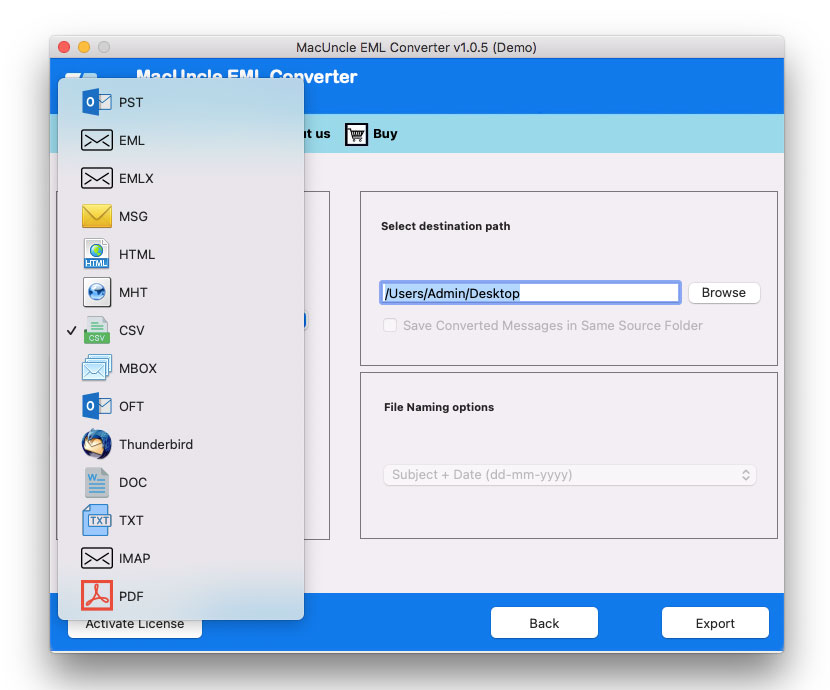
Using the MacUncle EML Converter Tool is an expert way of addressing this problem. You can use this superior software to safely import EML to IMAP. This tool will straight away upload all your emails to any IMAP server with no fear of losing email attachments, email formatting, and/or metadata. You can also use this tool to convert EML to MSG, PST, HTML, etc.
Main Attributes of the Tool
- Using this pro-level tool, you can directly import unlimited EML files into IMAP account(s).
- The software will definitely preserve your folder hierarchy as well as metadata.
- Such a tool is compatible with multiple IMAP servers (for example, Yahoo, Gmail, Outlook.com, etc.).
- This solution supports both MS Windows and Mac OS.
Below Are the Quick Steps to Complete the Process
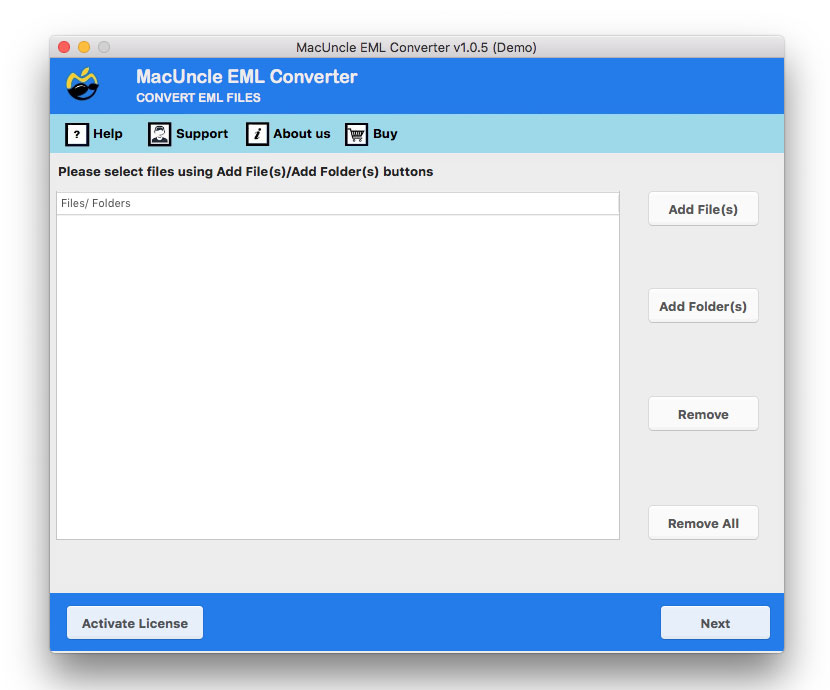
- First of all, you must download & install the tool on your Mac Machine.

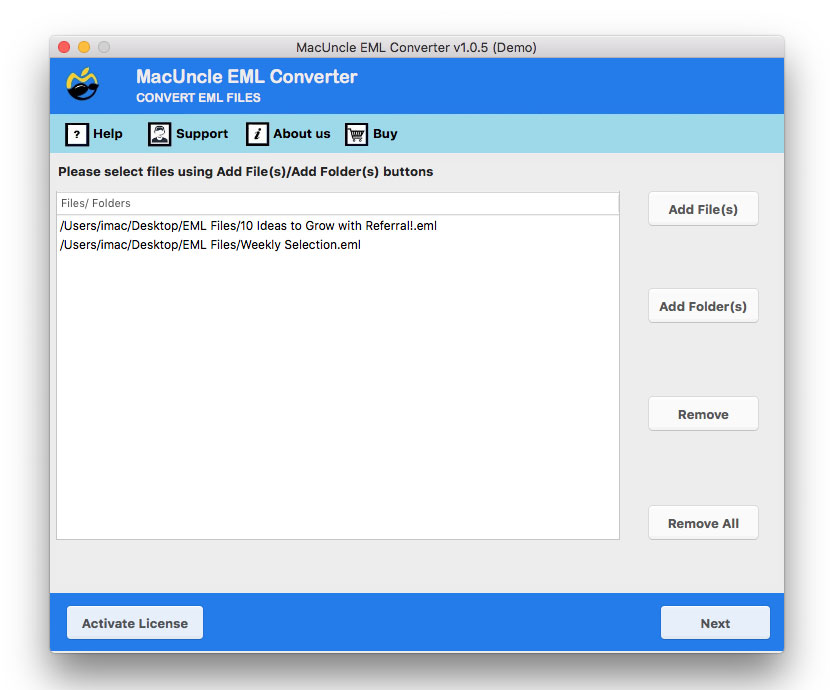
- Then, you have to add EML files or folders.
- After that, you must choose IMAP as the saving option, and you should enter IMAP account credentials.
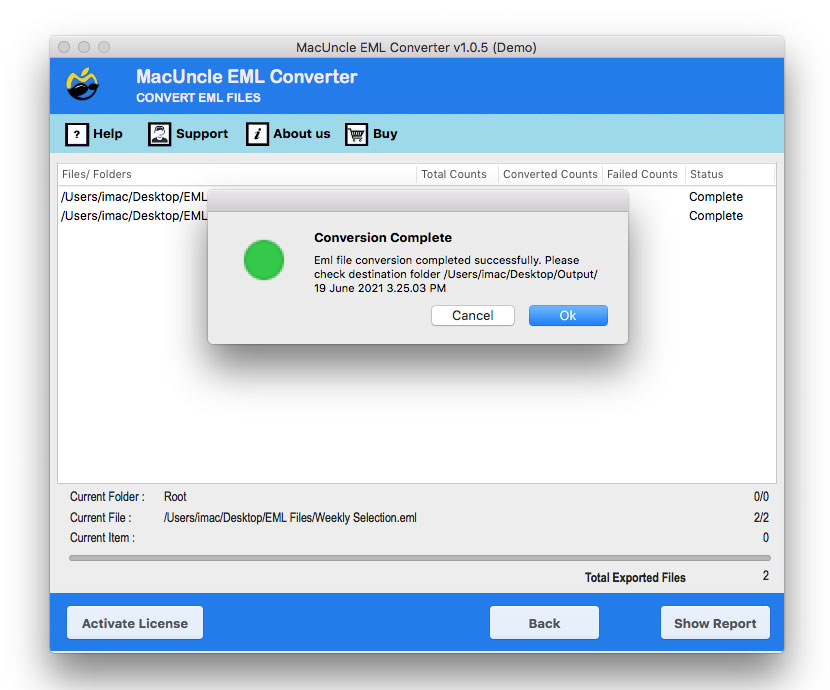
- Finally, you can click “Start Import” to complete the process.
What’s Better? Manual or Pro?
Here is a quick comparison for you to guide which solution is the superior one:
| Aspect | Manual | Pro |
|---|---|---|
| Speed | Slow and lengthy | Fast import |
| Data Safety | Risk of corruption | Fully safe |
| Usage | Needs technical skills | Simple GUI |
| Attachments | Usually lost | Preserved |
Some Dos & Don’ts That You Must Know
- DO make use of a pro tool if you wish to import bulk emails in a secure way.
- DO check the IMAP login details before making the migration.
- DO NOT depend upon any manual mechanism for bigger files or sensitive data.
- DO NOT skip the backup operation before starting the migration process.
Questions Coming to Your Mind
Ques: Is it possible to directly import EML to IMAP server with no tool?
Yes! This is possible only with email clients such as Thunderbird. However, such a mechanism is slow and not very reliable for big data.
Ques: How to import EML to IMAP securely?
A pro-level software guarantees accuracy & speed, as well as full data safety.
Ques: Does the pro tool work with Gmail’s IMAP?
Yes! This tool supports Gmail as well as other IMAP-based services.
Final Thoughts
To sum up the thought covered here, we can say that if you wish to import EML to IMAP, you can surely give manual mechanisms a try such as MS Outlook or Thunderbird. You may find these methods slow & risky to you. For a superior approach, you must try a pro-level tool that would give the best results with assured data integrity. Whether you happen to be an individual user or even a business entity, making the right software selection will not only save your precious time but will also safeguard your crucial email data.