How to Import OST to Apple Mail?


Are you planning to switch from Windows to macOS or even move the emails from Microsoft Outlook? The first and foremost challenge you will face is accessing the email contacts and calendar events that are stored in the OST files. OST files are proprietary to MS Outlook, and therefore, it is not compatible with Apple Mail. The guide here will give the best approaches to import OST file to Apple Mail, which includes the manual and automated methods.
Whether you are a business professional, an IT admin handling multiple mailboxes, or a personal user, this comprehensive guide will cover everything from an overview to direct upload of OST files to Apple Mail.
What are OST Files?
OST files are offline copies of Microsoft Exchange or Office 365 mailboxes. Outlook creates the files automatically on the local machine, so the user can access the data without an internet connection. The OST file gets updated once Outlook syncs with the server again. OST files store emails, calendar events, contacts, and the address book.
Why Can’t We Import OST File to Apple Mail Directly?
Apple Mail use the MBOX format to locally store emails. It has the option to add the mailboxes to the account with the Import Mailbox… option. OST files are a Microsoft proprietary format that Apple Mail does not support. Thus, we can’t simply drag OST files into Apple Mail.
To successfully import OST to Apple Mail, you need to convert the OST files to a format Apple Mail support that is MBOX or EML format, before importing. Thus, we can easily migrate OST files to Mac Mail.
Directly Convert OST to Apple Mail Account
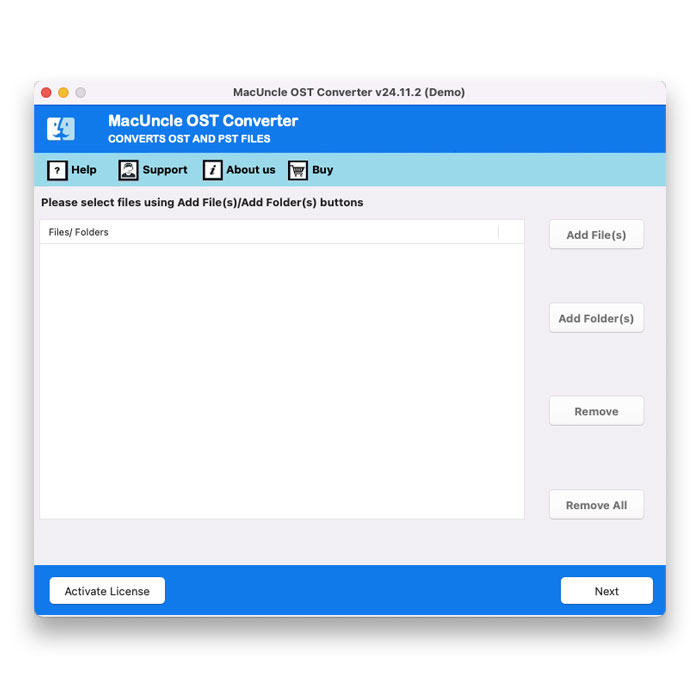
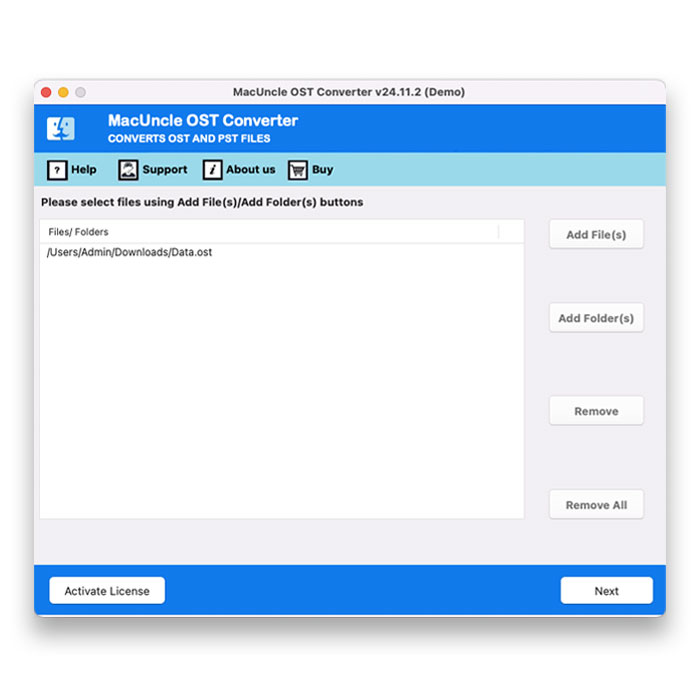
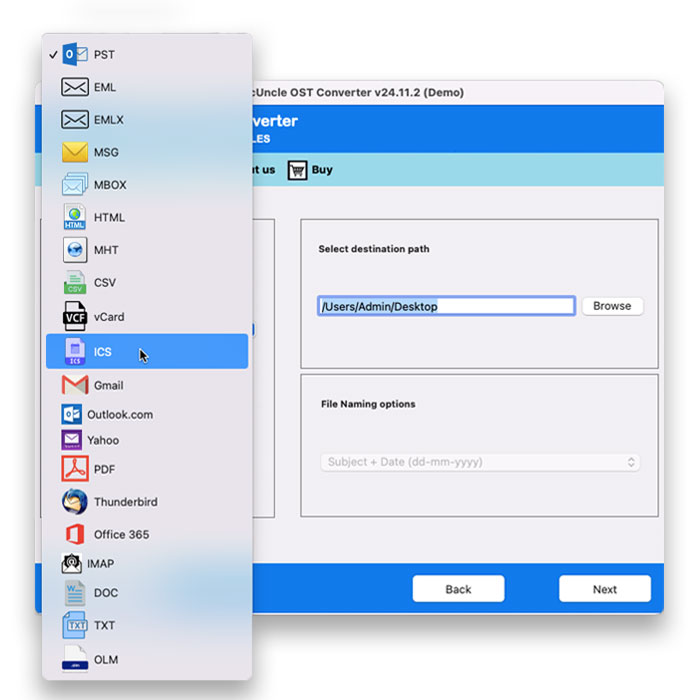
The quick and most reliable way to import OST to Apple Mail is by using the OST Converter. The utility is built for macOS users who want to migrate OST to the Mac Mail account directly. We can use IMAP and then directly import the OST.
How to Import OST to Apple Mail Accounts?
- Start the software on the Mac system.

- Add the OST file to the software panel using the Add button.
- Now choose the IMAP option from the options.
- Enter Apple Mail credentials.
- Press the Export button to start the process.
Import OST to Apple Mail Account using Microsoft Outlook
We can use Outlook to transfer the Outlook OST to Apple Mail. Follow the steps below
- Open Microsoft Outlook on Windows.
- Go to File > Open & Export > Import/Export.
- Select “Export to a file” and click Next.
- Choose “Outlook Data File (.pst)” and click the Next button.
- Select the mailbox or folder you want to export.
- Select a location and click finish.
- If prompted, set the password and click OK.
Convert the exported file to MBOX Format.
Once you have the PST files, you can convert the exported files to MBOX format using the PST Converter. Switch the file to a format supported by Apple Mail Account. The steps are similar to the above mentioned approach. After conversion, follow the steps
- Start Apple Mail.
- Go to File > Import Mailboxes.
- Select Files in MBOX Format
- Choose the converted file.
Is there a Manual Approach to importing the OST File to Apple Mail or iCloud?
No, there is no completely manual approach to importing an OST file to Apple Mail. Since OST files are a Microsoft proprietary format, Apple Mail does not support anything except MBOX and EML. Therefore, we need to build a bridge between the file format and the email client. To simplify the whole process, using a recommended tool is the best option.
Here, we have explained the better approach that relies on the tool at some stage. The difference is in how we use the procedure as per the requirement.
FAQs
Q) Can I get access to the OST file on a Mac directly?
A) On Mac OS, it is not easy, as we can either use a viewer to open an OST file on Mac. OST files are created by Microsoft Outlook and are not supported on macOS. We can follow the steps mentioned here to import the OST file to Apple Mail and thus access the files.
Q) What format does Apple Mail support for Import?
A) Apple Mail supports MBOX and EML formats for importing emails. You can convert the OST to either one of the formats before importing.
Q) Can I import OST to iCloud using this method?
A) Yes, by using the IMAP option in the recommended software and entering iCloud credentials, you can directly migrate Outlook OST data into the iCloud account.
Q) Will my folder structure be preserved after the migration?
A) Yes, with the suggested software, the original folder hierarchy, attachments, emails, contacts, and calendar events will be preserved.
Q) Is there a file size limit while performing OST to Apple Mail migration?
A) If you are using the demo version of the tool, you may encounter a warning message prompting you to upgrade after migrating 25 emails.
Conclusion
Importing OST files to Apple Mail may seem challenging at first, but if you are using the right approach, the whole procedure can be manageable. The guide has two different yet similar methods that can be used to import the OST files to the Apple Mail or iCloud account. Since there is no manual approach to perform the migration, we have provided two different approaches to directly import OST files and export and import mailboxes to Apple Mail. Try any of the methods above and get the solution within a few clicks.