How to Increase PST File Size Limit Safely?


Microsoft Outlook use PST to store emails, contacts, calendars, etc. As it stores all this data, over time the PST files can grow large and might lead to performance issues. When such an issue occurs, we are inclined to find a solution to increase PST file size limit. In this guide, we will explain how to increase the size limit of Outlook PST files.
What is a PST File in Outlook?
PST files are Outlook’s local files that store mailbox data such as emails, calendar, tasks, contacts, etc. Usually, it is used for mailbox backup manage email content offline. The PST files, therefore has a storage limit. As emails keep piling up and the PST file reaches its limit, Outlook may fail to send or receive emails and start running more slowly.
By default, Outlook versions have different file sizes: Outlook 2000 and earlier had a 2GB limit, Outlook 2003-2007 had 20GB, and Outlook 2010 & later have a 50GB limit for the PST file. When the Outlook PST file reaches these respective limits, Outlook will start showing errors.
PST Size Limit and Registry Value
Outlook 2010, 2013, 2016, 2019, 2021 & Microsoft 365
| Name | Type | Valid Data Range | Default Value | Meaning |
|---|---|---|---|---|
| MaxLargeFileSize | REG_DWORD | 0x00000001 – 0x0000C800 | 50 GB | Maximum size allowed for Unicode PST files |
| WarnLargeFileSize | REG_DWORD | 0x00000000 – 0x0000BE00 | 47.5 GB | Outlook warns when the PST nears the limit |
| MaxFileSize | REG_DWORD | 0x001F4400 – 0x7C004400 | ~1.93 GB | Outlook warns when the PST nears the limit |
| WarnFileSize | REG_DWORD | 0x00042400 – 0x7C004400 | ~1.82 GB | Outlook warns when the PST nears the limit |
Outlook 2003 & Outlook 2007
| Name | Type | Valid Data Range | Default Value | Meaning |
|---|---|---|---|---|
| MaxLargeFileSize | REG_DWORD | 0x00000001 – 0x0000C800 | 20 GB | Maximum size allowed for Unicode PST files |
| WarnLargeFileSize | REG_DWORD | 0x00000000 – 0x0000BE00 | 19 GB | Outlook warns before PST reaches max size |
| MaxFileSize | REG_DWORD | 0x001F4400 – 0x7C004400 | ~1.93 GB | Maximum size for older ANSI PST files |
| WarnFileSize | REG_DWORD | 0x00042400 – 0x7C004400 | ~1.82 GB | Warning limit for ANSI PST files |
Why does Outlook enforce limits? Outlook enforces PST size limits to prevent file corruption, maintain performance, and reduce crashes caused by excessive PST file sizes. The large PST files require more memory and processing power, which would significantly slow down Outlook.
Why You Should Increase PST File Size Limit?
There are multiple reasons to increase the size of the PST files, but the ultimate solution to fix Outlook Data File Reached Maximum Limitation error. Here are some of the other reasons that will help
- To store more emails without deleting the old, important data.
- Avoid any errors caused by the PST file size limit.
- Reduce the risk of PST file corruption, which is a common issue with oversized files.
- Increase PST File Size Limit for better email organisation.
Method 1: Expand PST File Size using the Windows Registry
We can use the Windows Registry to increase the PST file size limit.
Note: Back up the Registry before making any changes.
What are the steps to increase the PST file size?
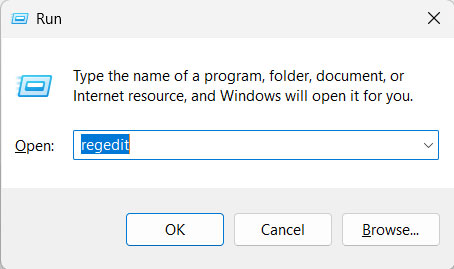
- Use the Windows key + R, type regedit, and click Ok.

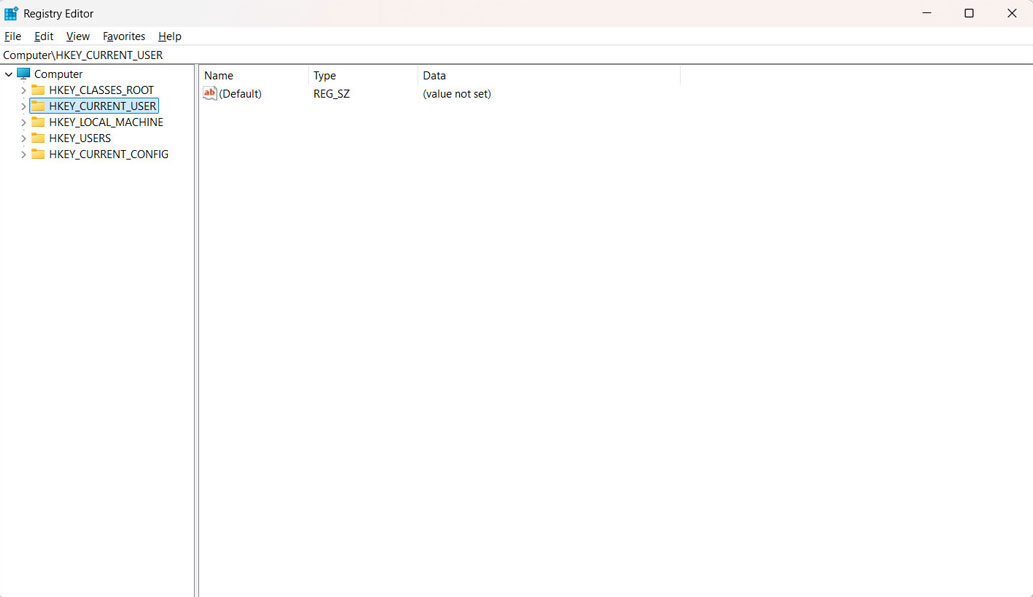
- Navigateto the Outlook registry path:

For Outlook 2016/2019/365:
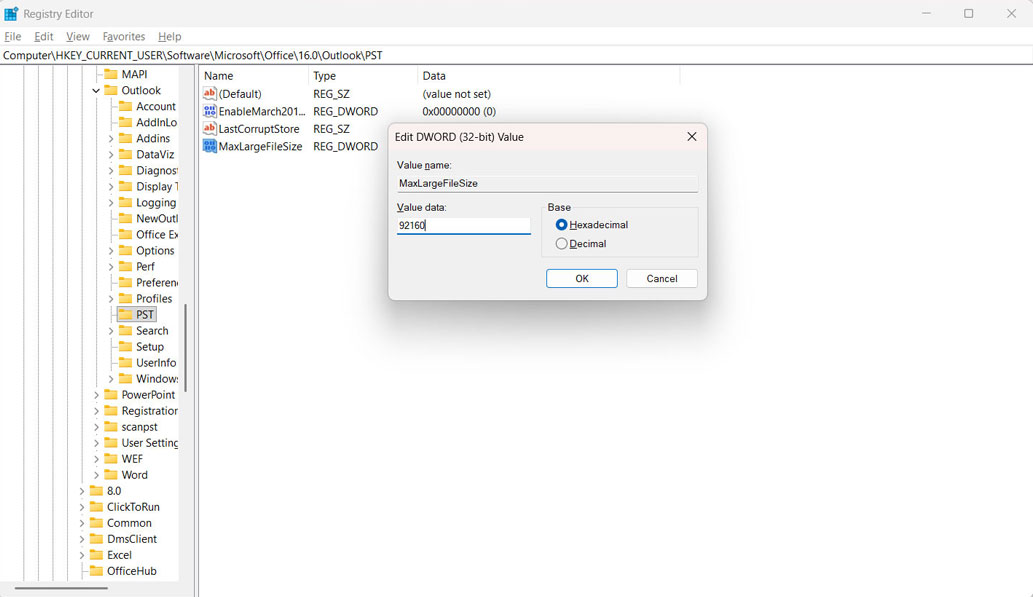
HKEY_CURRENT_USER\Software\Microsoft\Office\16.0\Outlook\PST
For Outlook 2003
HKEY_CURRENT_USER\SOFTWARE\Microsoft\Office\11.0\Outlook\PST
MS Outlook 2007
HKEY_CURRENT_USER\SOFTWARE\Microsoft\Office\12.0\Outlook\PST
For Outlook 2010
HKEY_CURRENT_USER\SOFTWARE\Microsoft\Office\14.0\Outlook\PST
MS Outlook 2013
HKEY_CURRENT_USER\SOFTWARE\Microsoft\Office\15.0\Outlook\PST
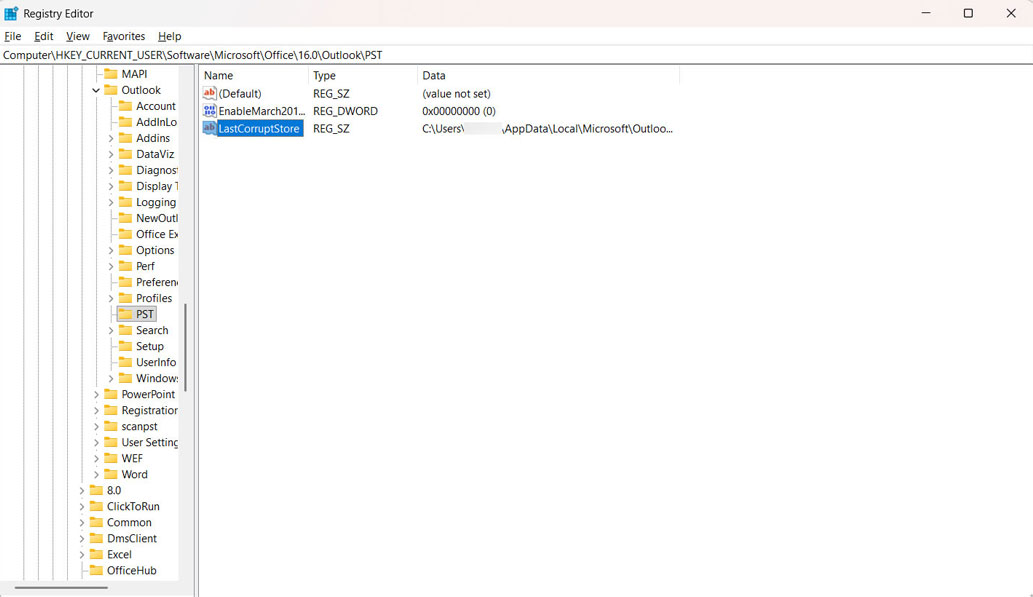
Note: The PST key does not exist; we have to create one.
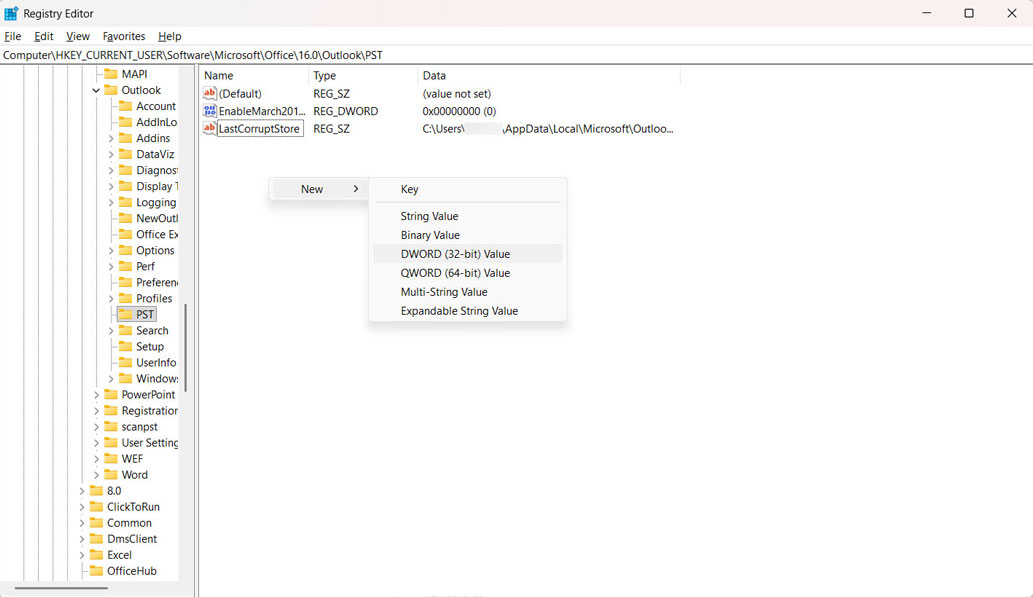
- Create or modify the DWORD value.
- MaxLargeFileSize
- WarnLargeFileSize
- Set the value.
- MaxLargeFileSize = 102400 (100GB)
- WarnLargeFileSize = 95000 (95GB)
- Restart Outlook to apply the changes.
Recommended Alternative Approach
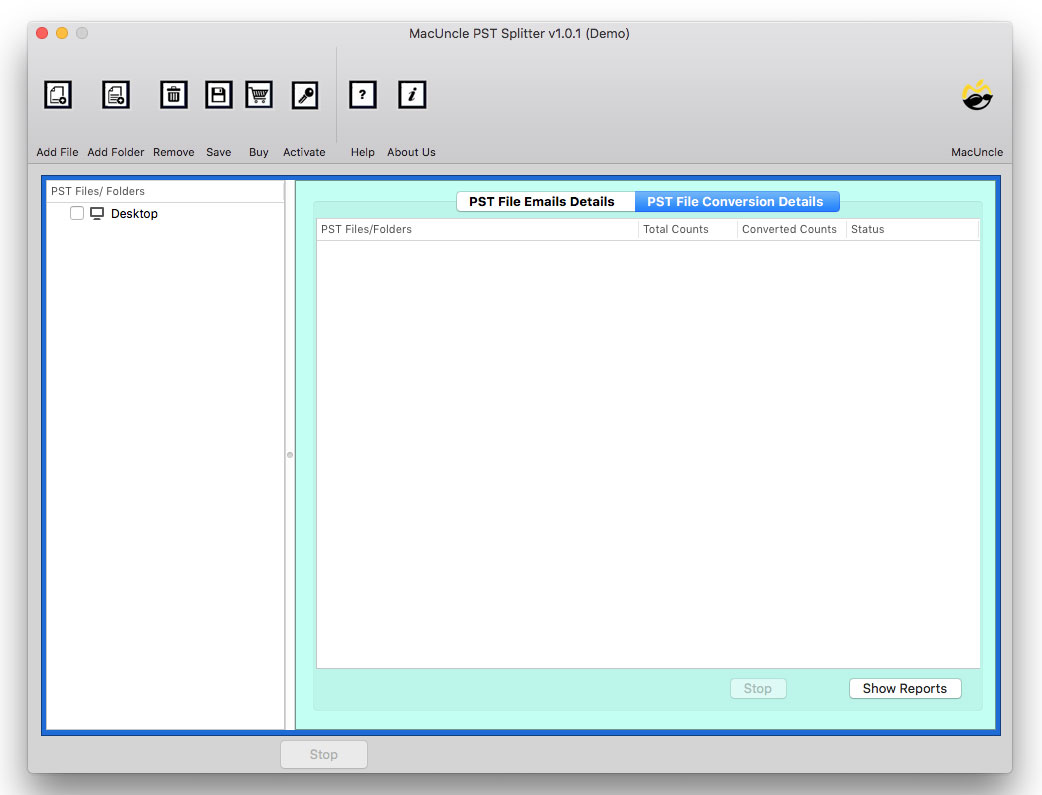
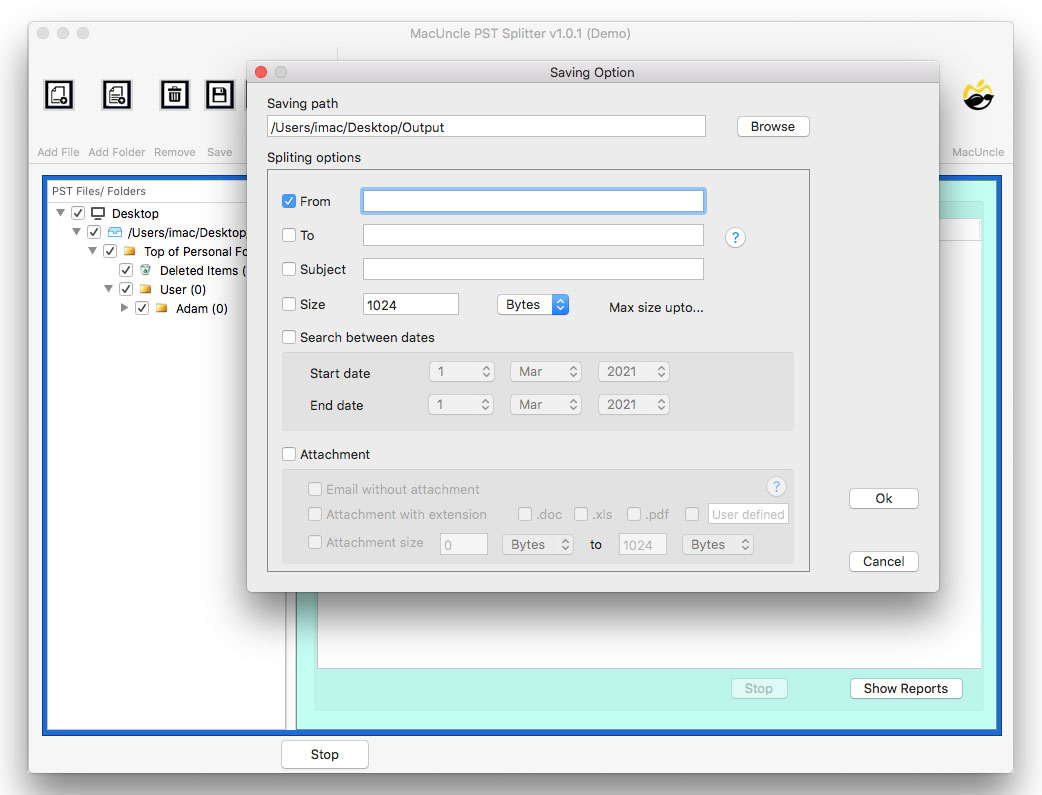
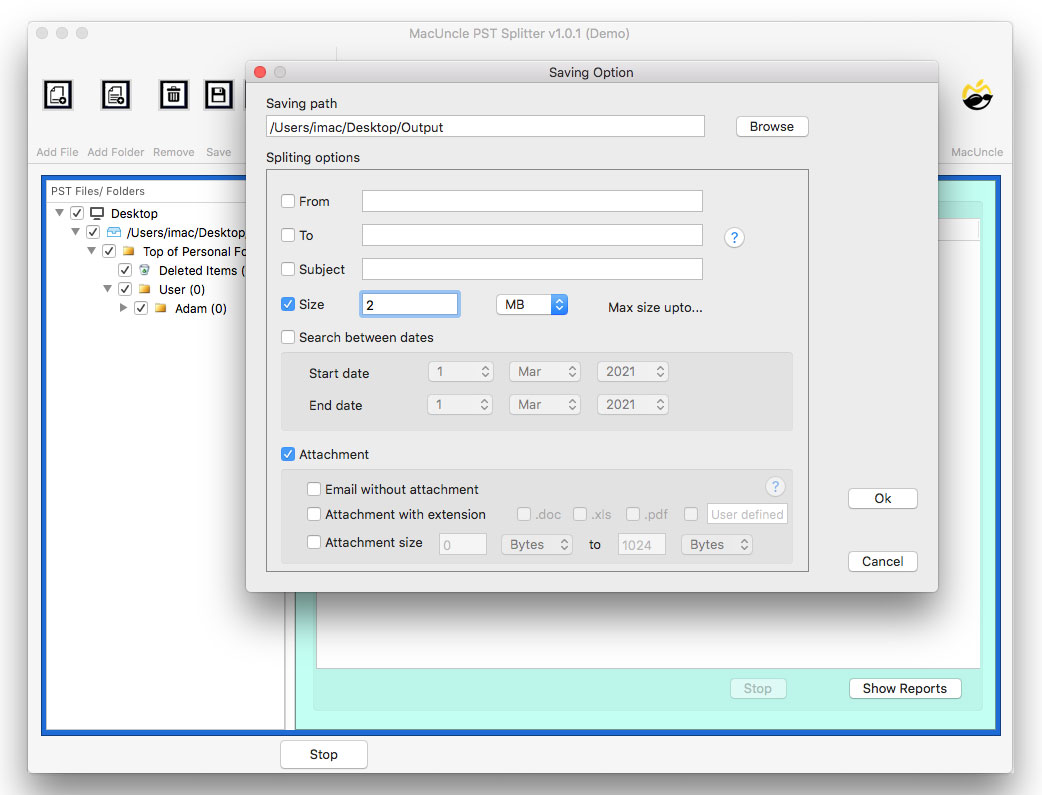
Instead of increasing the size of the PST files, use the PST Splitter to divide the large PST files into a desired file size. It is the safest option to deal with the large or limit-exceeded PST files. Split it into a desired size along with different filter options.
How to use the tool
- Start the tool on the system.

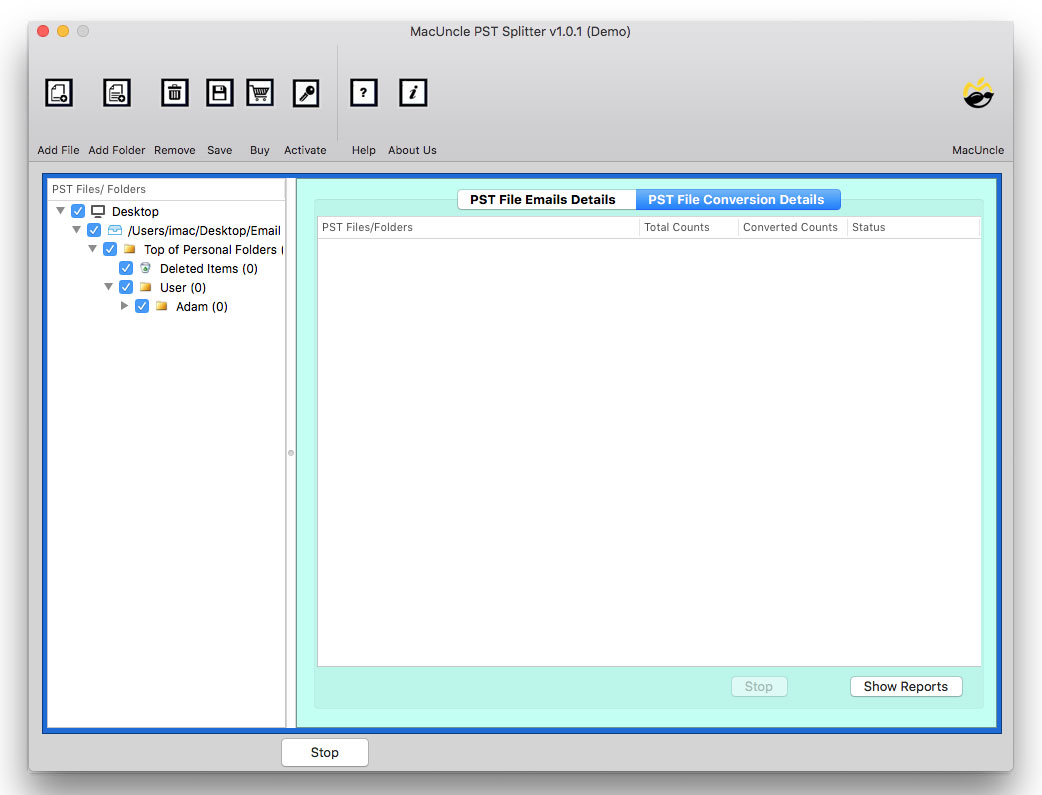
- Add the PST files to the software.
- Select the desired file from the list, then press the Next button.
- Click on the Save button and set a size.
- Press Ok button to start the process.
Frequently Asked Questions (FAQs)
Q) Is it safe to increase the PST file size?
A) Yes, we can use Outlook’s automated approach to increase the PST file size limit.
Q) What is the maximum PST file size that Outlook supports?
A) Outlook supports 50GBof data by default, but with Registry we can increase it up to 100GB or more.
Q) What happens if the PST file size exceeds?
A) If you have oversized PST files, it can reduce the Outlook speed and thus increase the probability of corruption risk.
Q) Is there any other option other than increasing the PST file size limit?
A) Yes, if the PST file size exceeds, you can always divide the file into a desired size with the professional tool mentioned here.
Conclusion
When the storage limit is at the stack, we end up looking for the simplest approach without losing important emails. Is there a method to increase PST file size limit? We can do it by using the Windows Registry, archiving emails, managing the PST size for better Outlook performance and increasing data security.