How to Migrate ProtonMail to Thunderbird Account?


If you have been searching for a way to migrate ProtonMail to Thunderbird, you are not alone. Most people today opt for ProtonMail as it offers solid security & has great privacy capabilities. Quite likely, you might have signed up for ProtonMail a while back to receive updates from some discussion forums & online communities. But as you had already used Mozilla Thunderbird for managing Gmail & other mailing accounts, it really makes sense to view ProtonMail messages from there. Luckily, it is quite feasible to integrate both these mailing platforms with total comfort. Here, in this blog, we will be exploring the manual operations to carry out this migration and also introduce a pro tool to further simplify the entire procedure.
Why Opt for Mozilla Thunderbird?
Mozilla Thunderbird happens to be a strong email management app, which aids in organising your mail messages while still maintaining privacy as well as data safety. Below mentioned are some notable benefits of it:
- Thunderbird automatically tends to identify spam & unnecessary emails, helping you to declutter your inbox always.
- Mozilla Thunderbird presents offline encryption features for protecting emails from any unauthorised access.
- It supports extra storage options to manage large volumes of email data.
- This software is totally free & provides multiple add-ons for better functionality.
- People could compose & read messages offline, & emails won’t be sent on their own when internet connectivity is restored.
Manually Add ProtonMail to Thunderbird
In the sections below, you will find multiple methods for connecting ProtonMail to Thunderbird. Carefully follow the steps below for each method to migrate ProtonMail to Thunderbird.
Method 1: Connect ProtonMail to Thunderbird Manually
For manually configuring ProtonMail’s email account in Mozilla Thunderbird, you have to follow the steps given below:
- Download and install ProtonMail Bridge from proton.me/mail/bridge (must have paid Proton Plan).
- Sign in to ProtonMail Bridge and let it run in the background.
- In the Bridge, go to Mailbox Details and note down the IMAP/SMTP.
- Launch Mozilla Thunderbird.
- Go to the Menu ☰, and select New Account.
- Enter your name, ProtonMail’s email address, & also the password (Get ProtonMail’s Bridge Mailbox Details).
- Click Continue.
- Mozilla Thunderbird will detect the settings.
- If you are using a custom domain with ProtonMail, then select Configure Manually.
- Enter the information in the Bridge Mailbox Details.
- Select Done, & then approve the security certificate as prompted.
- While sending messages, Mozilla Thunderbird might ask you for certificate confirmation once again. If an error shows up, you can simply retry sending that email.
The syncing procedure might need some time, as per your mailbox size. So, be patient while Mozilla Thunderbird finishes the setup.
Method 2: Transfer ProtonMail to Mozilla Thunderbird
Here’s how to set up ProtonMail in Thunderbird using this second manual way. You can send messages from ProtonMail alias addresses via Thunderbird. For this, you can carry out the instructions given below, and you will be good to go:
- Ensure ProtonMail is already configured in Thunderbird via Method 1 above.
- Open Mozilla Thunderbird.
- From the Application menu, navigate to Account Settings.
- Then, select ProtonMail’s account.
- In the settings page, locate Manage Identities.
- Click Add to create a new identity.
- And now, enter the name as well as the alias email address.
- Make sure the outgoing SMTP server matches the one configured via Bridge.
- Finally, click OK to save these changes.
Once done, both existing and future ProtonMail messages would be available in Mozilla Thunderbird. Though such a manual way works well enough for a smaller number of messages, it might get harder while managing large-scale email data migrations.
Read Related Articles | How to Add Protonmail to Apple Mail?
Professional Solution to Migrate ProtonMail to Thunderbird
If you are wondering how to use ProtonMail with Thunderbird in the most efficient way, and seeking a faster & much more efficient approach, then this professional migrator could really prove useful to you. The Proton Mail Backup Wizard is a dedicated tool designed to ease your Proton Mail email management tasks & data migration requirements. This tool helps enable you to migrate ProtonMail to Thunderbird in just a few simple clicks.
The software is designed with a very easy interface, making it ideal for both technical and non-technical people. Supporting bulk message transfers, this tool even eliminates the need for repetitive manual effort. Some main capabilities of this software include the following:
- Straightforward email data migration of ProtonMail messages to multiple email clients as well as multiple file formats.
- Bulk processing is available for batch transfers of large volumes of data.
- Email previewing functionality is also available, which can be used before the final migration.
- The software preserves email properties as well as folder hierarchy during email data transfers.
- The tool has a very intuitive & friendly interface design to simplify the overall migration experience of all users, even the non-techies.
This automated tool is especially helpful for large firms as well as individuals who wish to migrate a substantial number of mail messages in an efficient manner.
Migrate ProtonMail Emails to Thunderbird Account
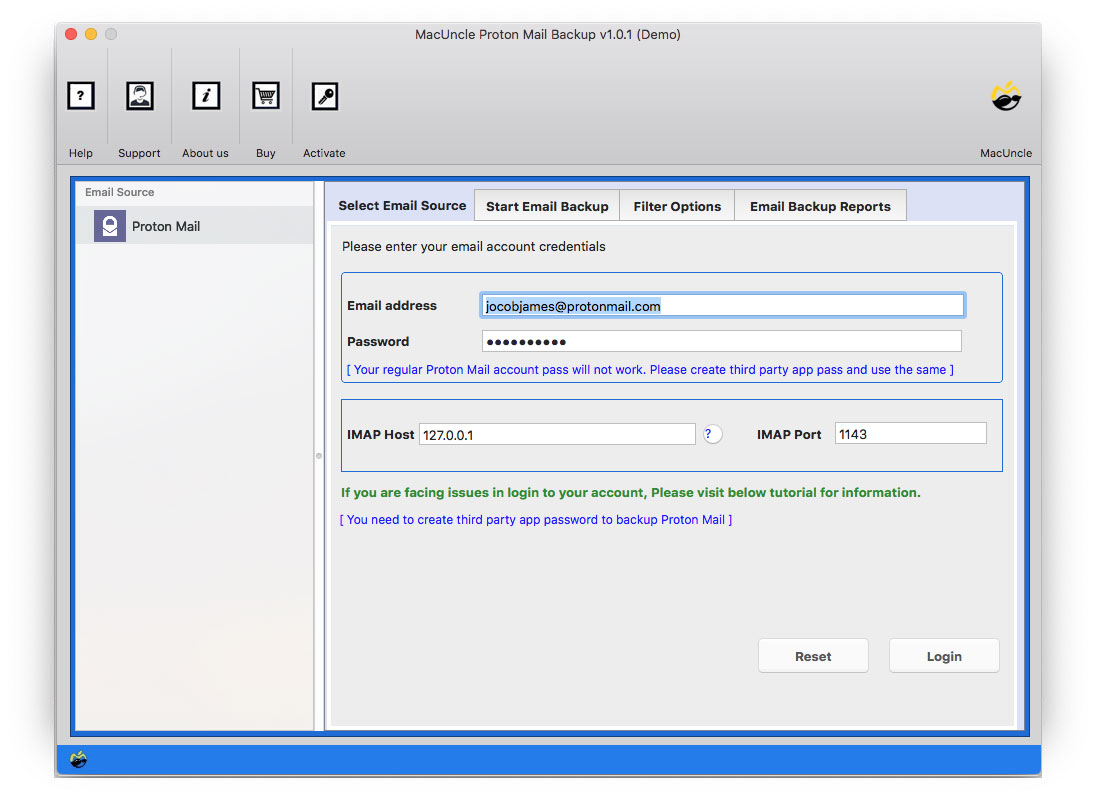
- Start the tool and enter your ProtonMail Email Address & Password. Press Login.

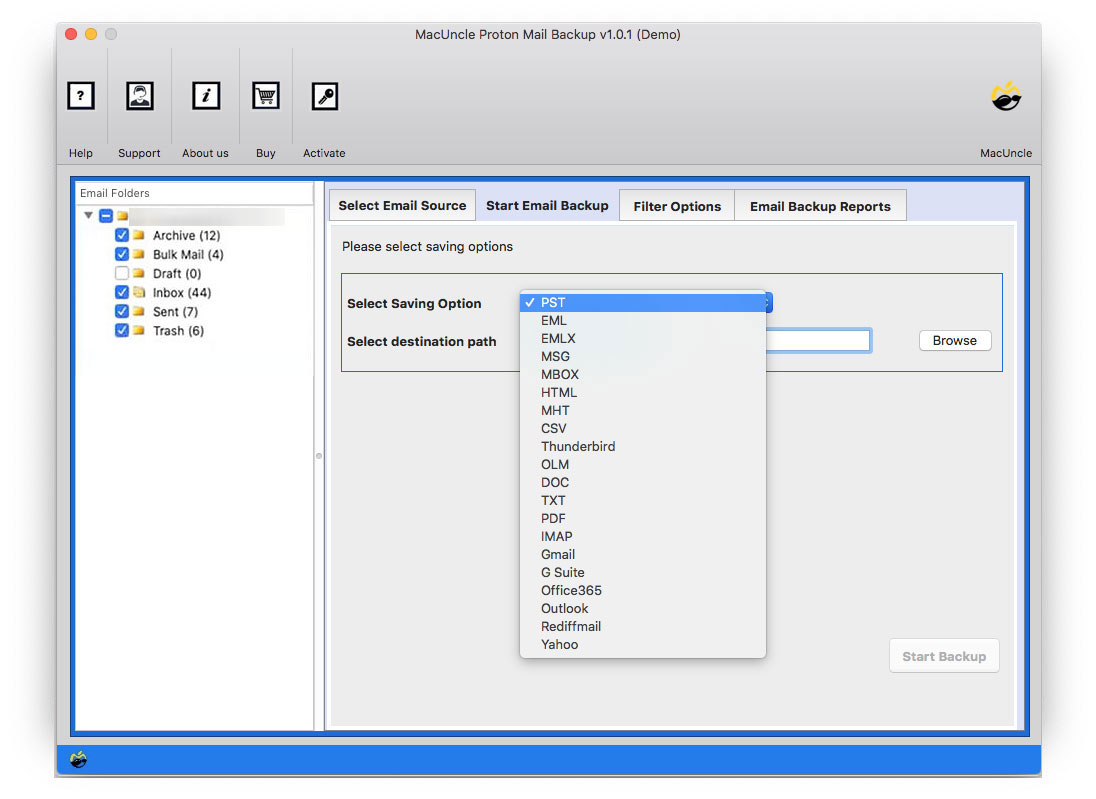
- Select the files. Then, Select Thunderbird from the options.
- The Thunderbird default location will fetch the software.
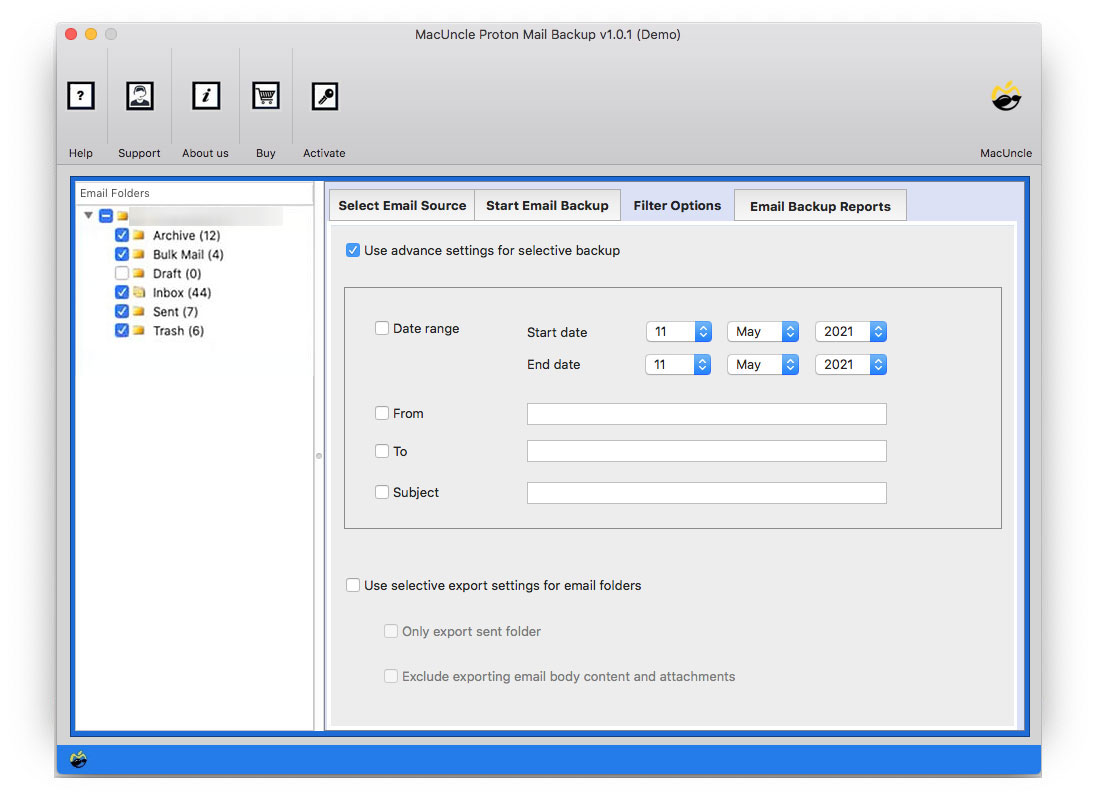
- Go to the Filter option for selective migration.
- Press the Start Backup button to start migrating ProtonMail to Thunderbird.
How to Use ProtonMail with Thunderbird for Better Email Management
Making use of ProtonMail with Mozilla Thunderbird gives a central environment for managing multiple accounts. Rather than making the switches between various webmail interfaces, people could view all their emails from one single app now. Mozilla Thunderbird’s organisational capabilities, spam filtering features, & offline viewing ability further boost the overall mailing experience of users. Also, mixing ProtonMail’s privacy-focused email infrastructure with Mozilla Thunderbird’s robust email management tools forms a superior solution that values both data safety and user convenience at the same time.
Thunderbird Unable to Login at Server ProtonMail – Check Some Resolves
Many times, people might face login problems when configuring ProtonMail in Mozilla Thunderbird. If such a thing takes place, you can try considering the following troubleshooting steps:
- Do verify that your ProtonMail Bridge is fully installed & properly running.
- Also, double-check your mailbox credentials that were given by ProtonMail Bridge.
- Always make sure that your IMAP & SMTP settings are entered accurately.
- Regularly update Mozilla Thunderbird to the latest version that’s available.
- Also, confirm that firewall/antivirus software isn’t blocking your connection.
- Remember to re-approve the security certificate when Mozilla Thunderbird requests verification from you.
Such simple checks usually fix most such login-related issues.
Conclusion
Opting to migrate ProtonMail to Thunderbird helps manage all emails from a single comfy place while still maintaining safety as well as mailbox organisation. Manual ways do work well in easy cases where smaller migrations are involved, but they become cumbersome when handling a large amount of email data. In such cases, the professional tool acts better. So, you know what to choose specific to your case.