How to Migrate RoundCube to Gmail Account Safely?


Email migration is becoming a typical scenario as users gradually shift to cloud-based platforms. We will discuss one of the common queries in the webmail, which is – how to migrate Roundcube to Gmail accounts. A very common request is transferring Roundcube emails to Gmail. Roundcube, as we know it, is a widely-used web-based email client, while Gmail, on the other hand, provides robust searching, security, storage, and device syncing features. Unfortunately, since Roundcube is not equipped with an export or direct migration tool, users are left perplexed with the process.
The article will cover what Roundcube is, why people want to change their Roundcube account to Gmail, the difficulties and both manual and automated methods of transferring user data securely and with zero loss.
What is Roundcube Webmail?
Roundcube is a webmail client distributed under the open-source license and is, in most cases, one of the email solutions offered to hosting clients through cPanel. It permits users to get email through any internet browser, e.g. Chrome, Firefox, instead of a desktop client application. This program was designed with IMAP in mind and supports such operations as composing and reading messages, handling folders, searching, and filtering.
But the thing is, Roundcube is just a GUI for emails. It does not save messages locally; on the contrary, it fetches them from the mail server. Due to this, it is quite tricky to extract or move your data.
Why Migrate Roundcube to Gmail Accounts?
There are quite a few ground practical reasons why users choose Gmail over Roundcube webmail.
- Improve security: Gmail is equipped with spam filtering, phishing protection, two-factor authentication and Google’s security infrastructure.
- Better accessibility: Gmail is available from any place, through the web, mobile applications, and desktop clients, and is independent of the hosting provider.
- Bigger Storage: Gmail offers a very generous storage quota that is very different from the hosting-based email accounts that are mostly very limited.
- Search and Organise emails: Gmail’s pretty advanced searching, labelling and filtering features go a long way in making the whole process of handling email less of a hassle.
- Changes in Hosting: Users generally migrate when changing host providers or when they want to create a backup of important emails that will be more secure.
Manual Method to Transfer Emails from Roundcube to Gmail
The manual way basically relies on using an email client like Mozilla Thunderbird to serve as a bridge between Roundcube and Gmail.
Step 1: Configure Roundcube Email in Thunderbird
- Download and Install Thunderbird.
- Add a Roundcube account using IMAP.
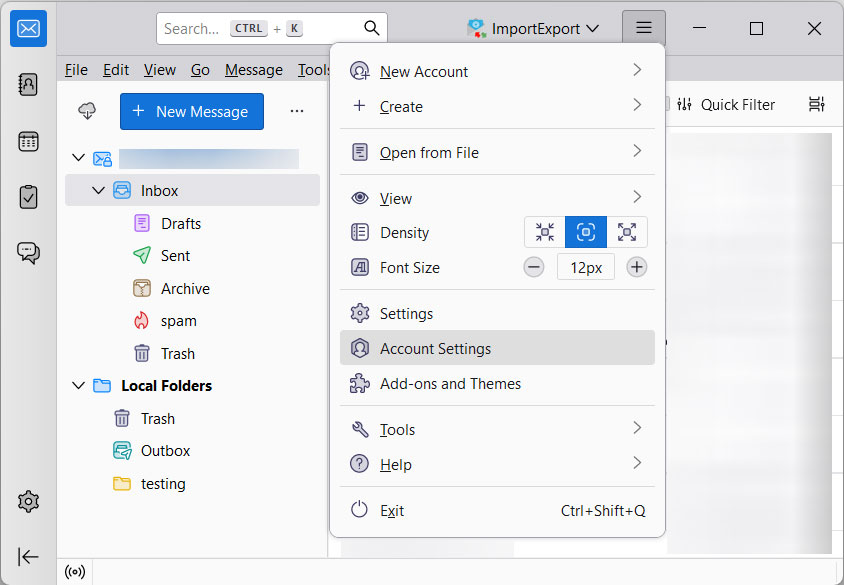
- Go to the Menu and select Account Settings.

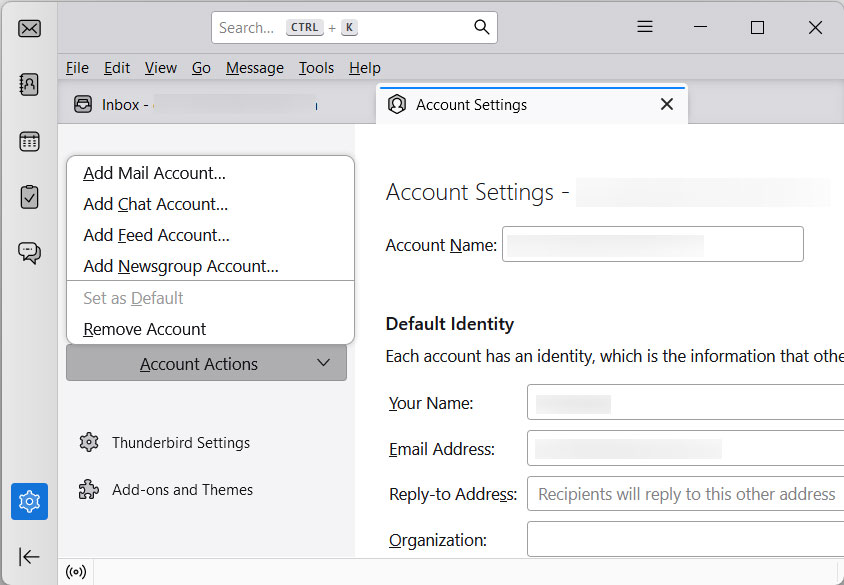
- Now Click on Account Actions and Add Mail Account.
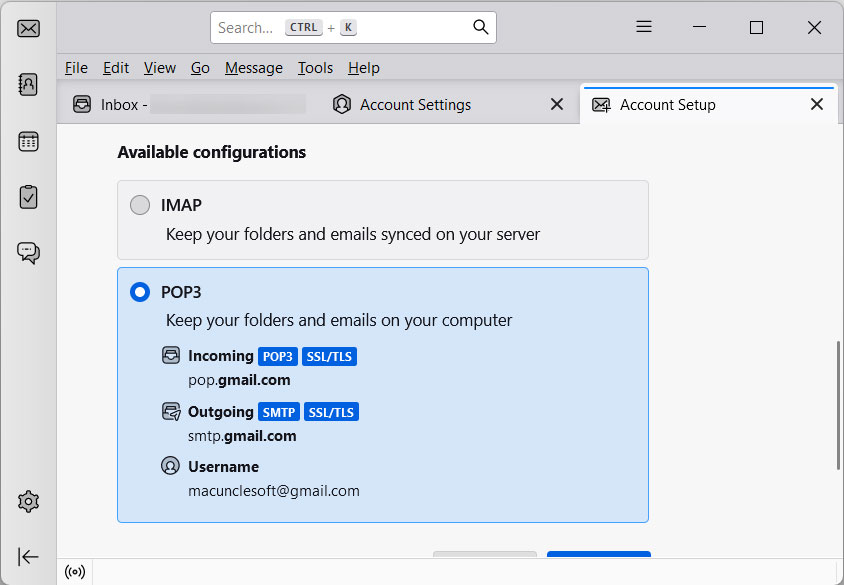
- Then, provide the hosting provider’s server details for incoming and outgoing mail.
Add Gmail to Thunderbird Account
- Use the same method to add Gmail to Thunderbird.
- Enter the Google App password if two-step verification is enabled.
Step 3: Drag and Drop Emails
- Once both accounts are synced
- Select emails or folders from the Roundcube account.
- Drag and drop them into the Gmail folders.
Limitation: It is not suitable for large mailboxes. It requires technical configuration.
How to Migrate Roundcube to Gmail with an Automated Method?
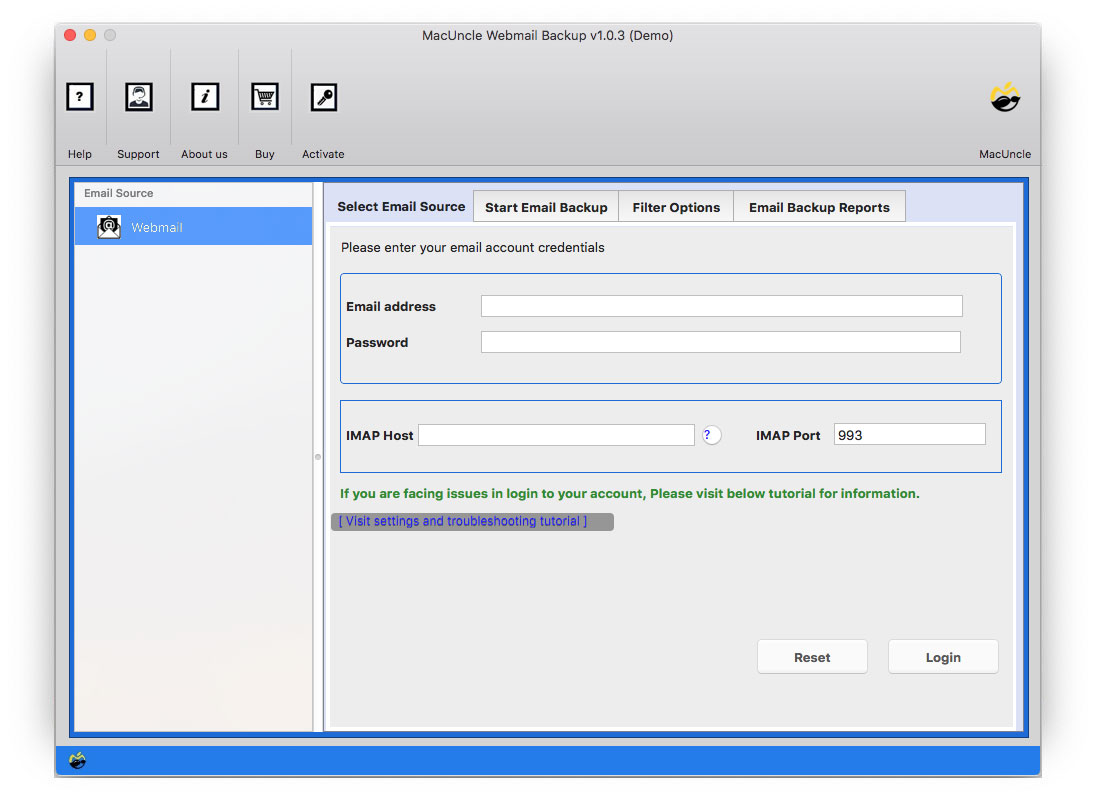
Use the Webmail Backup to overcome the limitations of the manual method to import RoundCube to a Gmail account. With the advanced algorithm, the user can directly move the emails to the Google Mail account without the need for any additional configuration. The tool can also export emails from Roundcube webmail to other email accounts as per the user’s needs.
Follow the steps to migrate Roundcube to Gmail Accounts:
- Start the tool on the system.

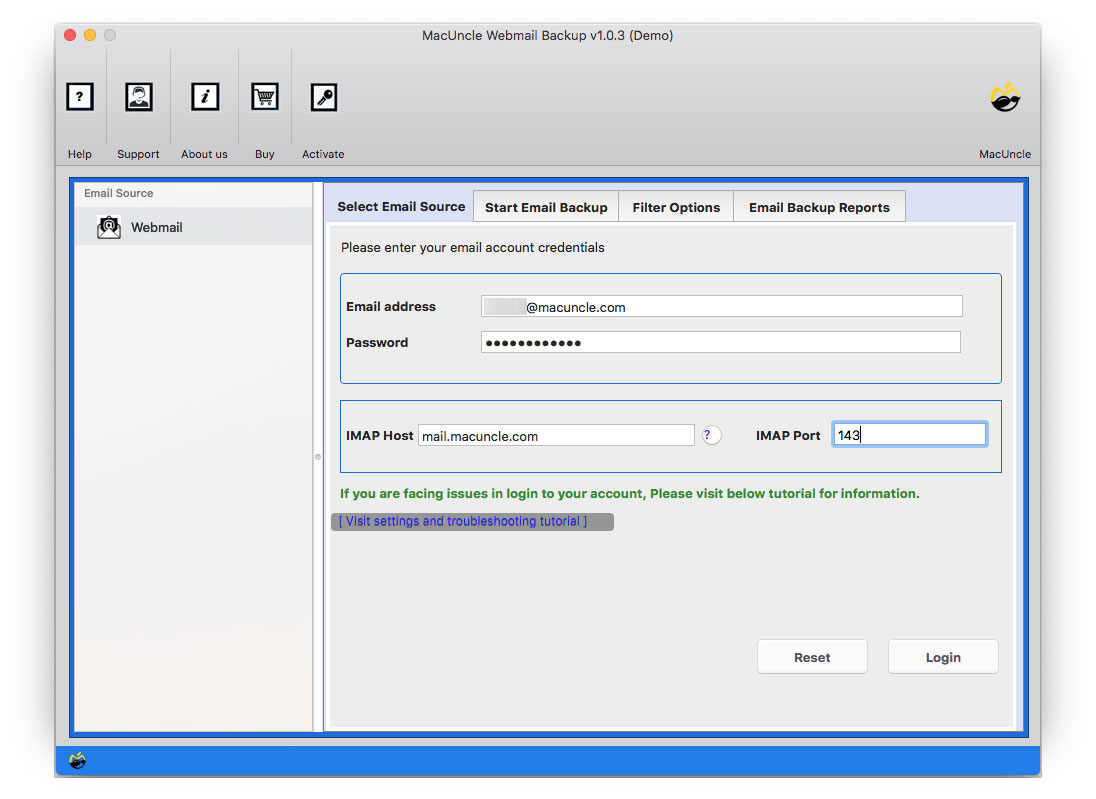
- Enter Roundcube & IMAP details and press the Next button.
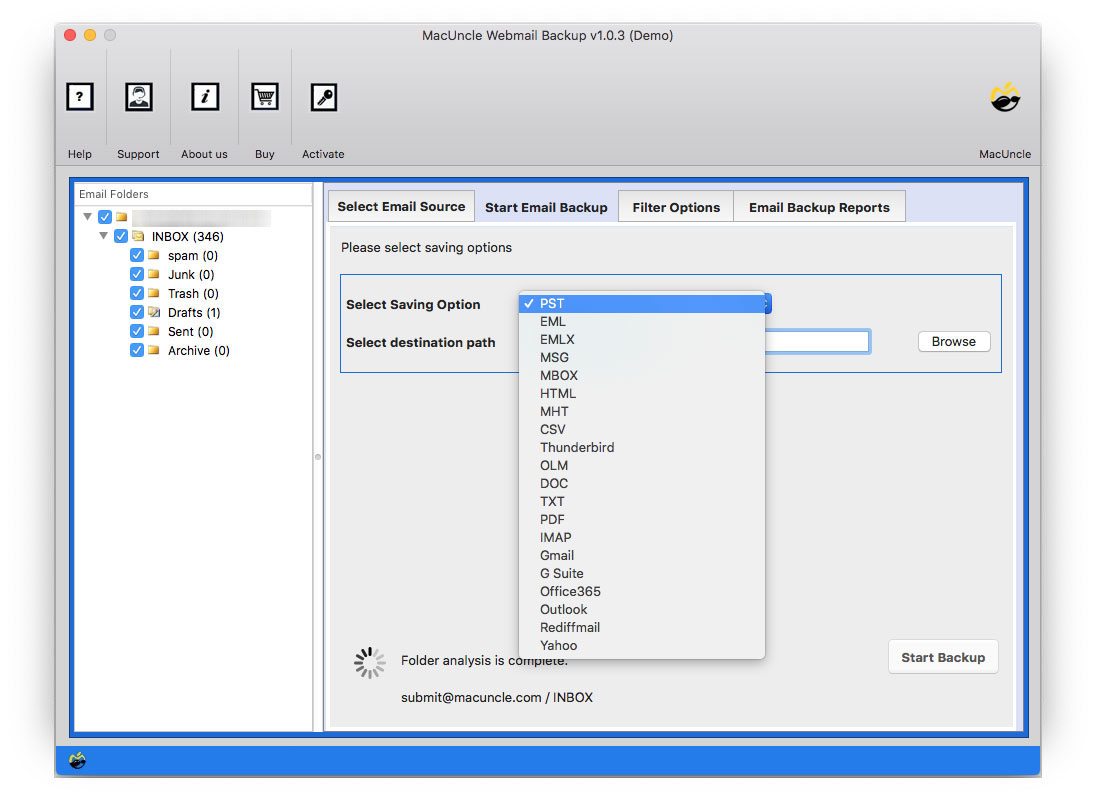
- Now choose Gmail from the options and enter all the credentials.
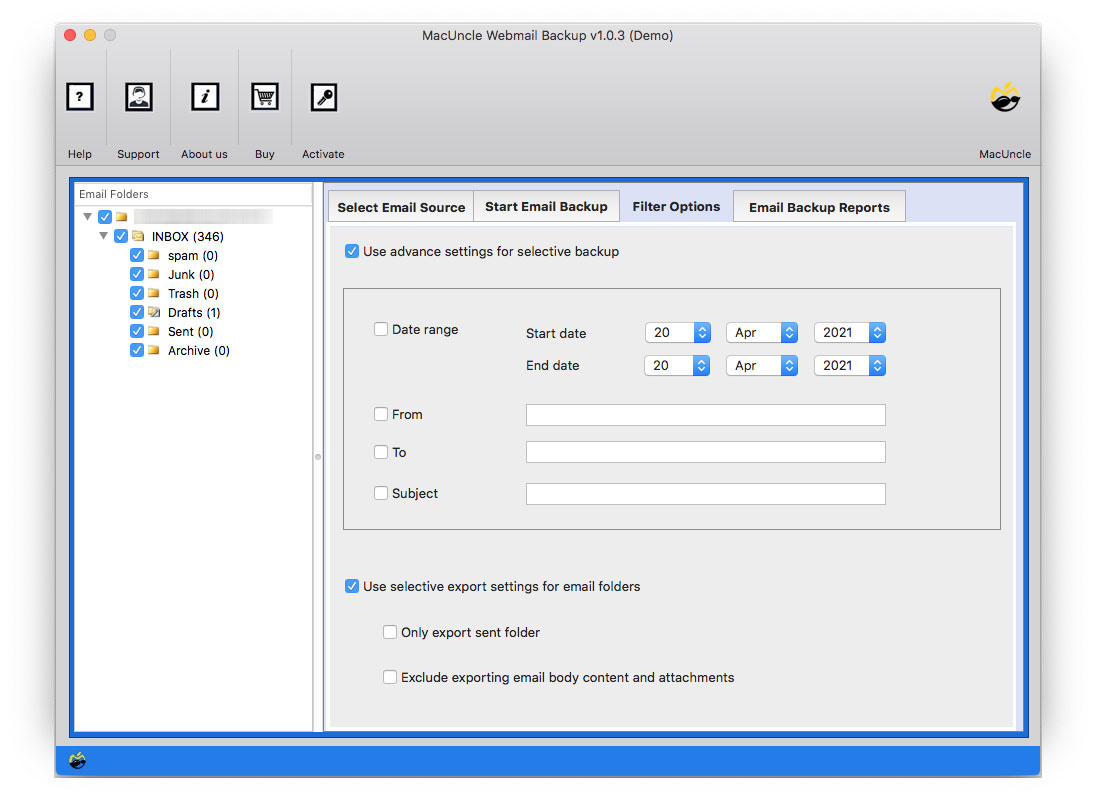
- Then, set the filter option for selective migration.
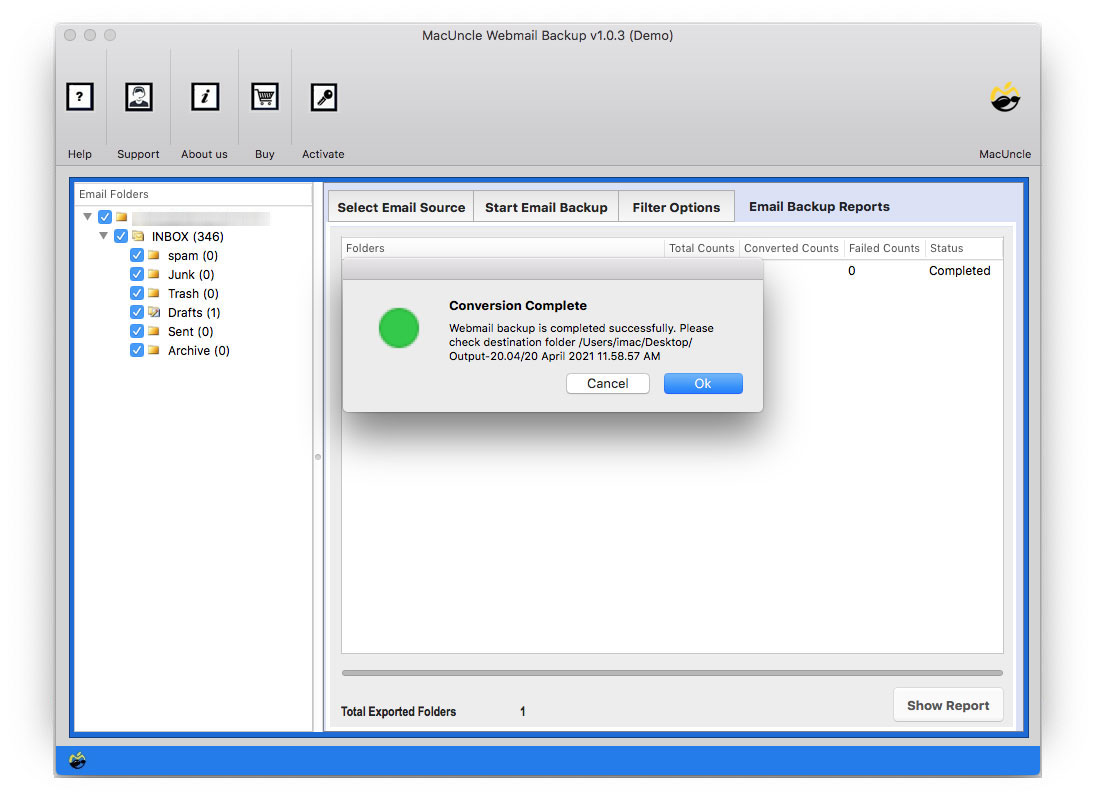
- Press the Next button to start the process to Migrate RoundCube to Gmail.
Conclusion
Importing Roundcube to a Gmail account is one of the most frequent thing a user want to do for better accessibility, security, and long-term reliability. The manual method can work for small mailboxes, but it is not practical for large-scale or business migration. Therefore, we have discussed a tool that would offer a faster, safer and more efficient method to move emails without any data loss. With the right approach and following the best method, users can seamlessly transfer the emails without any interruption.