How to Import MBOX Files into Thunderbird Account?


Want to Import MBOX to Thunderbird? This page is going to be the best guide that will help you to smoothly import MBOX into the Thunderbird email client. As MBOX files may contain important and useful data, users need to keep them safe and open them on the safest platform that prioritises the security of the data.
Users will look to migrate their MBOX file to Thunderbird for several reasons, perhaps from a limited mail client or to combine all of their archives in one place, or perhaps they just want a reliable open source platform for the future. There are a whole range of reliable reasons, and Thunderbird offers robust organisation, is reliable on many platforms and gets a regular dose of security updates. But since the email client doesn’t offer any built-in, one-click method for importing MBOX files, users often get stuck not knowing the correct route to proceed. In this article, I will guide you through the safest ways of getting your MBOX data into the Thunderbird format.
Multiple compressed email files are stored in MBOX files. Thunderbird is a system-based client that offers multiple functions and add-ons that enhance your experience of storing and managing entire data with ease. When you import MBOX into Thunderbird, you experience many advanced capabilities, such as an advanced search option, and it also supports multiple file extensions.
Let us get started and learn to import MBOX to Thunderbird efficiently while making sure that the entire data stays the same and is maintained.
Manually Import MBOX into Thunderbird Account
- Start the Thunderbird application, go to the Menu, and then Account Settings.
- In the Account Settings >> Local Folders, select Create a Folder.
- Get the Thunderbird default folder location.
- Now, paste the MBOX files into the default folder.
- Accept Thunderbird’s request to restart when it does so.
After Thunderbird opens back up, the file should appear in the local folders under your mailbox, and you can read all the contents with attachments of the MBOX file.
How to Import MBOX to Thunderbird Using Add-ons?
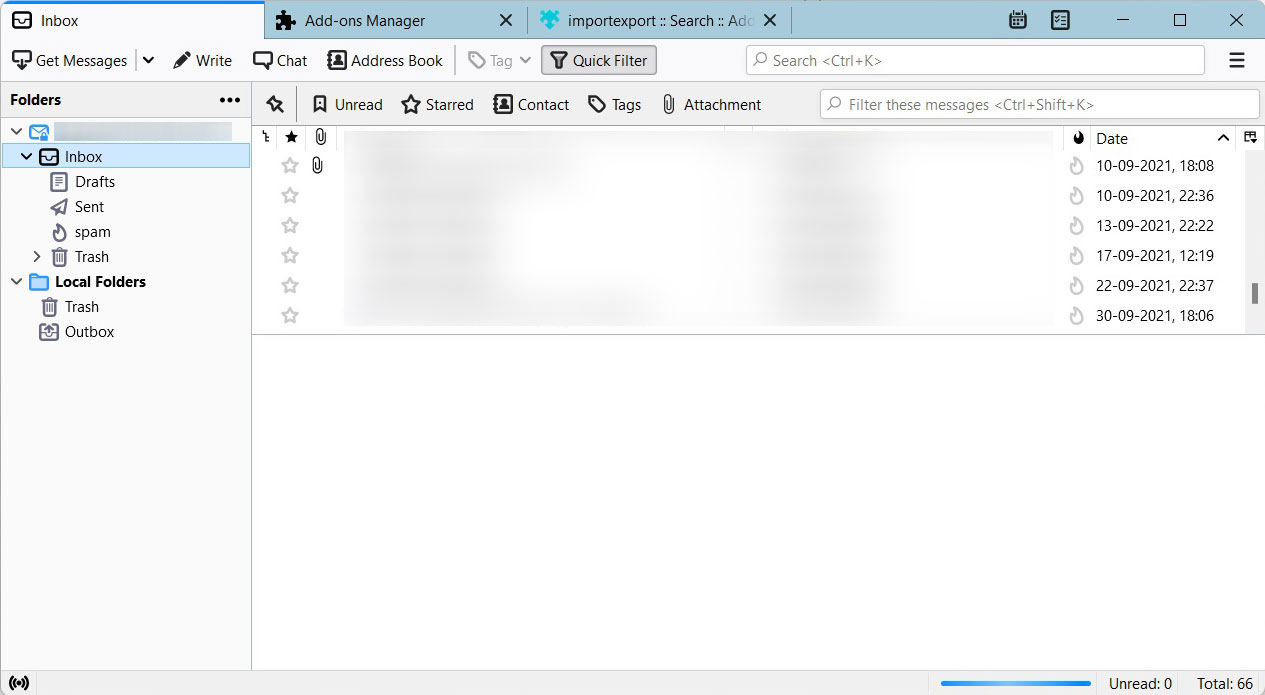
- First of all, launch Thunderbird on your system.

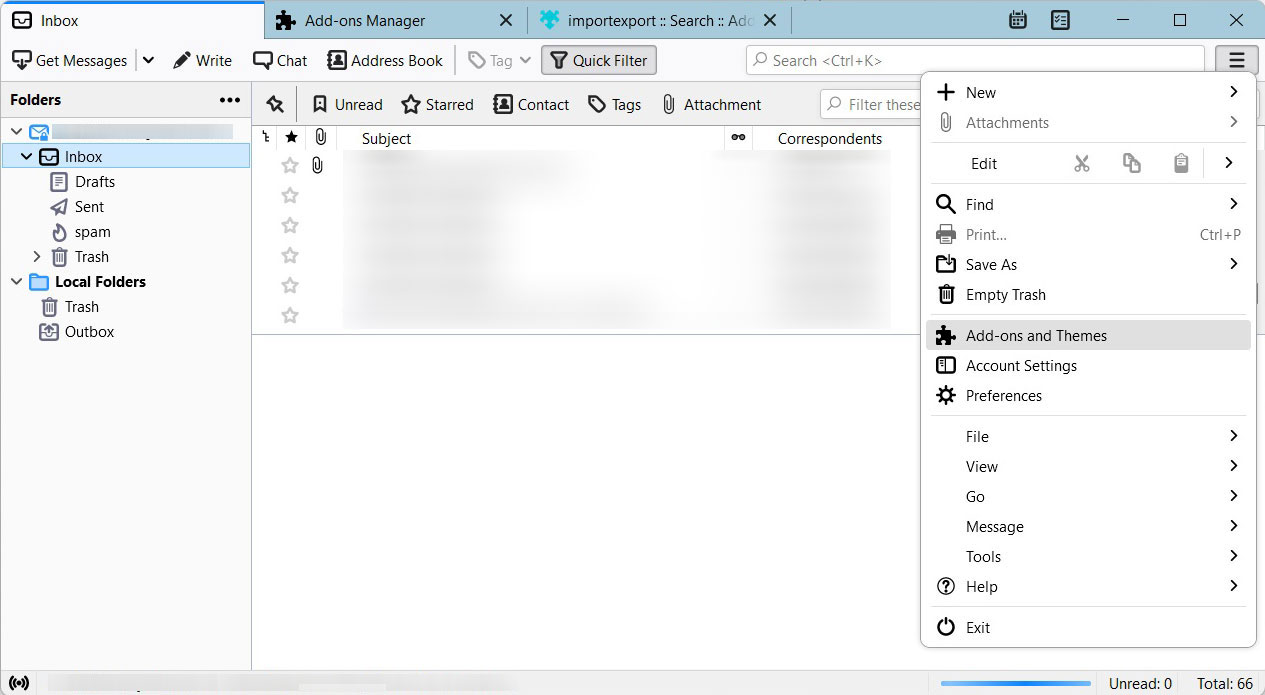
- After that, go to Account Settings and click Add-ons & Themes.
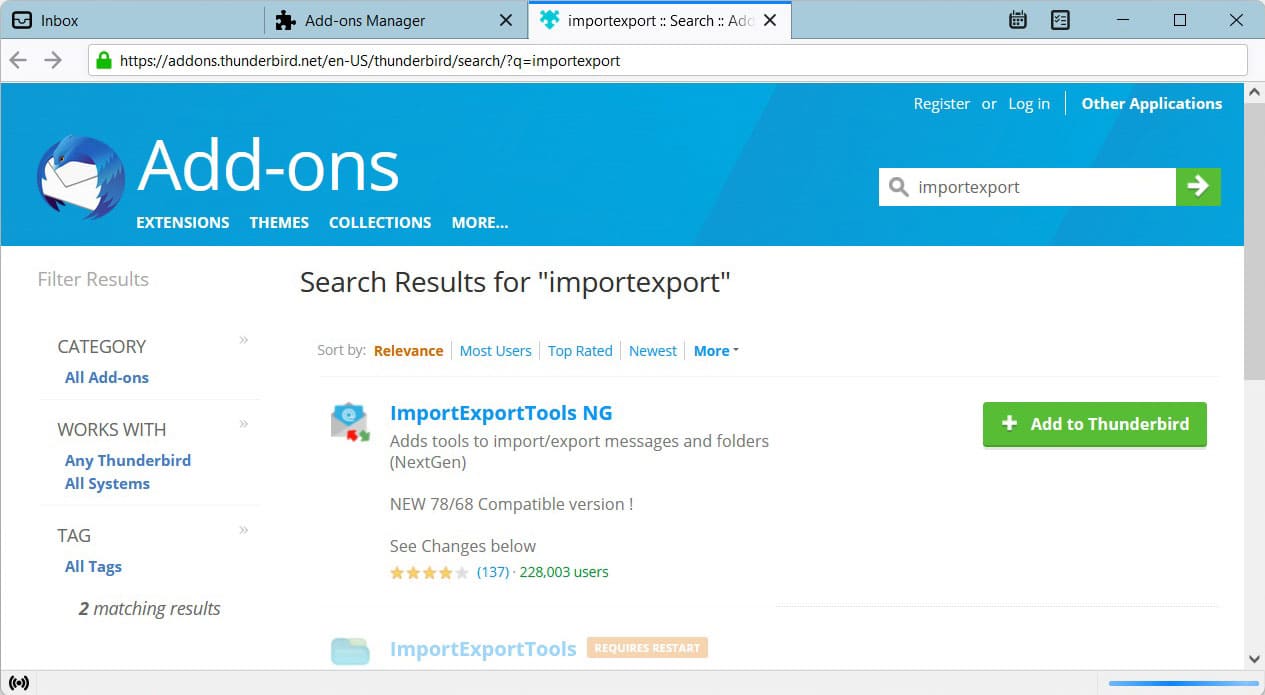
- Go to ImportExportTools NG >> Add to Thunderbird.
- Now, click on Add >> OK in the box that is shown.
- Select the Local Folders and then click on the New Folder option.
- Enter a name, such as Personal MBOX, into the Name box. Click Create Folder.
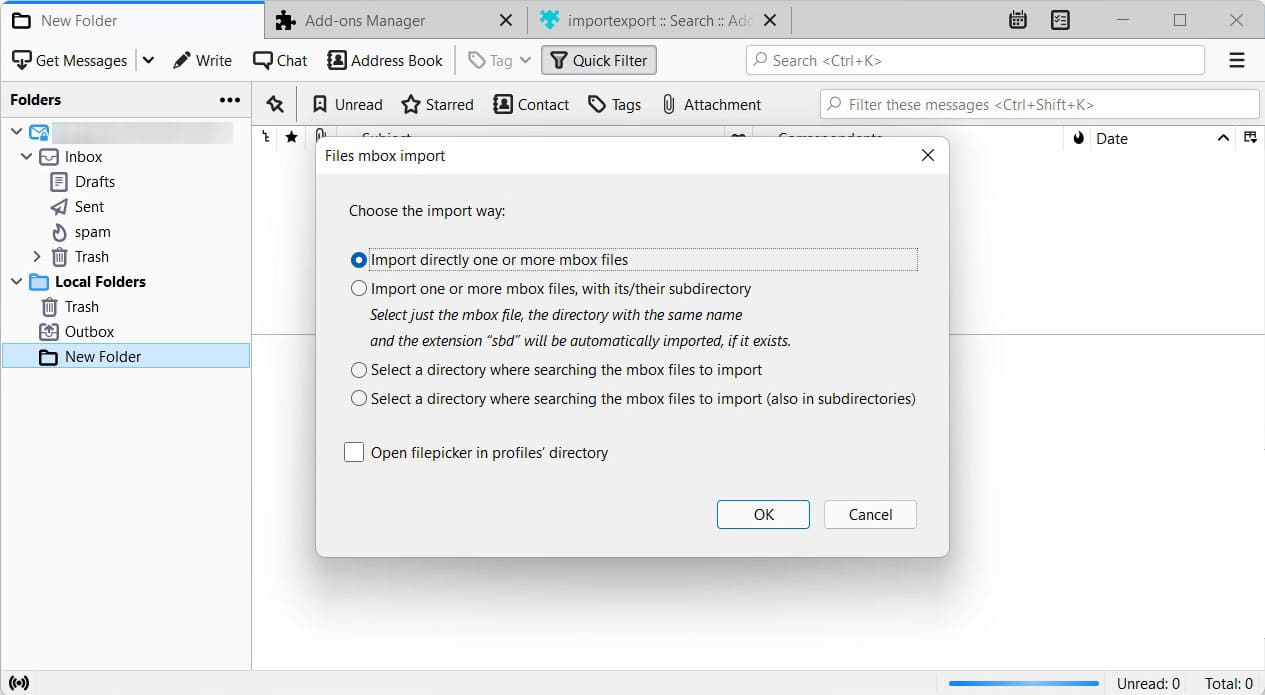
- Click the new folder you created, then go to ImportExportTools NG > Import MBOX file.
- Choose Import directly from MBOX files >> OK.
- Search and select the folder that holds your MBOX files, and click Open.
Limitations of the Manual Method
- The procedure does not guarantee a result; the MBOX files can get lost while migrating.
- The steps won’t be easy for the user who is not technically sound.
- It can alter the MBOX files while moving to the Thunderbird account.
- Creates high chances that Thunderbird may create issues while accessing files.
Note: Rather than directly importing the files, the user can opt to open MBOX file in Chrome browser.
Import MBOX to Thunderbird with Professional Solution
Access MBOX files in Thunderbird using the MBOX Converter Tool. We provide a simple technique to get the emails in .mbox files to Thunderbird. Easily import the files on the software panel in a few clicks. Get any type of MBOX email files in Thunderbird directly without performing any conversion. The tool is designed to auto-fetch the Thunderbird default location, where the MBOX can be imported with ease.
How to Open MBOX File in Thunderbird Accounts?
- First of all, download and start this tool and add MBOX files.

- After adding the file, use the checkbox to select only the required files. Press the Next button
- Select Thunderbird from the options, and instantly, the tool will fetch the default location of Thunderbird.
- Press the Export button to start the process.
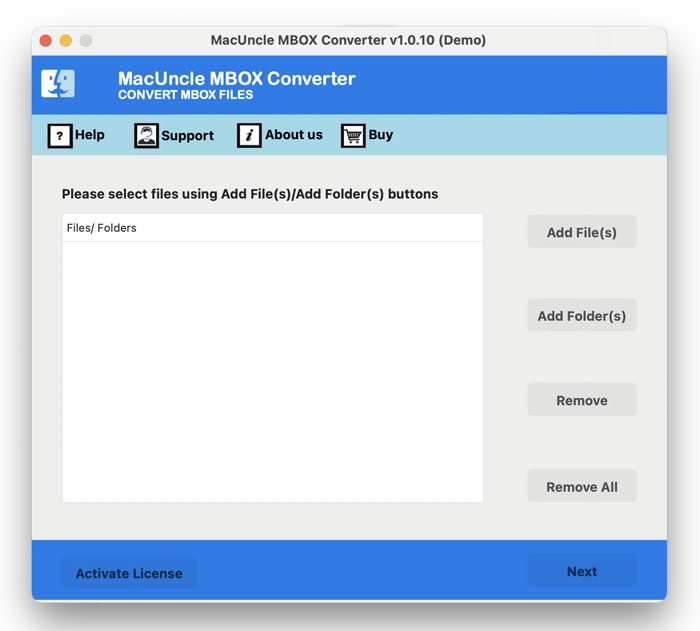
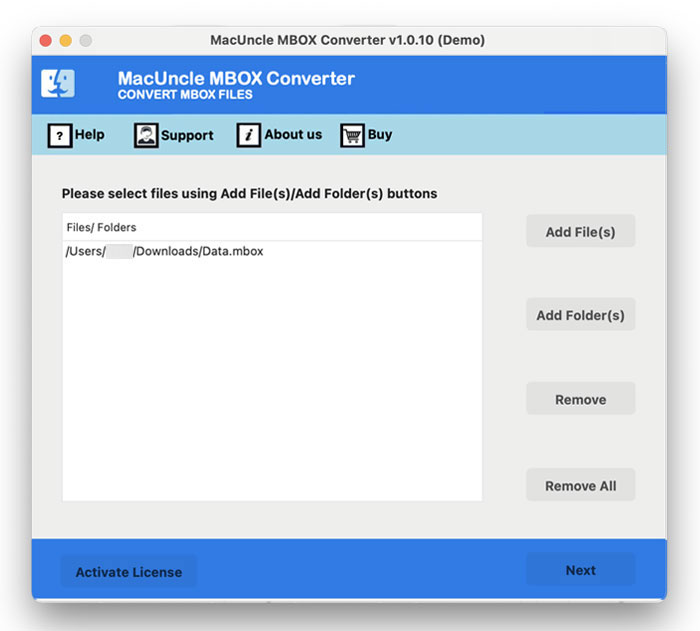
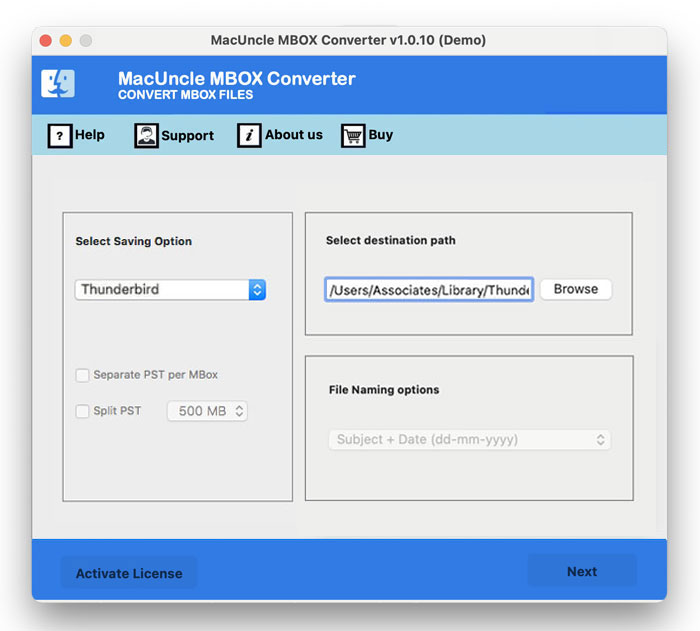
Now, all the locally stored MBOX files are in the Thunderbird Account. Check the transferred files in the account
What Does this Tool Offer?
Here are some of the major advantages of the automated method to open MBOX in Thunderbird accounts without the need for any additional support.
- Import Files in Batches: Allows users to batch import MBOX to the Thunderbird email client smoothly.
- Supports All MBOX files: Users can import MBOX into Thunderbird, no matter what type they are.
- Overcomes all limitations: Does not offer any limitations; imports entire data safely and quickly.
- Safety: Maintains safety and does not even change any data once imported into the Thunderbird email client.
- Interface: Offers easy-to-understand steps and a GUI that can be understood easily by non-tech users.
- Quick & Safe Steps: Offers users some quick steps to complete the entire process within very little time.
FAQs
Q) How can I import MBOX to Thunderbird in bulk?
A) With the above-mentioned steps, yes. All you need to do is add multiple mailboxes to the software panel and then migrate the files into the Thunderbird profile.
Q) How do I open large MBOX files in Thunderbird Accounts?
A) If you are using the manual method, the whole procedure might take time. With the software, we have the option to add multiple MBOX files and process the import instantly.
Q) After migration, where do I find imported emails?
A) The emails would usually go to your Local Folders in a folder named after your MBOX file. You can relocate them to any of your folders or accounts in Thunderbird as required.
Conclusion
The write-up has multiple options for techniques to import MBOX to Thunderbird. Directly get the emails in the *.mbox files to the Thunderbird profile effortlessly. Multiple Mailboxes can be loaded without repeating any steps at any point. Try the demo version to import MBOX into Thunderbird accounts in batches with the suggested tool.