OST vs PST vs OLM: A Guide to Outlook Data File Formats


Emails are significant business assets, so any time, if you lose access to them, then it can lead to consequential issues. Knowing about OST vs PST vs OLM tends to become crucial when migrating emails, forming backups, and/or switching between Outlook Windows & Outlook Mac. Here, in this blog, we will be explaining all these Outlook data file formats, talking about their key differences, checking out some manual ways of handling, and also bringing up some professional converters for more convenient management.
Think of a case where an employee had been working on Windows Outlook in his office for quite some time. He then left that firm and joined a new organisation where he got a Mac machine. All of a sudden, he discovered that his Windows Outlook data files couldn’t open on this new machine. Such challenges are often faced by plenty of users as Outlook tends to store data in different file formats.
As per Microsoft Support, Outlook users usually require exporting or backing up their mailbox data for migration purposes or for disaster recovery requirements.
Knowing About All the Outlook Data Files
MS Outlook makes use of 3 varied file formats for saving mail messages, contact details, calendar entries, journal items & email attachments.
| File Format | Utilised In | Purpose |
|---|---|---|
| OST | Windows Outlook with MS Exchange/IMAP | Offline mailbox syncing |
| PST | Windows Outlook | Storage of data & backup |
| OLM | Mac Outlook | Storage of data in Outlook for Mac |
Comprehending OST vs PST vs OLM
OST Files
OST (Offline Storage Table) files are formed when MS Outlook attempts to connect with MS Exchange Server, M365, or IMAP accounts. This tends to keep a synced copy of your mailbox data on your local system. Key features of an OST file are as follows:
- These files work offline.
- They sync with the mail server automatically.
- These can’t be conveniently moved to some other system.
- They depend largely on the user’s original account profile.
PST Files
PST (Personal Storage Table) files happen to be portable Outlook data files. People could manually form them, export them, & even move them between different systems. Chief attributes of a PST file are as follows:
- These files are convenient to move.
- PST files are used for backup as well as archiving purposes.
- This happens to be an independent file format.
- These files are supported by Windows Outlook.
OLM File
OLM (Mac Outlook Data Files) tends to store Outlook’s mailbox items on Mac machines. Main characteristics of an OLM file are given below:
- OLM files are exclusive to Mac Outlook ONLY.
- These files tend to store mail messages, contacts, task items, & calendars.
- Such files can’t be straightaway imported into Windows Outlook.
OST vs PST: Which One to Select?
Here, the selection solely rests on your specific needs.
| Feature | OST | PST |
|---|---|---|
| Offline Access | Yes | Yes |
| Portable | No | Yes |
| Server Dependency | Yes | No |
| Backup Need | Limited | Excellent |
| Easy Migration | No | Yes |
If you happen to require backups as well as portability, then PST format should be preferred.
Here’s the Difference between OST & PST
OST files tend to act as synced copies of server mailboxes, while PST files tend to function as standalone data containers for storage purposes. You can’t move OST files comfortably to some other Outlook profile, whereas you can share PST files easily, transfer them, or even import them without the need for any server dependency.
PST vs OLM: Windows Outlook vs Outlook for Mac
| Feature | PST | OLM |
|---|---|---|
| Platform | Windows Outlook | Mac Outlook |
| Portability | High | Limited |
| Cross-Platform | Better | Needs Conversion |
| Backup Need | Yes | Yes |
People migrating from a Mac machine to a Windows system usually require converting OLM files to the PST file format.
Know the Difference between PST and OLM
The main difference is in the compatibility aspect. A PST file works with Windows Outlook, while an OLM file works ONLY with Outlook for Mac. At the time of any cross-platform email data migration, people often convert OLM to PST for easy access.
All the Outlook files can be managed with the Outlook data files if you want to export Mac Outlook to PST format.
Let’s Talk About OST vs OLM?
Both these file formats happen to be platform-centric. An OST file belongs to Windows Outlook accounts that are associated with the MS Exchange or IMAP server, while an OLM file is formed specifically in Mac Outlook. None of these file types works on the opposite platform.
Manual Methods for Handling OST, PST, and OLM Files
Let’s find out how we can handle the Outlook data files. With the steps below, learn how to get the OST files, export PST and OLM files from Windows and Mac Outlook.
For OST Files: Locate the Outlook OST File
Outlook automatically creates the OST files for Exchange, IMAP, Microsoft 365 and Outlook.com accounts. With the steps below, we can find the files.
- Open Outlook.
- Then, go to File > Account Settings > Accounts.
- Select the Data Files Tab.
- Now, choose the Outlook account with the OST file.
- Then, open File Location.
- The File Explorer will open the folder with the .ost file.
- Close Outlook to copy the OST file to another location.
Default OST Location: C:\Users\%username%\AppData\Local\Microsoft\Outlook\
Note: In order to copy the OST to a new location, ensure that Outlook is not open; otherwise, it does not allow copying of the file. Also, copying of orphaned files will not allow the importing files to another Outlook profile. You will need an OST converter if you want to extract the mailbox content.
For PST Files: Export Outlook Mailbox to PST Format
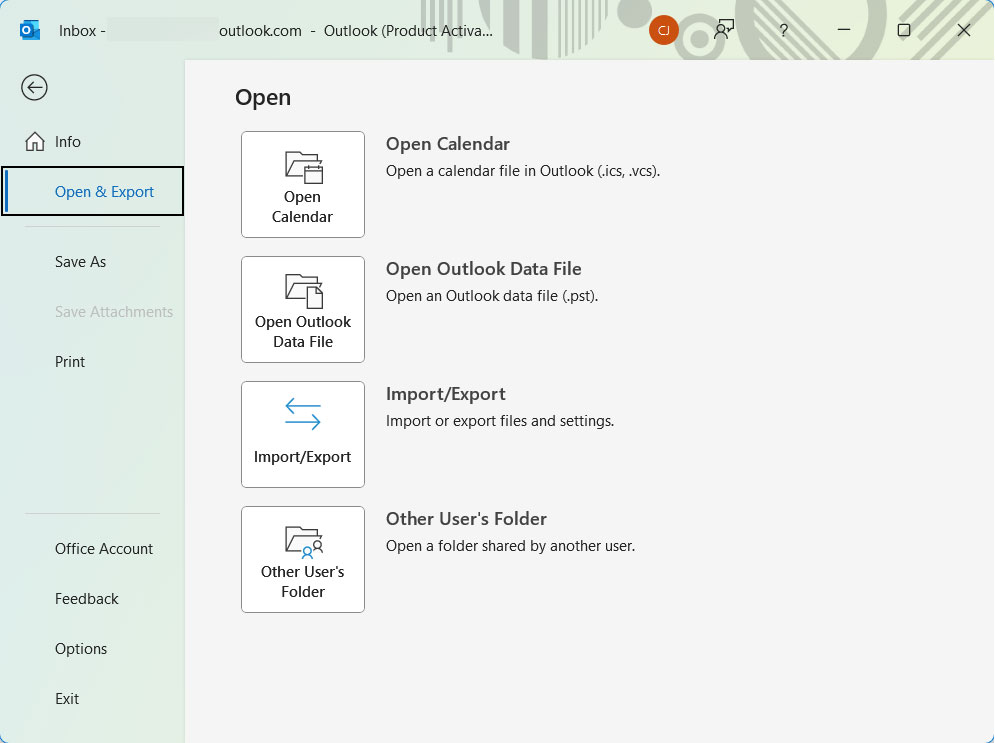
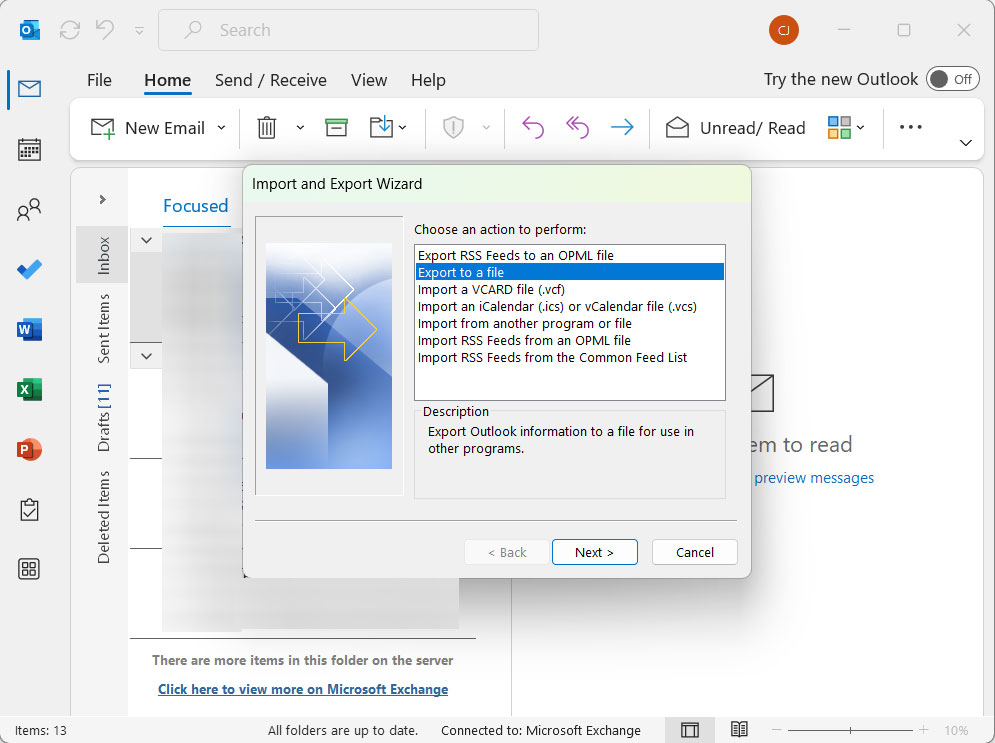
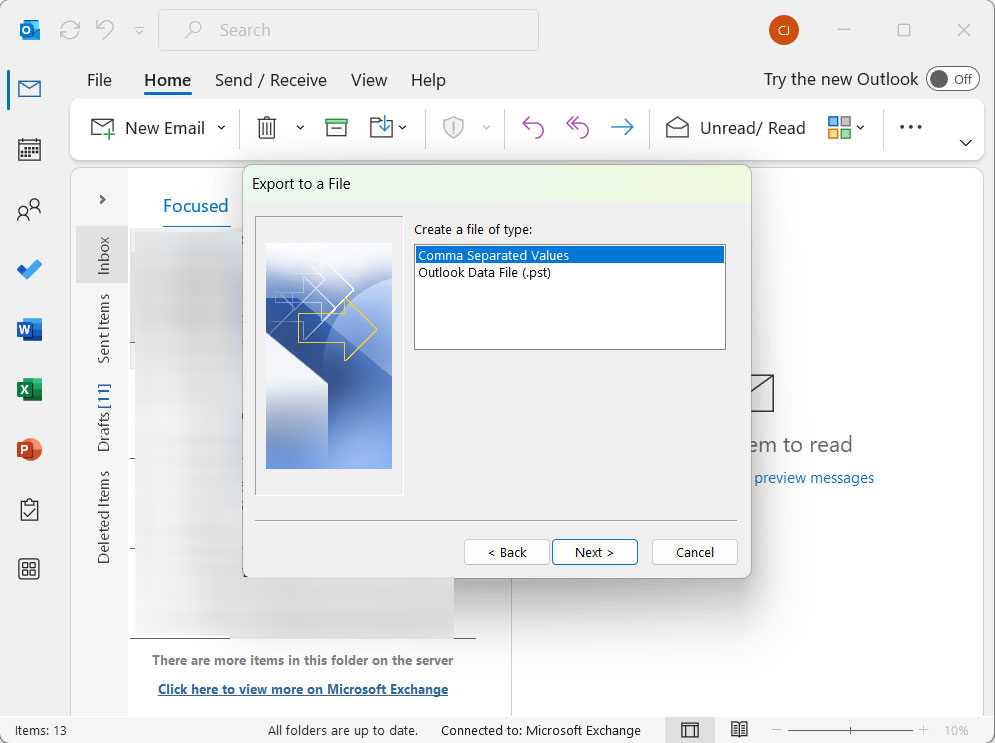
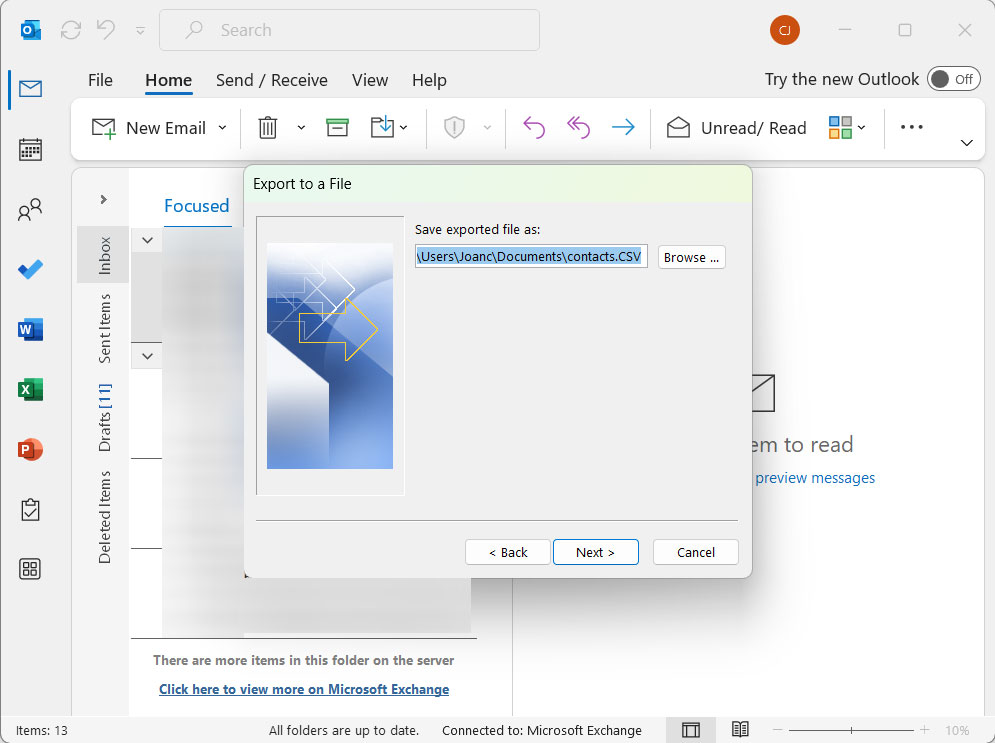
Windows Outlook has a built-in Import/Export wizard. You can undertake the following steps as explained below:
- Open Outlook first.
- Then, go to File > Open & Export.

- After that, select Import/Export > Export to a File.
- Now, select Outlook Data File (.pst).
- Lastly, pick folders & save the file.
If you want to do more with the PST files, that is, to convert or migrate to any desired email client, get the advanced tool – PST File Converter. A standalone tool that can process PST files as per the user’s demand.
For OLM Files: Export an OLM File in Mac Outlook
- Open Mac Outlook.
- Then, go to File > Export…

- After this, select Items and press Continue.

- Next, set a file name and destination location.

- Finally, click the Finish button to complete the process.

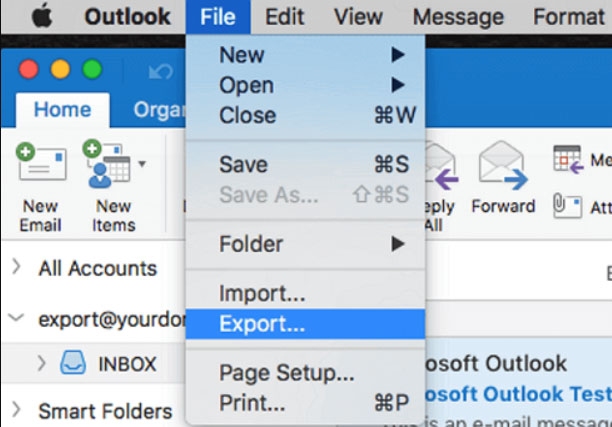
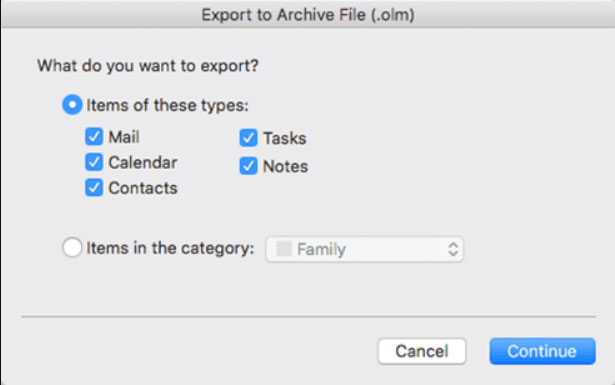
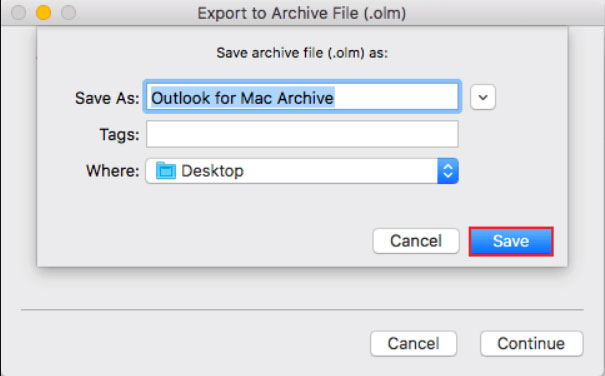
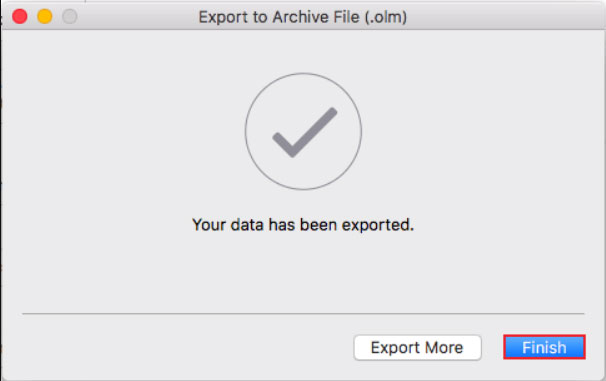
Manual ways do work, but tend to become hard while handling inaccessible/corrupted files.
Check out the MacUncle OLM Converter utility, which helps with simple conversion of Outlook for Mac’s OLM files into different formats, including email or document formats. Use the tool to move the Mac Outlook data files to different email clients, too.
FAQS
Q) How can anyone convert an OST file to PST without Outlook?
A) This could be materialised by making use of a dedicated pro OST Converter for converting inaccessible OST files when MS Outlook isn’t available.
Q) Is the PST file format better than the OST for Outlook backup purposes?
A) Yes, the PST file format is usually better as such files are portable, and these are made for backup purposes & also fulfil archiving needs.
Q) What are the chief differences between OST, PST, & OLM files?
A) OST files save synched MS Exchange mailbox data, whereas PST files tend to save portable Outlook data, while OLM files are utilised by Mac Outlook.
Q) Is it possible to open an OLM file in Windows Outlook?
A) No, it’s not possible. Windows Outlook doesn’t straightaway support OLM files. For doing this, conversion is somehow mandatory.
Conclusion
Checking about OST vs PST vs OLM is necessary if you wish to manage your Outlook email data well. If you are stuck with any complex migration with inaccessible files, then picking a professional tool is highly recommended. Use the tool to convert to any of the Outlook file formats, as all the recommended tools have the options for the same. Check out the trial version to understand how the tools work.