How to Set up Rules in Apple Mail to Organize the Emails Efficiently?


When emails are coming through frequently, the folders might get cluttered, and managing and organising can be time-consuming and frustrating. Therefore, Apple Mail offers a powerful feature called Rules. The Email rules help to sort, filter, and to manage the emails. If we set up Rules in Apple Mail, we can manage the incoming messages, move the emails to a desired location, flag the important emails, and even delete any emails automatically.
The guide will give all the details regarding how to set up the rules in Mac Mail, why they are useful, and how we can improve the rules.
Overview of Rules in Apple Mail
The rules in Apple Mail are automated filter that performs a specific action with the incoming emails or the emails within the account. We can define the conditions as per the requirements. This condition can be anything based on the subject, sender, keyword, or other message. Here are the ways you can create a rule to:
- Move the emails from a specific sender to any designated folder.
- Automatically delete any promotional emails or unnecessary emails.
- Flag the emails with a certain keyword.
- Forward the emails to another email address.
Using the rules will keep the inbox organised and clean.
Set Up Rules in Apple Mail – Benefits
There are several reasons for creating Apple Mail rules.
- For better email organisation: When we set up a rule on Apple Mail, it automatically sorts the emails into the folders.
- Personalised email workflow: As per the user’s requirement, we can customise the rule based on the need.
- Clean Inbox: When we apply the Apple Mail rules, such as filtering spam and other promotional emails.
- Improve productivity: We set up the rules to improve productivity.
How to Set Up Rules in Apple Mail on Mac?
Follow the steps to create rules in the Mac Mail account.
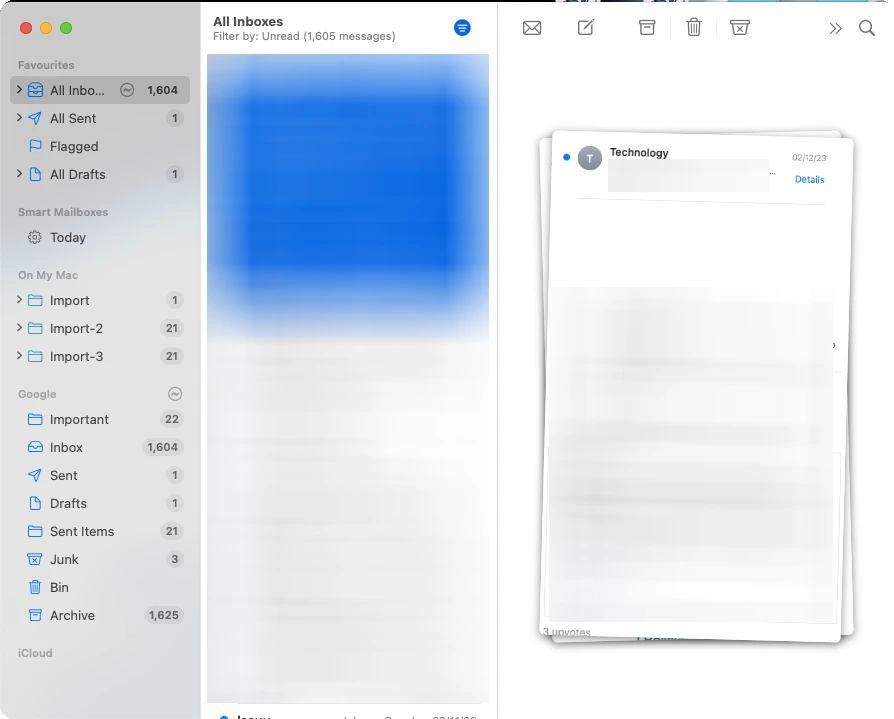
- Launch the Mail App on Mac.
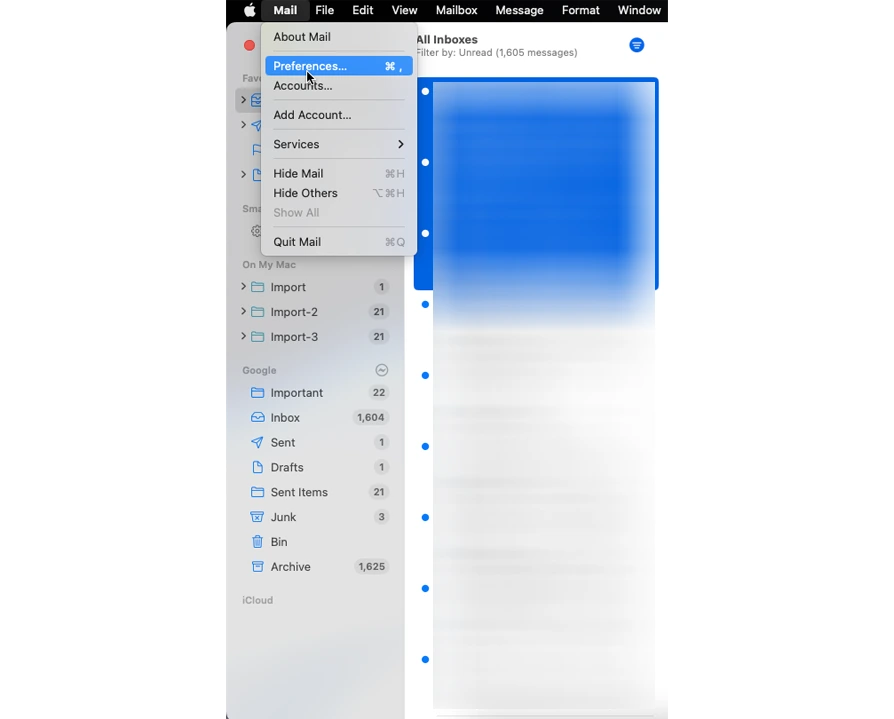
- Click on Mail from the top menu bar and select Settings (or Preferences).

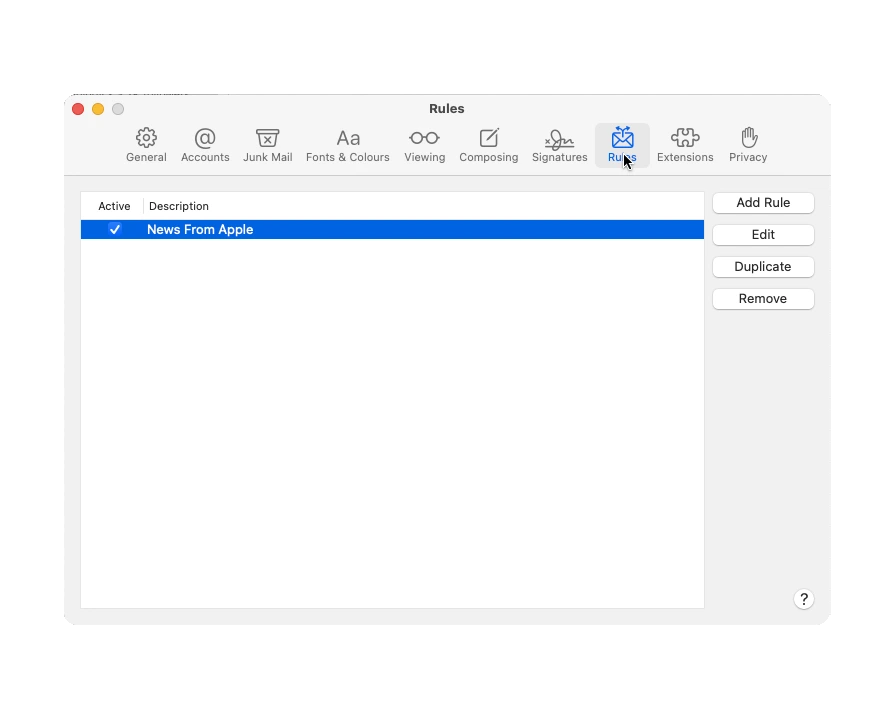
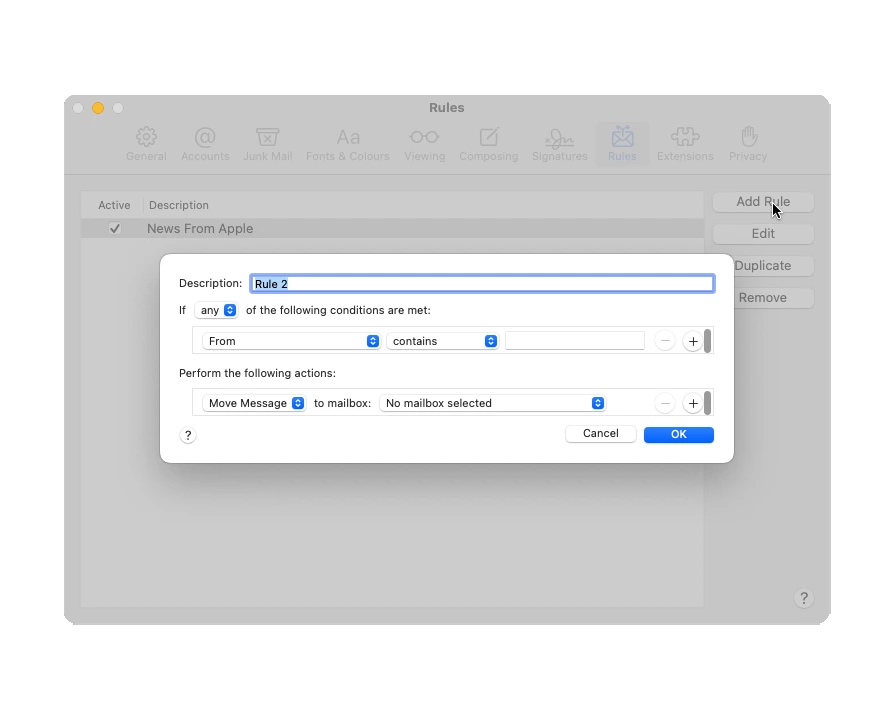
- Navigate to the Rules and click Add Rule.
- Enter a name to describe the Apple Mail rule.
- Now set a condition like:
- Emails from a specific email address
- Message from a particular domain
- Now select the action corresponding to the condition, such as:
- Move the email to the specific folder
- Flag or colour code it
- Delete or forward the email
- Click on the Ok to save the rule.
Apple Mail will ask if you want this rule to be applied to the existing messages as needed.
Did You Know? Apple Mail rules are one of the solutions if the “Apple Mail not showing all emails in inbox” issue occurs.
How to Create a Rule to Move Messages to a Mailbox?
One of the practical uses of Mac Mail rules is to automatically move incoming emails to a specific mailbox. It will keep the inbox clean, that by sorting the emails as soon as they arrive.
First, create a Destination Mailbox.
Let’s start by creating a new mailbox if you don’t have one.
- Launch Apple Mail.
- Go to Mailbox on the menu bar.
- Select New Mailbox.
- Choose a location.
- Enter a name and press Ok button.
Steps to Create a Rule to Move Messages to a Mailbox
- Open the Mail app on Mac
- Click on Mail and go to Settings (Preferences, earlier version).
- Click on Rules > Add Rule.
- In the Description, enter a name for the rule.
- Under If, set the condition, for example:
- “From” Contains – enter sender’s email address or domain.
- “Subject” contains – enter keyword
- You can also set whether any or all conditions must be met using the dropdown at the top.
- Under Perform, the following actions: click the first dropdown and select Move Message.
- Choose the destination mailbox you created before.
- Click Ok to save the rule.
- Apple Mail asks: “Do you want to apply rules to messages in selected mailboxes? – Click Apply to run the rules on the existing emails, or Don’t Apply to the future incoming messages.
When Mac Mail Rules Are Not Enough: How to Manage Large Mailboxes
Apple Mail rules are excellent when we need to organise emails, but managing the large mail archives and migrating the emails to another platform requires additional tools. Even if you set up rules in Apple Mail, to manage a large Apple Mail mailbox, use the MBOX File Splitter tool. It can easily be divided, and thus we can manage the files with ease.
If you want a direct method to migrate the emails from Apple Mail, then use the Apple Converter. It has the option to directly access the mailbox from the default folder of Apple Mail and then process the files, such as migrating or converting the mailbox.
Final Thoughts
In the write-up, we have learned how to set up rules in Apple Mail, and there are benefits, too. It is the best way to automate email organization and to maintain a clutter-free inbox. Whether you want to sort the work emails, manage the newsletter, or promotional emails. The rules are to help you with productivity without relying on additional applications.