Planning SmarterMail to Office 365 Migration | Get the Solution


Most firms wish to access SmarterMail’s data via Office 365 due to its amazing cloud-based productivity and great collaboration features. But people usually find it hard to learn how to migrate SmarterMail data to Office 365 in a secure manner, specifically with email attachments & many mailboxes. Here, in this blog, we will be explaining all the aspects to know why such migration is needed in the first place, how to do a SmarterMail to Office 365 migration via manual ways, and a professional solution that would simplify the whole procedure considerably.
A seamless migration isn’t just about easy-to-use tools. Good planning is a critical component of any successful migration to Office 365. When deciding what method to use, the organisation considers, for example:
- A large or small data set
- How many mailboxes are to be migrated
- How much downtime is tolerable
Whether a simple mailbox migration or also other items such as contacts, calendars and tasks are to be migrated.
In this article, you will learn about all available real-world solutions to migrating from SmarterMail to Office 365, how they work, what their requirements are, what their pros and cons are, and how they should be used.
Learn About SmarterMail and Office 365
SmarterMail happens to be a solid on-premises email and collaboration server that has been created by SmarterTools Inc. This tends to provide email hosting, contacts, calendar, notes, tasks, instant messages, & robust security features, the same as MS Exchange, which makes it quite popular amongst mid-sized business units, ISPs, & firms looking for such cost-efficient solutions. It even supports MS Outlook integration as well as mobile access, which helps people manage their communication effectively.
Office 365 happens to be a modern-day cloud-based productivity suite, which goes far beyond traditional email. Along with MS Exchange Online, it even consists of robust apps like Outlook, OneDrive, Teams, SharePoint, Excel, Word, & PowerPoint etc. With automatic updates, centralised administration, solid safety, & global accessibility, Office 365 has literally become the most desired pick for business owners who wish to move towards a cloud-first strategy. This rising demand is actually the major cause why many people seek SmarterMail to Office 365 migration.
Even though SmarterMail is a very capable email server, most firms today prefer to use Office 365 for better scalability, data safety, collaboration, & easiness to manage well. Before learning about the migration process, let us first see why people wish to shift their email platform from SmarterMail to Office 365.
Why Undertake a SmarterMail to Office 365 Migration?
People prefer doing a SmarterMail to Office 365 migration as Office 365 tends to provide extensive cloud-based communication as well as productivity settings. Mentioned below are some of the prevalent reasons for going about the same:
- Office 365 is far beyond just an email service, including Exchange Online with various tools such as Outlook, OneDrive, Teams, Word, SharePoint, Excel, & PowerPoint, which enables smooth communication, easy collaboration, & better document management, all from one platform.
- Features like Teams, real-time doc co-authoring, easy file sharing, & shared calendar help users to collaborate effectively, whether they work remotely or on-site.
- With M 365, people can easily access their emails, files, & apps from any place whatsoever, and on any device, which reduces heavy dependency on just the on-premises servers as well as local infrastructure.
- Office 365 easily adapts to the ever-growing business requirements. Firms could add/remove users, upgrade their plans, & even increase storage without impacting employee performance and work productivity.
- Microsoft 365 provides enterprise-grade safety features like data encryption, multi-factor authentication, archiving, threat protection, & eDiscovery for protecting sensitive business-critical information.
- All users get 1TB of OneDrive storage space, which lowers the requirement for any physical storage devices. This further enables safe file backups, comfortable document sharing, and easy data recovery.
- Automatic updates, centralised administration, & no server maintenance considerably lower IT workload as well as operational costs.
- Office 365 offers subscription-based plans that suit various business sizes, providing transparency as well as flexibility without hefty upfront investments.
- Backed by the global data centres of Microsoft Inc, O365 ensures great availability, high dependability, & very consistent performance.
Now that you have understood why most users today prefer Office 365, let us now check out the available cost-free manual ways for SmarterMail to Office 365 migration and see how these methods actually work in real-life cases.
Manually Perform SmarterMail to Office 365 Migration
SmarterMail works on the IMAP protocol, which allows mailbox data to be migrated to Microsoft 365 using built-in migration features. Below are the commonly used manual approaches.
Method 1: IMAP Migration Using M365 Admin Centre
This process makes use of Microsoft’s native feature of IMAP migration. Here’s how:
- First, create Office 365 user mailboxes and assign appropriate Exchange Online licenses.
- Collect SmarterMail IMAP server details (server, username, port, & password).
- After that, in the Microsoft 365 Exchange Admin Centre, create the IMAP migration endpoint using your SmartMail Server information.
- Prepare and upload a CSV file with the mailbox information, then create and start a migration batch.
- Ensure that, with the migration, complete synchronisation of mailbox data is achieved.
- Modify your domain’s MX records so that they point to Microsoft 365 for all new deliveries of email.
- Check mail flow, finalise the migration, & Remove the migration batch after completion.
Note: the native IMAP migration method includes migration of messages and folders only (contacts, calendars, tasks and notes are not transferred).
Method 2: Use Outlook (IMAP + PST)
This procedure uses Outlook as an intermediary. Do the steps given below:
- Start by enabling IMAP access in SmartMail.
- Now, configure SmarterMail’s email account in MS Outlook using IMAP.
- Next, form a PST file in MS Outlook.
- Move the SmarterMail folder to this PST file.
- Import this PST into Office 365 via the Outlook Import Tool.
Limitations of the Manual Method
Here are some challenges you might face via the manual approaches:
- These processes are too time-consuming if you have large mailboxes.
- The 1st process migrates only emails & doesn’t support calendars/contacts/tasks.
- There are pretty high risks of making human errors.
- The 2nd procedure does not have incremental or resume migration features.
- Such ways may be free, but they need great manual effort & good technical know-how.
- There are security risks hovering while doing email data transfers.
Due to such failings of manual methods, they are not considered ideal for business-critical data. So let us now check out the alternative pro solution below.
Professionally Migrate SmarterMail to Office 365 Account
Manual SmarterMail to Office 365 migration tends to become very hard while dealing with large data volumes, multiple mailboxes, downtime risks, & intricate configurations. To overcome such insufficiencies, most IT experts suggest using the Email Backup tool because it is a dependable & friendly solution that’s especially made for smooth IMAP-based email data migrations. This is the best tool for Mac to move emails from cloud-based services & servers to local drives on your Mac OS. The software allows downloading emails from cloud mail services in multiple file formats. Also, this tool helps to do email migration from one client to another.
How to Import SmarterMail Emails to Office 365 Directly?
Performing the easy & simple steps is a cakewalk for any user. So here you go:
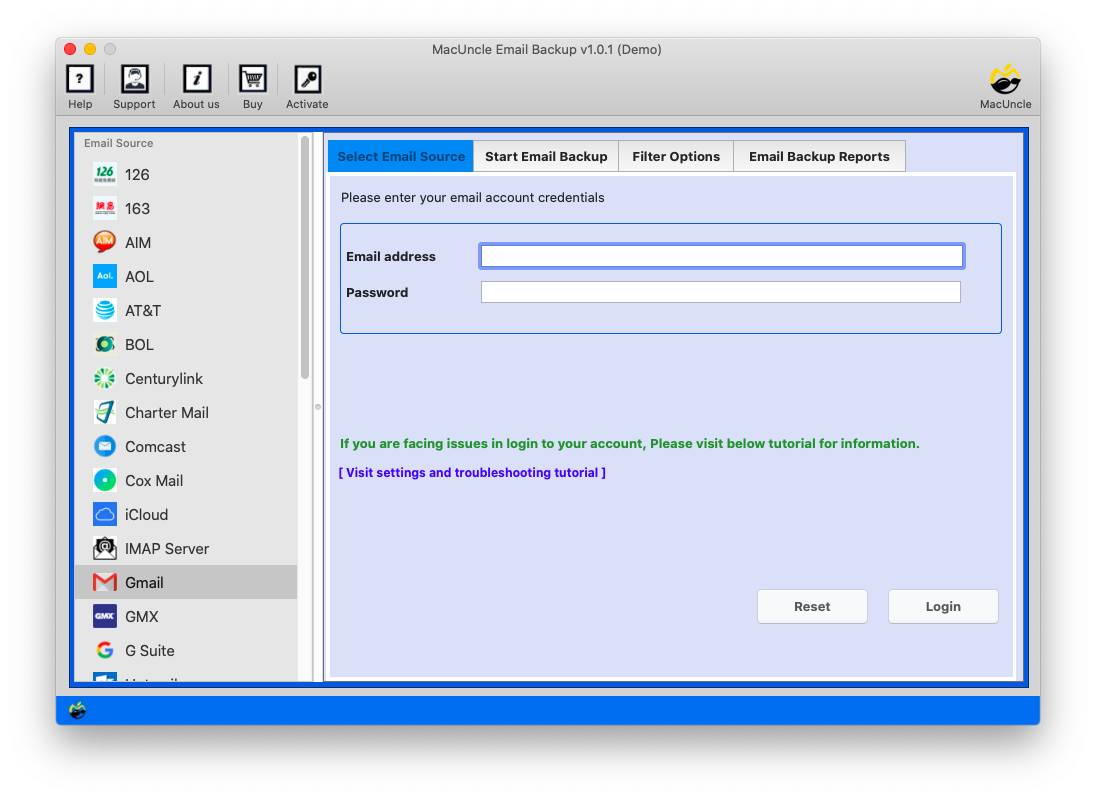
- Start the tool on the system.

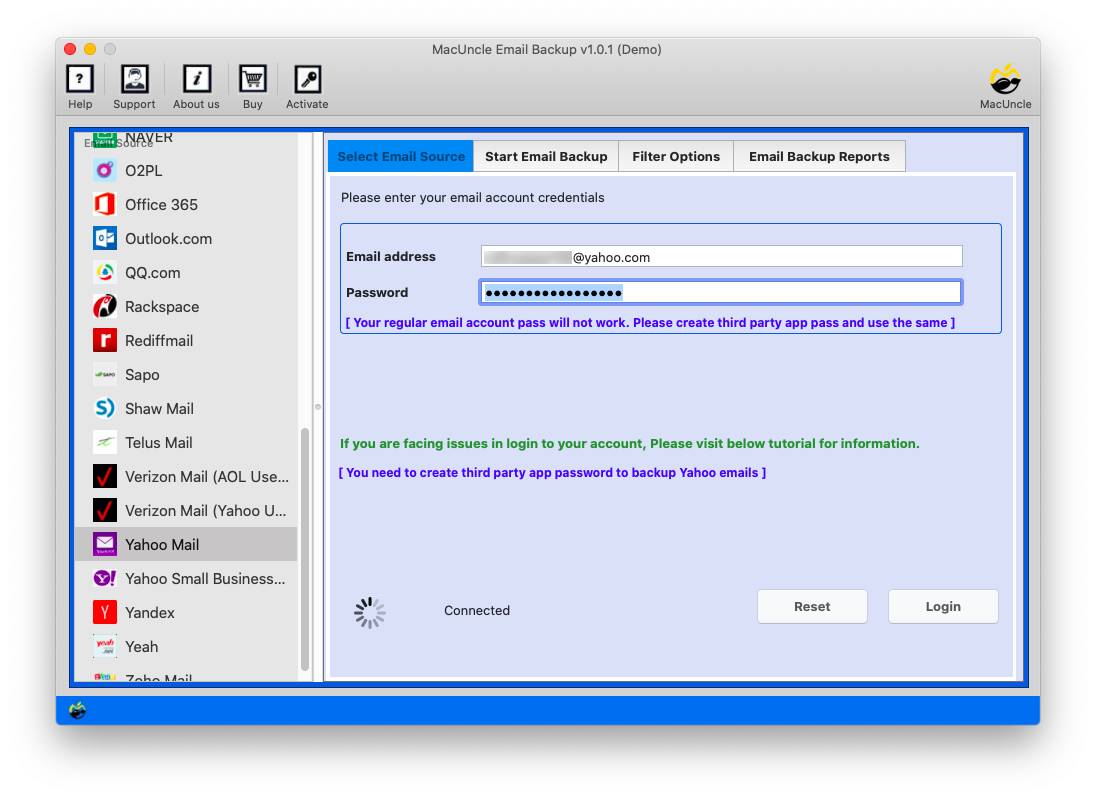
- Select & log in, and then click the Login button.
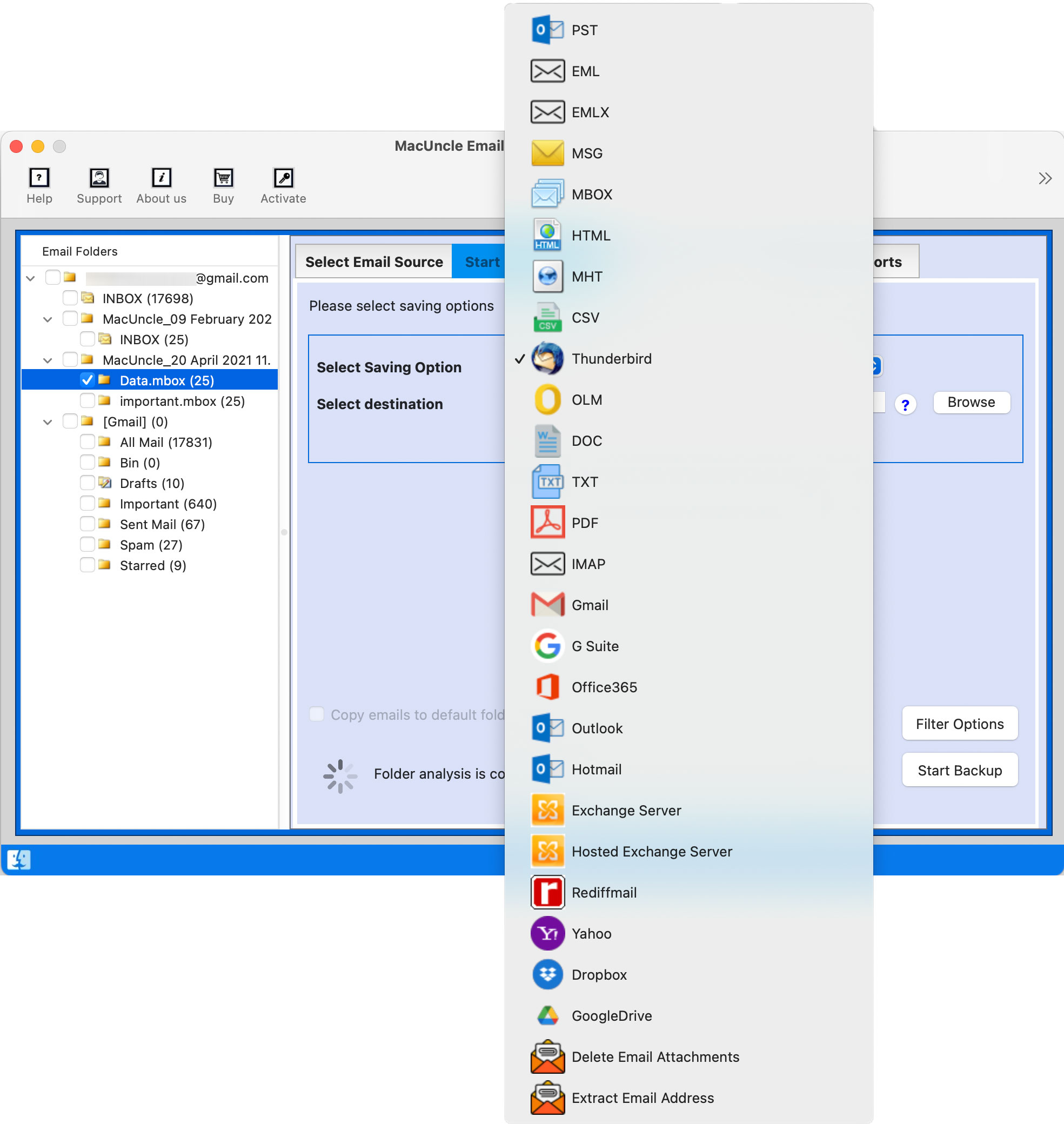
- Select an option by choosing the desired one.
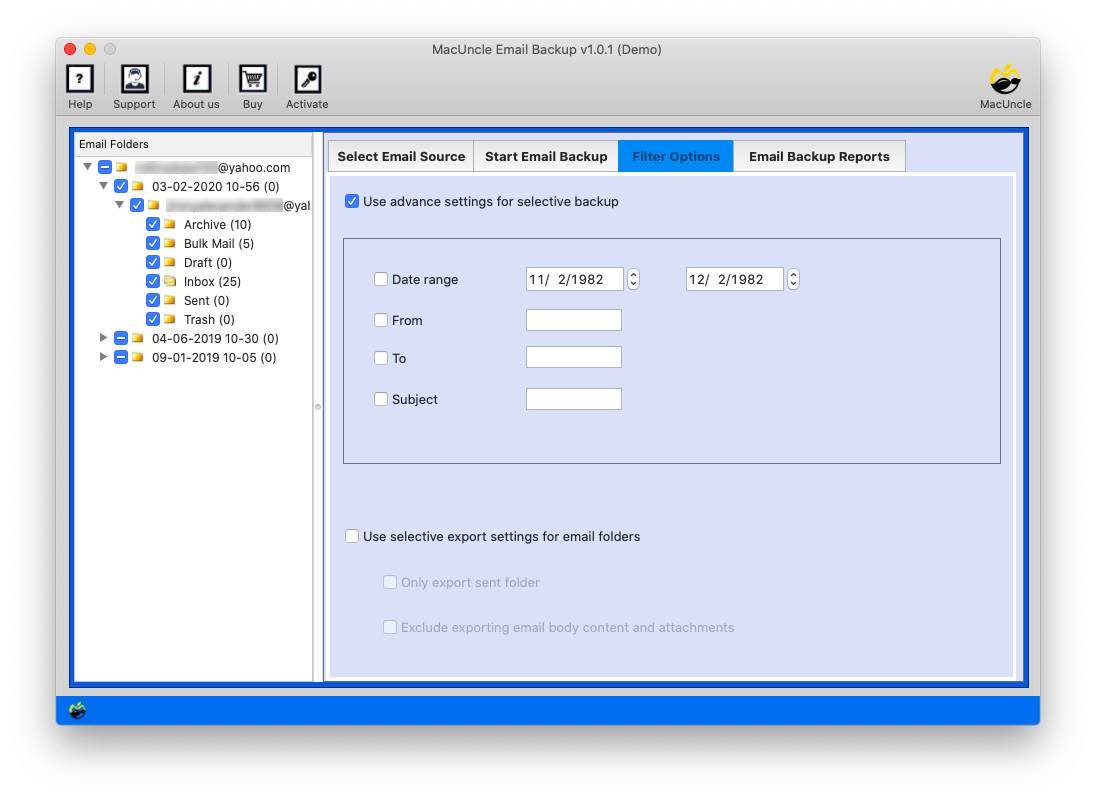
- If needed, you can even apply the required filter settings.
- Next, back up emails by pressing the Start Export button.
FAQs
Can I migrate directly from SmarterMail to Office 365?
Yes. As SmarterMail uses the IMAP protocol, you can migrate to Microsoft 365 via the native IMAP migration service from Microsoft. If you require the migration of other mailbox data, such as contacts and calendars, you may instead opt to use the Outlook PSTs or other third-party migration tools.
How do I move SmarterMail to Office 365?
For most organisations, Microsoft’s built-in IMAP migration is the fastest and least expensive way to migrate email messages. If contacts, calendars and tasks also need to be migrated, a 3 rd-party migration tool or Outlook PST migration will probably be better.
Can I migrate multiple mailboxes at the same time?
Yes. Migration of multiple mailboxes using IMAP in a single session is supported by Microsoft 365. Most third-party migration tools also facilitate bulk and parallel mailbox migrations.
How can I continue using SmarterMail after moving to Office 365?
Yes. Certain organisations leave SmarterMail enabled during the migration for a period of time, so email can be checked for integrity. Once all mailbox data has been checked and DNS records have fully propagated, the old server can be shut down and removed.
Conclusion
Doing a SmarterMail to Office 365 migration happens to be a pretty strategic move that enhances security, betters collaboration, & improves operational effectiveness. This blog covered all details about this migration, telling cost-free manual ways that come with their own limitations, and suggesting the much better professional utility instead.