Why Apple Mail Search Not Working ? Fix It Now


Not being able to search in Mail or other mail applications is really annoying. You type in your keywords in the search tab only to get an empty list. You know those emails are in your account, but you just don’t know why you are unable to find them. In this article, we cover all the troubleshooting and fixes for “Apple Mail search not working”.
Apple Mail is a popular client on macOS and iOS that allows users to effortlessly and efficiently use their accounts with the full potential of the Apple system. One of the main issues users had to suffer from in the past was that they could not find emails using the mail search. Luckily, that problem is solvable in the correct way. We provide you with a simple fix for the most advanced method to get Apple Mail search working again.
Understanding the Reasons: Apple Mail Search Not Working
To begin with, we should understand the reasons why Apple Mail search is not working, as there could be various factors that could be causing such an issue in the operation of the search feature.
- Issues with the Index: Apple Mail is known to use the index of emails for speedy searching, and if the index of the emails becomes corrupted or becomes outdated, the results you would see in the search function would not be appropriate.
- Software glitches: Apple Mail is a computer application and hence is susceptible to various minor glitches or bugs that would interfere with its normal functioning. These bugs are usually very easily removed by simply restarting your computer.
- Mac OS bugs: It could also happen that you are facing some bugs in the Mac operating system, which could interfere with Mac applications, such as Apple Mail. Always keep your computer up to date.
- Filtering Inbox Category Messages: Since Mac OS X Sequoia 15.4, Mail has been filtering your mailbox into category buttons – Primary, Transactions, Updates, Promotions. If you’re not managing the category a message is in, it can appear to be “missing” in search results, but nothing is actually wrong.
- Partial Mailbox Sync (IMAP/Exchange accounts): Accounts such as Gmail, Yahoo, and your workplace Exchange account added using IMAP may be suffering from the fact that Mail’s local sync and attachment-download settings could be preventing your Mac from fully downloading older messages, yet leading to search only being able to locate what is currently stored locally.
The above are a few common reasons that cause issues when Apple Mail is not able to find emails. Keeping this in mind, let us take a look at the solutions for solving this issue.
How to Safeguard Apple Mail Emails?
By getting the Email backup tool, it will help you will be able to save all the necessary data from the account. Using this, you can save your email account from disappearing. With all the methods mentioned to get missing emails, we would recommend that you take an Apple Mail backup on external hard drive for future use.
How to Fix Apple Mail Search Not Working on Mac & iOS?
We will work on all the possible methods to fix the Mac Mail search feature. For every troubleshooting method, there are simple and advanced approaches. Here we will go through the steps for both macOS and iOS.
Simple and Quick Fixes for Apple Mail Search Not Working
1. Force Quit Mac Mail
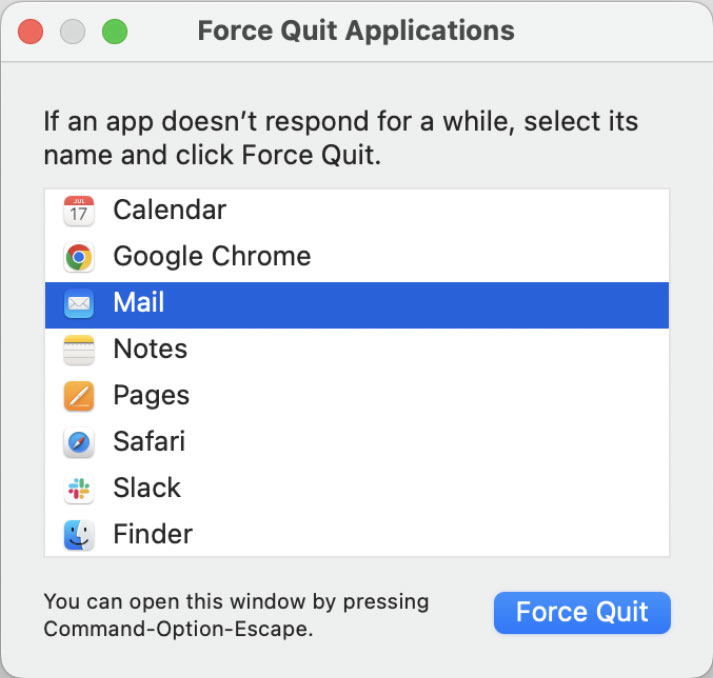
The classic approach to any issues related to Apple Mail is to use the force quit option. It can resolve all the temporary glitches.
macOS:
- Press Command + Option + Esc to open the “Force Quit”.
- Otherwise, select “Mail” and click on Force Quit. Then again, relaunch Mail.
iOS/iPadOS:
- Open the App Switcher.
- Swipe up the Mail app preview to close it.
2. Restart Device
Simply restarting the device can usually resolve all the minor glitches within any application, along with issues like Apple Mail Search Not Working.
- macOS: Go to the Apple menu and select Restart.
- iOS/iPadOS: Press and hold the volume button and side button until the power-off slider appears. Drag the slider and wait for the device to turn off. Press and hold the side button again until the Apple logo appears to restart.
3. Check Internet Connection
We need a proper internet connection to work on any functions within an application. Apple Mail needs to sync and search the emails when the search function is prompted. Ensure you have a proper internet connection before going to the next troubleshooting method to fix the Mac Mail can’t find emails issue.
4. Verify Account Status
Here, we have to check if the problem is with the email account. Check if the account(s) are working or if there are any problems with the server side.
Go to Mail > Settings (or Preferences on older macOS) > Accounts, and check the account status.
Advanced Fixes to Apple Mail Search Not Finding Emails
If the quick fixes didn’t work, try some deeper solutions to find the emails using the inactive search feature.
1. Rebuild / Reindex Mailbox
Rebuilding and reindexing the Mailbox is a common troubleshooting step for issues like organisation and searching for email messages correctly. Here, we can manually delete Envelope index files, and this will force Mail to recreate the entire search index.
- Quit Apple Mail
- Go to Finder.
- Then, click on the “Go” menu and select “Go to Folder…”
- Enter ~/Library/Mail/V9/MailData and press Enter.
- Locate and delete the following files:
- Envelope Index
- Envelope Index-shm
- Envelope Index-wal
- Empty the Trash
- Now, relaunch Apple Mail.
Mail automatically rebuilds the index of the mailbox. Check whether the issue “Apple Mail search not working” has been solved or not. If the issue has not been solved, re-add Apple Mail through the following steps.
2. Re-add Apple Mail Account
If you’re having difficulty searching for mail in Apple Mail for Mac, then you can try removing and then adding the mail account again. It will automatically solve the problem.
macOS:
- Go to Mail > Preferences> Account.
- Then, select the account and click the “-“ button to remove it.
- Click the “+” button to re-add the account.
iOS:
- Go to Settings> Mail > Accounts.
- Then, select the affected account and tap on Delete Account.
- Restart and add the account again to Apple Mail.
- Go to Settings>Mail>Accounts>Add Account.
3. Update OS to fix Apple Mail Search Not Working
Ensure you have the latest version of macOS. Software updates often fix bugs.
- macOS: Go to Apple Menu > System Settings > General > Software Update.
- iOS: Go to Settings > General > Software Update.
Final Step: What to Do When Nothing Works
- Create New User Profile: In very rare cases, the issue might be with the user profile. After creating a new profile, if the Apple Mail search works properly, then you might need to migrate the data to the new profile.
- Contact Support: After implementing all the above troubleshooting steps, if the issues persist, reach out to Apple support for further assistance.
FAQs
Q) My Apple Mail search isn’t finding my new emails. What do I do?
A) There could be several reasons why your new emails aren’t showing up in the search results. It could be because of a corrupted mailbox index, an outdated version of macOS, or an issue with your syncing. Rebuilding your mailbox or restarting your Mail application usually helps to sort it out.
Q) How do I rebuild the search index in Mail?
A) Open Apple Mail and select the Mailbox you want to rebuild from the sidebar. Then, click Mailbox, then Rebuild. It might take a while depending on the number of files in that mailbox, but once it’s done, your Mail search should return missing emails. Otherwise, follow the other methods mentioned here.
Q) Could a macOS update sort out my Mail search issues?
A) It is possible that updating to the latest macOS available for your Mac will sort your Mail search issues, as there can be issues with earlier versions.
Q) Why isn’t Mail search finding the emails in a specific mailbox, but it works for other mailboxes?
A) If your Mail search only works in some of your mailboxes, it’s most likely that this specific mailbox has been corrupted or has failed to sync with the server. Rebuilding this mailbox will usually sort the issue out.
Conclusion
We frequently need to find those emails in the account, and it is frustrating when we do not find the necessary email. So, we are here with the steps to solve “Apple Mail Search Not Working”. In this write-up, we have covered every possible reason for the broken search function.