Batch Convert HEIC to PNG on Mac & Windows Without Hassle


If you want to convert your HEIC file to PNG and are looking for the best solution, then you’ve come to the right place. Here, we’ll show you an easy way to convert your HEIC files to PNG effortlessly. So, stay with this blog and learn how you can convert your HEIC files to PNG. Most users want to convert HEIC to PNG on Mac because HEIC files can only be accessed on Apple devices. If you’re a non-Apple user, you won’t be able to open them. That’s why users need to convert their HEIC files to PNG format. PNG is a universal file format that can be easily accessed on any device. That’s why we’ve brought you a simple solution. Read this blog and find out how you can convert your HEIC files to PNG without any data loss.
Top Reasons to Convert HEIC Files to PNG
- Transparency: PNG supports transparent backgrounds, unlike HEIC.
- Web-Friendly: Works seamlessly across all websites and platforms.
- Editing Ease: Compatible with most image editors.
- Universal Support: opens easily on Windows, macOS, Android, and other platforms.
- High Quality: Maintain full image detail without compression loss.
Read Next: Convert HEIC to BMP
Manually Convert HEIC to PNG Using Windows Photos App
- Firstly, open your HEIC file in the Photos app.
- Secondly, click on the three dots (…) in the top-right corner.
- Thirdly, click on Save as.
- From the “Save as type” dropdown, select PNG.
- Lastly, click Save to convert your HEIC image to a PNG file.
Change HEIC to PNG Using MacOS Preview
- Now, open the HEIC file using the Preview app.
- After that, go to the file menu and select Export.
- Then, in the format dropdown, choose PNG Format.
Drawbacks of This Method
- Converts just one file at a time.
- Doesn’t support batch conversion.
- Offers minimal control over image quality.
- May change or remove image metadata.
Automated Way to Convert HEIC to PNG File on Mac & Windows
Multiple users are facing a lot of difficulties accessing or sharing HEIC images on multiple platforms. To assist with this problem, we are introducing the ultimate solution. HEIC Converter software offers you fast and reliable solution. This powerful tool lets you convert various HEIC images to PNG on Mac in just a few clicks, keeping the image quality intact. Once converted, your image can be easily edited, opened, and shared on Windows & Mac.
Its standout feature, batch conversion, allows you to process multiple HIEC files at once. Follow the simple steps below to convert HEIC to PNG effortlessly. For quick help, our live chat support is available 24/7.
How to Use This Software?
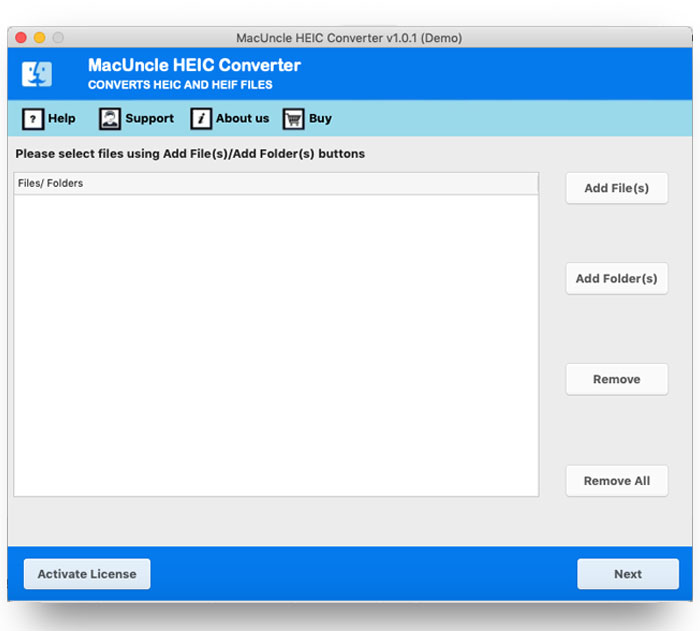
- Firstly, install the HEIC to PNG converter on your Mac Machine.

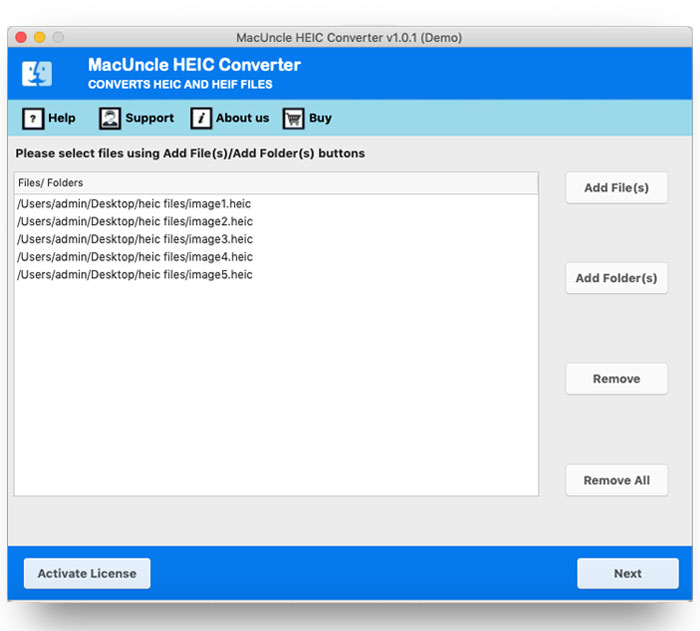
- Then, upload HEIC file data with “select files” or “select folders.”
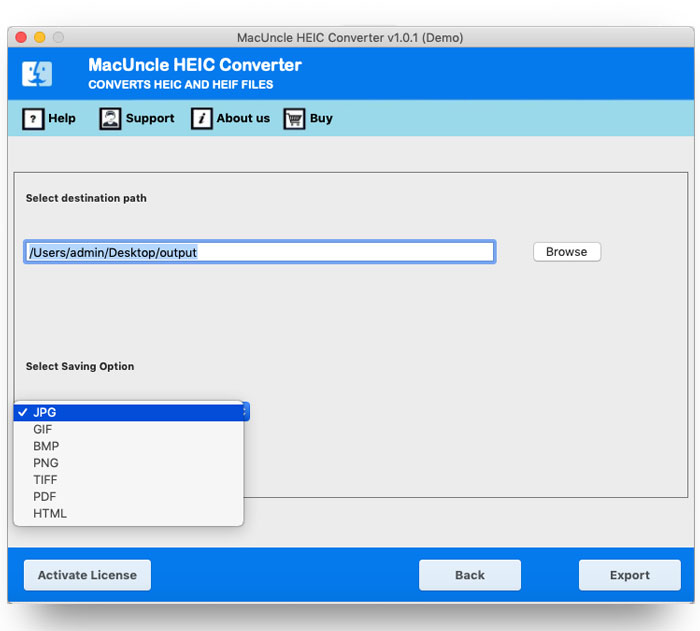
- Next, choose the saving option from the given list.
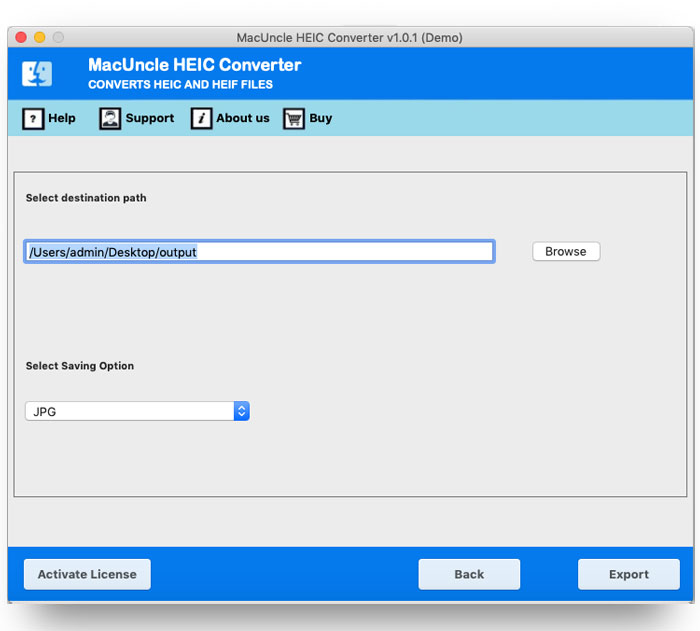
- Now, choose a destination location to save your data.
- Lastly, click on the convert button to start the conversion.
Key Feature of HEIC to PNG Converter
- It works independently; no extra software is needed.
- Simple and easy to use; no technical skills required.
- Add or remove files before starting the conversion.
- It supports batch conversion of multiple skills required.
- You can select specific HEIC files to convert using checkboxes.
Conclusion
In this blog, you’ll find all the information related to converting HEIC to PNG on Mac. We’ve shared several methods to help you convert your HEIC files to PNG format. However, we recommend using an automated solution, as it allows you to convert HEIC to PNG on Mac easily and without any data loss. The tool comes with many advanced features that make the conversion process fast and efficient.
Read More: Convert HEIC to TIFF on Mac