How to Clear System Data on Mac Safely?


If you have changes, what is taking up the storage space and have noticed a large space is taken up by the System Data (Formerly known as “other storage”). For users, different cateogory takles up hundreds of gigabytes. Therefore, we have constructed an article which explains what System Data is, why it becomes large and how to clear System Data on Mac safely.
What is System Data on macOS?
The System Data in macOS is the data that is required for the system to run smoothly. It can be any files, such as supporting files created by the apps to work properly and the services within the system. These data files are not like other files, such as photos, documents, or Media files. Here are the types of files that are stored as the System Data,
- System cache and log files
- Temporary system files
- Mail and attachments
- App Supporting files
- iOS device backup
- Hidden folder in the Library Directory
As time goes by, these files accumulate, and thus it takes up the storage space.
But how does the System Data get large on macOS? The reason can be anything from the app cache file, the files in the app installation setup, email attachments and message data, temporary macOS files, old system logs, developer files, etc. These files are spread across the system and mostly hidden; we end up not noticing how much it takes up. That is the reason why users want a direct method to clear System Data files.
If you want a quick solution, check out our guide on how to delete temp files on Mac.
Is it Safe to Clear System Data on Mac Permanently?
Yes – it is generally safe to permanently delete, only if the deletion is limited to non-essential system data that is cache, temporary or log files. It is to ensure that deleting the core macOS system file are NOT done as it can cause System instability, Boot failures, and App crashe.
Check before Clearing System Data on macOS
- Click on the Apple menu > About this Mac.
- Open the Storage tab.
- Click on the Storage settings.
- Now, check how much space is under the System Data.
Now, we can clear the System Data files on the Mac machine with the right method.
How to Delete System Data on Mac Manually?
First, we will discuss whether there are any methods that can be used to clear System Data on macOS.
Method 1: Delete System Cache Files
The cache files on the system is the speed up the process. It is the apps and system to run faster. Follow the steps below:
- Open Finder.
- Press the Command + Shift + G.
- Enter: ~/Library/Caches
- Delete any unwanted cache folders.
- Empty Trash.
Method 2: Remove Old Time Machine Local Snapshots
Time machine are the built-in backup system on macOS. It automatically saves copies of the files. If there are any old Time Machine local files, then ensure to delete the file copies.
Open Terminal and run:
tmutil listlocalsnapshots /
To delete the snapshot:
tmutil deletelocalsnapshots SNAPSHOT_NAME
Method 3: Delete Old iOS Backup to Clear System Data on Mac
If there are any old iOS backups, we have to check that and delete them first.
- Go to Finder > General
- Select iPhone.
- Click Manage Backup
- Now, delete old backups that are no longer required.
Method 4: Clean Mail and Message Attachments
Large attachments stored in Mail and messages usually contribute to the System Data. We can check these folders and then delete the unwanted attachments.
~/Library/Containers/com.apple.mail
~/Library/Messages
Method 5: Remove Any Unused App Support Files
When we install an app on the system, it comes with different supporting files. And after uninstalling these apps can often leave behind any large files.
Go to folder:
~/Library/Application Support
Remove any leftover files or folders from the app that you no longer use.
Method 6: Delete Developer Files as Clear System Data on Mac Machine
If you are a developer using Xcode or building/testing apps on a Mac, then ensure to delete the developer files. These files can get very large and take up the System Data space.
- Delete old simulators
- Remove Derived Data:
~/Library/Developer/Xcode/DerivedData
Method 7: Empty the Trash
The last manual option is to delete the files from the Trash, that is, to empty the folder
Fast & Safe Approach to Clear System Data on macOS
If you want a fast and permanent deletion of System Data, the best is the DataWipe Tool. Unlike the manual approaches, the tool ensures the files are erased beyond recovery, which makes it ideal for users who want deep cleaning and permanent deletion of the files.
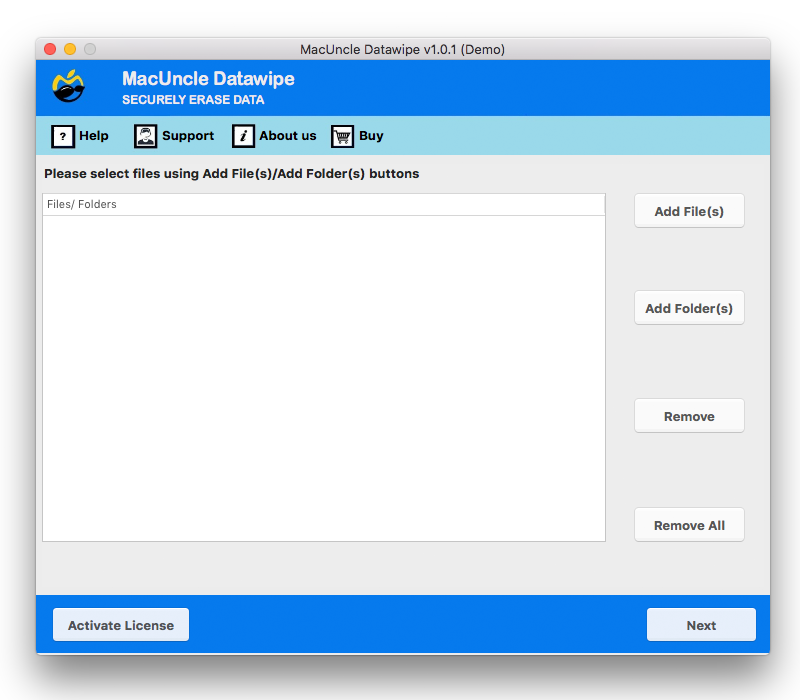
Follow the steps to permanently delete the System Data file on macOS:
- Start the tool on macOS to clear System Data.

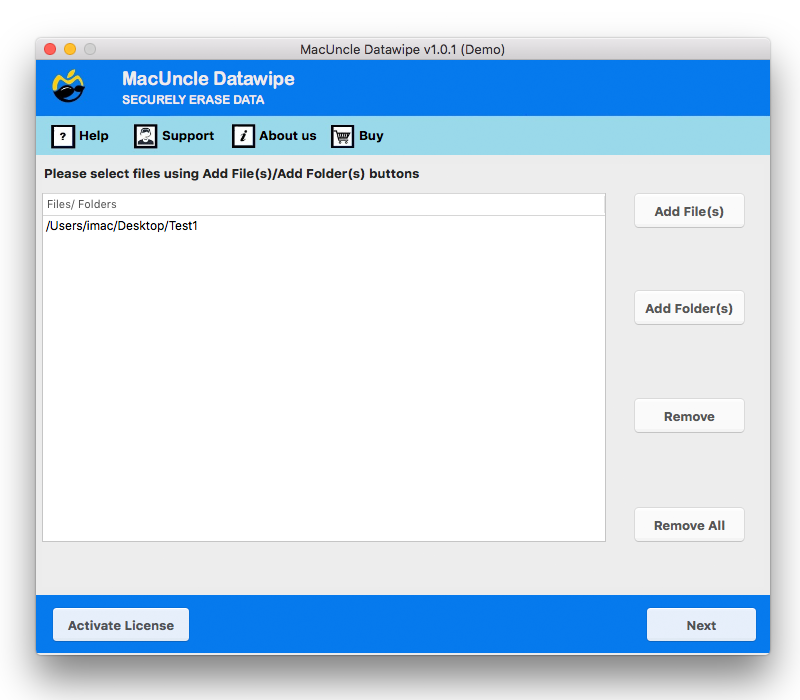
- Add the files/folders using the Add buttons.
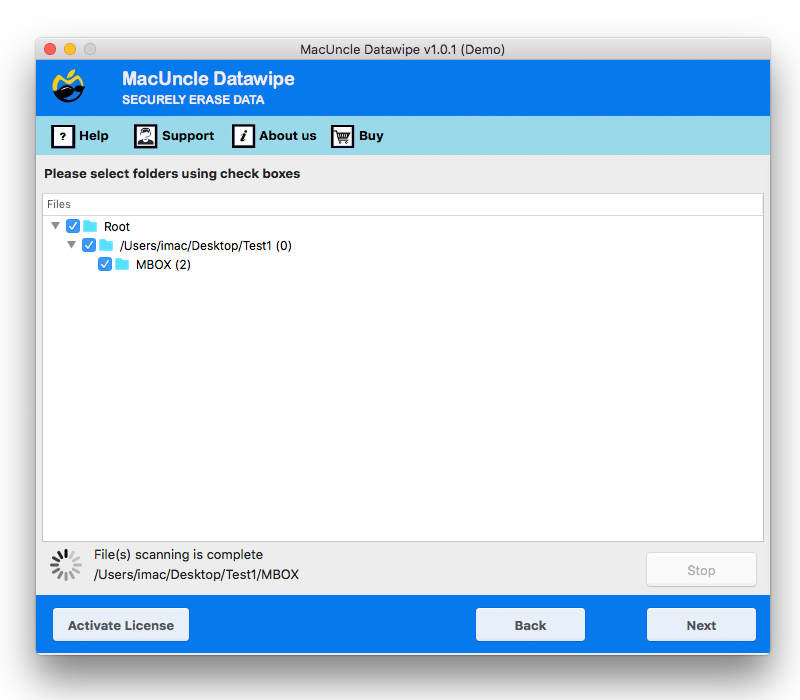
- Choose the file from the list and press the Next button.
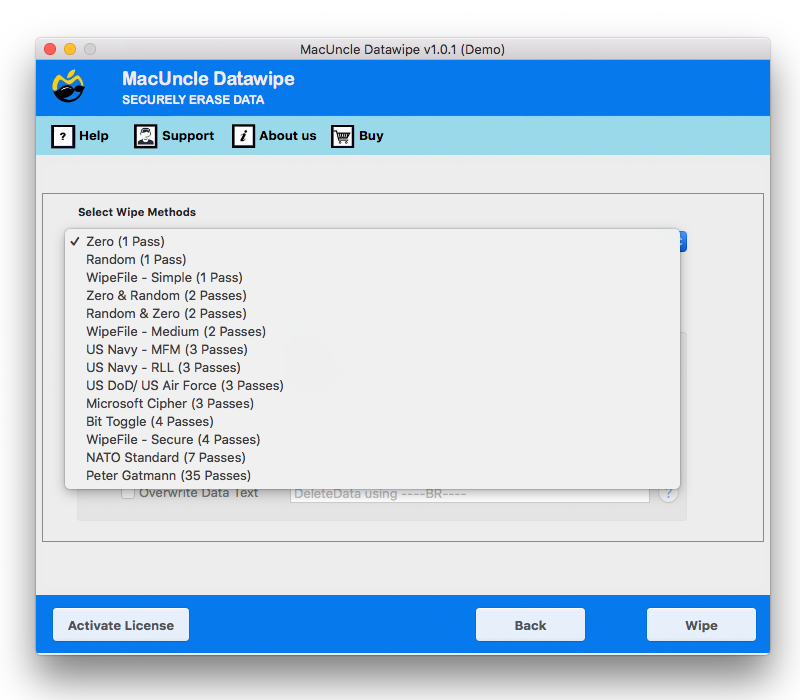
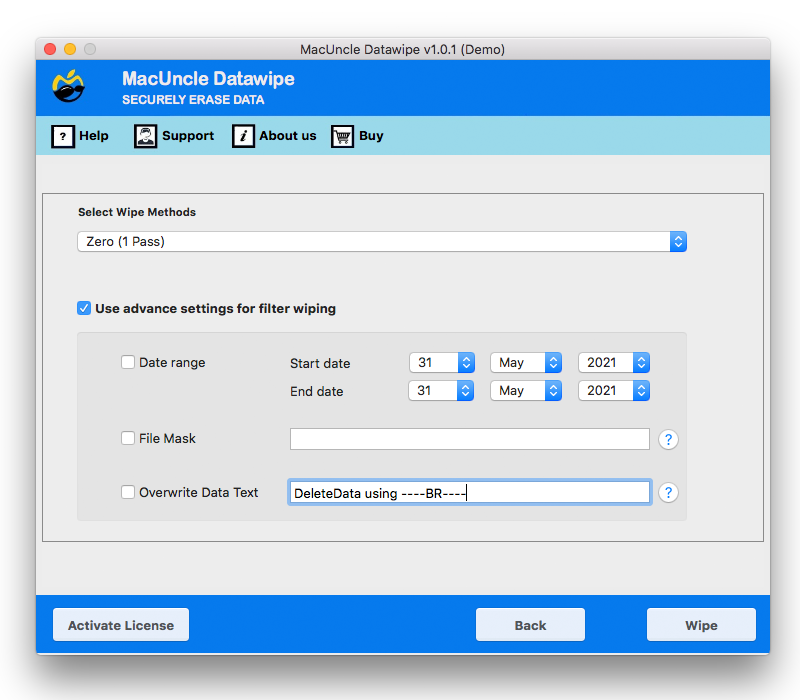
- Now, choose the wipe method.
- Set any Advanced settings to clear System Data on macOS.
Conclusion
System Data can quickly consume the storage space on the Mac, but only with the right method can you clear system data on Mac safely and then free up the space. Whether you choose a manual or a professional solution, we can regularly maintain the storage efficiently so that it does not affect the performance of the macOS system.