Convert EML to MBOX Format | Solution for Quick Batch Conversion


If you have a bunch of EML files that you want to change to a format compatible with the most prominent email clients, then you are in the right place. Therefore, converting EML to MBOX format is a common necessity for users who are switching email clients, archiving a large volume of messages or ensuring better cross-platform compatibility. Since the MBOX file format is a commonly used file format in major email clients.
The comprehensive guide will walk you through understanding both formats, the reasons and the detailed methods with manual & professional to successfully convert the files.
Why Convert EML to MBOX Format?
This standard file conversion is done for various reasons, below reasons.
- Email Client Migration: In case you are shifting the EML-based client to an MBOX-supported client, the change is essential to be able to open the old emails. For easy migration of email files, we need to convert the EML files to MBOX format.
- Compatibility: MBOX is a globally recognised format, particularly for Unix/Linux systems and major Mac email clients, thus providing more compatibility.
- Easier Management: It can be very difficult to handle thousands of individual EML files. MBOX takes all the messages from the folder and puts them into one file; the backup and archival processes become easy.
- Data Integrity: By changing to a single format, it is possible to keep the folder hierarchy and avoid the loss or corruption of the individual message files by mistake.
Methods for EML to MBOX Conversion
For any conversion, we have two primary approaches: the Manual Method (relying on email clients) and professional tools( automated software).
Manual Conversion using Mozilla Thunderbird
It is a popular free method that is used widely. The open source email client Mozilla Thunderbird. The method requires installing an add-on called ImportExportTools NG.
Step-by-Step Guide to Convert EML to MBOX
Phase 1: Install the ImportExportTools NG
- Launch Mozilla Thunderbird.
- Go to Menu > Add-ons and Themes.
- In the search bar, look for ImportExportTools NG.
- Click on the add-on and then click “+Add to Thunderbird” to install.
- Restart Thunderbird if prompted.
Phase 2: Import EML to Thunderbird
- In Thunderbird, locate the Local Folders on the left sidebar.
- Right-click on the local folder and select New Folder.
- Right-click on the newly created folder.
- Navigate to ImportExportTools NG > Import EML Files > Individual EML files or Import all messages from a directory.
- Browse and select an EML file.
You’ll now see the message in Thunderbird inside the newly created folder.
Phase 3: Export Folder to MBOX Format
- Now, right-click on the folder with imported EML files.
- Go to ImportExportTools NG>Export Folder>as MBOX file.
- Now, choose a destination location to save the resulting MBOX File.
- Click Select Folder. The folder content will be exported, resulting in a single .mbox file.
Limitations to the Manual Method (Thunderbird)
- The process can be slow for a large number of EML files.
- It requires application support, that is, download, install and configure Thunderbird and then install the add-on.
Manually Convert EML to MBOX using Apple Mail
If you are a Mac user, then you don’t need to have Thunderbird to perform the Manual Method. It offers a simple way to convert EML to MBOX format via drag and drop.
- Launch the Apple Mail Application on the Mac.
- Go to Mailbox in the menu bar and select New Mailbox…
- Then, choose a location and name the new folder.
- Open the folder with EML files in Finder.
- Drag and drop the EML file from the Finder Window to the newly created mailbox folder directly.
- Once all the files are imported, right-click on the mailbox folder and select Export Mailbox…
- Choose a destination and click Choose.
- Apple Mail will save the content as a single *.mbox file.
Professional Tool to Convert EML to MBOX Format
For users dealing with a large batch of EML files, seeking a non-client-dependent solution, EML Converter is the right fit. It prioritises data integrity and speed while converting the EML files to MBOX format. The tool supports batch conversion, letting you process thousands of EML files into MBOX format without installing or configuring email clients like Thunderbird or Apple Mail. It handles high-volume data efficiently and delivers much faster, more reliable conversion than manual methods. It guarantees the preservation of critical email components, including attachments, headers and original folder hierarchy.
How to Export EML Files to MBOX Format?
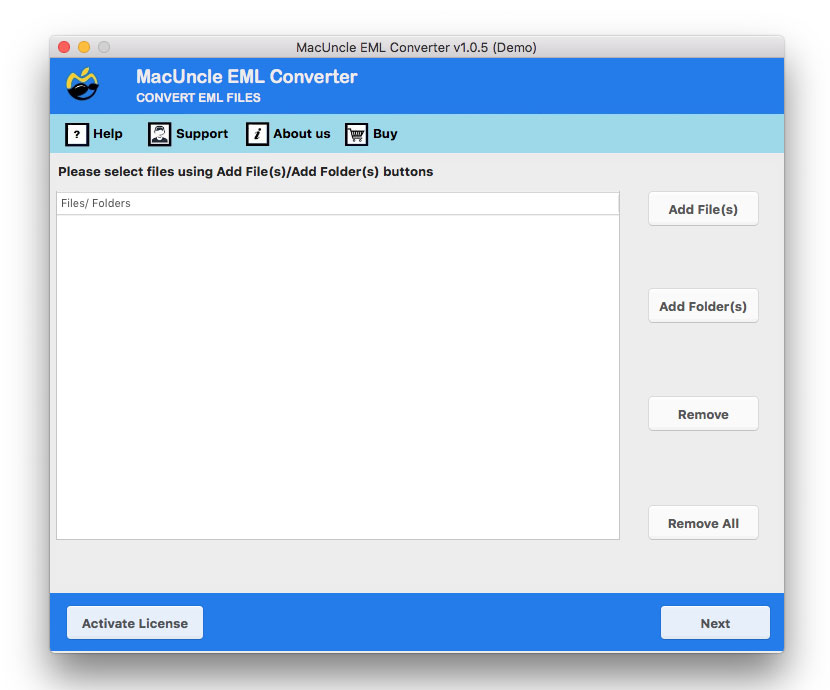
- Start the tool and add EML files or folders. Press the Next button.

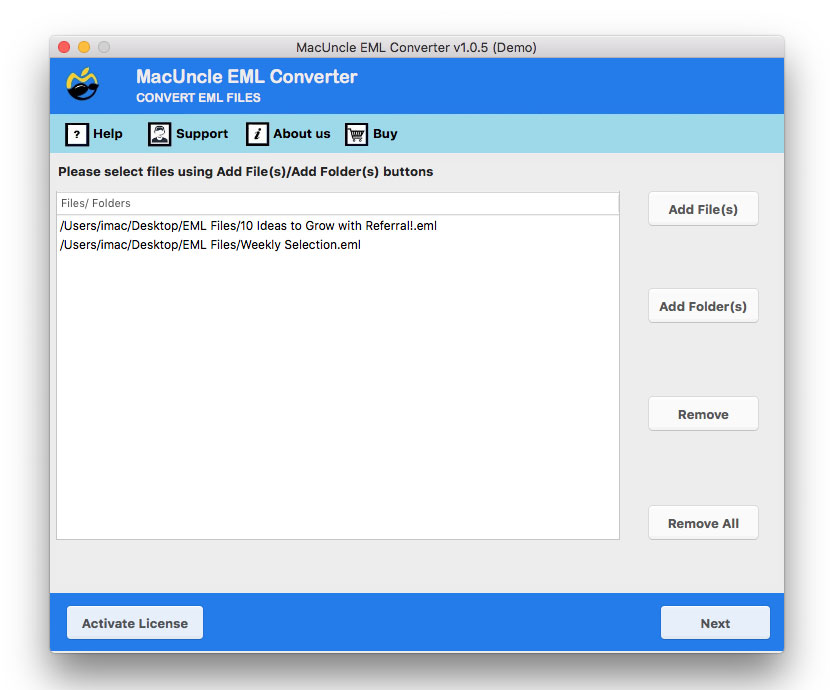
- Choose the desired files from the list. Hit the Next button.
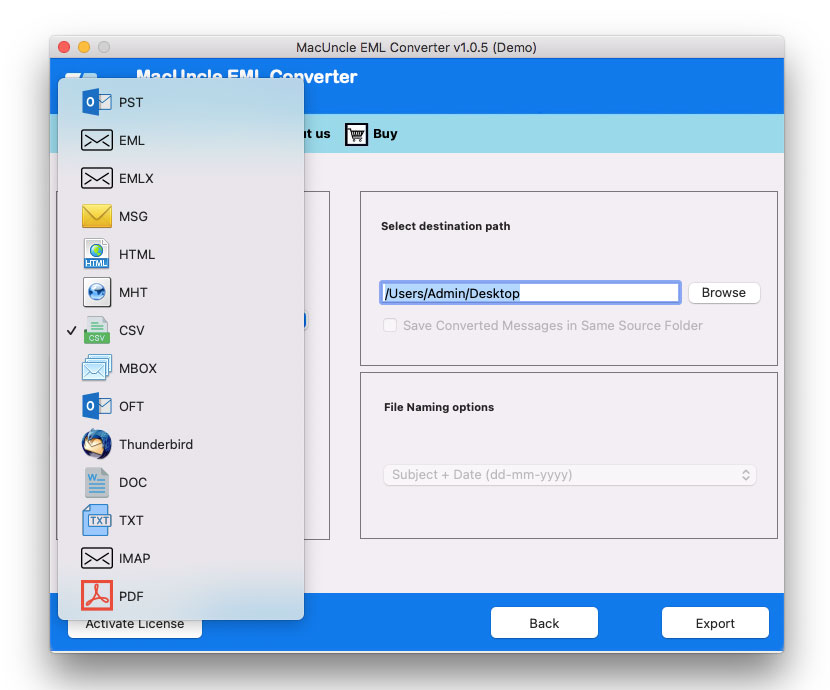
- Select MBOX from the list and choose a desired location.
- Press the Export button to start the conversion.
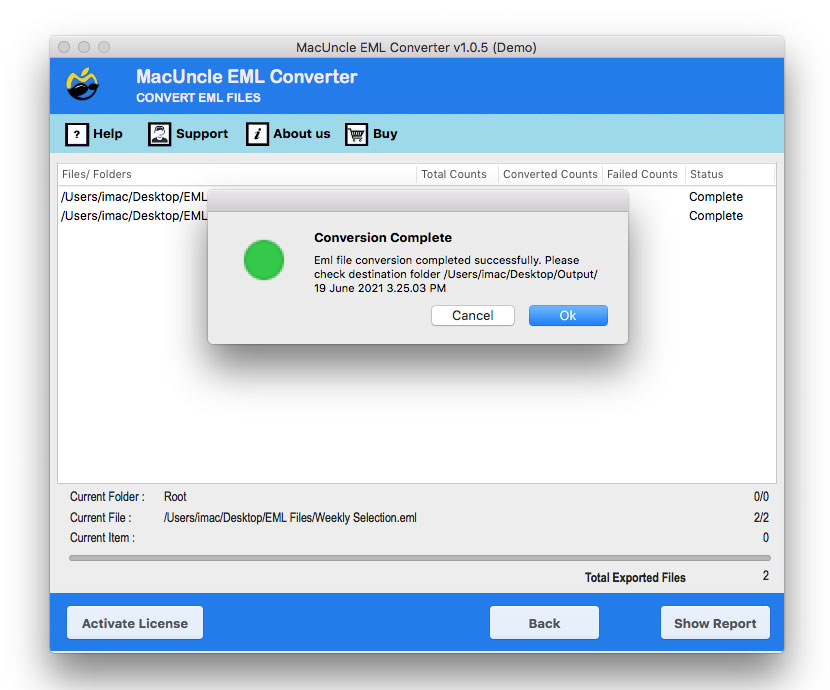
Once the process is complete, import the resultant file into any MBOX-supporting email client. You can follow our step-by-step tutorial on Import EML to cPanel for a smooth migration.
Conclusion
For users undertaking email client migration, they must convert EML to MBOX format. To efficiently bulk archive or require broader platform compatibility. Manual method uses clients like Mozilla Thunderbird or Apple Mail, which offer free solutions; they are best for smaller batches of files and require client installation and configuration. Use the recommended tool to handle large volumes of EML files and ensure data integrity. The tool is reliable for batch processing and maintaining the original folder structure. It secures all metadata and attachments throughout the conversion process.