How to Convert HEIC Image to BMP Format On Mac?


Do you want to convert HEIC images to BMP on Mac? HEIC is another iPhone file format designed to reduce photo size without losing quality. If you want to view HEIC files on Windows, note that HEIC is not compatible with Android, Windows, or other devices. Therefore, in this post, you will learn how to use HEIC to BMP converter to view all your HEIC images in BMP format.
Quick Tips for HEIC to BMP Conversion
- Check Compatibility: Ensure BMP files open smoothly on Windows and your editor.
- Mind File Size: BMPs are larger due to no compression.
- Backup First: Save copies of your original HEIC files.
- Keep Quality: Use a converter that preserves clarity.
- Choose Wisely: Pick reliable software with batch and metadata support.
Read More: Convert HEIC to JPG on Mac
Convert HEIC to BMP Using the Manual Method
We have two manual methods mentioned below that you can use to convert your HEIC files into BMP format.
Method 1: Using the Photos App in Windows 10/11
- Firstly, open the HEIC image in the Windows Photos app.
- Then, install the HEIC image extensions from the Microsoft Store.
- Now, once the image opens, click the three dots (…) in the top right corner and select Save As.
- After that, in the Save As Type dropdown, choose BMP (.bmp).
- At the end, click Save to export your HEIC file as a BMP image.
Method 2: Using Paint to Convert HEIC to BMP
- Firstly, right-click the HEIC file.
- Then, choose Open With. Then, click on paint.
- Now, once your file is open, go to the file menu.
- Then click on Save As and choose BMP.
- Lastly, select the destination folder and save the image.
Note: This manual method works well for a small number of images but can be time-consuming for bulk conversions.
Quick Way to Convert HEIC to BMP File Format
To convert HEIC files to BMP files on Mac that maintain quality, use a reliable tool like the HEIC Converter. Used by professionals, it converts HEIC to BMP formats fast and reliably without losing or distorting any data or images. The converter works best because it can convert multiple HEIC images to BMP images with batch conversion features.
With custom options and 24/7 support on the HEIC converter, you will have a smooth and user-friendly experience. Follow the steps below to easily convert HEIC to BMP on Mac.
How to use this tool?
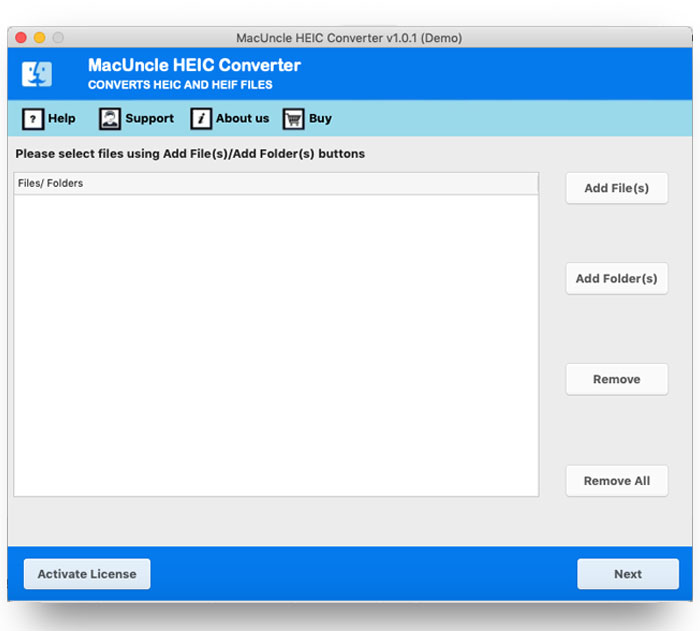
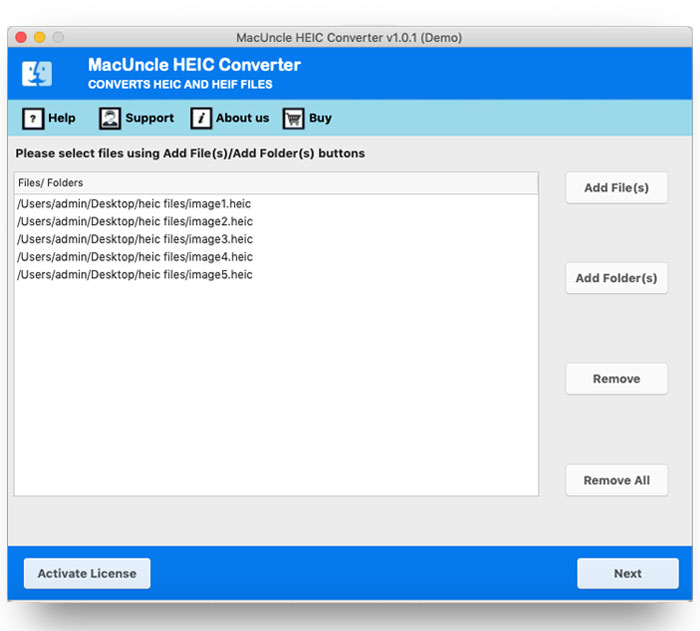
- Firstly, download the HEIC to BMP converter on your Mac Machine.

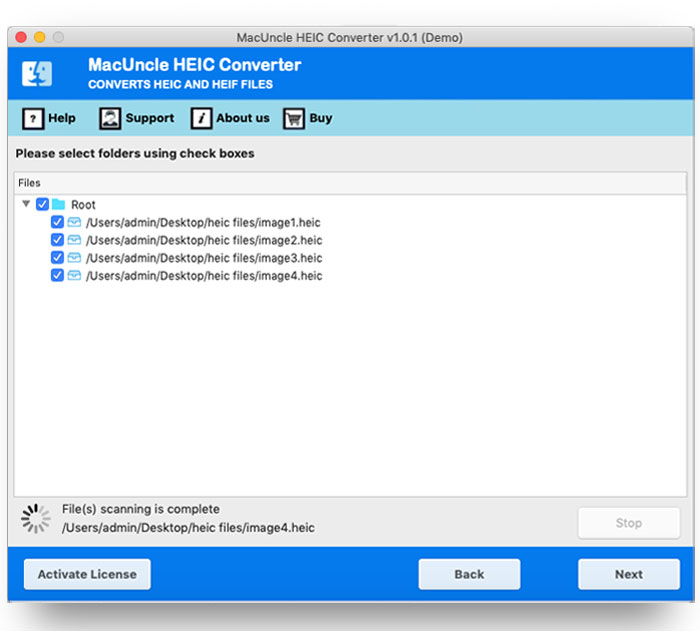
- Choose any appropriate files using the check box.
- Again, press the Next button in the bottom corner.
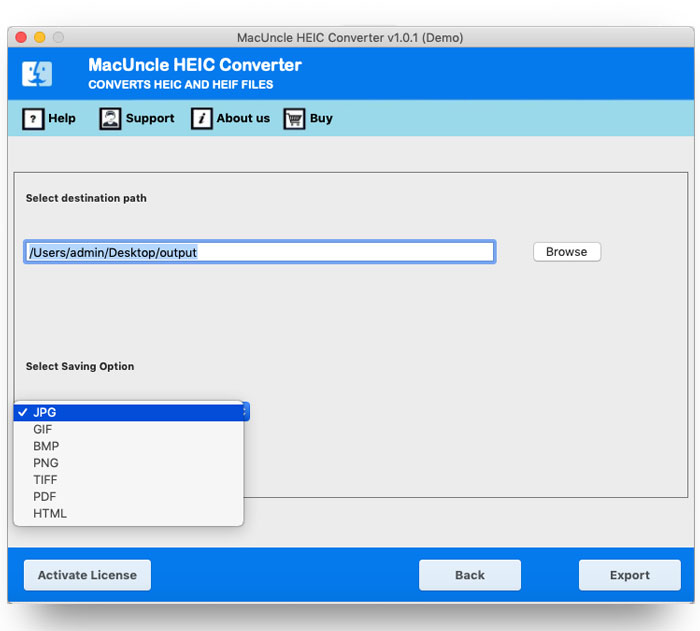
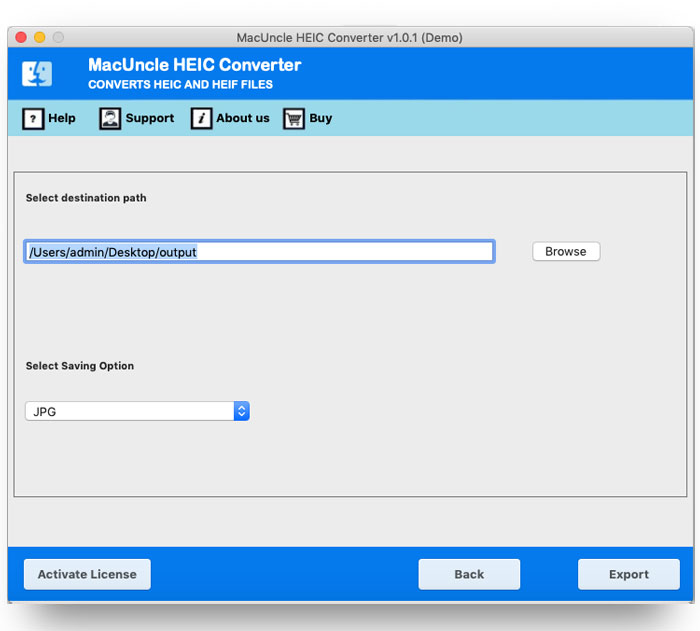
- From the new tab, choose the BMP option from Select Saving Option.
- Set a destination folder for the converted files.
- Finally, press the Export button to start the conversion.
Traits of HEIC to BMP Converter
- Custom File Selection: All uploaded files appear with checkboxes so you can choose which ones to convert before clicking Export.
- Standalone Tool: The software works independently; no extra apps or services are needed.
- Batch Conversion: Add and convert multiple HEIC files to BMP at once using the dual upload options.
- Easy to Use: No technical skills are required; just upload, select, and convert your files quickly.
- Add & Remove Files: Upload HEIC images using Add File(s) or Add Folder(s), and delete unwanted ones with Remove before converting.
Conclusion
Hence, the solution to convert HEIC to BMP is served. The application information for the conversion procedure is detailed here. The approach here is the most straightforward you could find because a user can add multiple HEIC files to the software panel. Thus, there is no need to repeat the procedure. The complete guide is here.
Frequently Asked Questions
Q) Why switch to BMP over other formats?
A) BMP is an uncompressed image format that works with different platforms. Unlike other formats, BMP relies on specific codecs or software for previewing.
Q) How can I convert HEIC to BMP without technical information?
A) With the software mentioned, you can convert the image files without any difficulty.
Q) Will my image quality suffer when changing from HEIC to BMP?
A) BMP is an uncompressed format that keeps the image data intact; thus, converting HEIC to BMP should not affect image quality.
Q) Is it viable to convert numerous HEIC files to BMP right away?
A) With the recommended tool, you can convert multiple HEIC files to BMP format easily.
Read More: Convert HEIC to PDF on Mac