How to Convert JFIF to BMP Format by Keeping the Original Quality?


If you have multiple images in *.jfif format and want them to be converted to another format, then here. The article here will give a brief understanding of how to convert JFIF to BMP images. Since the BMP file format is one of the most preferred formats for conversion.
There are countless online sites to change the file extension from *.jfif to BMP. But what if you have more than one file to convert, let’s say around 50+? Then there comes all the work and repetition of the procedure. Therefore, we have the right solution for the same.
Get the software JFIF Image File Converter for multiple JFIF file conversions at once.
What are JFIF & BMP Files?
JFIF stands for JPEG File Interchange format an image file format based on the JPEG compression standard. It is designed to store digital images in a compressed format while maintaining good quality. This format is still frequently uploaded. Whereas, BMP is an image format invented by Microsoft – Bitmap Image format, which is an uncompressed image format with a greater file size. High-quality BMP files come at the cost of greater file size.
In the later section, you will find out the reason, i.e., the benefits of converting image files to BMP format. Keep reading the article.
How to Convert JFIF to BMP Format?
The above-recommended software can be downloaded from the download links. Configure the application on any supporting system and convert the image files in *.jfif file formats to the Bitmap image format. Regardless of the number of image files, the tool performs without any delay.
The application is right for those who want to convert multiple files at once. At a time, add multiple files to the interface to get converted to BMP format. Try out the free demo version to understand how the application works.
How to Change JFIF JPG Files to BMP File Format?
Start / Open the software on a Mac or Windows Operating System. Follow the steps given below,
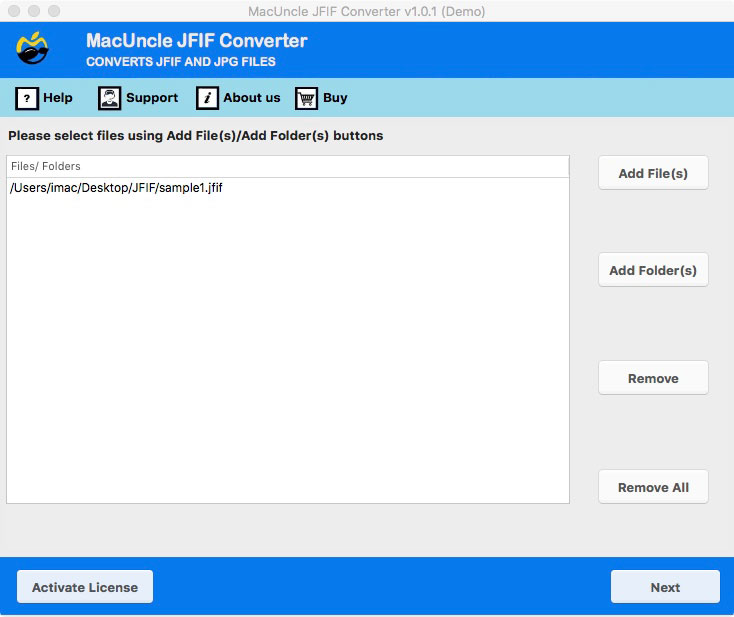
- Use any of the Add buttons to upload a JFIF image and press the Next button.

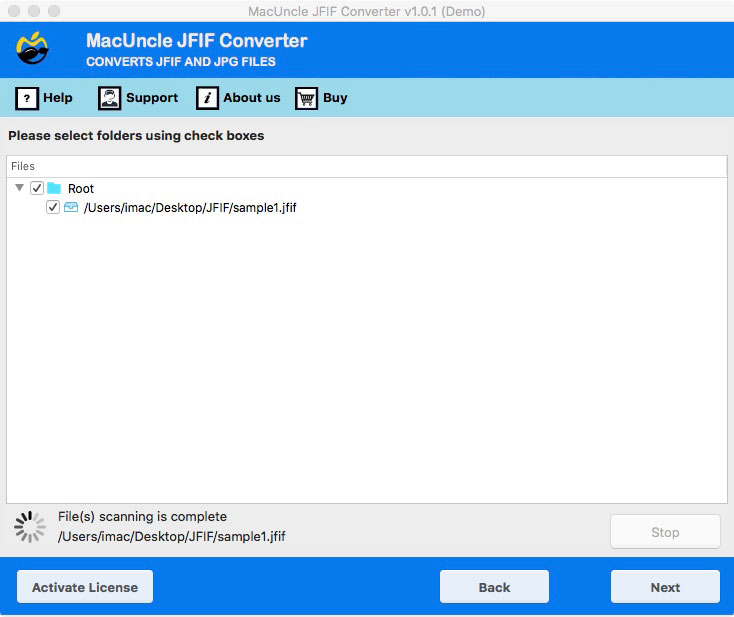
- Thus, the tool starts scanning and processing the files. Choose any file and press the Next button again.
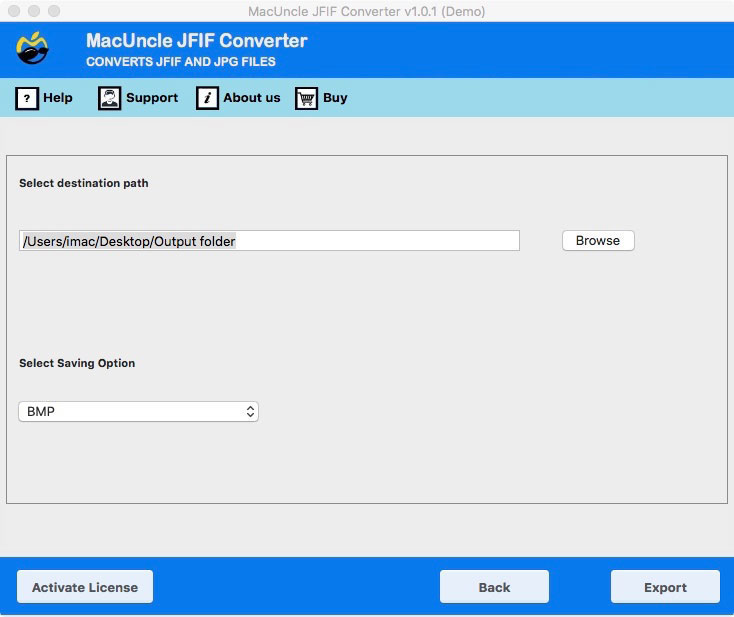
- Select BMP as a saving option and browse a folder path to store the converted files.
That’s it. All the files will convert to the selected format.
The software is also a solution for the following queries:
What are the Advantages of converting JFIF to BMP Format?
We have got the solution to convert JFIF to BMP, but what are the major reasons for this switch? The following are some of the major benefits of the Bitmap Image format.
- The BMP file format is versatile since it allows varied colour profiles, colour depths, and optional data compression.
- This format supports a wide range of software and apps, from ordinary image viewers to web browsers.
- Additionally, because it can hold colour data for each pixel in the image without compression, the format can be used to save crisp and high-quality photos.
These are some of the advantages of BMP file formats.
FAQ – Convert JFIF to BMP
Q) How long does the tool take to convert 100+ images?
The conversion depends upon the internet connection one has; however, the tool is devoted to completing the process within minutes.
Q) Can I test the software before starting with the licensed version?
Yes. The demo version will allow the user to try out the software to convert JFIF files for free.
Q) Why does the tool stop converting files after some files?
If you are using the Trial edition, then upgrade to a professional package.
Feel free to contact the MacUncle Support Team.Summary
To conclude, the guide has given the best solution to convert JFIF images to BMP format. Since the online service only allows for converting a single file at once, the suggested solution is the answer to all. With our tool, add multiple image files in *.jfif format to the software interface. By keeping the quality intact, we can convert multiple JFIF files to BMP format.