How to Convert MSG to OFT Format ?


Microsoft Outlook is one of the most widely used email clients for both personal and professional email communication. We are inclined to use Outlook because it offers so many features like managing emails, contacts, and tasks, etc. Outlook gives an option for users to save emails individually as per their needs. One of the issues we are going to discuss here is how to convert MSG to OFT, basically, that is, when you want to reuse the existing email messages as a template. There is no direct built-in option to save the email file as the OFT format, hence conversion is required.
There are times when we have special email messages in the form of MSG files, like responses or client notifications, and want to reuse these templates. The emails must be in OFT format. So we need to find the proper method of changing MSG to OFT format, as the formatting should not be changed after conversion. The instruction will provide the best method, but first, we have to comprehend the main reasons users want to do this conversion.
Overview of MSG & OFT File
MSG files are created by Microsoft Outlook and are saved when emails are saved with the Save As option. It consists of email body, attachments, metadata, formatting, etc. MSG files usually store a single email message. Users commonly store important emails locally to use them as email evidence, for forensic purposes, to move emails between systems, or to share with non-Outlook users.
OFT is a file format used to create and reuse email templates in Microsoft Outlook. This lets the user avoid typing the same content repeatedly. It serves for marketing and promotional emails, HR onboarding, internal company communications, and customer support reply templates. Now, let’s find out why users want to convert MSG files to OFT format.
Why Convert MSG to OFT?
There are several reasons why users decide to change the format of their MSG files into OFT. Most of them have been underlined in the article below:
- To create a reusable template: Convert an MSG email containing standard or preformatted content to OFT format, allowing you to reuse the same email structure as many times as needed.
- Automate Tasks in Outlook: OFT templates can feature Outlook rules or a sending automation tool for productivity.
- Standard Corporate Email Designs: In the case of a brand email layout, headers, and so on, which can be shared by several employees.
How to Convert MSG to OFT Manually?
We can use Outlook to convert single MSG files to OFT format. Follow the steps:
- Open Microsoft Outlook.
- Drag and drop the .msg file into Outlook, or double-click to open the MSG file.
- Click on File > Save As.
- In the Save as type dropdown, choose Outlook Template.
- Select the destination, then click Save.
Limitations: The simple method always comes with significant limitations. The method is done by navigating to each of the email messages and then saving them to OFT format. That is, when users have a large MSG file or require batch conversion, we need an alternate method.
Also, check out the article: Bulk Convert MSG to EML Format.
How to Convert MSG to OFT in Batches?
To convert MSG files to OFT format in batches, try out the most reliable solution – MSG Converter. The tool allows you to convert multiple files without losing the email formatting, attachments, or metadata. It completely overpowers the manual methods and offers an easy, efficient workflow for bulk conversion. With the simple interface and advanced capabilities, the software user can instantly generate reusable email templates.
How to Switch the MSG to the OFT Format?
Get the desired version of the tool and complete the installation.
- Launch the tool on the system.

- Add MSG files using the Add File or Add Folder button.
- Select a file from the list and press Next.
- Choose the OFT format and destination location.
- Finally, hit the Export button to start the conversion.
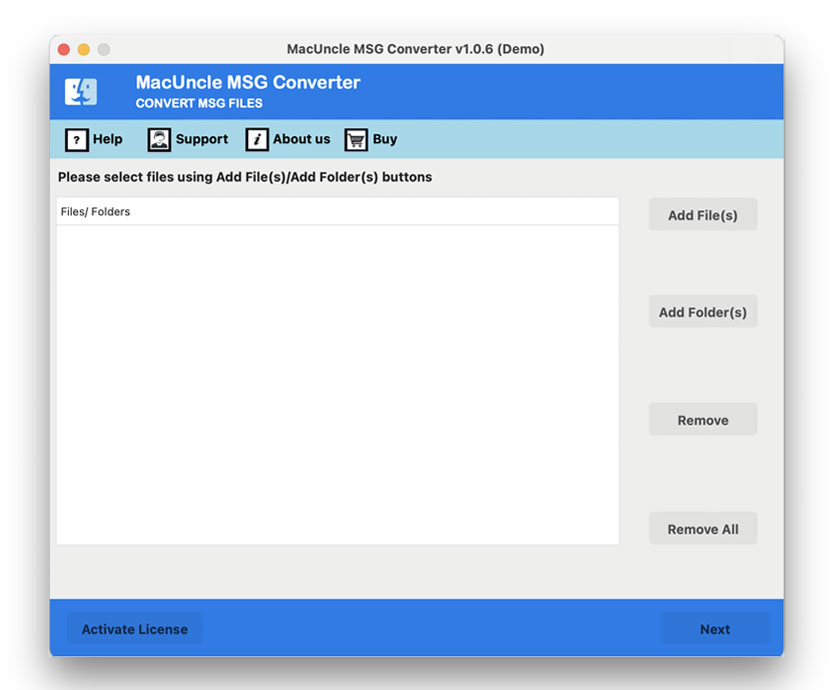
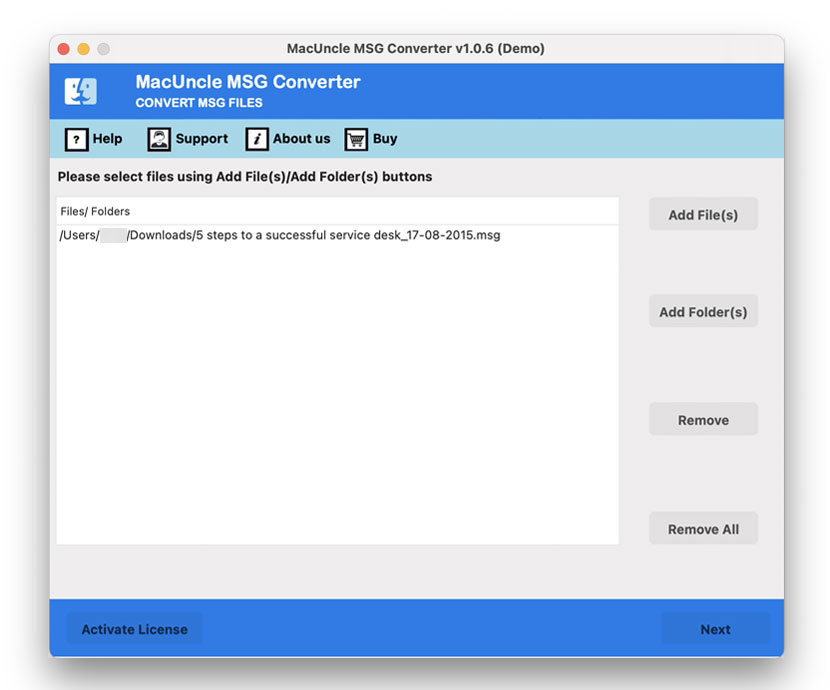
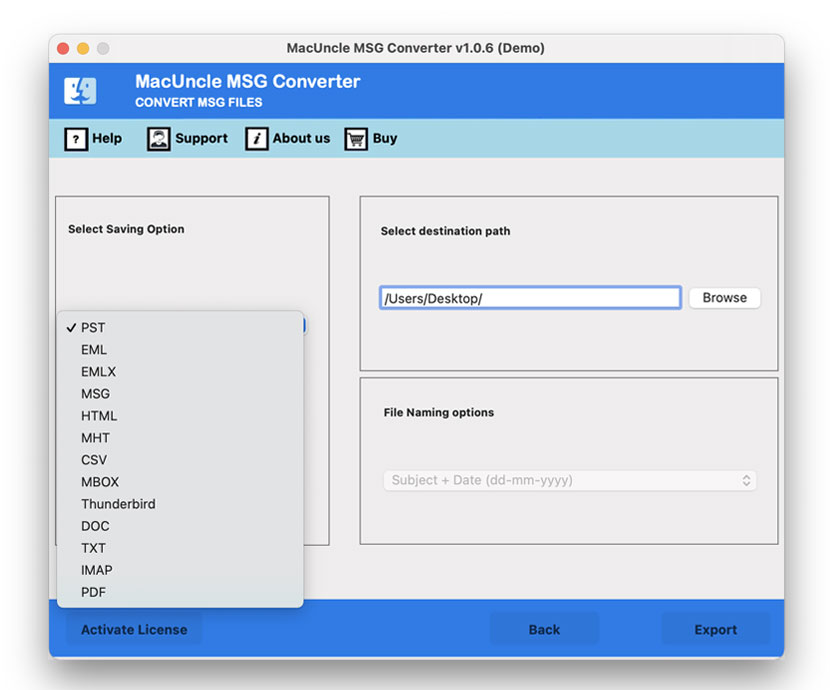
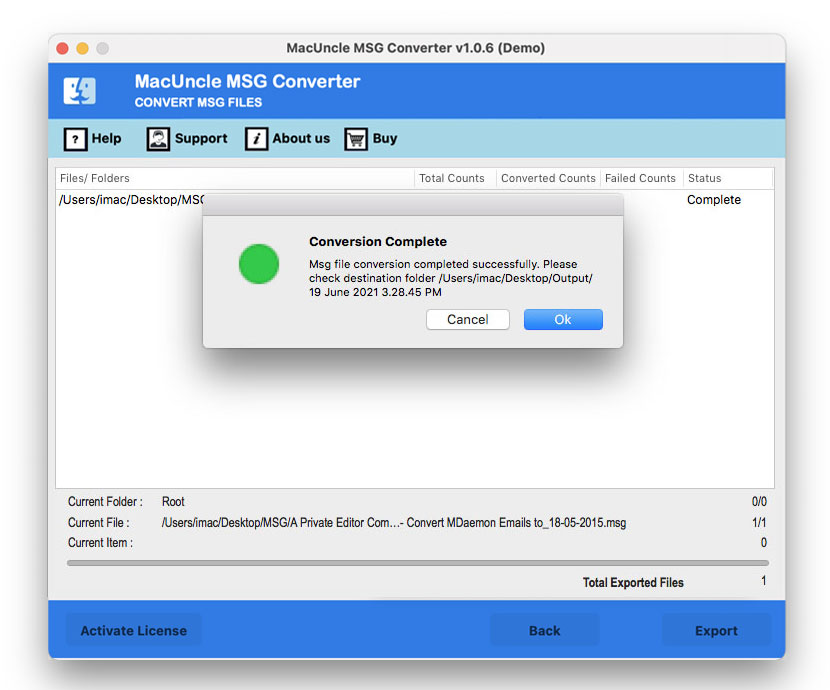
Soon, you will get the resultant PFT files that are ready to open in Microsoft Outlook, edit or reuse as templates.
Why Use the Automated MSG to OFT Converter?
- It supports batch conversion, which is useful when we are dealing with hundreds or thousands of MSG files. Therefore, instead of manually opening and saving each Outlook MSG file, users can convert them all in a single process. It drastically speeds up workflow efficiency and precisely minimises the manual errors that occur.
- The tool ensures the original email layout, hyperlinks and styles remain intact even after the conversion. It accurately preserves complex elements like signatures and disclaimers, while keeping all metadata—including To, CC, BCC, and Subject fields—intact to prevent data loss. It makes the converted template ready to reuse.
- The tool works without the need for Outlook installation. It is beneficial to have a solution that would work in an environment where Outlook is unavailable.
- By eliminating repetitive manual processing, automated conversion significantly reduces the workload. Save time by converting MSG to OFT in batches.
FAQs
Q) Can I convert MSG to OFT directly in MS Outlook?
A) Yes. In Microsoft Outlook, you can open the MSG files, make any desired edits and then save them as an Outlook Template. Go to File > Save As and select the Outlook Template from the saving options. With this method, the user can convert single email files at once.
Q) Is it possible to batch convert multiple MSG files to OFT?
A) With the native option in Microsoft Outlook, we can’t convert batches of MSG files. Each of the MSG files needs to be opened and then saved individually. For batch conversion, we need to use a professional tool if you want to convert multiple MSG files to OFT format in batches.
Conclusion
Those who reuse email formats and want to improve productivity usually want to convert MSG to OFT format. There is a manual method that would allow users to convert the single files; however, it becomes inconvenient for bulk email file conversion. This article recommends an approach that lets us convert multiple MSG files to OFT templates while maintaining the original formatting. Where the requirement is for personal, technical or business requirements, converting msg to OFT enables consistent and reusable communication templates.