How to Export Airtable Data to Excel?


Airtable has become a go-to workspace for teams that require a bit more structure than a spreadsheet. Airtable is used for project management, inventory tracking, customer conversation logs, and calendars. But when you want to analyse data more thoroughly, create a financial model, or share a report with someone who isn’t using Airtable, most people default to Microsoft Excel.
That’s why “How do I export Airtable to Excel?” is one of the most popular questions about Airtable. The answer isn’t simple, though: Airtable doesn’t have any native way to save data directly as an Excel (.xlsx) file. Its only native export format is CSV (comma-separated values), which can be opened in Excel, but as a plain text file. It strips out all formatting, flattens linked records to text, and converts attachments into links. Therefore, each table has to be exported and imported separately.
Quick Answer: Airtable can’t export directly to .xlsx. Open a Grid, click the drop-down arrow, and choose Download CSV. Then import the files into Excel with Data > From Text/CSV, and save as an Excel Workbook.
This manual is the complete, step-by-step spreadsheet of every operation we can do to export Airtable to Excel. We’ll start with manual steps and then dive deep into the barriers to automation. We’ll also look into where Airtable’s AI reporting takes place and exports, and wrap up with the automated procedure if you are a heavy and scalable exporter. Go on and discover which method is suitable for your data, your workflow, and your requirements.
Method 1: Export Airtable Data to Excel (via CSV)
This method requires you to have CSV export access enabled on your Airtable plan, with no additional tools required. It is a good solution if you want to export an entire Airtable view into Excel.
Step 1: Export Airtable View to CSV File
- Log in to the Airtable account and select the base you wish to export.
- Navigate to the table with the data you want to export.
- Switch to the Grid view.
- Next, from the options, select Download CSV.
- Your CSV file will be downloaded to your computer.
Step 2: Convert CSV File to Excel
- Launch Microsoft Excel on your computer.
- Go to Data > Get Data > From Text/CSV.
- Select the CSV file you’ve downloaded in step one. (It is better not to double-click the file, as it will provide you with additional options.)
- Set the File Origin to UTF-8 and click Load to import the CSV file into Excel.
- Navigate to File > Save As and select Excel as the saving format.
Method 2: Copy-Paste Airtable Data to Excel
If the amount of data you want to export is relatively small, the easiest way to transfer it to Excel is by using copy-paste.
- In Grid view, select the data you want to copy by clicking the cell. You can also choose specific cells to copy.
- Press Ctrl+C (Windows) or Cmd+C (Mac) to copy the selected data.
- In Excel, click the cell where you want to paste the data, and then press Ctrl+V (Windows) or Cmd+V (Mac).
Remember that if you want to copy the column headers, you will have to select them individually.
This method is best suited for small, time-sensitive Airtable exports. If you need to export a larger amount of data, consider using the first method described in this article.
Method 3: Export Airtable Data to Excel in Bulk With Automated Tool
When you export your data from Airtable, either via the Airtable API, integrations, or automation workflows, it will be in JSON or JSONL format. These file formats are machine-friendly but are not easy for human readers to understand. Chat Converter helps you convert JSON/JSONL exported files into user-friendly Excel files. Try the demo version first and then use the upgraded version.
How to Convert Airtable Data to Excel
Download and install the converter to Export Airtable Data to Excel instantly.
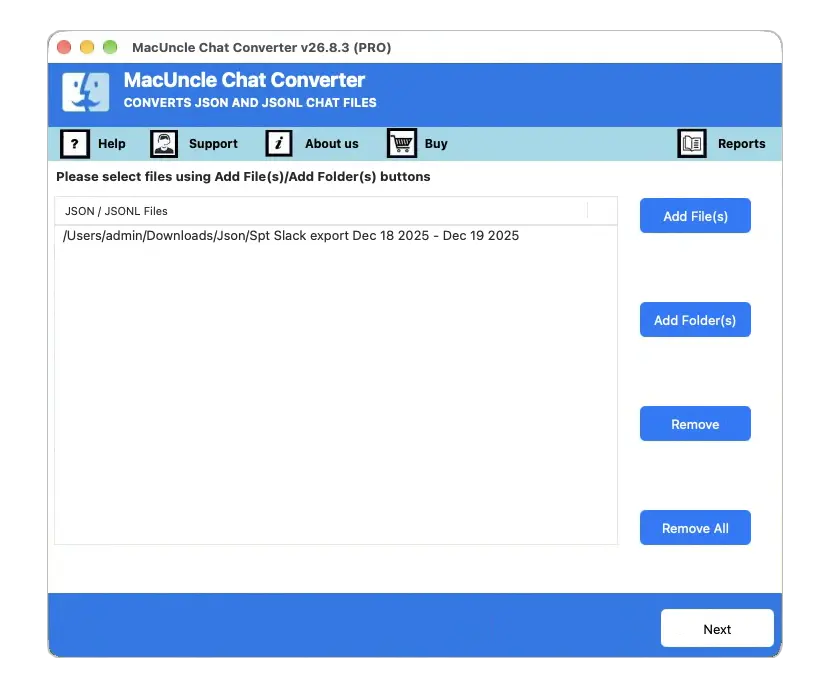
- Launch the tool and use any Add button to add Airtable Chat. Press the Next button.

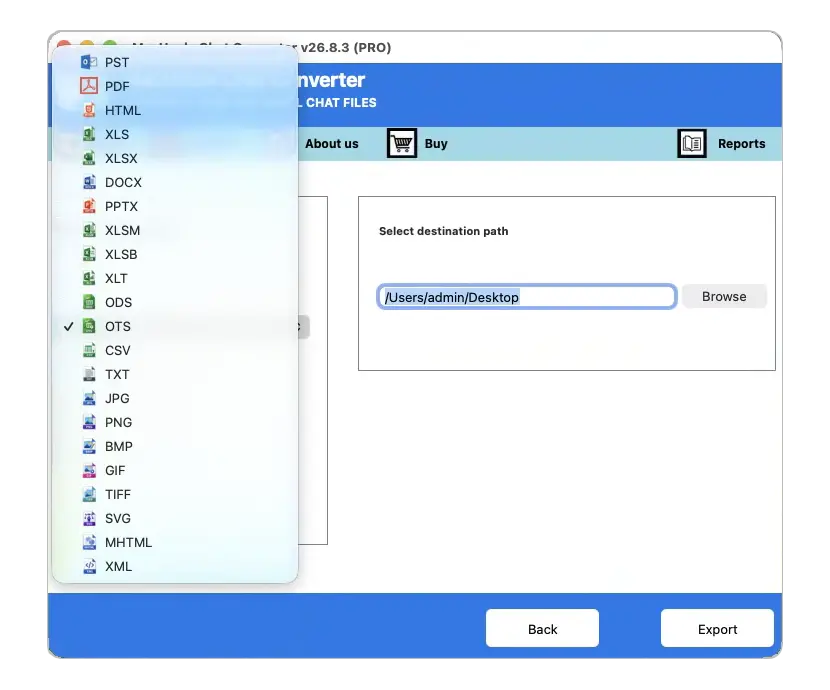
- Now, select XLSX as the saving option from the list.
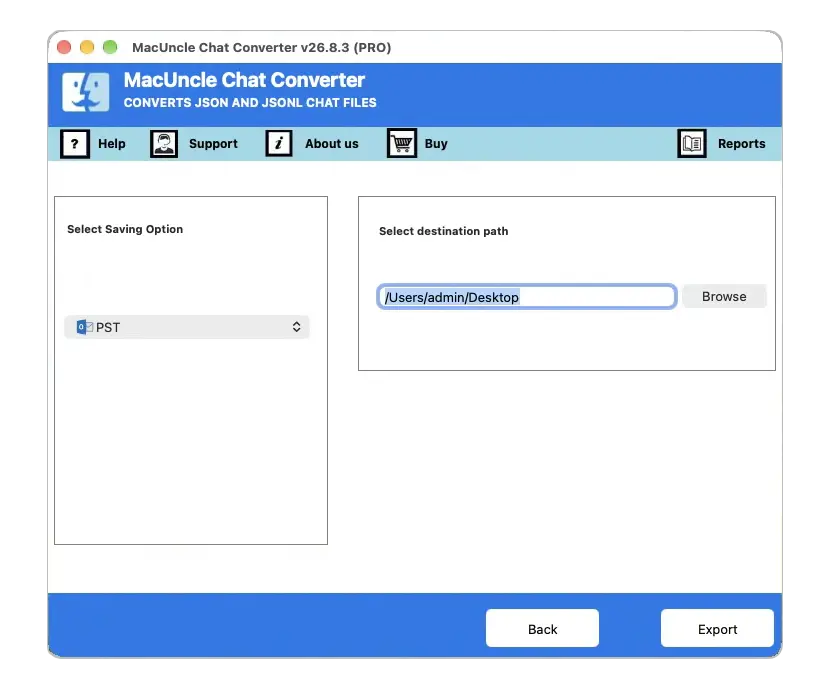
- Set a destination location to store the converted files.
- Finally, click the Export button.
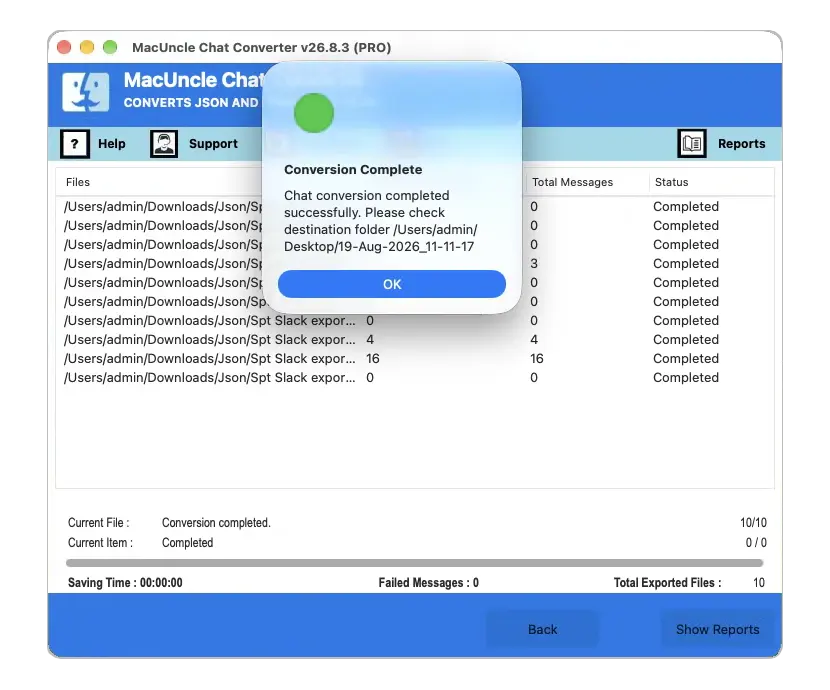
As soon as the conversion is done, the folder with the converted Airtable Chat will open.
FAQs
Q) Does Airtable offer an “Export to Excel” tool?
A) No. The only export option from Airtable is CSV. If you want an .xlsx file, you have to convert it via Excel or a dedicated converter.
Q) How do I export multiple Airtable data to Excel simultaneously?
A) Not with the built-in features. The recommended tool here allows you to batch export entire folders of JSON and JSONL files from Airtable to Excel.
Q) Is my data uploaded anywhere during conversion?
A) Not with the MacUncle tool; it works on your own computer.
Q) Can I export an entire base at once?
A) Yes, but not with the built-in export. Each table is exported separately, and links between tables become plain text.
Conclusion
Exporting Airtable data to Excel is not difficult if one knows the right methods for doing so. Exporting a table or a certain window can be done via the free CSV method or through simple copy-pasting. But for those who usually use their Airtable data in the form of JSON or JSONL files, there is an option to bulk convert an entire folder of chat data to Excel offline. Test out the free tool first and then buy the premium version if satisfied.