How to Export Gmail Emails to MSG File?


If you are a Microsoft Outlook user and want to access Gmail emails in Outlook, then you need to export Gmail emails to MSG format. The MSG format is the native format used by Outlook, which makes it an ideal choice for users who want to migrate, archive, or simply back up Gmail messages. The file format preserves the email properties such as attachments, metadata, formatting, etc.
Whether you want to switch from Gmail to Outlook, create an offline backup for legal purposes, or convert Gmail to MSG is a task that professionals and organisations face. The guide will walk you through both the manual and the most reliable method to use the dedicated tool.
How to Export Gmail Emails to MSG Format?
We have gathered all the free methods that can convert or extract Gmail emails to MSG format with ease. Since there is no built-in direct option in Gmail to export the emails to a MSG file. The download option can download Gmail emails in EML format. Let’s find out what the other methods are.
Manually Export Gmail Messages to MSG with Outlook
Exporting Gmail emails to MSG format manually required Microsoft Outlook to be installed on the system. The approach works for small-scale export, and it involves several steps and has limitations for bulk use.
Enable IMAP in Gmail
Before adding the Gmail account to Outlook to Export Gmail Emails to MSG, you must enable IMAP access in the Gmail settings. Without this, Outlook will not be able to connect and sync the emails.
- Sign in to the Gmail account.
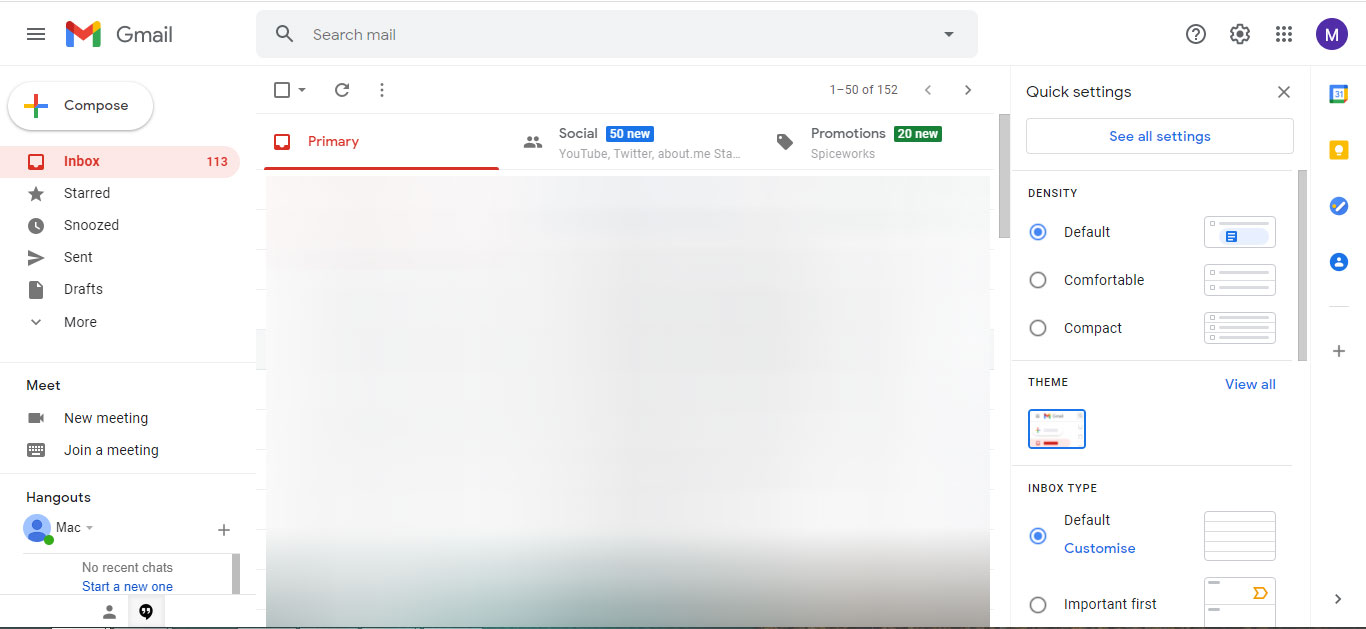
- Click the gear(settings) icon.

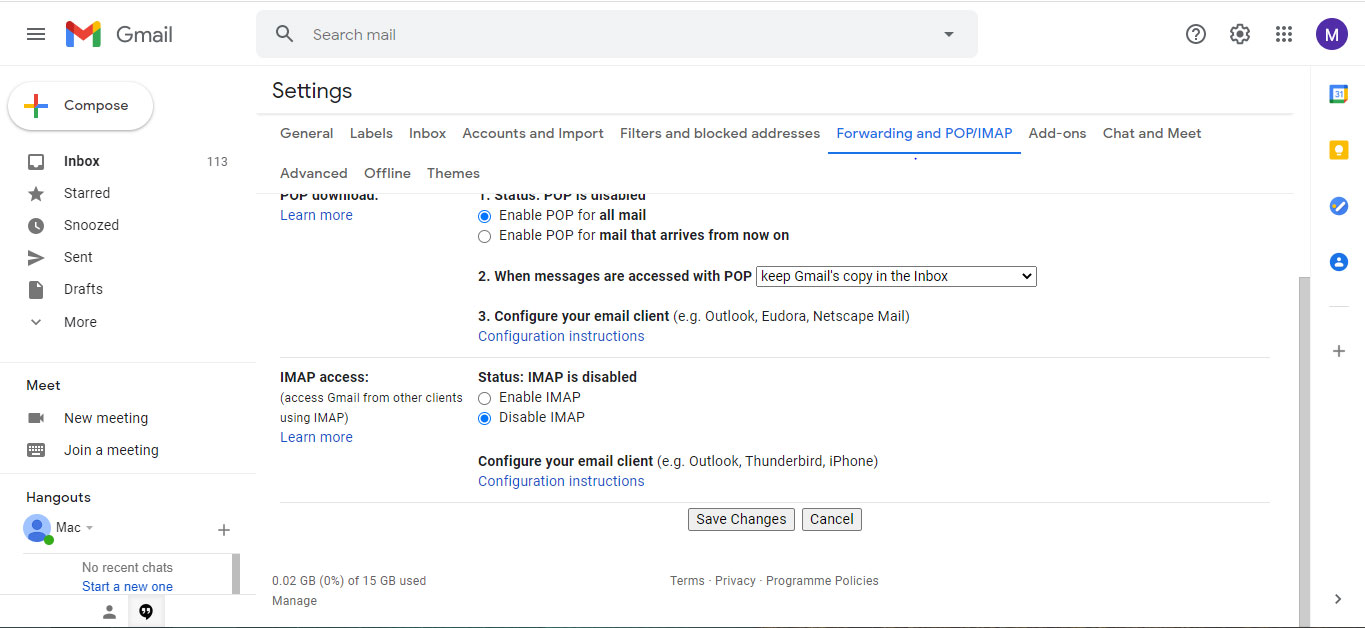
- Then, click on See all Settings and go to Forwarding and POP/IMAP.
- Under the IMAP Access, select “Enable IMAP”.

- Scroll down and click “Save changes”.
Add Gmail Account to Microsoft Outlook
After the IMAP is enabled, you can connect the Gmail account to MS Outlook
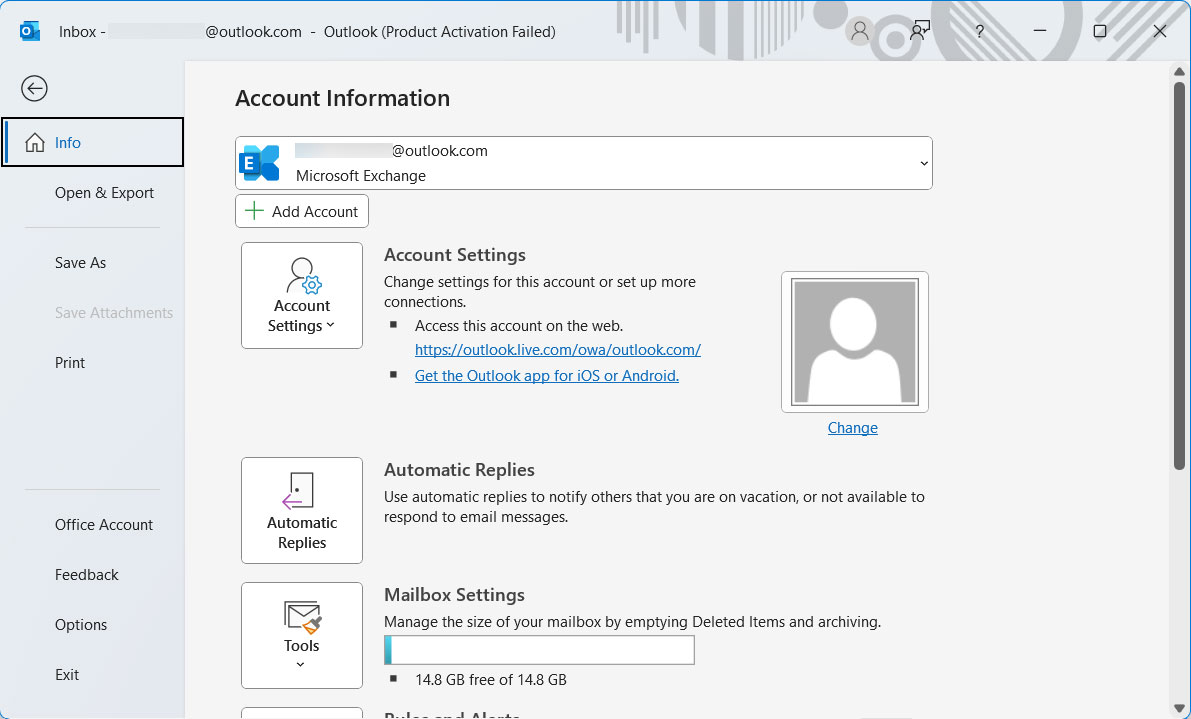
- Open Microsoft Outlook. Go to File > Add Account

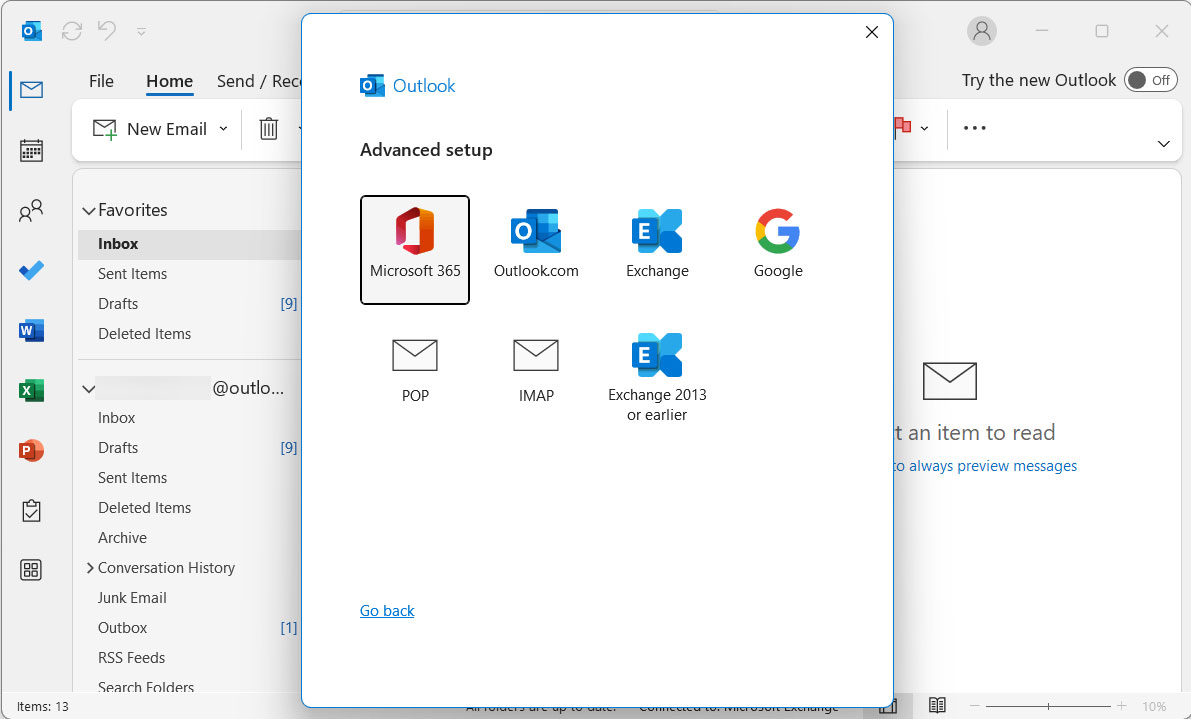
- Now, choose Manual setup and select the IMAP option.
- Enter all the IMAP details.
- Once the setup is complete, click Done.
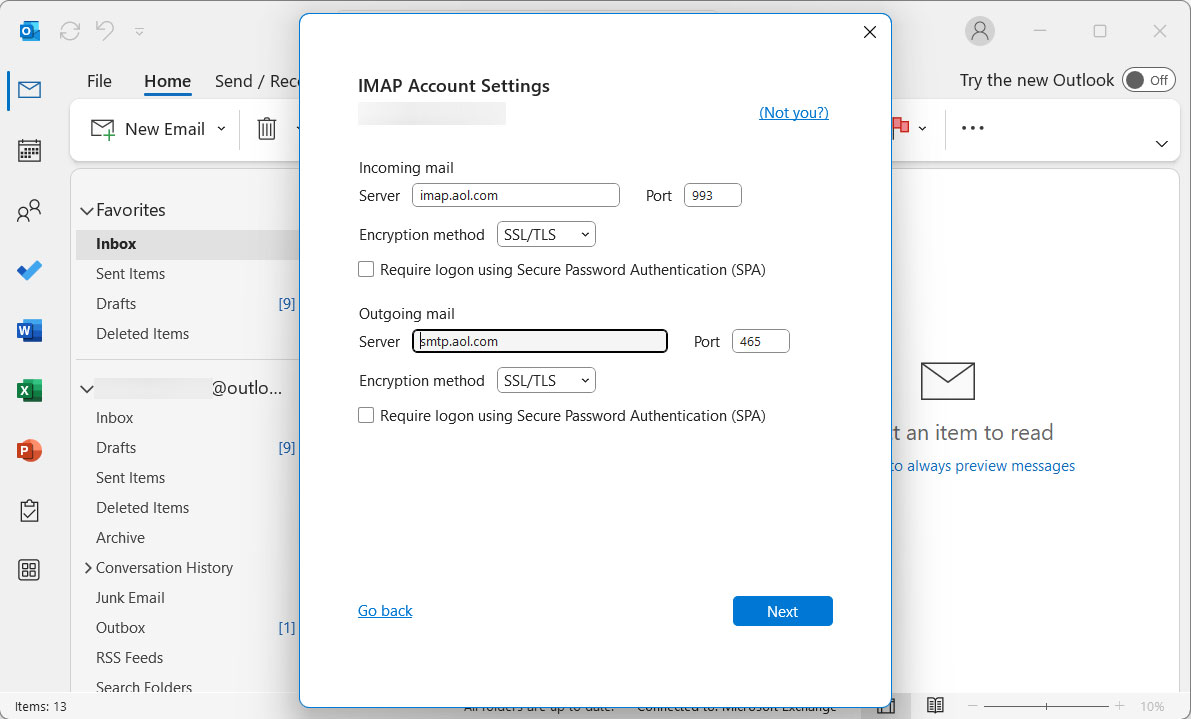
Now the Gmail account will appear in the Outlook left panel.
Let the Emails Sync to Export Gmail Emails to MSG
After adding the account, Outlook will begin to sync the Gmail emails.
- Look for the status bar at the bottom – it will display the sync progress.
- Wait until the sync is complete before proceeding. It may take a few minutes to complete.
- Once it is done, the Gmail folder and emails will be in Outlook.
Save Gmail Emails as MSG Files
The emails will sync in Outlook, and you can save the emails individually as MSG files.
- Go to the Gmail folder in Outlook and open the email to export.
- Go to File > Save As.
- In the Save as type, select Outlook Message Format (*.msg).
- Select a desired destination folder.
- Click Save.
The emails will be saved as individual MSG files to the selected location.
Note: Repeat this process for the email to export. There is no built-in option to save multiple Gmail emails as MSG in one go.
Limitations: The method is time-consuming for bulk export. To even start the process, we need to have Outlook pre-installed. Each of the messages is exported, hence there is a risk of data inconsistency during the sync process. There is no batch export option.
Export Gmail Emails to MSG in Batches
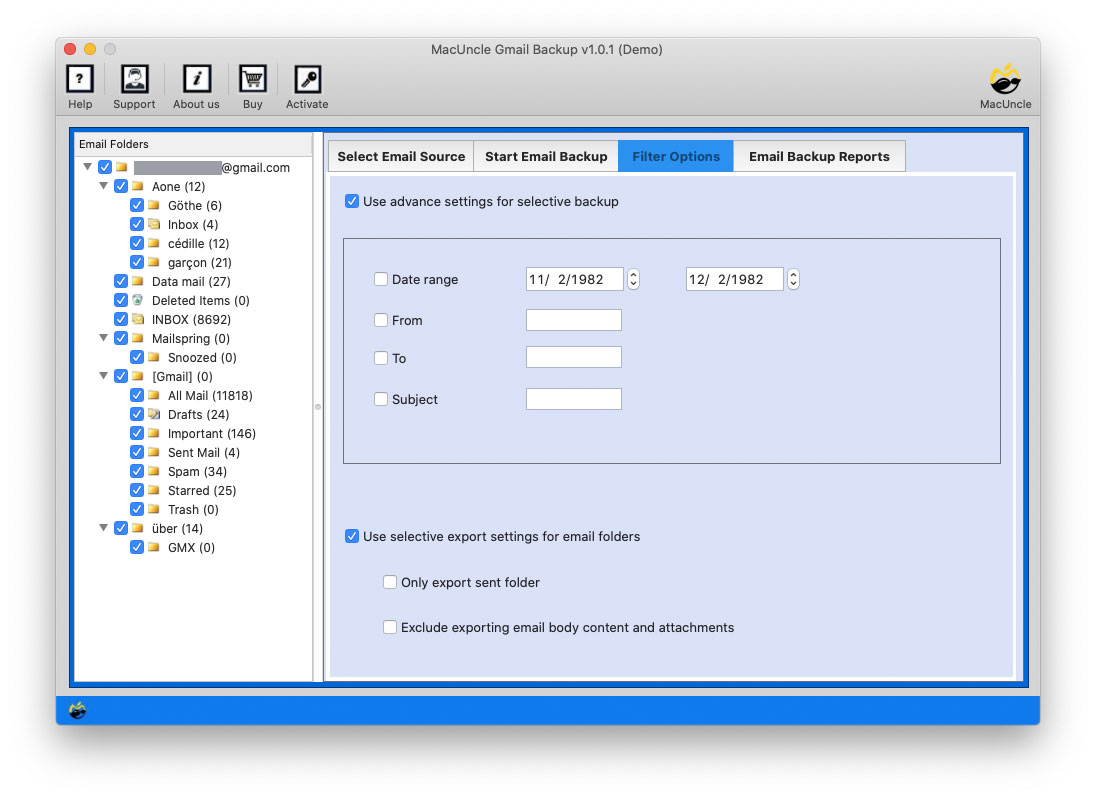
For a faster and more efficient process, use the Gmail Backup Tool. It has the option to directly convert the emails from Gmail to MSG format. Select batches of emails in folders to export and complete the process within a few minutes.
How to Convert Gmail Emails to MSG Format
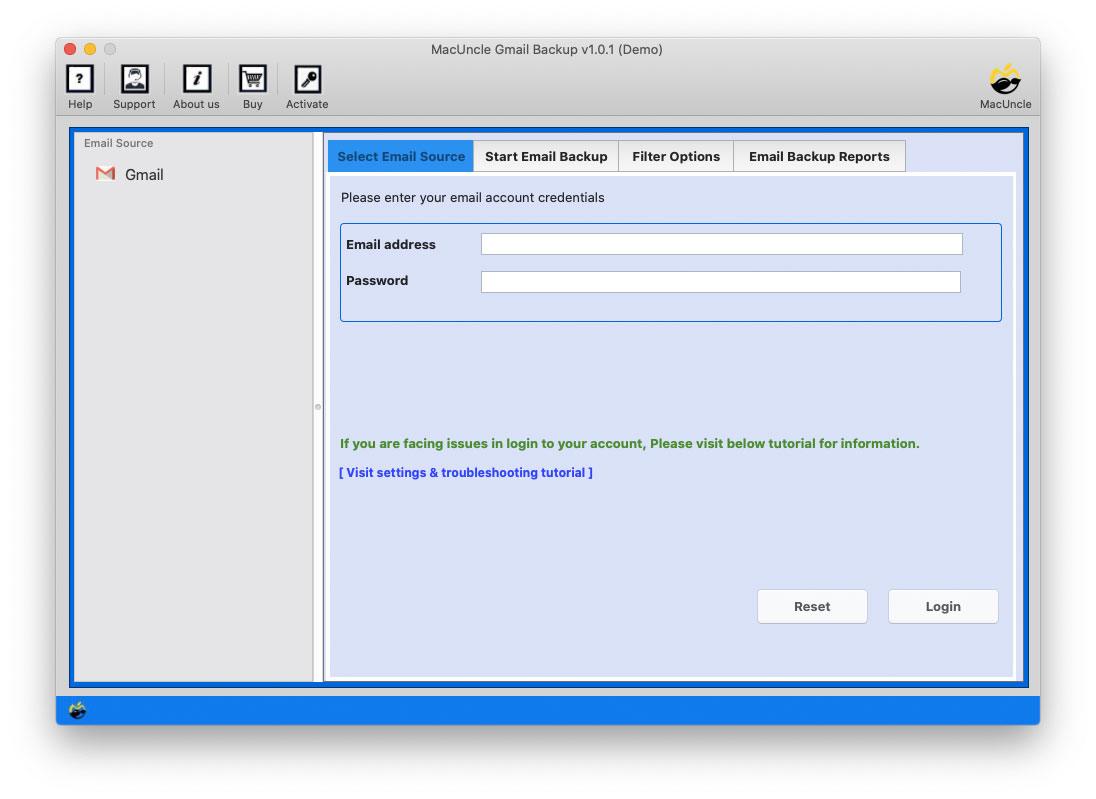
- Launch the software.

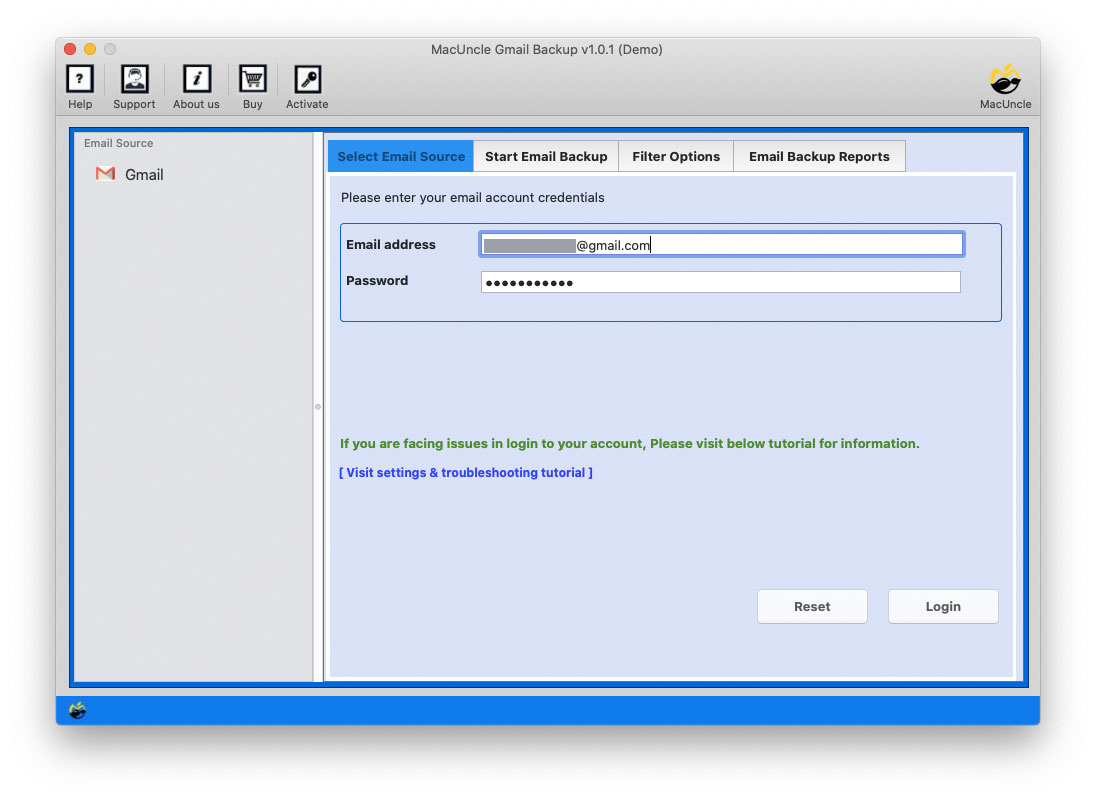
- Enter Gmail Credentials and click on the Login button.
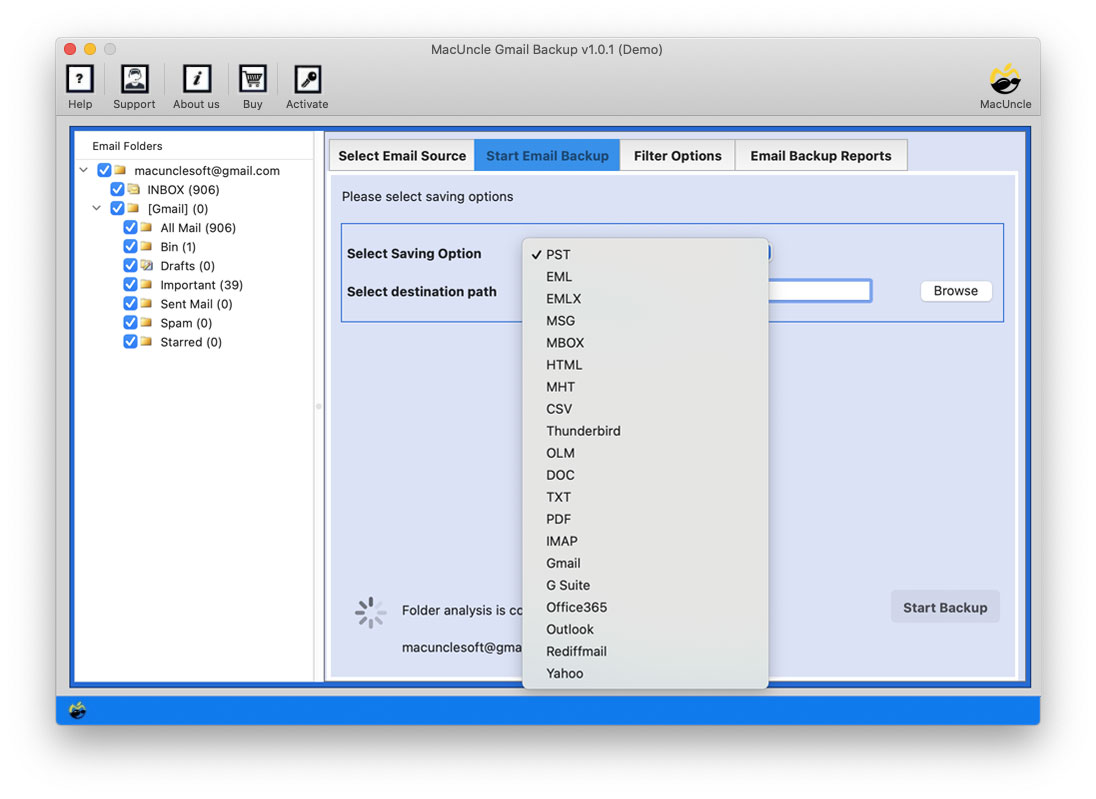
- Select the folder and choose the MSG file.
- Apply filter if required.
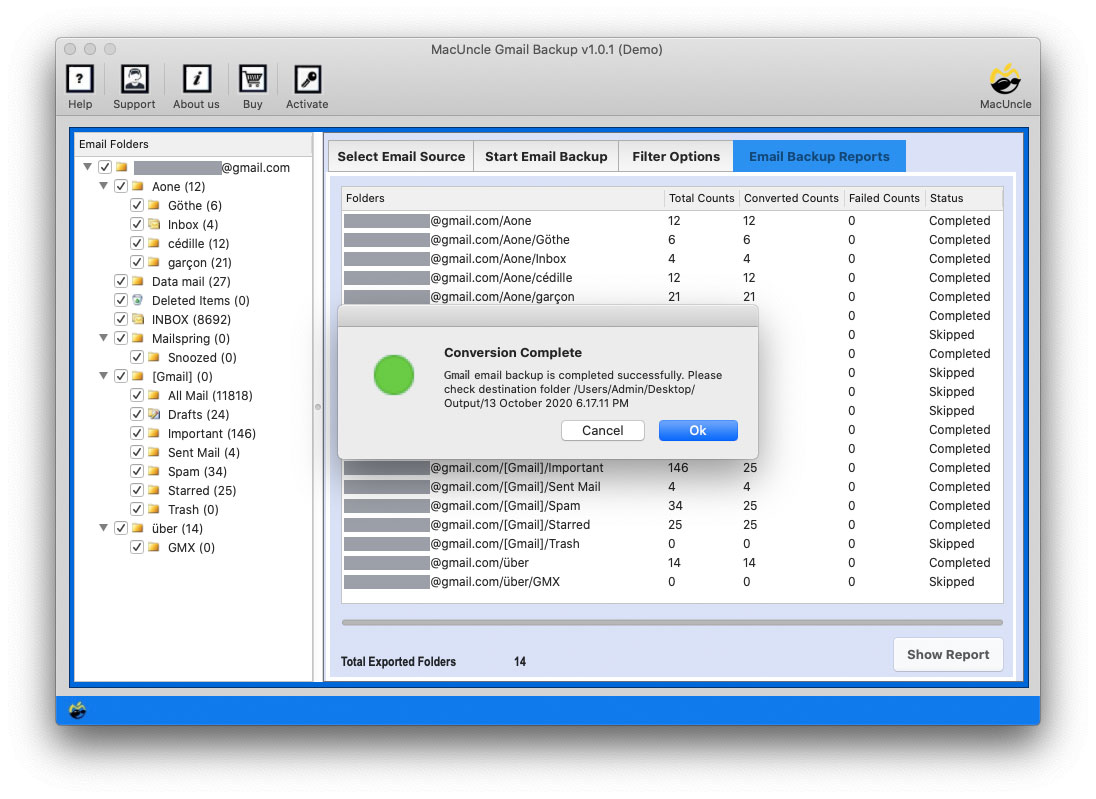
- Click on the Start Backup button.
FAQs
Q) Can I export Gmail emails to MSG directly?
A) No, Gmail does not have a direct option to export emails in MSG format. We need to create a bridge between Gmail and Outlook and then export to the MSG format. Otherwise, use the recommended tool mentioned here.
Q) Is Outlook necessary for manual conversion?
A)n Yes, we need Outlook installed before starting with the manual method. Configuring Gmail for Outlook is necessary to export Gmail emails to MSG.
Q) Can attachments be exported in MSG files?
A) Yes, both the manual and automated methods preserve the attachments within the MSG files.
Q) How can I export multiple emails at once with the manual method?
A) No, with the manual method, you need to export single email messages at once in MSG format.
Conclusion
There is no direct approach to exporting Gmail emails to MSG format. You can export Gmail emails to MSG only by using a manual workaround with Outlook or a professional tool.” If there are only a few emails to export, then go with the manual method. If you want a quick, reliable and bulk export solution, then use the software mentioned.