How to Export iCloud Email to Local Drive?


While iCloud Mail ensures that your emails are synchronised across all your Apple devices, it also means that those emails are stored on Apple’s servers, rather than on your local machine. If you want a local copy of iCloud emails for archives, migrations, offline access, etc., you will need to export the iCloud email messages to local storage.
In this guide, we will talk about why all this is important, how iCloud Mail account storage works, built-in Apple solutions, and an easy, reliable method to back up iCloud email to a local drive for accuracy, structure, and control.
Why Export iCloud Email to Local Drive?
There are a few popular reasons why users choose to redirect their iCloud emails from the cloud to local storage:
- Device migration: If moving to a new Mac, PC, or email client and want all of your email history to go along with you.
- Compliance and legal recordkeeping: Several organisations (for example, financial) need to keep all data and records on-premises rather than “in the cloud”.
- Freeing up iCloud storage: Images and messages from several years ago are no longer needed. Moving the messages from iCloud to the local device will help.
- Access offline: Read and search your archive of email without requiring an internet connection.
- Protect Account Issue: Local copy helps you against deletion by mistake, synchronisation errors or account lockout.
Regardless of your requirement, the outcome you are seeking is the same: to have as complete, local, file-based a copy of your iCloud email as possible without tying yourself to the iCloud interface.
How iCloud Mail Storage Works
Before exporting, it’s important to understand the way in which iCloud treats your email:
- ICloud Mail uses IMAP, so rather than saving everything to your device by default (like POP), your email client (Mac Mail, Outlook, etc) will sync with Apple’s servers.
- If you delete an email in one location (such as on your iPhone), it is then deleted everywhere you have the account, including from iCloud.
- Your mail client configuration may be such that only headers or part of the message are stored locally, with the rest retrieved when needed.
This is precisely the problem- just “having Mail open” isn’t the same as storing a true local backup; you need to just save your messages to the drive explicitly, like exporting all your mail.
Check out the related article | Can I transfer from one iCloud account to another?
Method 1: Export iCloud Email to Local Drive Using Apple Mail (Native Method)
If on Mac, the native Apple Mail application has the option to export mailboxes as a .mbox file that can be saved locally.
Steps:
- Open the Mail application and verify that your iCloud account has been added (Mail Settings/Preferences Accounts).
- Choose the iCloud mailbox or folder you want to export from the sidebar.
- In the top menu, select Mailbox > Export Mailbox…

- Select a target location on your drive.
- Click Choose to launch the export process.
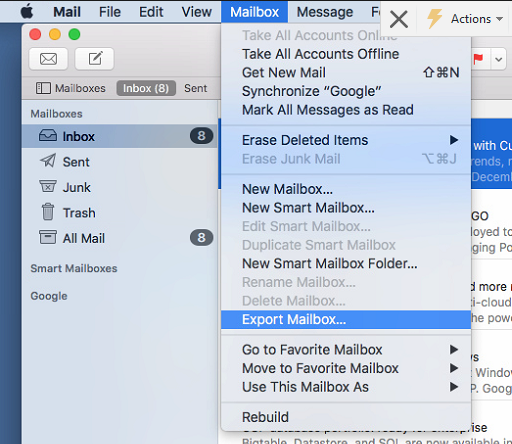
Next steps: You will see the following pop-up: Mail will prepare an .mbox file of the messages; where will it save it? To your designated local folder.
Limitations:
- Exports only one mailbox/folder at a time – the whole iCloud account’s emails cannot be exported in one go.
- .mbox is also not a neutral format; opening it on non-Mail (or non-Mail-compatible) applications often entails conversion.
- Allows for no sorting based on date range, sender, or attachment type.
- No option to export directly to popular formats such as PDF, EML or CSV.
Method 2: Manually Save Individual Emails
Take them one by one for only a few critical messages.
- Open the mail.
- Click Save As under File, or simply drag the email into your desktop/ local folder.
- Select a format (.eml is usually supported by the Mail application) and determine where to save it.
Works reasonably well for a handful of messages, but is unsalvageable for copying years’ worth of iCloud email.
Reliable Way to Export iCloud Email to Local Drive
If you want a full, accurate, and well-structured export – particularly if you have large mailboxes or need to export multiple iCloud accounts – then Email Backup Tool and export tool is the best solution. Rather than having to perform an export on each mailbox manually, a good tool simply hooks into your iCloud Mail account and pulls down copies of all of your messages to your own hard drive intact. That’s all the attachments, folder structure, and all the header information.
Here are the steps to export iCloud email to a local drive with such a tool:
- Launch the tool on your system.

- Then, choose iCloud as the source and log in using your Apple ID.
- Select any export format. Choose where to export the data on your local drive.

- Further, use filters, for example, on a date range or on specific folders.
- Click Export iCloud email to local drive.
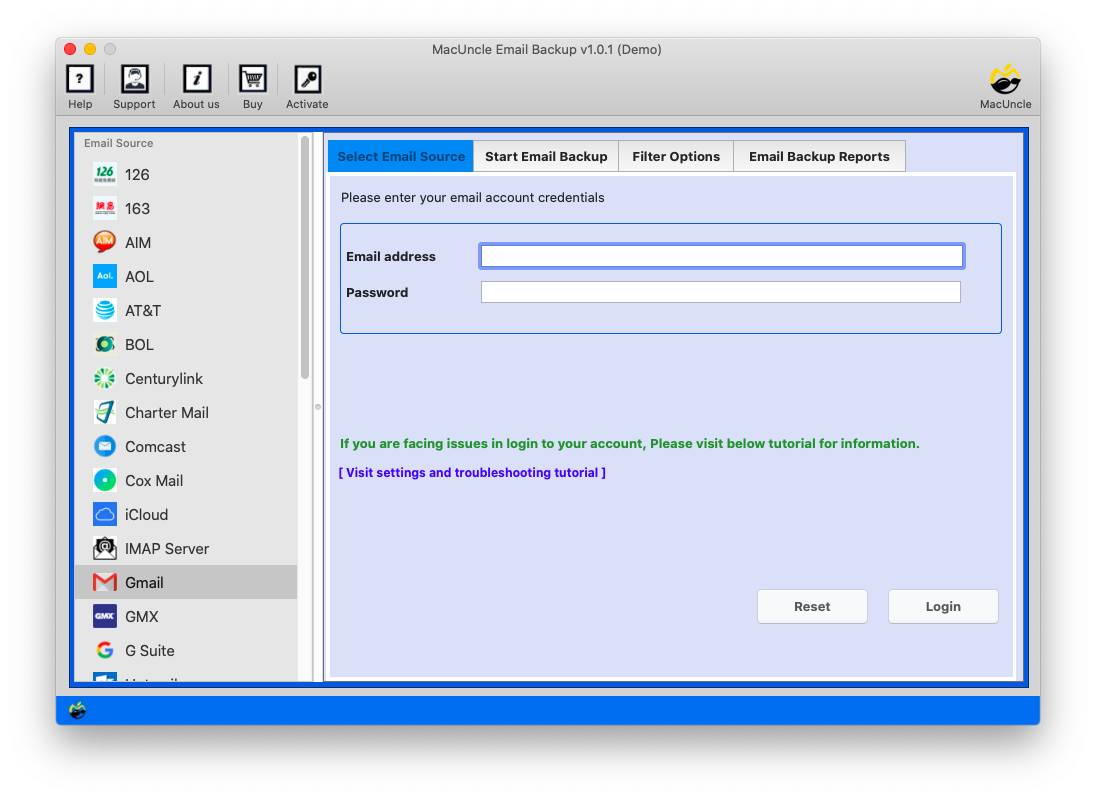
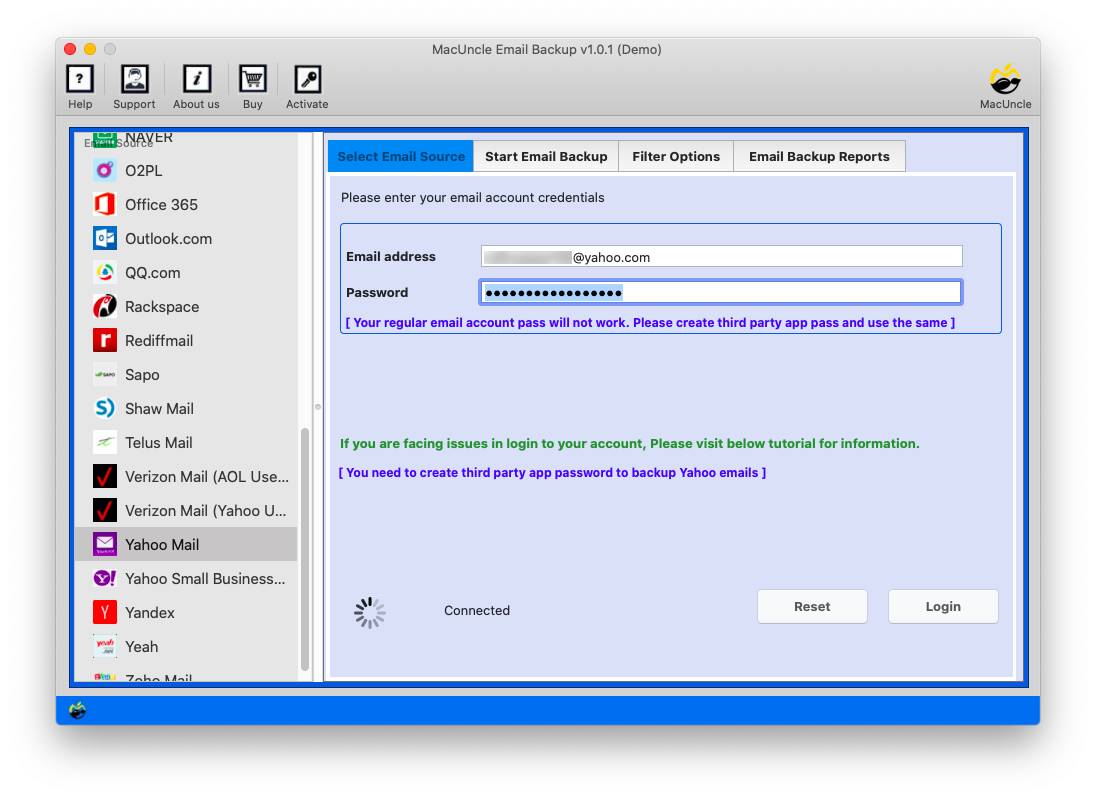
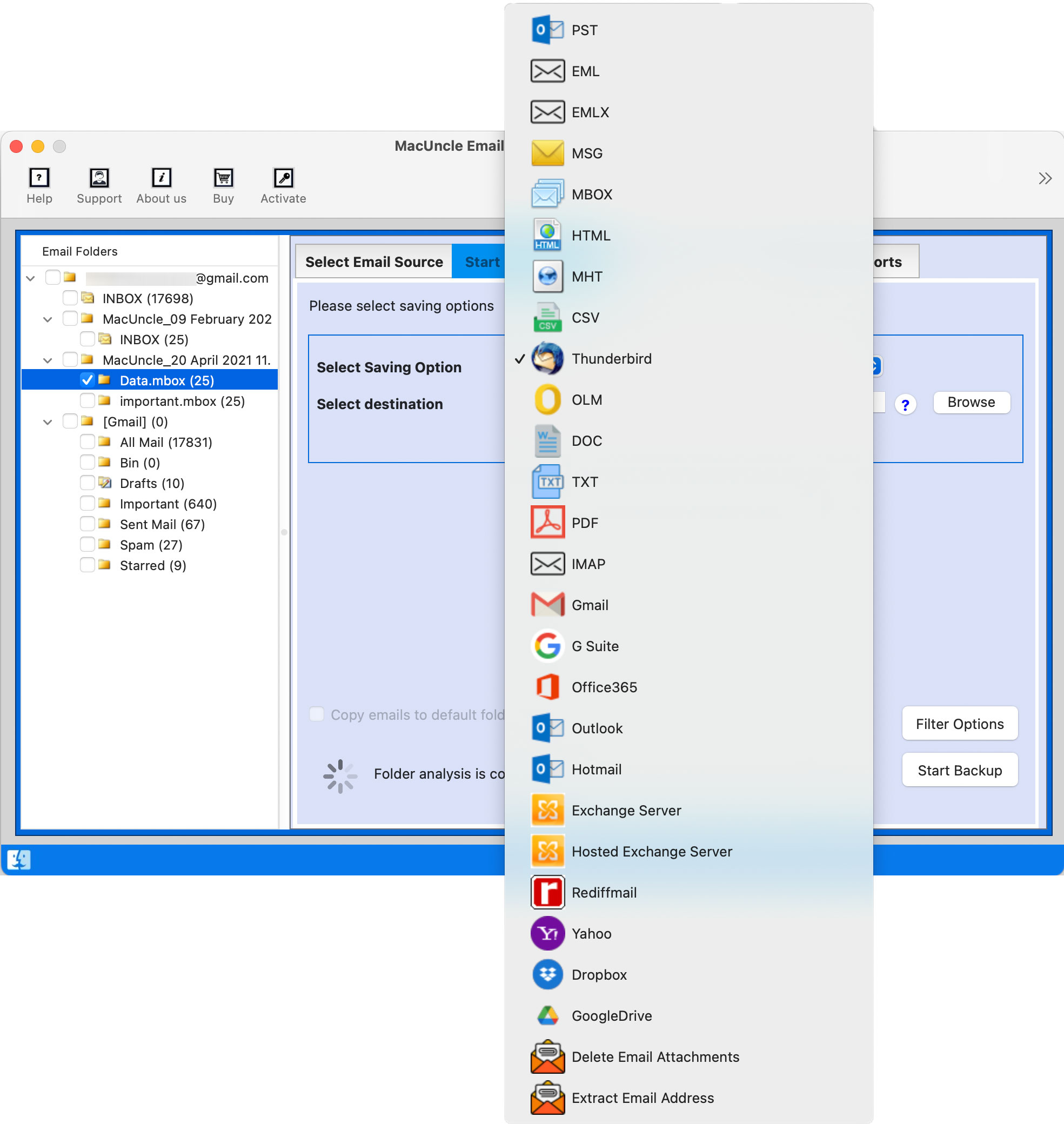
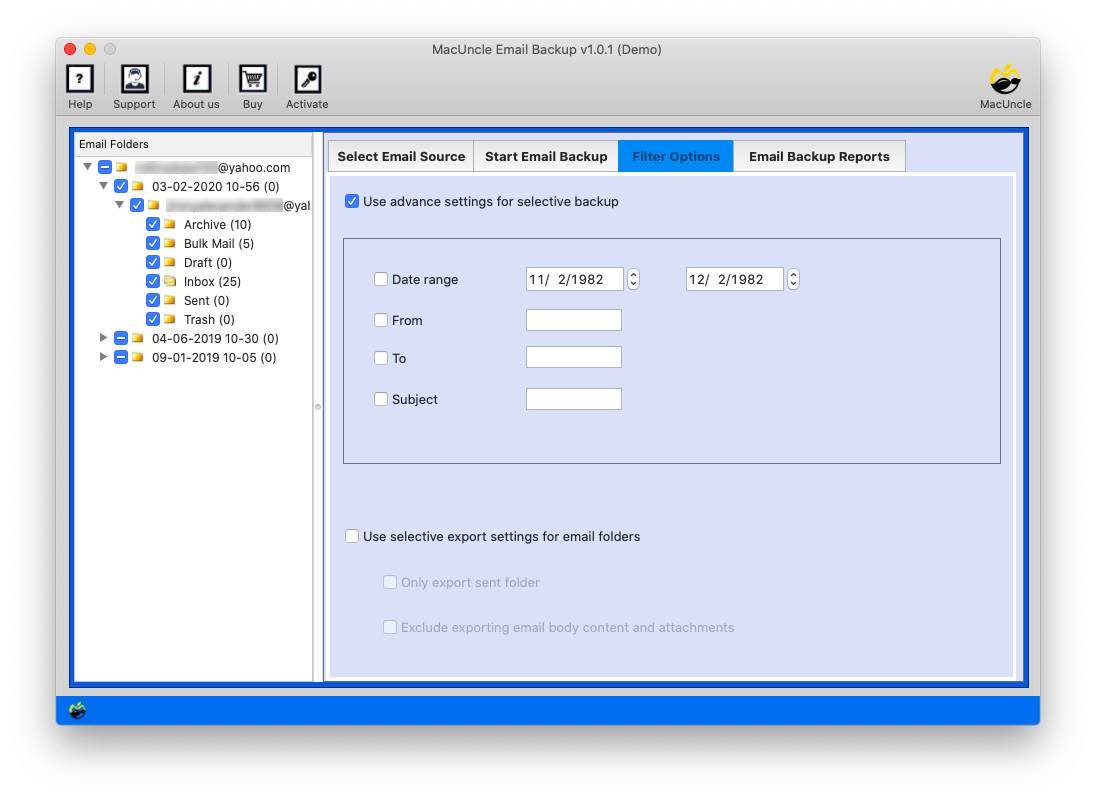
This method is beneficial when the exported mail needs to be saved as a particular file format for archiving, legal examination, or to import into another mail client.
FAQs
Q) Can I batch export my iCloud mail, or just do one mailbox at a time?
A) Apple only provides a Mail export, which exports one mailbox/folder at a time. If you want to go through an entire account, the best way is to use a dedicated export tool.
Q) Is there an export option that offers formats other than .mbox?
A) Apple Mail only exports to .mbox natively. You will need a dedicated export utility if you require PDF, EML or PST for compliance, archiving or migrating into another client.
Q) Will exporting the emails to a local drive delete the emails in iCloud?
A) No – export creates a copy. Your emails will still be in iCloud unless you take steps to delete them from there separately.
Q) Is there a way to selectively export iCloud email by date or sender?
A) The method built into Apple doesn’t allow you to do this. Most dedicated export tools mentioned here provide the option to select (or filter) by date range, sender, folder and so on.
Final Thoughts
If you only want to archive a handful of messages or export one particular mailbox now and then, the export tool built into Apple Mail should be sufficient. However, for large, long-term archiving of your iCloud email archive, exporting into a specific format, importing into other applications, or if you require some filtering or structuring of your archive, you can find a dedicated tool for exporting your iCloud emails to a local drive to be very much worth your while.