How to Export Office 365 to CSV File Format?


Microsoft Office 365 is the most widely used cloud productivity platform that excels in real-time collaboration. It is trusted by millions of businesses and professionals to manage emails, contacts, calendars and more. There are some times when we need to export Office 365 to CSV, which is a portable or universally compatible format. Since there is no official ideal method for the extraction of data in CSV, we need to get an alternative approach.
CSV files are the most versatile file format that can be opened in Microsoft Excel, Google Sheets, CRM, and almost any other platform without needing any special tool. That is the common reason for exporting Office 365 data to CSV format.
More About Office 365 & Conversion
Office 365, developed by Microsoft Inc., is a well-known subscription-based service. To simplify the company’s everyday operations, it offers many web-based and desktop-based applications. MS Outlook, Email Service, MS PowerPoint, MS Access, MS Excel, etc. are such applications. It will also provide you with an admin centre where all Office 365 online accounts will be handled.
Many users are searching for step-by-step instructions to export Office 365 to CSV format. Sadly, they are unable to locate the right one. Take the support of the Mac Email Backup App mentioned here. This app is specifically designed to back up Office 365 emails in more than 15+ file formats to a local drive. The program also exports CSV files to all Office 365 email addresses.
Why Export Office 365 to CSV Files?
Know why users want to export the data from Office 365 to CSV file format. Below are the most common reasons why users prefer to convert the CSV file format.
- Data migration and consolidation: CSV export during a system change or consolidation of data from several sources is clean and easily transportable.
- Data archiving and back-up: Export to CSV has the effect of storing your data in a more permanent archive and disaster-recovery backups.
- Data Sharing and Collaboration: CSVs are a universal format because they can be shared with individuals or groups who may not have immediate access to Office 365.
- Regulatory Compliance: In a few industries, rules and regulations require keeping certain records in a CSV format.
Export Office 365 Emails to CSV with Microsoft Outlook
The most accessible method for individual users is using Outlook’s built-in Import/Export wizard to save the folders as CSV files. It can be done without the need for any admin rights.
- Open Outlook and ensure it is connected to your Office 365 account.
- Go to the File option from the top menu.
- Now, select Open & Export and then click Import/Export.
- Choose Export to a file and click the Next button.
- Select Comma-Separated Values as the file type and click Next.
- Choose the desired mail folder to export from.
- Click the browse button to select the folder, give the file name, and click Ok.
- Click Finish to begin the export.
Outlook will now save the folder content in a CSV file.
Limitations: We can only export one folder at a time, exporting the entire mailbox in a single step. This method does not include full email body content or attachments in the CSV.
Export Office 365 Contacts to CSV via Outlook Web App
If you don’t have the Outlook desktop app installed, then you can export the contacts directly from Outlook Web App in the browser. It can be used to export the contacts.
- Open the browser and go to outlook.office.com. Sign in with Office 365 credentials.
- Click on the People icon on the left-hand navigation bar.
- Click on Manage from the toolbar.
- Now, select Export Contacts.
- Choose whether to export all Contacts or a specific contact folder.
- Then, click Export. The CSV file containing the contacts will be downloaded.
- Open the downloaded CSV in Microsoft Excel, Google Sheets or any spreadsheet application.
Limitation: It cannot export other data, such as shared mailboxesor public folders. Even if the contacts are exported, not all the details like custom fields, categories, notes formatting and contact photos are exported. The procedure exports all contacts or a folder, but no option to select specific contacts individually.
How Can We Export Office 365 Data to CSV?
There is no manual or free method available to export mailboxes from Outlook Web. The Office 365 Mailbox Backup is the perfect solution for retrieving mailboxes from Microsoft Office 365 to CSV format quickly. It is a 100 % accurate tool that supports all versions of the Mac operating system. This app is a stable platform with an easy-to-use GUI. You can also extract contacts from the Office 365 account with this tool in just a few clicks. Follow the steps you are taking to export emails from MS Office 365.
How to Export Office 365 to CSV Format Directly?
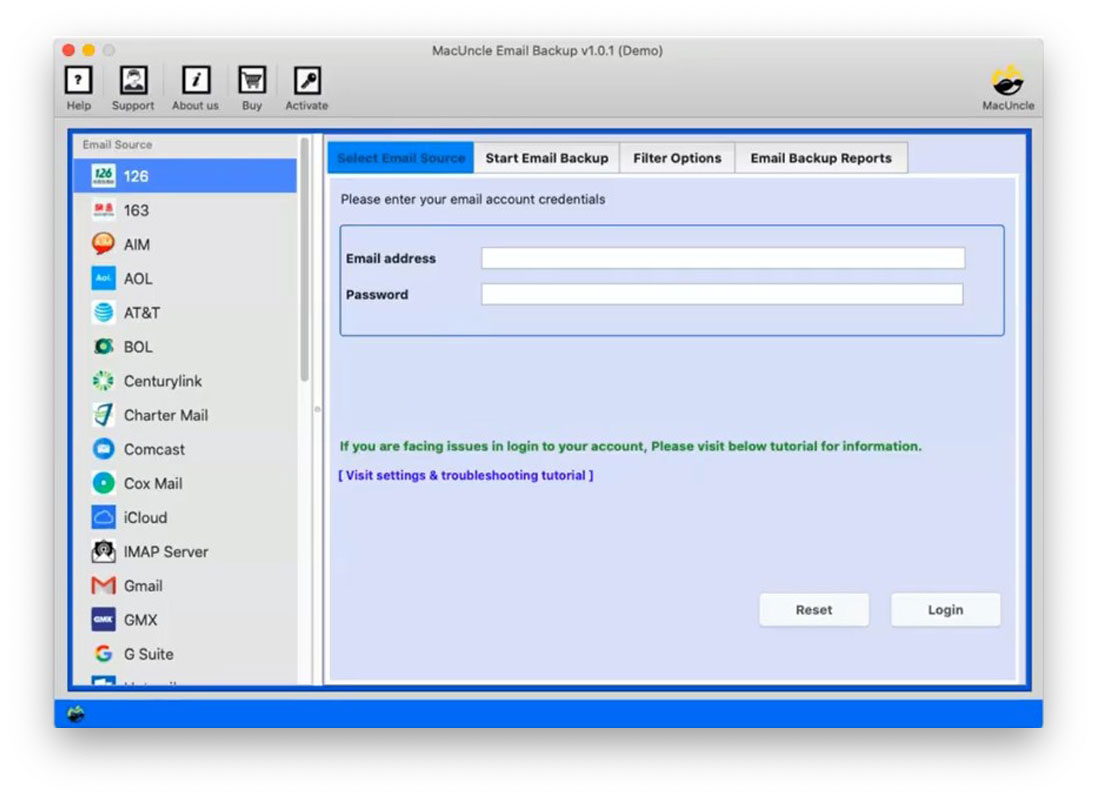
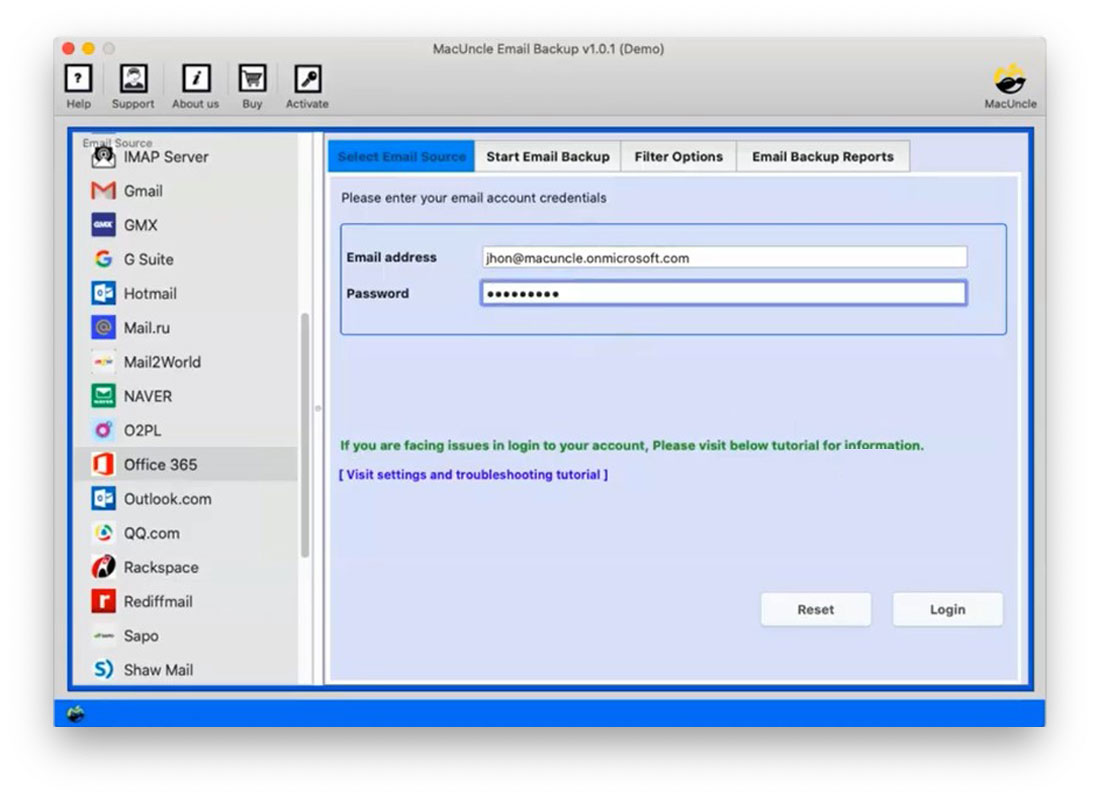
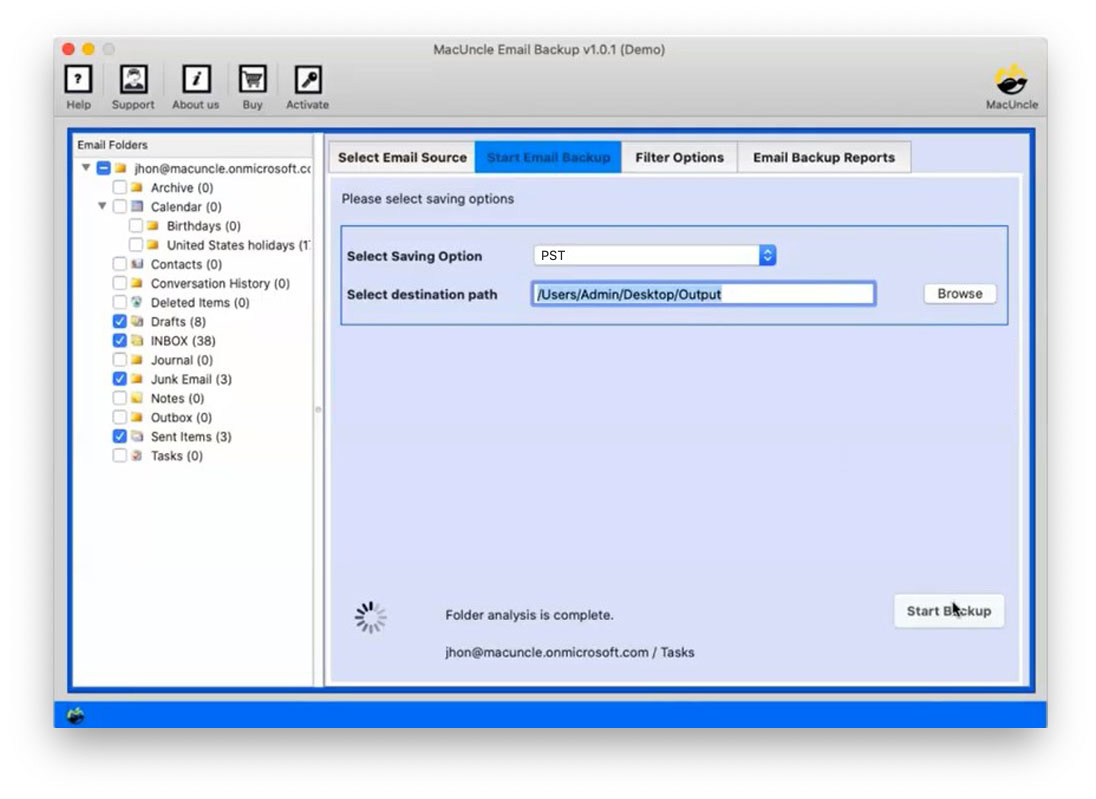
- Launch the tool on OS X 10.8 or later and select Office 365 from the options.

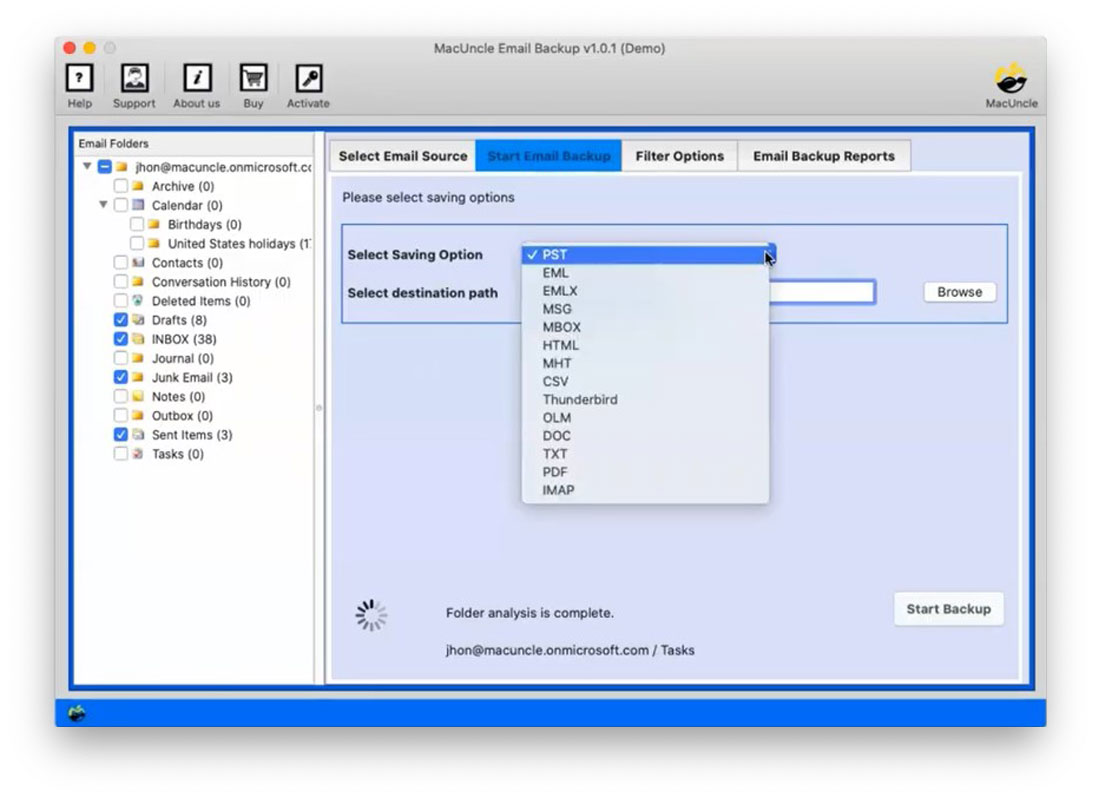
- After that, select CSV as the Saving Option.
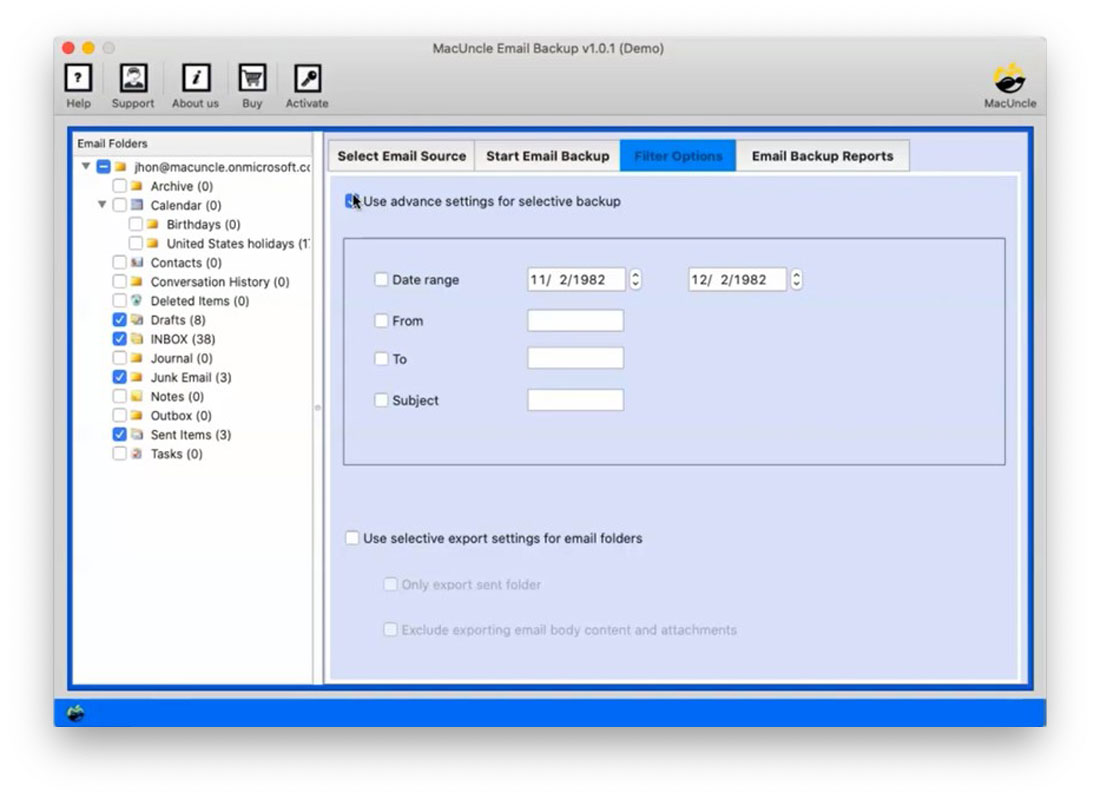
- Filter Option: Selective Backup based on Date, From, To, and Subject. Select export settings for the email folder to (a) Export only the sent folder or (b) Excluding Email body content and attachments.
- Now choose the desired location to store the resultant CSV files. Finally, press Start Backup to begin exporting Office 365 Mailbox to CSV.
Let’s see the Mac Office 365 to CSV Tool key aspects;
- Cloud-to-Cloud email migration option.
- User-Friendly Interface for Non-Technical-minded users.
- Moreover, maintain folder and subfolder hierarchy.
- Office 365 exports all email addresses to CSV.
- Also, Preserve Key Elements and Metadata.
Trial Version to Export Office 365 to CSV
The app provides a free version to retrieve users from some MS Office 365 mailboxes. The complete version is available for the users to buy, and then permits them to export unlimited Office 365 Mailboxes without any restriction. It’s quick and fast to work with this incredible toolkit. No need for technical knowledge to carry out the procedure in this tool. You just have to enter the Office 365 credentials. Upgrade to a professional version to extract mailboxes from O365 data to CSV format without any restrictions.
Conclusion
Since there is no official option for exporting Office 365 mailboxes to an Excel file, it is easier to use an authentic method. Not only will it extract the address from Office 365 to the CSV tool, but it will also move email addresses to CSV files. Hence, it is a toolkit for everything.
FAQs
Q1) How to preview the emails before exporting them to the CSV files?
A1) All the folders will be displayed in the left panel of the software for the user to choose to export Office 365 to CSV.
Q2) Is it possible to create CSV files from Office 365 shared mailboxes?
A2) Yes. Get the mentioned tool and export Office 365 shared mailboxes to CSV format.
Q3) Where are all the exported files saved after exporting from O365?
A3) It is recommended to select a desired location before starting to export the files from MS Office 365.