How to Export Slack Chat to Excel: The Complete Guide


Are you trying to export Slack chat to Excel, but you ended up with the same answer as always? Slack will allow you to export, but not to an Excel file. Not even close, as the whole folder would be full of JSON files that look like a raw structure of data meant for developers. For users trying to build a report, archive a conversation, or have a copy of the chat for legal purposes.
The guide here will cover this in the appropriate official way, that is, who is allowed to export and what you can actually get. And the latter gets the best approach that can export to a real Excel spreadsheet that can open, sort, filter, and share with the safe tool – a tool that is built specifically for converting chat exports from Slack into a more flexible format.
Can Slack Export Directly to Excel?
No. Slack native data export does not support export in Excel (.xlsx). According to your workspace plan and your export rights, Slack offers exported conversation data in formats including JSON. The JSON files have the conversation and message data, but they are not in spreadsheet style – no rows, no columns, and nothing to open directly in Excel.
The one exception is the channel audit reports on the Business+ plans, which do export as CSV, but they are admin activity logs rather than the content of chat messages. Message content itself is only ever generated as JSON by Slack (again, regardless of plan).
First, a bit of a caveat: you will need to export your Slack data to receive an Excel workbook, followed by running those JSON files through another program to convert to XLS/XLSX formats. The remainder of this guide will explain both processes.
How to Export Chat in Slack (The Standard Method)
Before we start with the conversion, we must have Slack’s own export file. Slack does not directly export conversations to Excel, so the export is the first step we must take. Once you have downloaded the Slack export and extracted the ZIP file, use the resulting JSON chat file for conversion. Below are the steps explained on how to request and download the Slack chat export.
Who Can Export Slack Data?
Slack export permissions depend on the workspace subscription and the type of export. On Enterprise Grid, export can be done by the Org Owner or a member with the “Export Admin” role. If you are not the admin, you will need to ask the workspace administrator to perform an export.
- Free and Pro Plans: Export publish channels only, in JSON format; message history and file links are limited.
- Business+ Plan: Public channel export available. Export of Private channels, direct messages, and Slackbot conversations requires requesting that Slack approve it.
- Enterprise Grid: Org Owner gets access to full export – any conversation type, any member, any time range.
How to Export Chat in Slack
Sign in to Slack on the web as Workspace Owner or Admin.
- Go to the workspace management page – Settings & Administration> Workspace settings > Import/Export data.
- Click on Start Export.
- Choose any date range you want to export.
- Confirm the export.
- Slack will process it and email you with the link when the file is ready.
- Download the ZIP file instantly before the link expires.
Export Slack Chat to Excel with MacUncle
Now we can use the tool, JSON Chat Converter, to process the chat export from Slack into an Excel sheet. It is an application that can read JSON and JSONL chat exports and effortlessly convert them into standard file formats, including Excel.
What does it do with the Slack Export File?
- The tool reads the JSON file after you add it to the software interface.
- Resolves each message into a clean row.
- Exports to the selected Excel format offered by the tool.
- Converts multiple channels or conversations in a single process.
- Runs entirely on the system; the chat data never has to be uploaded anywhere.
How to Use the Tool: Slack Export to Excel
Download and complete the installation of the tool from the above button (Available for Mac and Windows)
- Start the converter and click Add file or folder to add the Slack export JSON file.

- Now, choose only the required files from the folder as shown here.
- Select an Excel format from the list as needed.
- Now, set a location where you want the resulting file.
- Finally, press the Export button to start the Slack Export to Excel Conversion.
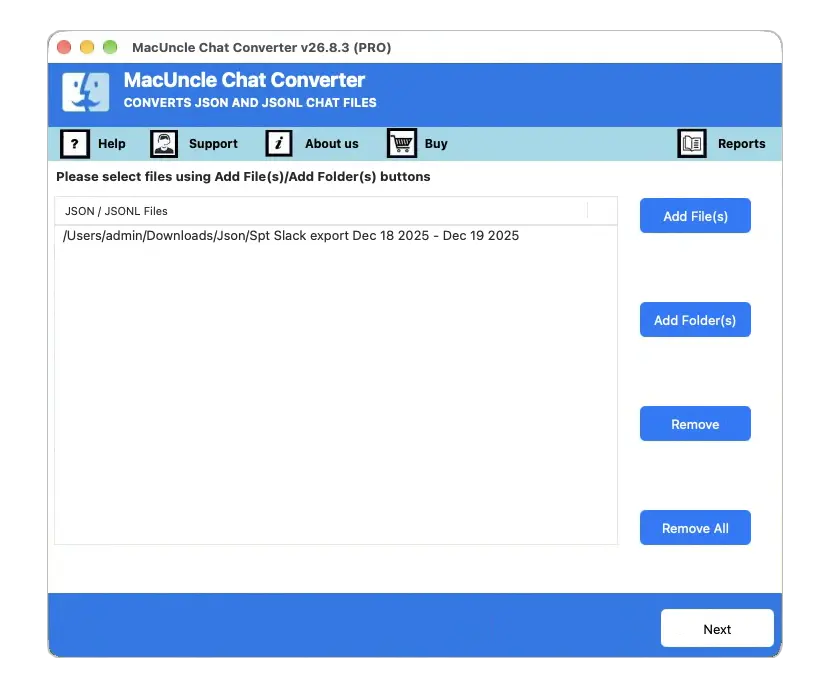
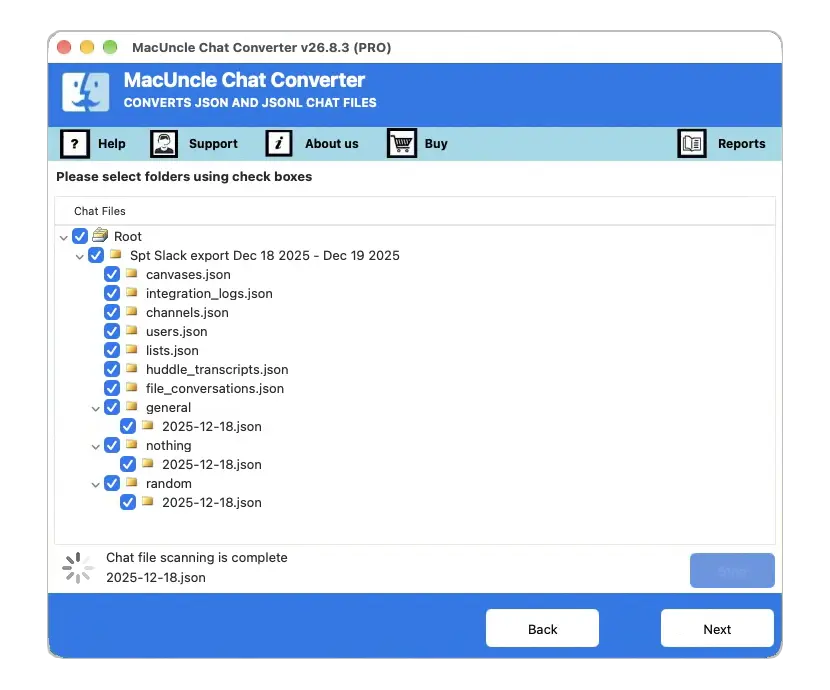
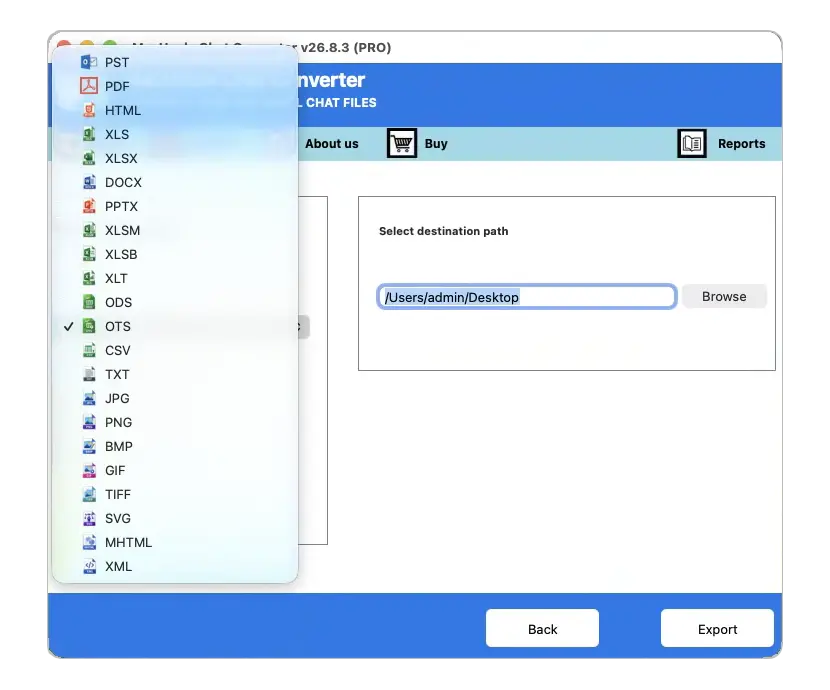
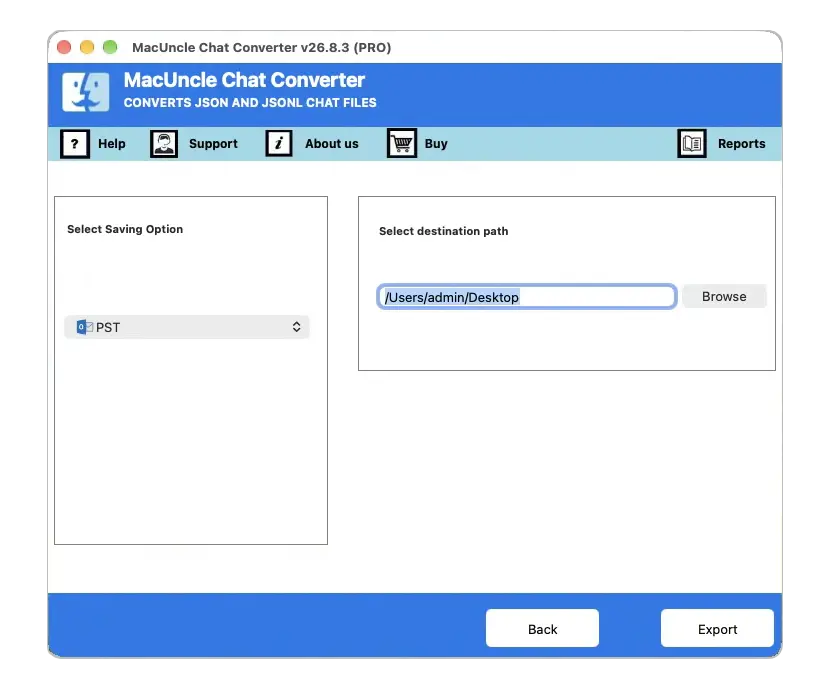
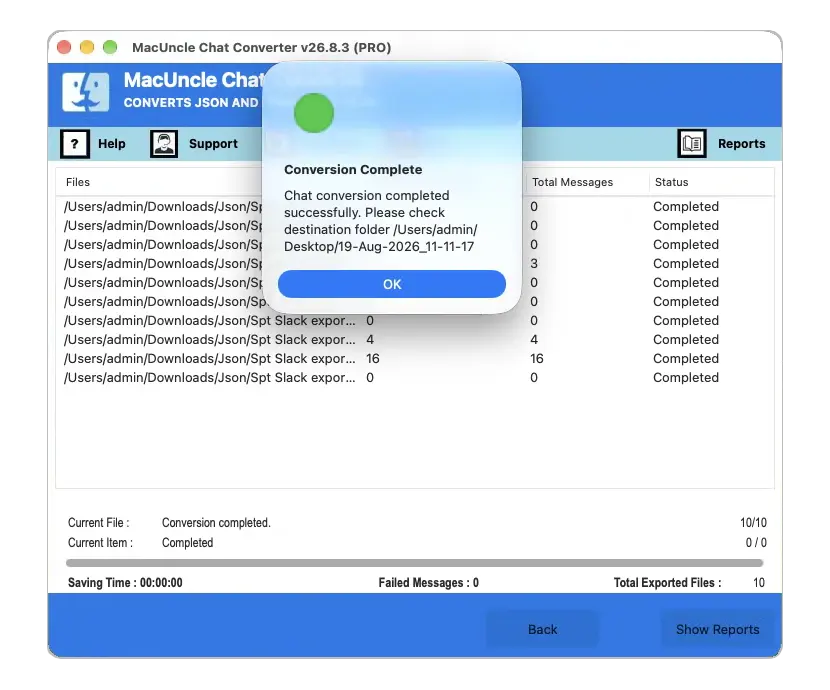
Now, check the converted file in the Excel sheet. Use the trial version first and check the resulting file; later, get the upgraded version.
FAQs
Q) Am I allowed to export my personal Slack messages if I am not the administrator?
A) Not usually. Slack export tools are only available to Workspace Owners, Admins, and (on Enterprise Grid) Org Owners or Export Admins. If you want your own discussion history, you’ll likely have to ask your workspace administrator for it.
Q) Does Slack export private channels and DMs?
A) Only on Business+ (requires an approved request) or Enterprise Grid. Free & Pro plans only allow you to export public channel content.
Q) Is it possible to save a Slack chat to PDF as well as Excel?
A) Yes – If you want to convert your file to PDF, one of the 22 different output formats supported by MacUncle Chat Converter is PDF, in addition to DOCX, HTML, images, etc., all with the same method of conversion outlined above.
Q) Does converting my Slack export upload my data anywhere?
A) No, the tool is a desktop application and runs locally on your computer; therefore, your chat history isn’t stored on a server during the conversation.
Final Thoughts
Exporting chat in Slack and exporting Slack chat to Excel are two different issues. It is easy to fall into the trap of assuming that Slack’s native export is the answer to both. It’s only the answer to the first. Once you have the JSON export, it’s a useful but time-consuming first step; then a converter mentioned here does the hard work of turning it into the spreadsheet you actually wanted in the first place – readable and sortable, ready for any report, archive or review you want to do.