How to Fix “No Valid MBOX Files were Found”?


Did you get the error “No Valid mbox files were found”? This is an error that appears in Apple Mail. The warning pops up when we try to access or import the MBOX file. We are here to address this error and let you know the best possible way to securely resolve this issue.
When we are trying to add any mailbox to the email application and suddenly get an error message, it is frustrating, especially when you know the important emails are in the MBOX archives. The MBOX files are a common standard for storing email messages in a single file, but they could be highly prone to corruption or file permission issues that could prevent the process of importing. Let’s find out the step-by-step methods to inspect and then successfully load the email archives.
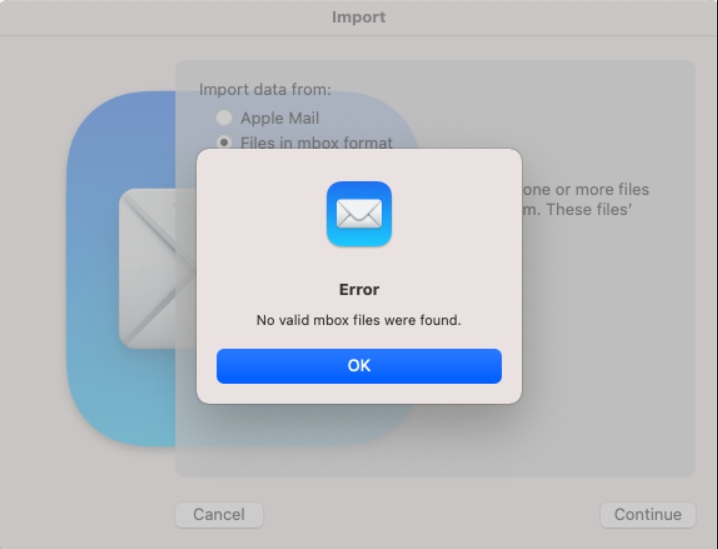
Why does the Error “No Valid MBOX Files Were Found” Occur?
As the warning says, the program could not find any files. The Error usually appears when the application scans a folder but fails to identify the file in the proper MBOX format. There are other reasons why this error shows:
- File Corruption or Damage: The MBOX files that you are trying to access could be corrupted or incomplete due to an improper export or storage problem that has already occurred.
- Empty MBOX File: If the MBOX files you are trying to import do not have any data, Apple Mail interprets them as invalid or useless MBOX files.
- Incorrect File Type: The selected file to import may not be an MBOX file. If you have the correct MBOX files with all the email data, then the issue does not occur.
- Permission Issue: The operating system would be preventing the email client from accessing the MBOX files due to insufficient file or folder permissions. Ensure the application has the necessary read and write access to the directory where the MBOX files are stored. Check them using the properties.
How to Troubleshoot Steps to Fix “No Valid MBOX Files Were Found”?
Verify the Integrity and Correctness of the MBOX Files.
- Check the MBOX File Size: Apple Mail only supports MBOX files of reasonable size. For instance, if the MBOX file is 0 KB or very small, that means the file is empty. In such a case, the application might fail to detect it as a valid MBOX file and display an error.
- Confirm File Type: Ensure that you are finding and choosing the MBOX file only, not a folder or an index file.
- Check File Content: Try opening MBOX File on Mac with a simple text editor. A proper MBOX file is supposed to begin with the word “From”. In case the file comprises a bunch of characters without any format, then it must be a corrupted file.
Perform the Correct Import Method and Location
We have to use the correct import method as per the specific email client.
Apple Mail(macOS)
Since this “No Valid MBOX Files were Found” is a prominent error encountered in Apple Mail, let’s find out first from here:
- When importing an MBOX file, instead of selecting the “Files in MBOX format” option, if the file was originally exported from Apple Mail. Instead, choose the Apple Mail option in the Import wizard. The option is designed to recognise the mailbox structure created by Mac Mail.
- Try adjusting the directory level: Apple Mail stores mailboxes in a specific structure. For instance, if the path looks like MyMailboxes/Archive.mbox/, the application will expect the user to select the folder (MyMailboxes) or the .mbox container, not the files inside. Try moving the MBOX file or folder one directory up or down to see if Apple Mail’s import wizard can recognise it or not.
For Mozilla Thunderbird
Use the ImportExportTools NG Add-on to import the file properly. First, we need an extension for MBOX import.
- Start the Thunderbird Application.
- Go to the Menu and select Add-ons and Themes.

- Search for ImportExportTools NG and press + Add to Thunderbird.
- Press the Add button from the top-right tab.
- Click on the Local folder and create a new folder.
- Right-click on the new folder and go to ImportExportTools NG > Import MBOX Files.
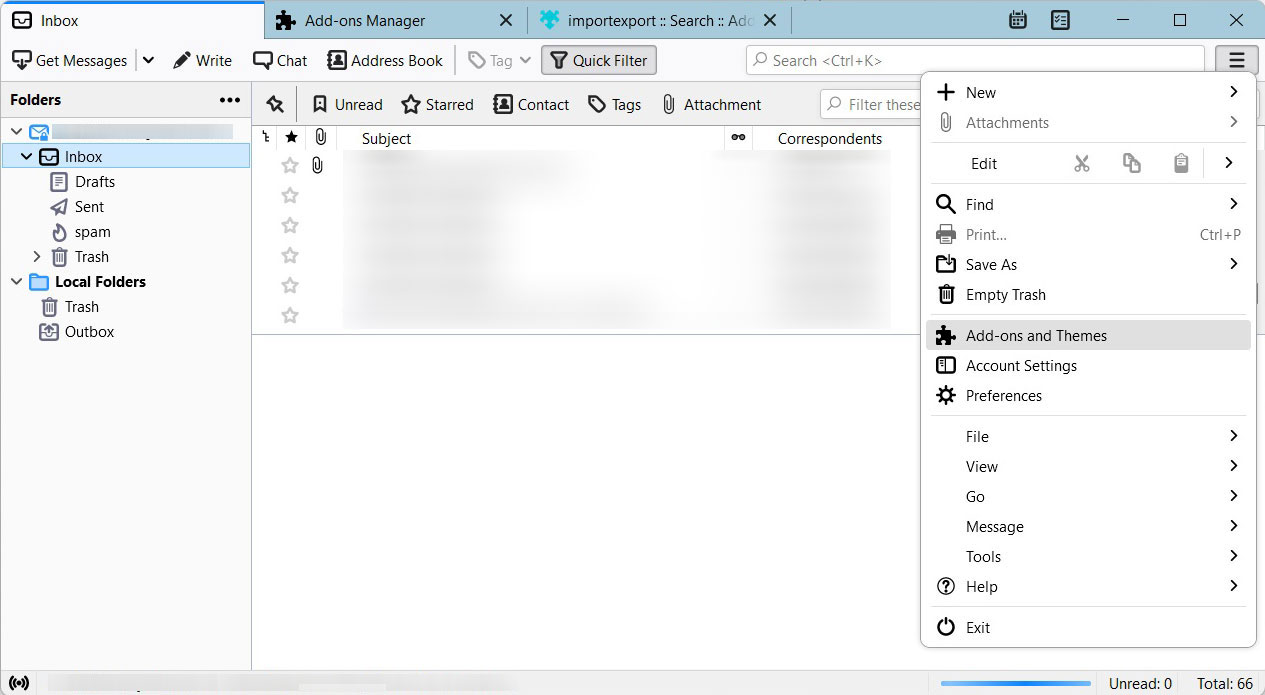
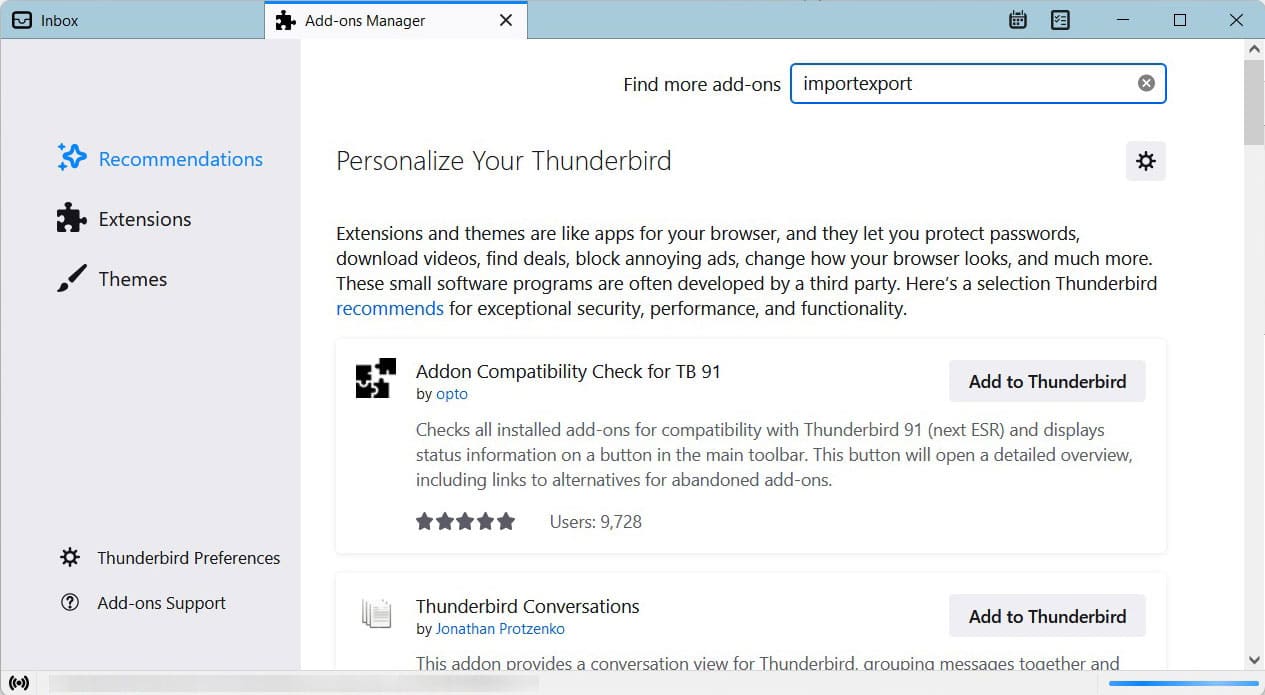
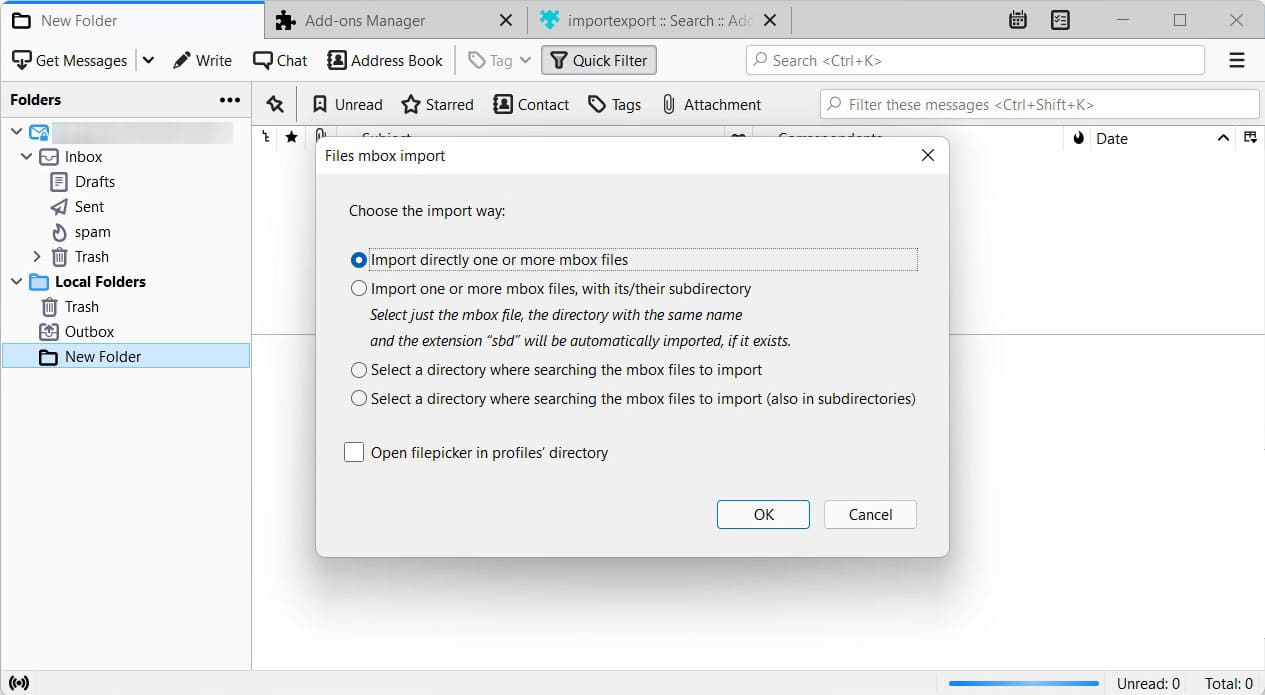
Use the different options as shown in the above images.
Check System Permission if “No Valid MBOX Files Were Found”
If you use a Mac, system permissions may be blocking the email client from accessing the files. Make sure to:
- Allow Full Disk Access: Go to System Settings/ Preferences Privacy & Security Full Disk Access. Ensure the email app is installed and grant it full access.
- Compatibility Issues (macOS Old Version)
As an example, it may arise if the MBOX file is from an older version of Mac OS. You may not figure out how to synchronise those files. This is because with each upgrade of Mac OS, Apple provides a new internal structure of directories and configuration files. To deal with this situation, use the steps given below carefully.
Locate the old Mail data
- On the Mac, go to the following folder: ~/Library/Mail/
- It consists of the mailbox data (such as MBOX files, preferences, and message indexes)
- Find the Apple Mail preferences file from the old system: ~/Library/Preferences/com.apple.mail.plist
- It holds information concerning mailbox settings, account settings, and compatibility of message formats.
- Transfer to the new Mac the Mail folder and com.apple.mail.plist.
- On a new Mac, go to the same location and replace the old ones.
- Once you have moved and replaced the files, start Apple Mail again.
The application will be able to identify and properly open the old MBOX files without any compatibility issues.
Alternative Solution for the “No Valid MBOX Files Were Found” Error
If none of the manual fixes work, consider using the tools below:
- The MBOX File Converter: This tool is best suited for scanning and converting MBOX files to any suitable file format or importing them into another email client. It is effective to handle corrupted or orphan MBOX files. The demo version has a free trial conversion of 25 MBOX files; check it out.
- Use MBOX Viewer to open the file and read the information in the file, even if an email client fails. It allows you to view all the content, which gives a complete idea of what email messages you are dealing with.
Conclusion
Almost all of the errors “No Valid MBOX Files Were Found” can be diagnosed with one of the following reasons: a corrupt or empty file, an incorrect file/folder loaded, or an access rights problem. Checking the file for corruption and importing using the suggested method of import for your email program fixes the problem.
If the manual fixes above don’t work, there are multiple MBOX tools that can help work on the MBOX files without causing any further issues.