How to Fix “Outlook for Mac Error Code 17193” ?


Did you just get the Error Code: -17193? Yes, many users have been reporting the same for many years. It is a Microsoft Outlook error that appears when the appliccation encounter a problem while trying to complete a send, save or sync operation. It is most commonly triggered when users try to send an email with attachments that exceed the server or client size limit. However, it is not the only cause; there are some reports where users tried to perform CREATE, but the error popped up. We need to understand in depth what the “Outlook for Mac Error Code 17193” are exactly to fix it. Let’s start.
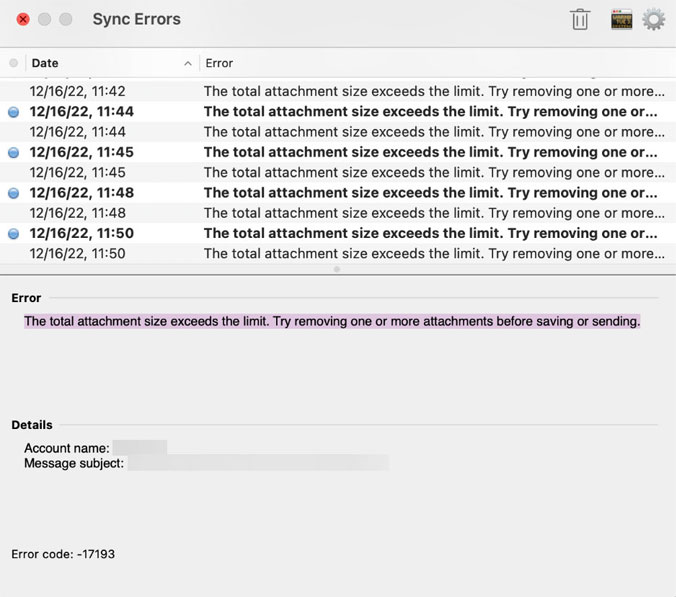
This is a result of various reasons, such as Outlook not being able to communicate properly with the Server, the Outlook profile getting corrupted, problems syncing with the Microsoft Exchange account, etc. Here we will try to cover all the grounds to help you understand why this happens and what you can do to solve it.
What is “Outlook for Mac Error Code 17193”?
As we discussed above, Outlook for Mac Error code 17193 is an error that occurs in Microsoft Outlook on macOS. It is typically an issues when the application encounter a problem processing the mailbox data. It commonly appears when Outlook starts during the email synchronisation while opening or sending specific messages. It is a broad Outlook error that occurs when it fails to complete a mailbox operation.
It can arise during the mail sync phase, sending a message with big attachments; if Outlook runs into any conflict with the IMAP folder; if it tries to read or write to a corrupt or oversized Outlook data file, and so on. The Outlook will tell you what exactly is behind the error.
Why & When Does the Error Code: -17193 Occur?
Error 17193 is broad; below are the reported causes that have triggered it.
- Attachment Size Exceeds the Limit: It is one of the most common reasons when you try to send an email with attachments that exceed the maximum size allowed by the email server. Most email providers have a limit for attachments around 20-25MB, while most enterprise Exchange servers might allow more.
- Corrupted or Oversized Outlook Data Files: Outlook Mac stores data in OLM files. When these files become corrupted or oversized, Outlook fails to read or write to them properly, which eventually causes the Error code 17193.
- Problematic Outlook Cache File: Mac Outlook maintains a local cache of emails and account data to improve performance. If the same cache becomes corrupted or outdated, it can cause sync errors, including Error 17193, even if the actual account is not faulty.
- Virus or Malware: Malware in the Mac system can corrupt Outlook data files or interfere with the application’s processes. Downloading or importing the data from any untrusted source could significantly increase the risk.
- Unexpected Termination of Outlook: If Outlook is forced to quit, the system crashes or due to a power outage while Outlook is running, the open OLM file may not get written to the disk properly, resulting in corruption and that could produce the Outlook for Mac Error Code 17193.
- Outdated Outlook or macOS Version: If you are using an outdated version of Outlook for Mac or an older version of macOS, it can have software bugs and compatibility issues that result in Error 17193. Updates often contain patches for known sync and save errors.
Now, let’s explore how to fix the error. Follow the steps below based on the specific message displayed on your screen.
How to Resolve “Mac Outlook Error Code 17193”?
Solution 1: Restart Outlook in Safe Mode
- Completely close Outlook.
- Press and hold Shift while opening Outlook.
- Release the shift after Outlook loads.
This disables the add-in temporarily and might stop the recurring error 19173
Solution 2: Identify and Remove the Problematic Email
More often, Outlook for Mac Error Code 17193 is caused by a corrupted email. Try these steps:
- Switch Outlook to work offline.
- Go to folders.
- Sort emails by Date.
- Now, look for recently received emails. (large attachments and suspicious or partially downloaded messages.
- Delete the problematic email.
Reconnect and check if the error disappears.
Solution 3: Clear Outlook Cache Data to Outlook for Mac Error Code 17193
If you have a corrupted cache, it can trigger any sync error, including error code 17193.
- Go to Outlook > Settings > Account.
- Select account.
- Click Advanced.
- Choose Empty Cache.
- Restart Outlook.
Note: This would fetch the data again. For details, check out the article – “Clear Microsoft Outlook cache on Mac“
Solution 4: Rebuild Outlook Profile
If the database is damaged, follow the steps:
- Close the Outlook application
- Navigate to ~/Library/Group Containers/UBF8T346G9.Office/Outlook
- Back up the profile folder.
- Remove the existing profile
- Now, re-add the account in Outlook.
This resolves any deeper corruption issues.
Solution 5: Update Outlook to Large Version
If you havean outdated Outlook, it may contain bugs.
- Open Outlook.
- Go to Help > Check for Updates.
- Install the latest updates.
Especially, it is important for users with new macOS versions like macOS Sonoma.
Solution 6: Disable “New Outlook” to Fix Outlook for Mac Error Code 17193
If the new Outlook is enabled, some users report error 17198.
- Toggle off New Outlook.
- Restart the application.
- Check if the issues are resolved
Solution 7: Reconfigure Exchange or IMAP Account
- Remove account.
- Re-add with correct server settings.
If syncing with Exchange:
- Confirm credentials.
- Ensure Server Connectivity.
- Check firewall or VPN conflicts.
Solution 8: Check macOS indexing
Outlook search & indexing conflicts might trigger internal sync errors.
- Go to System settings > Spotlight.
- Ensure the Outlook folder is Not Excluded.
- Rebuild the spotlight index if needed.
Professional Way to Fix “Outlook for Mac Error Code 17193”?
If you have the Mac Outlook Error 17193 and it continues to appear, and you are unsure which emails or mailbox is triggering this issue, the safest option is to back up the data before attempting any troubleshooting steps. Start by exporting the Outlook for Mac mailbox to a secure format. Once the data is stored safely, you can proceed with the troubleshooting methods to fix the Outlook Mac Error code 17193.
Use the Outlook.com Backup that allows you to save emails locally and export them into formats like PST, MBOX, PDF, and others. Protect the mailbox before you make any changes to the account or profile settings.
FAQs
Q) What is Outlook for Mac Error Code 17193?
A) The error code 17193 of Outlook for Mac is a runtime or synchronisation error that occurs when Outlook encounters issues with processing the mailbox data. Therefore, it often appears during the startup, while opening a specific message or while an email is synchronising.
Q) Does Error 171993 affect Exchange or Microsoft 365 accounts?
A) Yes. The issue is often reported with an account configured with Microsoft Exchange or Microsoft 365, particularly when there is any sync conflict between the local Outlook profile and the server.
Q) Can any corruption in emails cause Outlook for Mac Error Code 17193?
A) Yes, a single corrupted email or attachment can cause the error, especially if Outlook repeatedly attempts to sync or process that problematic message.
Conclusion
Error Code 17193 is an Outlook for Mac error that shows up during a mailbox or any synchronisation error with Microsoft Outlook. These errors are caused by problematic attachments, corrupted emails, the size of the Outlook data file, a damaged Outlook profile, and more. We have outlined when this error code appears and how we can take the steps. We also include the solution to move the emails to a safe spot before trying any troubleshooting steps.