Outlook Rules Not Working? Here’s How to Fix Them Quickly


Organising your emails is one of the biggest ways to make sure you stay organised and do not miss any important emails. For that, Outlook rules are absolutely perfect, and they provide total freedom for users to sort, even forward, any of their emails to make their life easier! But there will sometimes be rules that do not work the way we want them to work.
The guide will explore the common reason why Outlook rules fails, and the steps to solve the rule failing to apply for all versions, including Outlook 365, Outlook 2019, and Outlook for Mac. By the end of the write-up, you will be able to get the email automation back on track.
What are Outlook Rules & their Uses?
Before we dive into the solutions to resolve this issue, let’s find out what these Outlook rules.
Outlook rules are often set up to automatically organise the inbox. Users can also use a set of rules to separate or forward emails. Organising emails in such a way can prevent missing emails and help you read the emails on time. You can separate the emails on a priority basis.
There are two different types of Outlook rules: server-side and client-side. The rules that are executed before a message reaches the device are server-side, and the rules are executed when the item reaches the device – client-side. The rules work for the conditions included in them.
Why are Outlook Rules Not Working?
The reasons why this could have happened might vary. However, here are some of the main reasons why such a thing happened.
- Outlook rules are disabled.
- Rules might have exceeded the rule quota set for the mailbox.
- Outdated Outlook versions
- Bugs or any software-related issues.
Troubleshooting Steps to Fix Outlook Rules Not Working
You will get different methods to fix the Outlook rule that is not working. Work on each method to get rid of the solution. The following are a few methods that would resolve this issue.
A fault in the Outlook Rules can cause temporary or permanent errors as one being “emails not showing up in Outlook“. Check out the article here to fix instantly.
Check if the Rules are Enabled or Not
Before doing anything, we need to check whether the rules are enabled. If you have created rules but they are not enabled, then let’s check that now.
- Open Outlook>File>Manage Rules and Alerts.
- In the Rules and Alerts, check if all the desired rules are marked.
- Then press the OK button to confirm that the rules are set up.
Recreate the SRS File
Resetting the SRC file can solve most of the problems because of the SRS (Send/Receive settings).
- Go to the location C:\Users\%username%\AppData\Roaming\Microsoft\Outlook
- Change the Outlook.srs file to Outlook.srs old and then restart Outlook.
- This way, you can recreate the SRS files.
Delete & Recreate Rules in Outlook
If all the above steps fail, then delete and recreate the rules once again to fix the “Outlook rules not working” issue.
- Close Outlook.
- Click Ctrl+R and enter Outlook.exe /cleanrules.
- Now, the Outlook application is without any rules.
- Now, open Outlook and click File.
- Go to Manage Rules & Alerts to open Rules and Alerts.
- Now select the rules you want to delete and click on Delete.
Check the Rule Order
Rules are processed in order of appearance in the Rules and Alerts window. If more than one rule applies to a message, an earlier rule might move, delete, forward, or alter the message before a later rule has the opportunity.
To check the rule order:
- Open Outlook and go to File > Manage Rules & Alerts
- Under Email Rules, review the rules from top to bottom.
- Select the rule and use the Move Up or Move Down button to change the priority.
- If necessary, move the important rule to the top of the list.
- Click Apply and then Ok.
Additionally, see if “Stop processing more rules” is checked for any rules. If yes, then it can stop doing so for any following rules after the trigger of the mentioned rule.
Force Quit & Relaunch Outlook for Mac
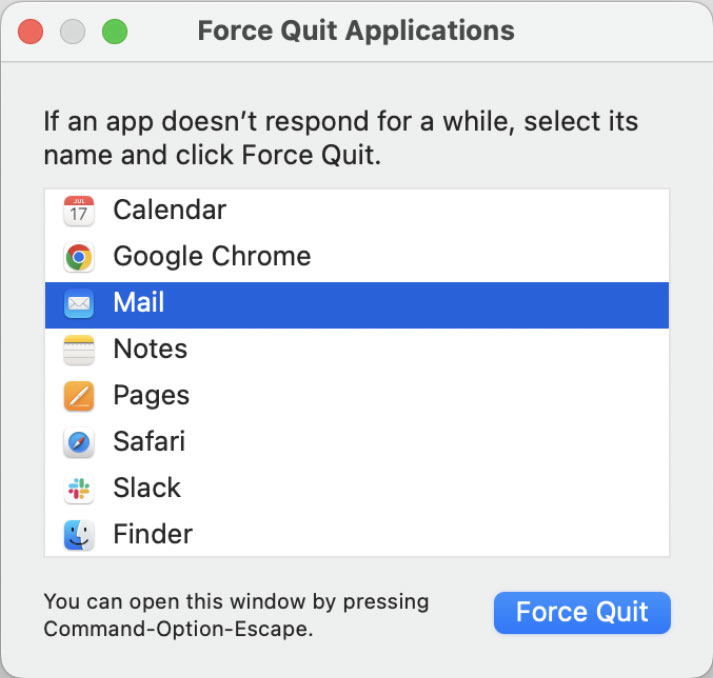
If you have switched to a legacy version of Outlook, the client rules need to be fixed. Therefore, the user can try to force quit and relaunch the app.
- Go to the Apple Logo.
- Now select Outlook and click Force Quit.

- Click on Quit again to confirm your selection.
- Wait for a few minutes and then open the Outlook app again.
Set up Rules via the Outlook Web App
Users can try using the Outlook Web app to set up the Outlook client rules. Use the online browser Outlook, as it uses server-side rules. Follow the steps:
Go to Outlook.com and log in to the account.
- Go to settings>options.
- Choose Mail from the left menu.
- Click on the Rules in the right panel.
- Click the +Add new rule option, configure the settings, and click save.
Update Outlook
Bugs in Outlook can lead to issues like “Outlook rules not working on Mac”. Updating Outlook can fix such issues. Here are the steps:
- Open the Outlook Application.
- Go to File>Office Account.
- Under Product Information, select Update Options and then click Update Now.
Repair Outlook Data
If you have a corrupted PST file, rules as well as Outlook won’t work properly. In order to fix the issue, we need to repair the damaged or corrupted PST files. This can be done with the help of Outlook’s built-in repair tool, SCANPST.
Check Whether Outlook Is Running
Certain Outlook rules are client-side rules that will only work if the Outlook desktop client is running on the device. If a rule applies exclusively when Outlook is open, then it might be a client-side rule. In contrast, server-based rules are executed on your mail server and typically operate regardless of whether the Outlook desktop app is active. For any email action you want to occur irrespective of the status of Outlook, you will need to recreate the rule using conditions and actions that can be performed by the server.
Remove Conflicting or Duplicate Outlook Rules
You might find that two rules with similar conditions produce surprising results. For instance, one rule may move an e-mail to a folder, but a second rule may forward or delete the same message. Review all rules with the identical sender, subject, keywords, or destination folder.
A good approach is to:
- Test other unrelated rules.
- Remove all rules except the one you wish to test.
- Send a new test email to yourself.
- See if the rule runs successfully.
- Then turn the other rules back on one at a time.
This may give you a clue as to which rule is the problem.
Disable Add-ins
If there are any faulty or conflicting add-ins also prevent activation rules. Thus, you can remove the faulty add-ins. The steps are below:
- Close Outlook entirely
- Open Outlook in safe mode by holding the Shift key.
- Go to File>Options and select Add-ins.
- Click the Go… Button and uncheck all the add-ins.
- Now, press OK to disable all the add-ins.
- Disable the software and then restart Outlook.
If your Outlook mailbox is not updating properly, rules may also fail to execute as expected. In such cases, fixing sync problems can help. Check this detailed guide on how to resolve Outlook emails not syncing issues.
Run Outlook Rules Manually
If the rule is configured correctly but it does not automatically match emails as expected, try running it manually once to troubleshoot.
To run a rule manually in classic Outlook:
- Open Outlook.
- Go to File > Manage Rules & Alerts.
- Choose the rule you wish to attempt.
- Click Run Rules Now.
- Choose the directory that includes the emails you’d like to analyse.
- Choose the rule you want to set and select Run Now.
If you are manually running the rule correctly but it isn’t running automatically, then this may be an issue with how you are triggering the rule or whether your Outlook is even running.
Conclusion
We have discussed all the outcomes to solve issues like Outlook rules not working on Mac. In the write-up, we have covered all the important aspects to overcome this issue for both Mac & Windows. Go through each of the troubleshooting steps to fix Outlook Rules not Working.
FAQs
Q) Why is it showing “Mac Outlook rules are not supported for this account”?
A) This error occurs when the email account type does not support the rule functionality. Multiple ways can fix this issue. Follow the steps.
Q) How do I create a new rule in Outlook?
- Use the Rules in Outlook.
- Manually create a rule by selecting “Create Rule from the “Rules” option.
Q) Why are my Outlook rules not running automatically?
A) Outlook rules do not run automatically if the rule is disabled, the rule has been moved below another one in the list, an exception is configured to stop the action, a rule is a client-side rule, Outlook is not running, or the mailbox has reached the limit of rules. Review and test your rules first.
Q) Why is Outlook not moving emails to the correct folder?
A) Confirm the conditions of the rule, target folder, rule order, and exceptions. Maybe another rule is causing the message to be processed first. Please disable other rules that are related to the affected rule one by one and then test the rule with a new email.
Q) Do Outlook rules work when Outlook is closed?
A) It varies by rule type. All server-side rules may run on the mail server, and some client-side rules need Outlook (to be open and available on the desktop computer) in order to run. If a rule fails to run when Outlook is closed, it might be a desktop client rule.
Q) Why are Outlook rules not working after the update?
After updating Outlook, it might alter which features are available or show issues with the existing rules. Verify the missing rule is still present and enabled, try your rules in Outlook on the web, and if issues persist, recreate the impacted rule. Also ensure Outlook is up to date.