Outlook Disconnected from Exchange Server – Fix It Now!


If you are still wondering why Outlook keeps being disconnected from the Exchange Server, we are here to help you. If your Outlook is not receiving emails, this could be the top reason. There are various reasons and solutions for why Outlook disconnected from Exchange Server.
Outlook, a popular email client, sometimes encounters connectivity issues with Exchange servers, leading to disruptions in communication. Understanding the underlying reasons can help you address and prevent these problems.
As we know, Outlook is a personal information manager developed to provide features like emails, calendaring, tasks, etc. It relies on the Exchange Server for the underlying infrastructure for the mentioned services.
Why is Outlook Not Connecting with the Exchange Server?
Some of the reasons for such behaviour are: The Reasons will help the user identify, work upon, and resolve it.
- Connectivity Issues: The mail can’t connect to the Exchange server because the internet speed differs, or your Wi-Fi is disconnected, or maybe the firewalls are causing you trouble.
- Exchange Server problems: A few times, because of maintenance, an outage or a wrong configuration of the Server, the connections get established and then get closed randomly. In these cases, Outlook gives the message: “Outlook Error 0x800CCC0E“.
- Common Problems: The wrong application might be suspected to be at fault, resulting in connectivity problems or failure of the Outlook profile or another application conflict on the host machine. This can proportionally lead to Outlook Emails Not Syncing.
- Authentication Issue: Username or password is not working, or Authentication fails. Every time you get the Outlook can’t log on to the Exchange server problem.
Note: If you’re still encountering a yellow triangle with an exclamation mark on Outlook, that indicator in the Outlook status bar means the authentication is failing silently, attempt to “re-login” before moving to the advanced steps.
Troubleshooting Procedures to Fix Outlook Disconnected from Exchange Server
In this write-up, we will cover all the basic and advanced solutions to fix the issue. These are the common causes why an email client does not work properly. Be sure to check the measures below.
Basic Troubleshooting Procedures
1) Check Network Connection
The first thing to do if the server has an issue is to check the network connectivity. Connect the computer to the internet via stable Wi-Fi or Ethernet. Check by browsing other sites. If there is a hang, then the connection might be the issue. Ensure that the router or modem is working correctly.
2) Verify the Exchange Server status
Try to log in to Exchange Online or Outlook Web App and check whether the server is okay. Also, check for any alerts or other issues that might have been reported regarding problems or issues with Outlook not connecting to the server. If everything is fine, move on to other troubleshooting processes. Otherwise, go ahead and ask your IT administrator or service provider for help.
3) Reconnect Exchange Account / Re-enter Credentials
Microsoft 365, for Modern Authentication, the token often expires, which could be the leading cause of Outlook to display Disconnected even if the internet is working. For this, follow the steps:
- Go to File > Office Account > Sign in to Outlook.
- Close Outlook.
- Reopen Outlook.
- Sign in again with the Exchange/Microsoft 365 account.
- Complete the Multi-Factor Authentication if required.
- Check if the status changes to Connected.
4) Restart Outlook and the Computer
Sometimes, the problem might simply be resolved by restarting the whole system, as a simple restart can be an answer to the many errors that are occurring at present. In case your issue is intermittent disconnection, you will close Outlook, shut down your computer, and reboot, hoping that the refresh will clean out all the errors in the system.
5) Install the latest version of Outlook
Confirm if you have the latest versions of Outlook and the Exchange server installed. The longer the software packages are installed, the more risk there is of getting incompatible versions or, worse, releasing vulnerabilities in the system. Checking for updates and installing them immediately will be very helpful for proper performance and security reasons.
Advanced Troubleshooting Methods
Check and try the following advanced approach to resolve the issue: Outlook disconnected from Exchange Server. Follow the steps below.
1) Create a New Outlook Profile
A corrupted or outdated profile could sometimes lead to connectivity issues. Try creating a new profile:
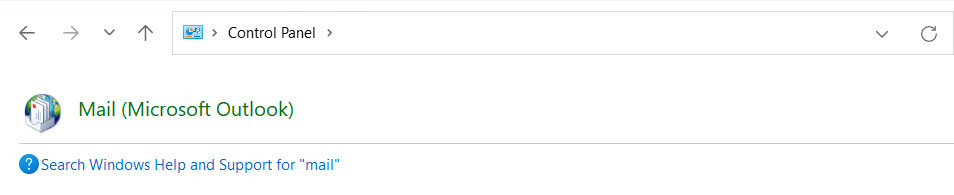
- Open the control panel with Windows + R and type control panel.
- Search for the Mail and click on Mail.

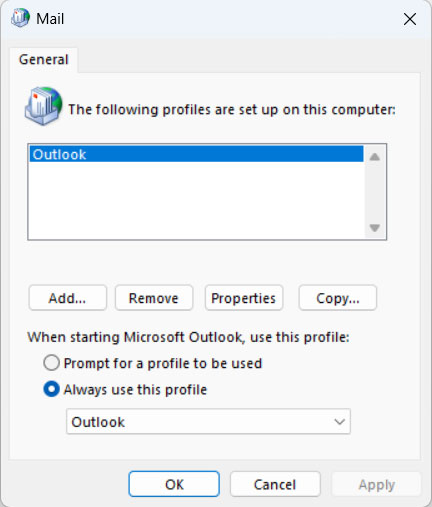
- Click on Show Profile and click Add to create a new profile.
- Name the new profile.

- Click Add, enter the Exchange account information, and set up the account.
- Press Finish and test the connection to your Exchange server.
2) Rebuild Outlook Data File If Outlook is Disconnected from Exchange Server
Corrupted Outlook data files can lead to various issues, including connectivity problems. Sometimes, rebuilding the data file can resolve the problem.
- Open the Outlook application and right-click on the email.
- Select Open File Location. It will open the Outlook data file.
- Close Outlook.
- Delete the OST file. (You must have a backup of the file)
- Restart Outlook.
It will thus connect to the mailbox on the Exchange server and align with the mail item.
3) Check Event Viewer
First, search the Windows Event Viewer for any error messages associated with Outlook or the Exchange server. The Event Viewer will display the events happening on the system, including warnings and errors.
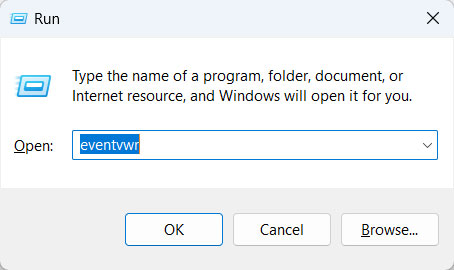
- Open the Event Viewer by searching or using Win+R and typing eventvwr.

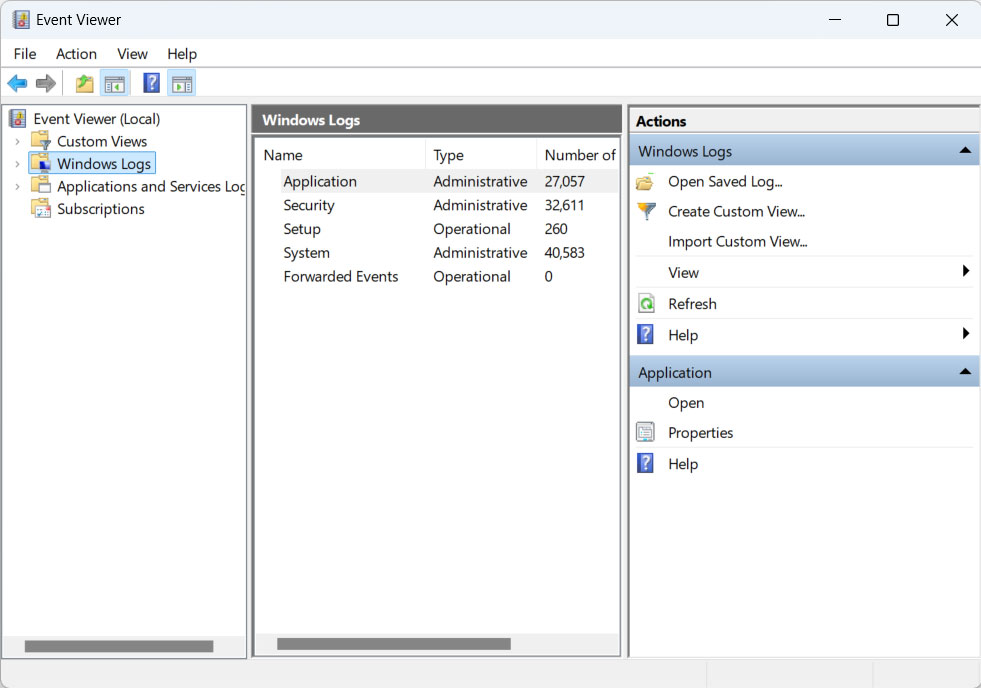
- Navigate to Windows Logs >Application or System.

- Check for any recent error messages related to Outlook or Exchange. Note the Event source, event ID and description.
- Otherwise, search the specific error codes online or in MS documentation to find the potential solution or workarounds.
If you find any error messages, try searching online for the implications and consult with the IT admin or service provider.
4) Check Firewall and Antivirus Settings
Your firewall and antivirus software may block Outlook from accessing the Internet. Sometimes, security software mistakenly blocks necessary network traffic. Here’s how to check your firewall settings:
- Open the control panel or settings of the firewall.
- Check the rules and any exceptions you may have for Outlook or Exchange.
- Ensure that Outlook is allowed to pass through the firewall. If prompted, you need to add Outlook to your trusted application list.
Do the same thing for your antivirus settings: ensure that it doesn’t block any connection or communication between Outlook and Exchange. If not sure, you can disable your antivirus software and test if the disconnection error remains. Be cautious since an antivirus running in disabled mode may make your computer vulnerable to malware attacks.
5) Disable Outlook Add-ins
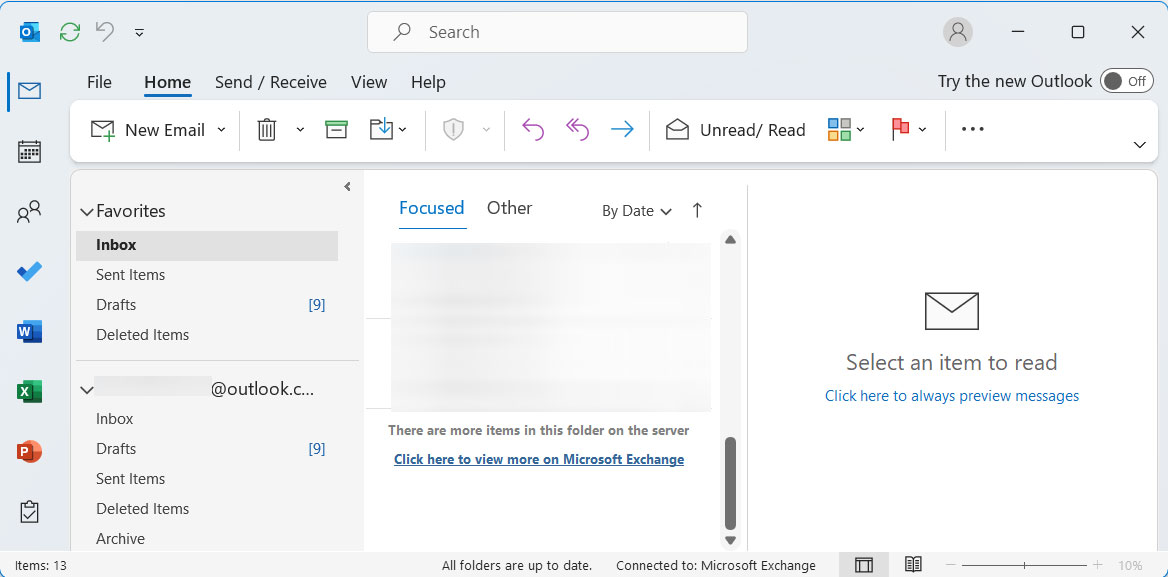
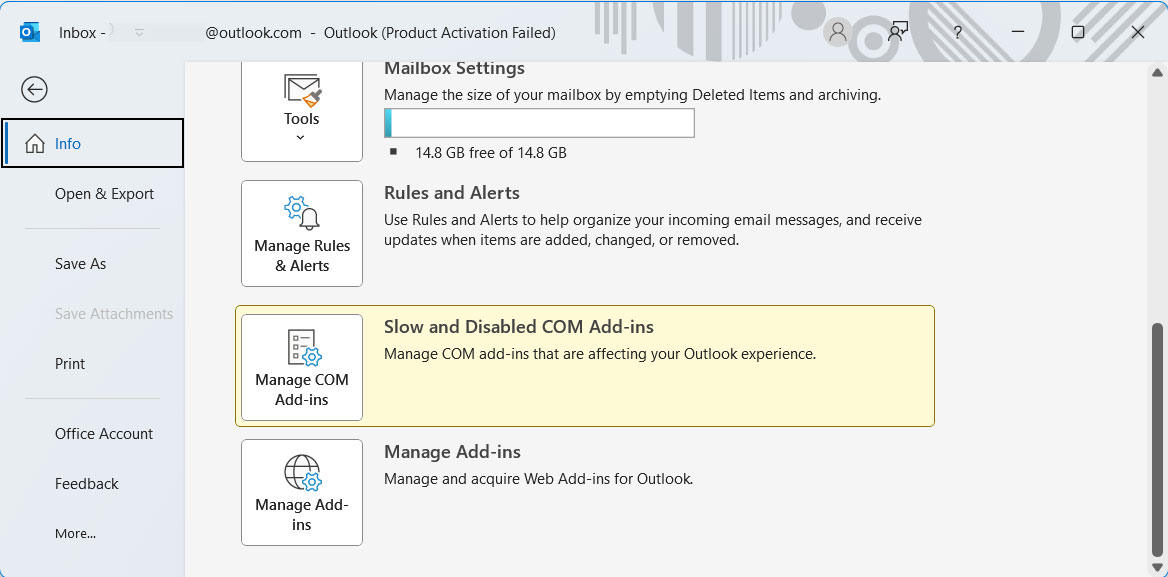
There are some cases when Add-ins interfere with Outlook’s functionality. You can disable add-ins to identify if that’s the reason why Outlook disconnects from the Exchange server. Follow these steps to disable the add-ins:
- Open Outlook and go to File>Options>Add-ins.

- Go to Manage COM Add-ins and click Go.

- Click on Ok to save the changes and restart Outlook.
6) Run Outlook in Safe Mode
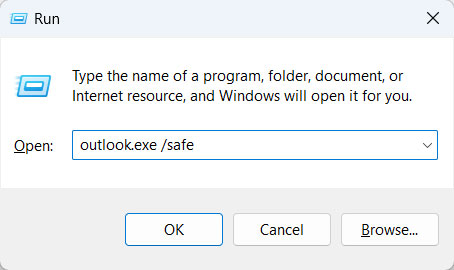
There is an option to start Outlook in Safe Mode to disable all add-ins and identify potential conflicts. The safe mode helps to isolate any issues that are caused by the add-ins.
- Press Windows + R to open the Run dialog,
- Now, Type outlook.exe /safe and press Enter.
7) Scan for malware if “Outlook Disconnected from Exchange Server”
Run a thorough scan of the computer to ensure the elimination of malware that could be causing interference in Outlook from performing such an operation. Malware is known to cause a myriad of issues in the system, such as network malfunctions and data theft, among other issues. You can utilise a reliable third-party antivirus that will scan your computer and follow each instruction concerning the removal of detected threats.
How to Safeguard Outlook Data?
Use the Email Backup Software as the tool to back up the Outlook emails to the hard disk drive. It provides various options for the email client, which is used by the user as well, such as Outlook. As problems like Outlook getting disconnected from the Exchange server arise again, it would be better to keep all the crucial data with the user. Hence, try out the tool to extract the emails and keep them safe.
Related FAQs
Q) Why does Outlook keep saying “disconnected” from Exchange?
A) If a disconnect occurs when you lose the connection to the Exchange Server in the status bar, Outlook will show the following in the status bar. The usual causes are:
- Exchange Server is down.
- Login credentials have expired.
- Corrupted Outlook profile.
- Security software is blocking Outlook’s traffic.
Follow the methods from standard to advanced to fix this issue.
Q) How do I check if the Exchange Server is down?
A) There are some ways to verify the Exchange Server:
- Open a browser and sign in to Outlook Web App (OWA) – if it opens and displays the emails, then the server is working.
- If you are using Microsoft 365, visit service health at admin.microsoft.com.
- Find out if others are being affected by it as well.
If OWA works fine but the Outlook app doesn’t, then it is with your Outlook, not the server.
Q) Can an antivirus cause Outlook to disconnect from Exchange?
A) Yes, indeed. A frequently overlooked cause of disconnects between Outlook and Exchange is an antivirus/security package.
Conclusion
Here are all the troubleshooting steps available to fix “Outlook disconnected from Exchange Server”. First, check the status of the Exchange server, then follow with the remaining steps. There is not just one approach that could fix the Outlook disconnected from Exchange problem. Go along with each of the specified steps and solve it immediately. Ensure to keep the data safe before going with the troubleshooting steps.