How to Import Excel Contacts to Outlook Account ?


Do you have a contact list in an Excel spreadsheet and want to move it directly to Outlook People? Here, we explain the best approaches to transferring a large list of contacts from a spreadsheet into the email client. We can have two different manual and automated methods to accomplish the process of importing Excel contacts to the Outlook account. The guide walks you through both approaches step by step.
Importing contacts from Excel into Outlook is a common task; there are two approaches: the manual method (using CSV as a bridge) and the automated method (converting to vCard/VCF).
Why Can’t We Import Excel Directly to Outlook Accounts?
Outlook does not support .xlsx import for contacts. Instead of that, you must first convert the Excel data to a format that Outlook understands, which is compatible – either a CSV file or vCard format. Since Excel stores the data in table format, or spreadsheet structure, which is designed for calculation and data analysis, and Outlook stores contacts in field-based format specifically for personal contact management.
1: Manual Method to Import Excel Contacts to Outlook via CSV Format
Step 1: Organise the Excel File
- Save Excel Contacts Sheet as CSV Files
- Open the Excel file on the system.
- Click File and click Save As.
- Select the file, select CSV as an option from the Save As box.
- Click on the Save button and then Ok.
- After a few minutes, click Yes.
- The file will now be saved in CSV format.
Step 2: Now Import to the Outlook Account
- Launch MS Outlook on the system.
- Click on File > Open & Export > Import/Export.
- Now, select Import from another program or file and then click Next.
- Choose Comma-Separated Values (CSV) and click Next.
- Locate and select the saved CSV file from before.
- Choose Duplicate Handling
- Replace duplicate
- Allow duplicates
- Do not import duplicates
- Choose the contacts folder from the list.
- Before clicking Finish, click “Map Custom Field” to verify that CSV columns correctly match Outlook’s contact fields. Drag and drop any unmatched columns to the correct field on the right panel.
- Click Finish to complete the process.
Limitations: The manual method to import Excel Contacts to Outlook is a time-consuming process for large files, and there is a risk of incorrect field mapping. Each of the steps must be repeated carefully to avoid any errors.
Also Read: If you are a Mac user, wondering how to import contacts from Excel to Mac Address Book, check out our detailed guide.
Method 2: Automated Method to Transfer Excel Contacts to Outlook Account
The automated method also requires two steps: to convert the Excel file to a format to an universal compatible format using Excel to vCard Converter. Unlike the CSV import approach, which required field mapping, the vCard carries contact data. This method is faster for large contact files and eliminates any mapping errors when importing Excel Contacts to Outlook.
How to Export Excel Contact List to Outlook?
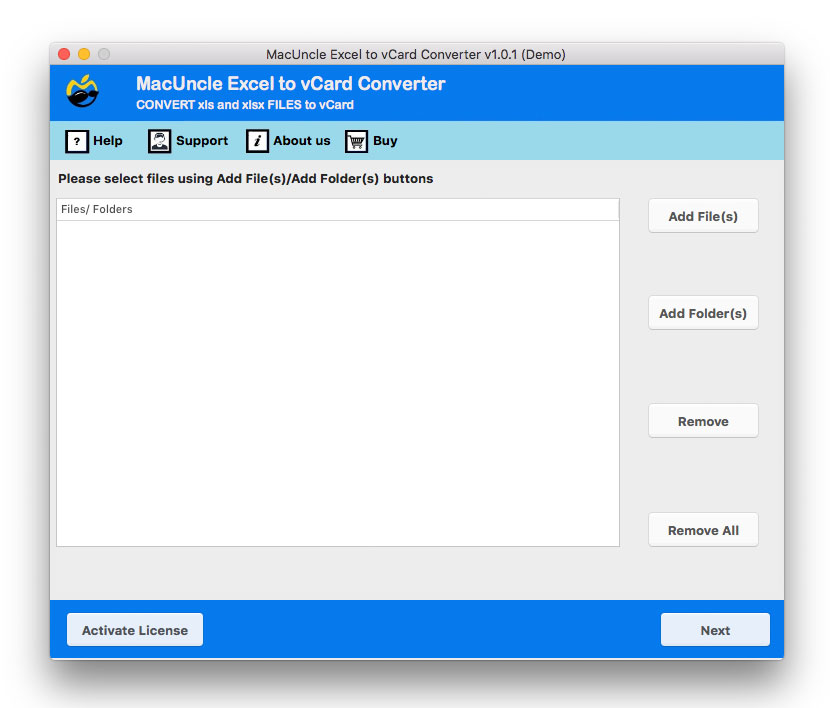
- Start the software to move the contacts.

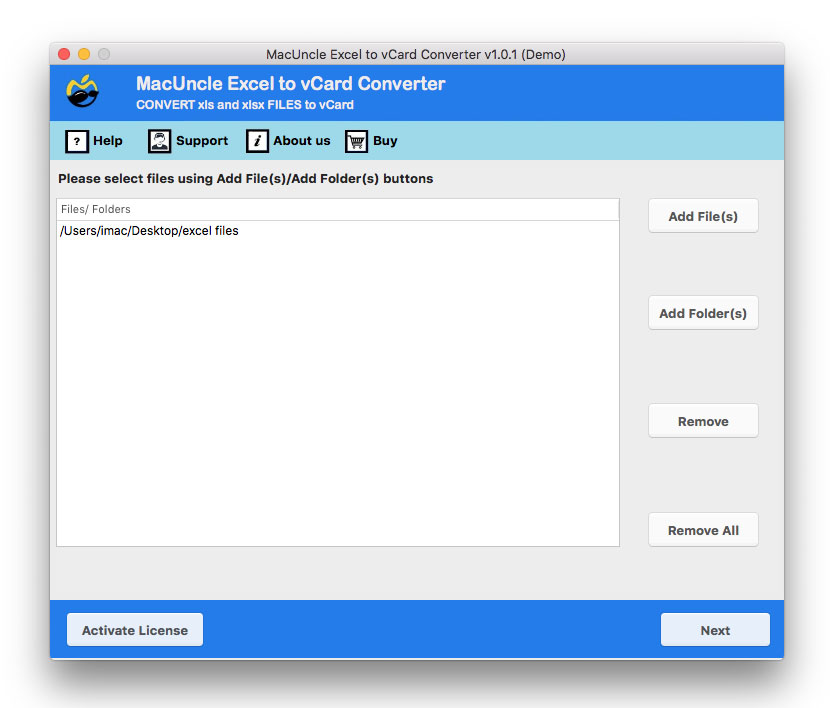
- Add an Excel file with contacts to the software. Press Next.
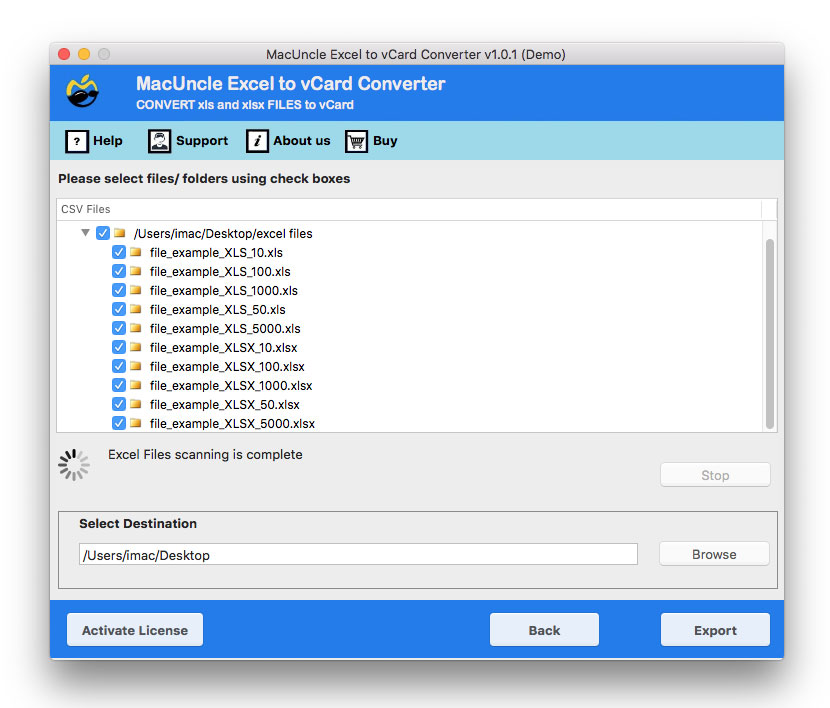
- Choose any file using the check box. Again, press Next.
- Click on the browse button to select a destination location.
- Press the Export button to start transferring Contacts from Excel to Outlook.

Why Use a Tool to Import an Excel Spreadsheet to Outlook Contacts?
The automated method involves two steps: converting to the VCF format and then importing the contacts to Outlook. There is no need to manually configure field mapping or worry about the column being missed. The tool reads the data in an Excel file and produces a correctly formatted *.vcf file that can be imported to Outlook through the Import Wizard with a few clicks.
It is the better choice when:
- Working with hundreds or thousands of contacts.
- When there is a need to perform the import on a regular basis.
- To avoid the possibility of data landing in the wrong fields.
Conclusion
Oftentimes, we want to import their contacts from Excel to Outlook. Through that, we will be able to enhance their productivity &marketing communication workflow. The manual technique is efficient for small contact files and one-time transfer requirements, whereas the automated one is perfect for handling large datasets and recurring imports. No matter if you want to manage your personal contacts or business database, Outlook is a great platform that keeps your contacts organised in one place.