How to Import Excel to Google Contacts ?


The blog highlights the Right and Perfect Technique to import Excel to Google Contacts. We have discussed key reasons why people switch to Google Contacts. And for the same reason, they search for various alternatives on the internet to perform the task. But we have come up with the most reliable and trusted tool suggested in the article. The tool also provides you with a dual mode to upload XLS/XLSX files into the software.
With the gradual movement of technology, there arises a need to access our Excel contact file wherever we want, and on any device we choose. Users want to import Excel to Google Contacts, one reason may be the easy sharing among networks or easy accessibility. The reasons could be various, but there are no reliable solutions for the same.
Google Contacts/Gmail is the easiest of all the platforms to operate; you don’t have to face the complex technicalities there. The features are really good, and it allows you to attach files up to 25 MB. Additionally, Gmail ensures security with built-in spam and malware filtering, making it a safe environment for contact management.
In this article, we will provide you with a definite solution to Import Excel contacts to Google Contacts. Follow and read the blog carefully.
Why Move Contacts from Excel to Google Contacts?
Here are the major reasons why you should switch to Google Contacts immediately: –
- Google Gmail provides you with additional security while you’re logging in to your account.
- The application manages the labels in a systematic and organised way.
- The flexibility of the email client allows it to be easily configured in any other email client if required by you in the future.
- There are some advanced features to add/mark certain emails as important, not read, read, etc.
The list is an ongoing one; you should switch and Import Excel contacts to it instantly.
How to Manually Import Excel to Google Contacts?
Follow the steps to import a CSV to Google Contacts
- Open the Excel spreadsheet
- Go to File>Save As
- Choose CSV UTF-8 as the file format.

- Now, save the file to the computer
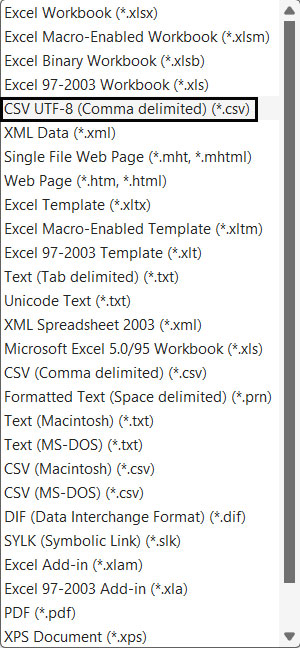
Import CSV into Google Contacts
- Sign in to your Google account and go to Google Contacts.
- Click More and select Import
- Choose from the *.csv file.
- Select the CSV file you exported from Excel.
Limitations: With the manual method, the import process could take a lot of time, depending on the size of the data. Additional conversion of CSV files and any errors in the CSV file would also hinder the import process.
How to Import Excel to Google Contacts?
We will provide you with the best and most trusted tool of all time to move Excel contacts to Google Contacts in just a few easy steps. Excel to vCard Converter, this utility is faster and quicker than other tools. As Excel saves your spreadsheet in XLS or XLSX format, you then have to convert the Excel file into a file format supported by Google Contacts. The utility provides you with a dual mode to upload *.xls files either in bulk quantity or individually.
The software is 100% safe, as your data will not be harmed or corrupted after the conversion process. Also, the tool provides you with additional benefits; you can even complete the process without having Excel installed. You can also create a separate VCF file for every Excel Spreadsheet, thus providing a portable and manageable option.
Find out how, using the same tool, we can import contacts from Excel to Outlook.
Import Excel Contacts to Google Contacts Safely
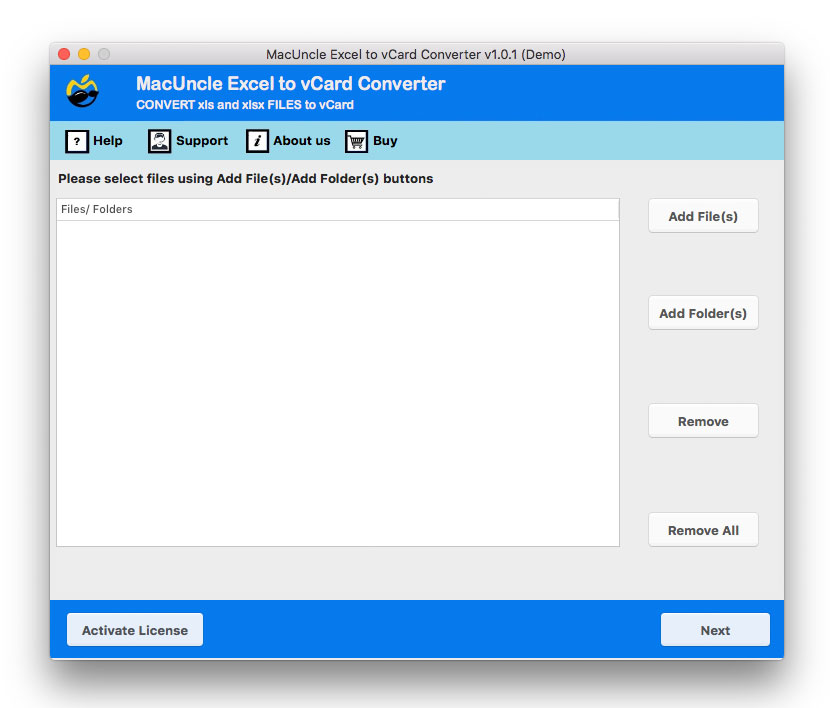
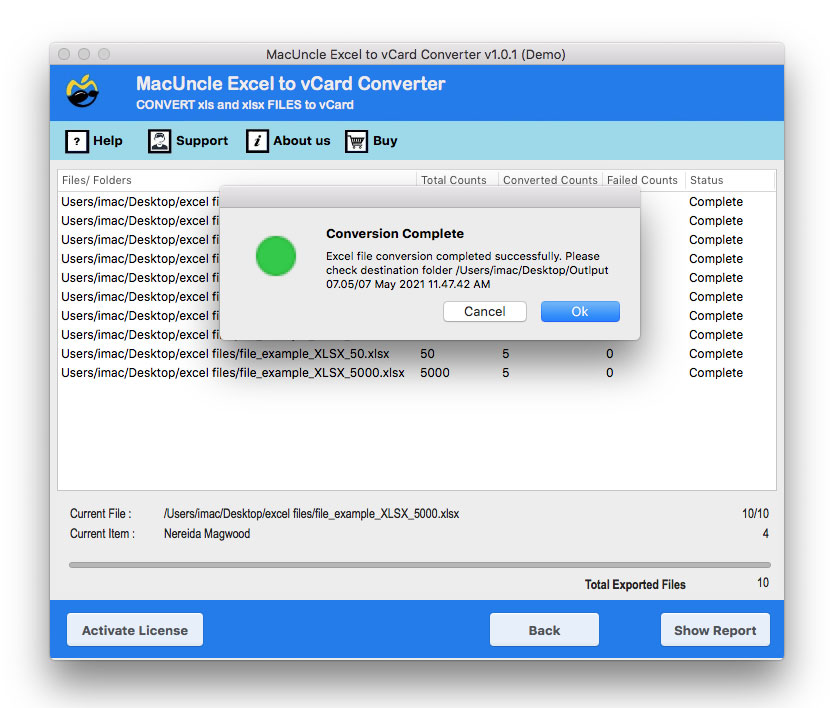
- Start the Software and follow the steps below.

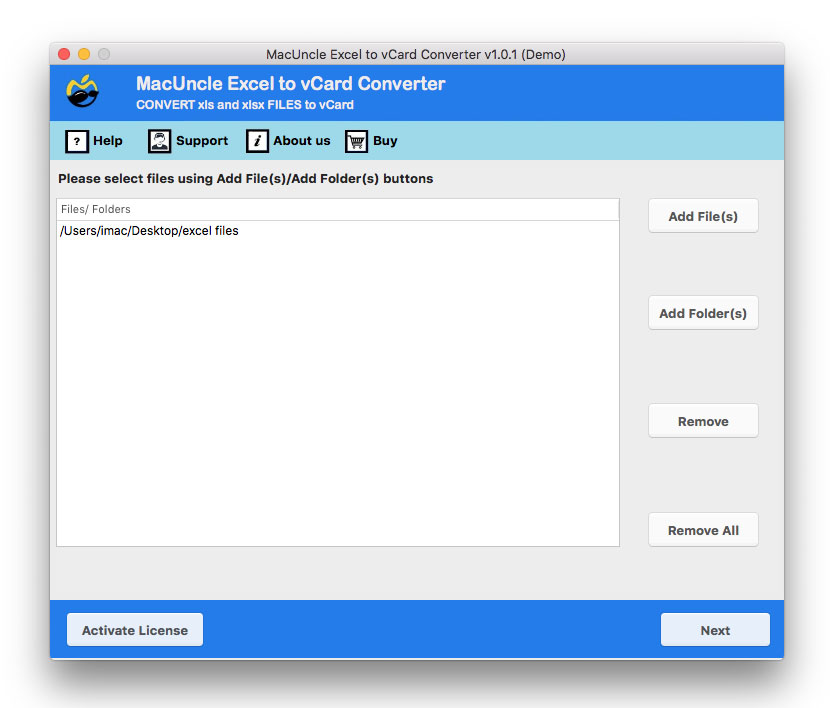
- Now add XLS/ XLSX files using the Add file (s) or Add folder (s) options.
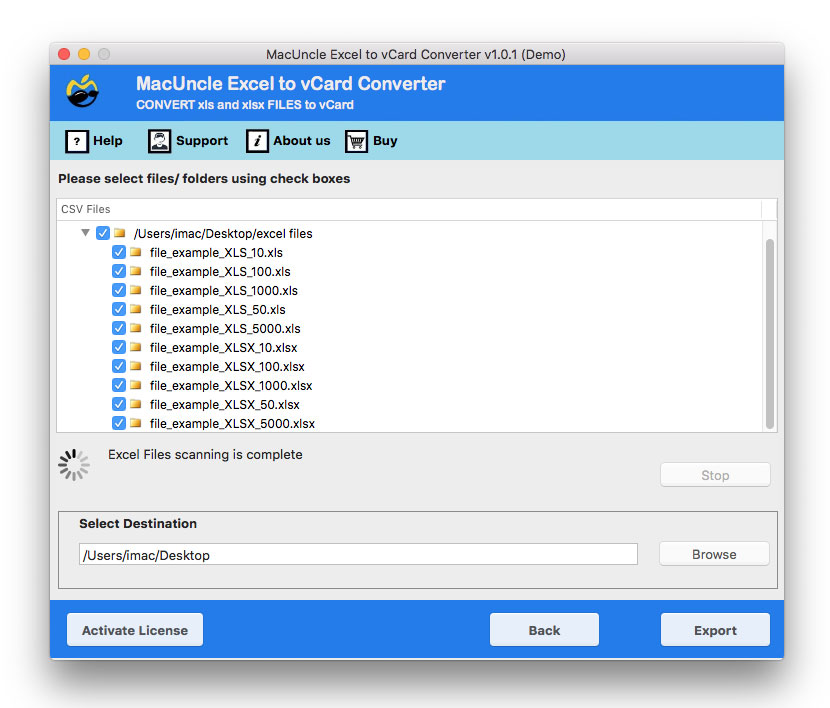
- Further, choose the selected file or folder if you have chosen the entire folder.

- Then choose your preferred destination path to save the resultant file.
- Finally, press the Export button.
- Then, follow the steps mentioned below to add the converted XLS file to your Gmail account.

Also, get the best solution to Import Excel Contacts to Mac Address Book
Import Converted Excel to Google Contacts
- Sign in to your Gmail account.
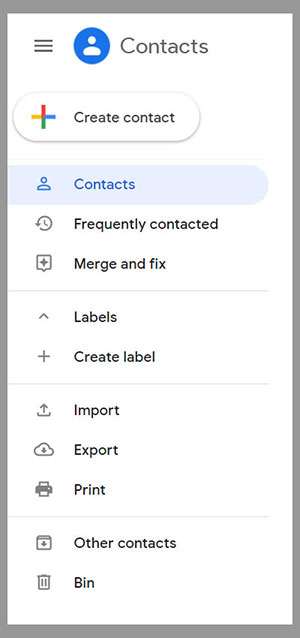
- Go to Google Apps and select the Contact app.

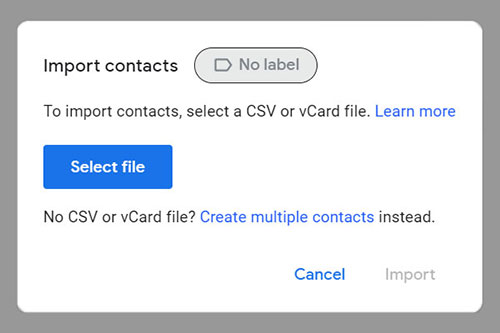
- Then, click the Import button.
- Select the resultant vCard files in *.vcf format and press import.

- This way, all the contacts will be imported to Gmail Contacts from the Excel Sheet.
FAQs
Q) Can I import Excel Contacts directly to Google Contacts?
A) No, Google Contacts does not support a direct XLS/XLSX import option. You must convert the Excel file first to a supported format, such as CSV or VCF, before importing it to Google Contacts.
Q) Will my contact details be preserved during the conversion?
A) Yes, the tool mentioned here ensures all the contact fields, such as names, phone numbers, emails and addresses, all remain intact.
Q) How long does it take to import Excel contacts to Google Contacts?
A) The time depends on the number of contacts and which method we use in the import process.
Q) What are the limitations of the manual Excel to Google contacts method?
A) From the article, it is clear that the process is time-consuming and prone to formatting errors. It is also difficult to manage large contact lists.
Conclusion
The blog highlights the Right and Perfect Technique to import Excel to Google Contacts. We have discussed various reasons why people switch to Google Contacts. And for the same reason, they search for various alternatives on the internet to perform the task. But we have come up with the most reliable and trusted tool suggested in the article. The tool also provides you with a dual mode to upload XLS/XLSX files into the software.