Import MBOX to Gmail Account With & Without Thunderbird


MBOX files are familiar to email users; they hold vital information. Whether you want to switch from a desktop email client like Apple Mail or Thunderbird, or just take a backup of the data, you might find yourself seeking methods to import MBOX to Gmail Accounts, a common email client. Well, you are not alone. Many users seek to upload their MBOX email archives into Gmail for better accessibility and integration with Google Workspace.
In the guide, we’ll discuss the possible methods for importing the MBOX files to the Gmail account. Here you will be getting the methods to import MBOX files to Gmail with or without Thunderbird support. Get the most suitable one from here.
What are MBOX Files?
First, let’s understand what the MBOX file is. In simple terms, the MBOX file is a single mailbox file that stores all the email messages in concatenated form within a folder. It also stores the metadata associated with the emails. There are different variants of MBOX files corresponding to the email clients like mboxrd, mboxo, mboxcl, and mboxcl2.
These files store a collection of emails in a single file. However, Gmail does not support the MBOX file; therefore, a direct upload or import of MBOX files into the Gmail account is not plausible. Considering all the facts, we are here with methods with or without the help of the Thunderbird application.
Note: Want to save time? Forget the longer process and head to the Instant Method to directly import all your files into your Gmail account in one go.
How to Import MBOX Files to Gmail?
In this article, we will be explaining the two major approaches that can simplify the process of uploading MBOX files into the Gmail account. We can either use the manual approach for free or a dedicated tool that can easily get the MBOX files from the Google account.
Jump to the solution directly using the above buttons; otherwise, go through each and determine the right one by trying out all the steps.
Import MBOX to Gmail Account – Steps for Manual Method
Here are some of the methods you can employ to open MBOX files in a Gmail account:
1. Use IMAP Configuration
Here we are using the desktop email client that supports both MBOX and IMAP (Internet Message Access Protocol).
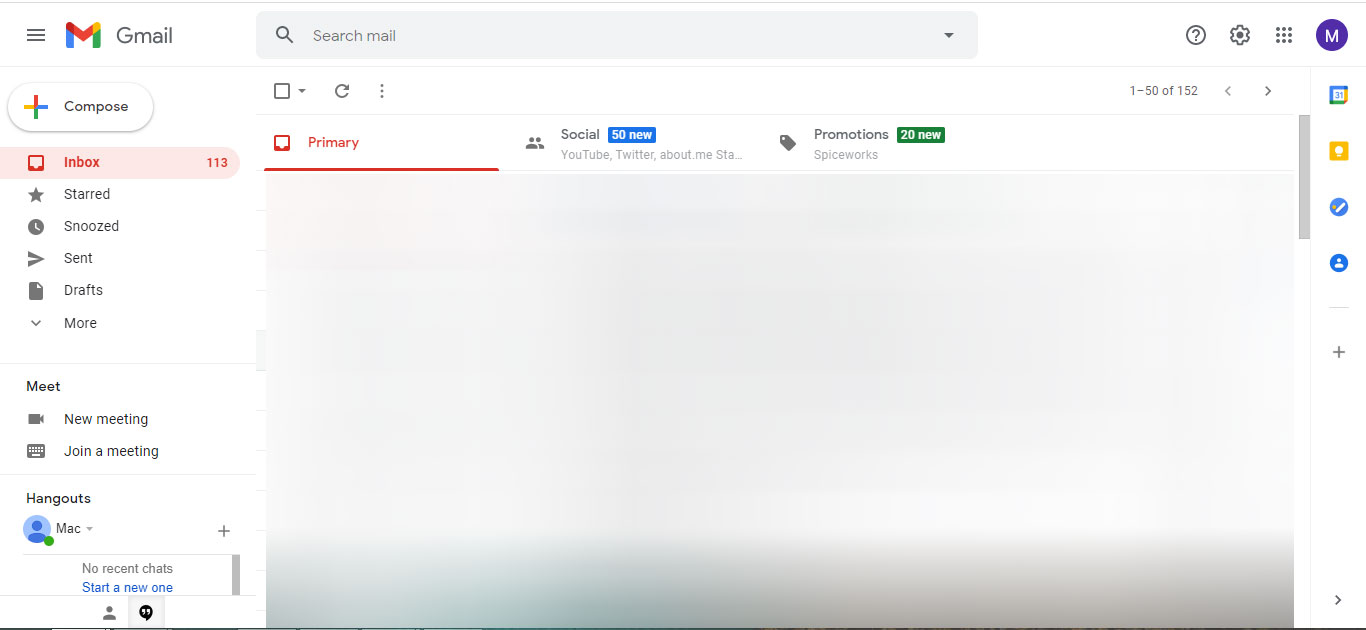
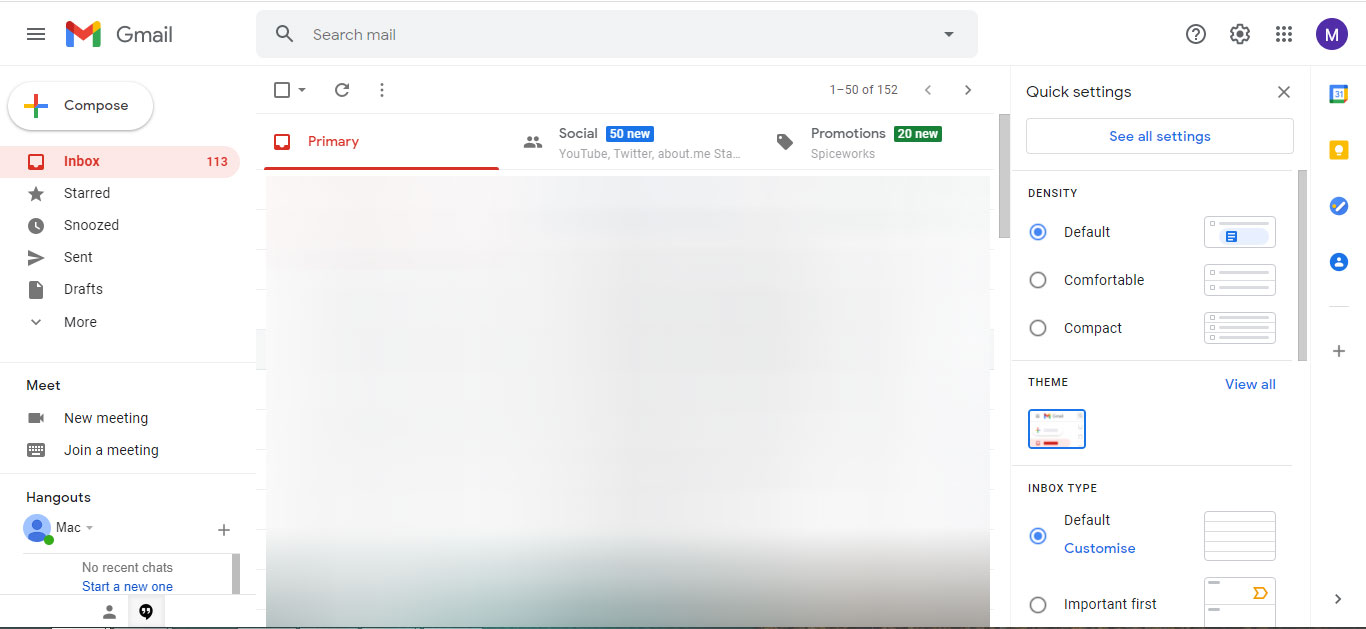
- Sign in to Gmail and go to the settings.

- Click on the “See all Settings”.

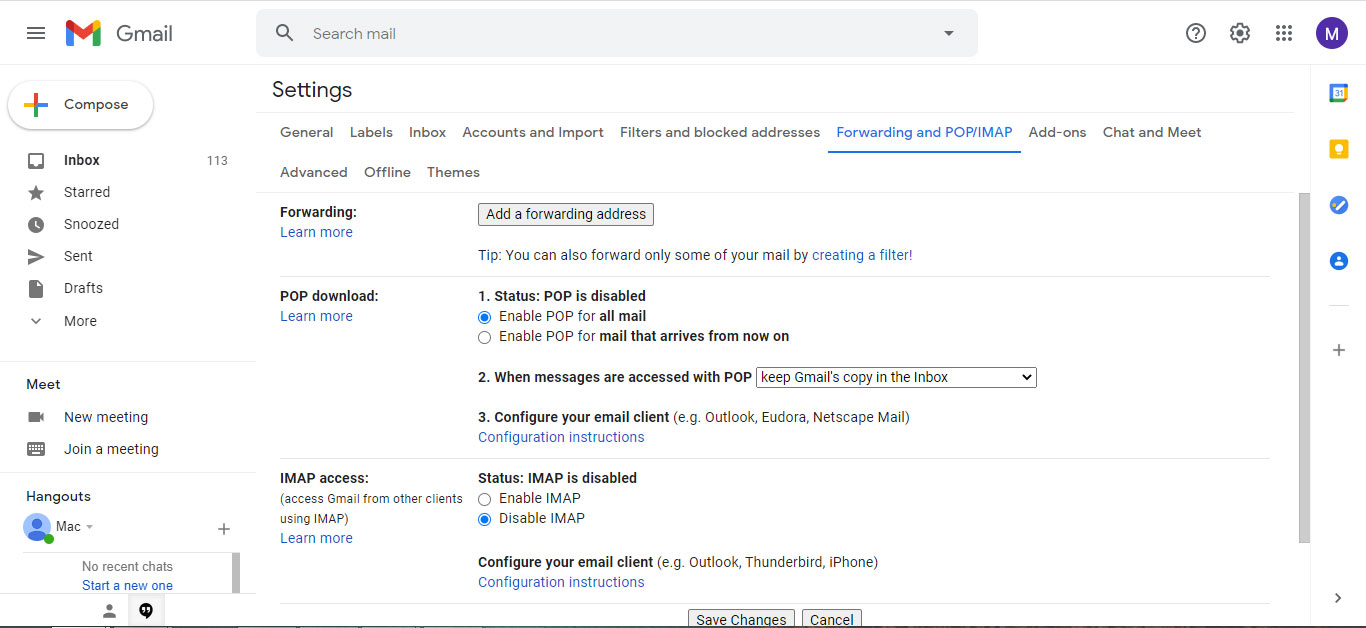
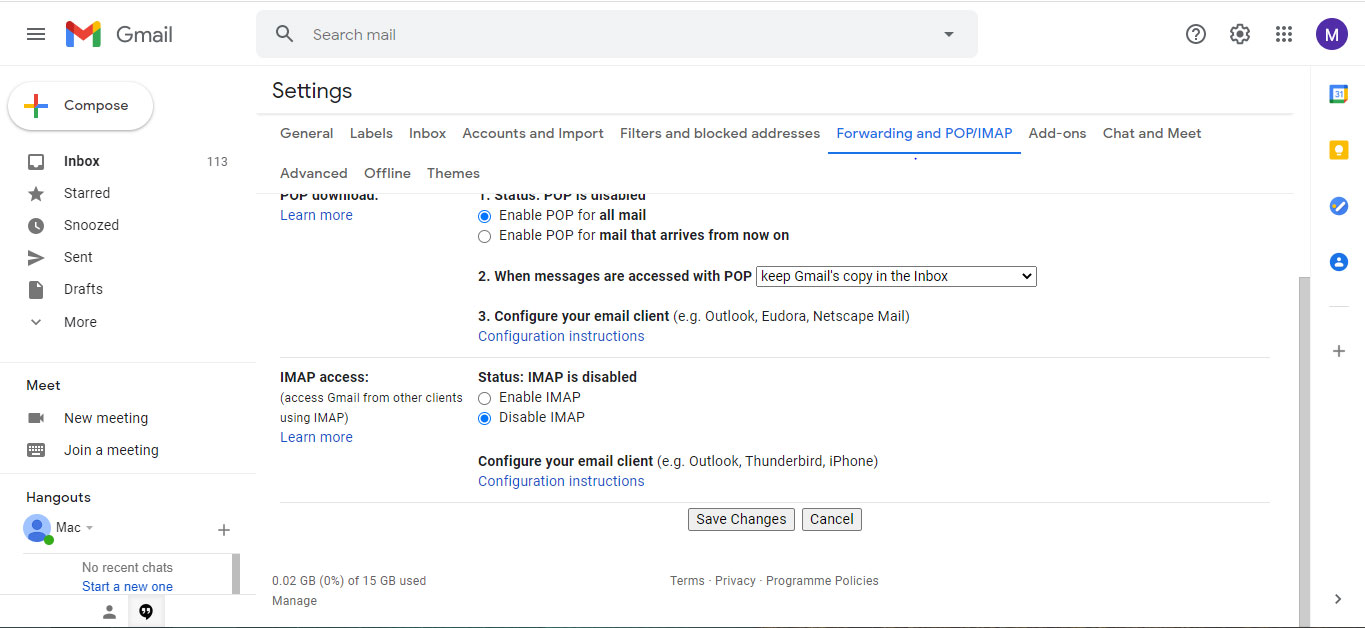
- Navigate to the “Forwarding & POP/IMAP” tab.

- Ensure the IMAP toggle is enabled. If no, select Enable IMAP and press Save Changes.

2. Configure MBOX-Compatible Email Client with a Gmail Account
- Start the preferred email client (Thunderbird, Apple Mail).
- Use the Add Account option to add a new email account.
- Enter your Gmail Address and password.
- It will automatically configure the IMAP settings.
- If not,
- Enter Incoming Mail Server: imap.gmail.com (port 993, SSL)
- Outgoing Mail Server: smtp.gmail.com (port 465, SSL).
Also read | How to transfer Apple email to Gmail?
3. Import MBOX to Gmail with Thunderbird
The process varies depending on the email client. Use Thunderbird or Apple Mail to get MBOX files from Gmail.
Thunderbird
- Install the “ImportExportTools NG” add-on (Tools > Add-ons>Search for “ImportExportTools NG”).

- Restart Thunderbird.
- Create a local folder or use an existing folder to import the MBOX file.
- Select the folder, right-click, and choose ImportExportTools NG > Import MBOX file.
- Choose any options as per the requirement and click Ok.
- Now, drag and drop the folder into the Gmail folders.
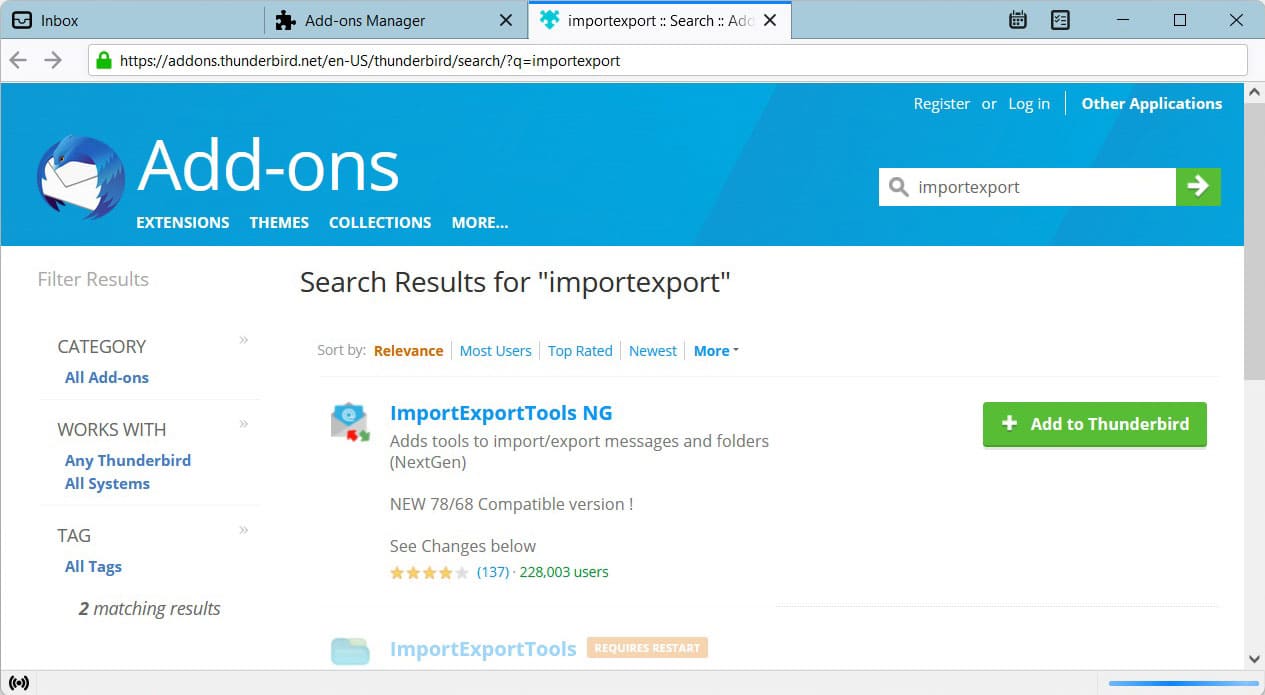
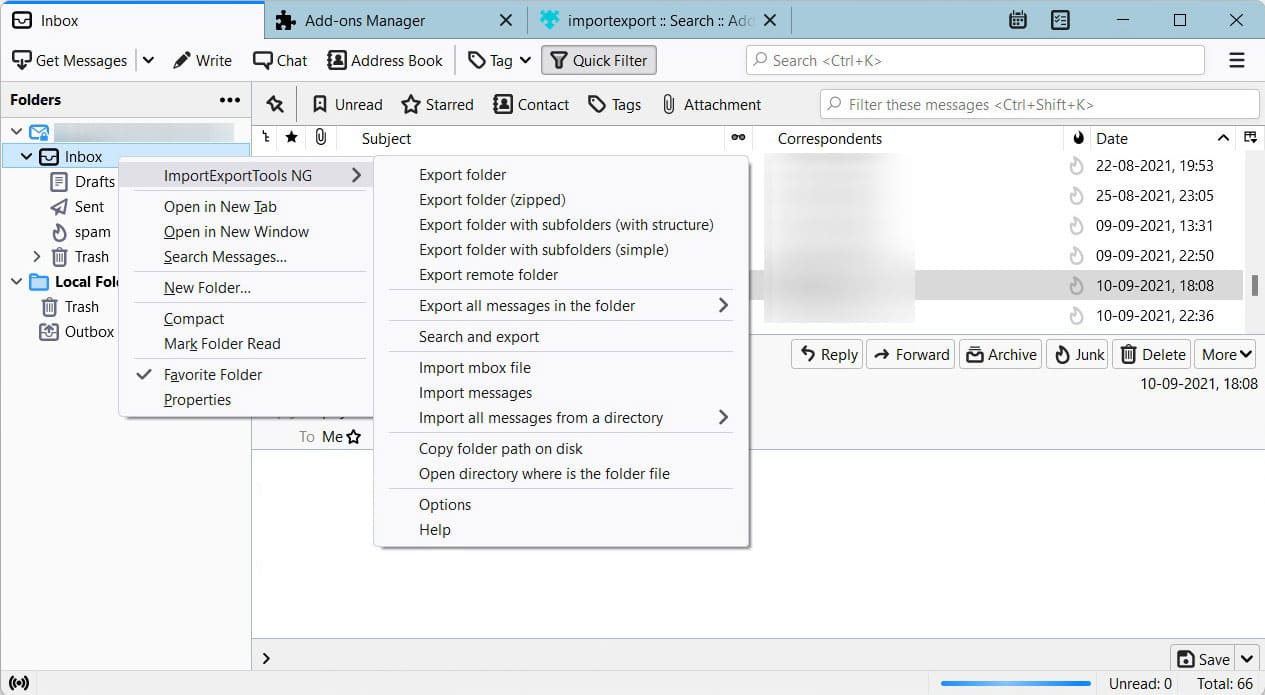
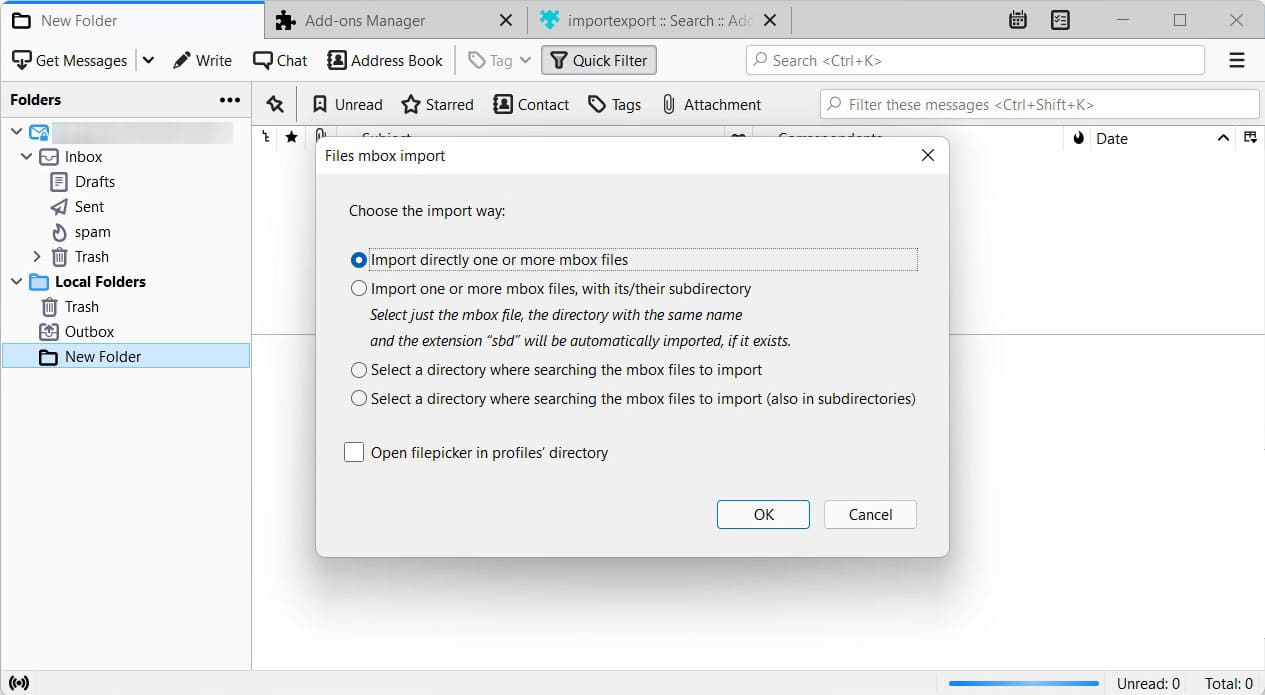
There, you import MBOX to a Gmail Account. Be sure to check the imported files once they are assigned.
Apple Mail:
- Go to File > Import Mailboxes.

- Select the MBOX files and click Continue.
- Locate and select the MBOX file and click Choose.

- Click Continue and then Done.
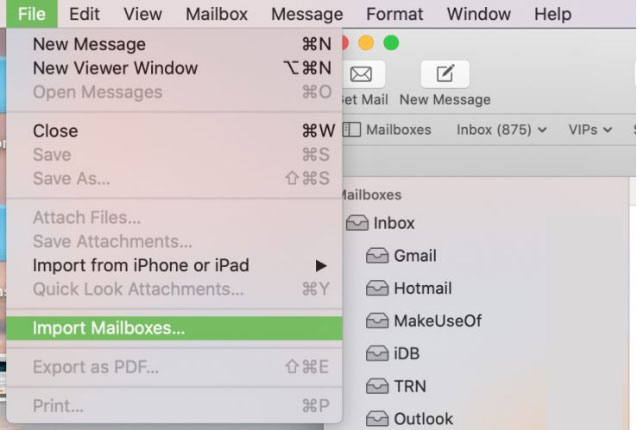
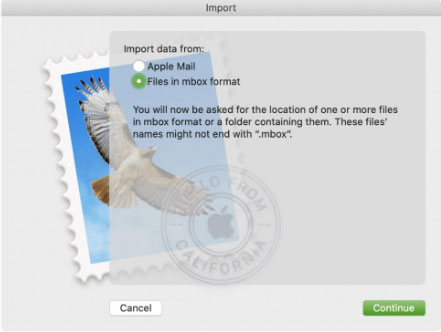
Now, drag and drop the files into the folder directly to get the emails within your Gmail Account.
Limitations of the Manual Method:
- It can be time-consuming for large MBOX files.
- The user must have the above-mentioned email clients installed.
Comparison: Manual and Automated Approaches
| Manual (Thunderbird / Apple Mail) | Dedicate Tool | |
|---|---|---|
| Cost | Free | Shareware |
| Setup | Install client + add-on (If required) | Standalone, no client needed |
| Speed | Slow for large mailboxes | Quick, In Minutes |
| Bulk files | One at a time | Unlimited (Pro Version), batch import |
| Data safety | Some formatting risk | OAuth, metadata preserved |
| Skill needed | Moderate | Low, guided steps |
| If there are a handful of MBOX files, then go with the manual approach and use the software to import batches of MBOX. | ||
How to Import MBOX to Gmail Account without Thunderbird?
For a more efficient and often faster approach, use the MBOX to Gmail Converter to directly get MBOX files in the Gmail account. The tool is designed to ease this process by giving a direct pathway for user to import all the MBOX files to their Gmail account. There is no need to have Thunderbird or any other email client to complete this process. If there is any need to check the MBOX files, use MBOX File Viewer and then use the toolkit mentioned here to complete the import process.
In 5 Steps: Import MBOX Files to Gmail Account
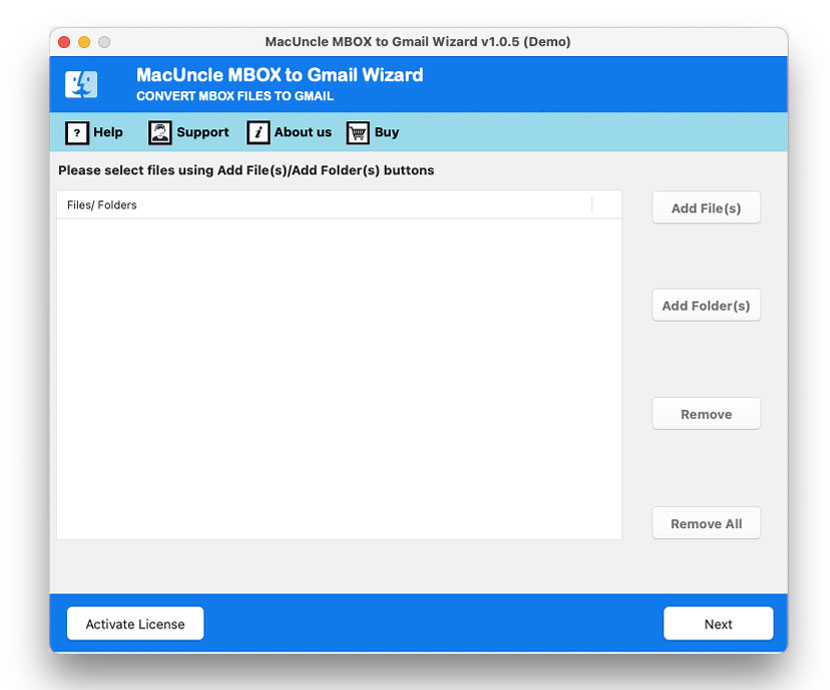
- Launch the software after installation.

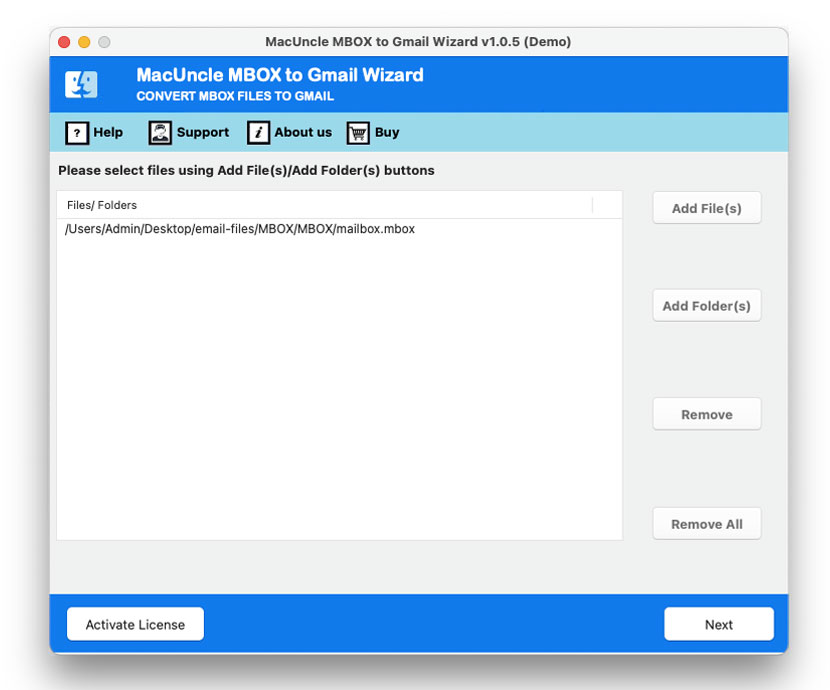
- Add MBOX files to the software interface.
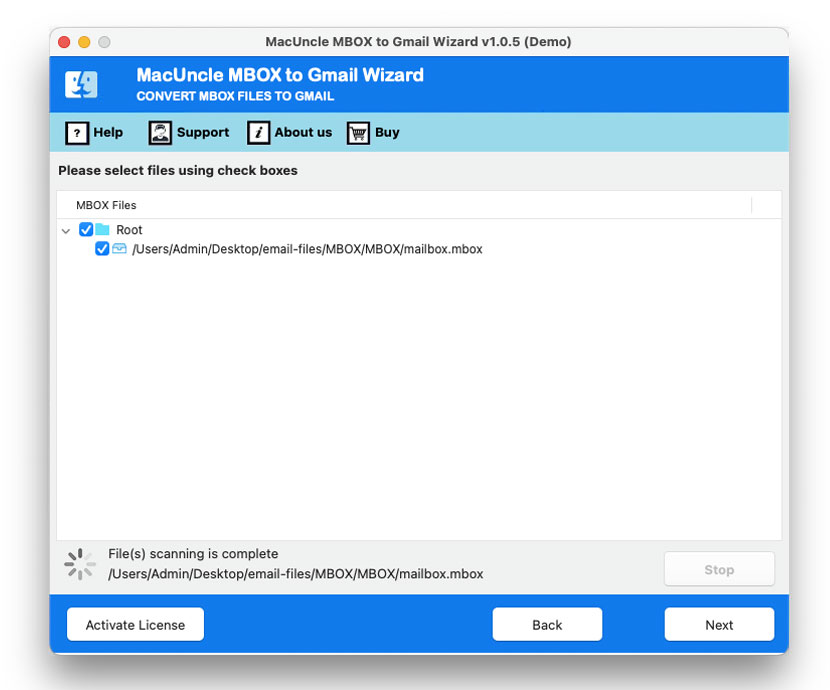
- Choose the desired file using the checkbox.
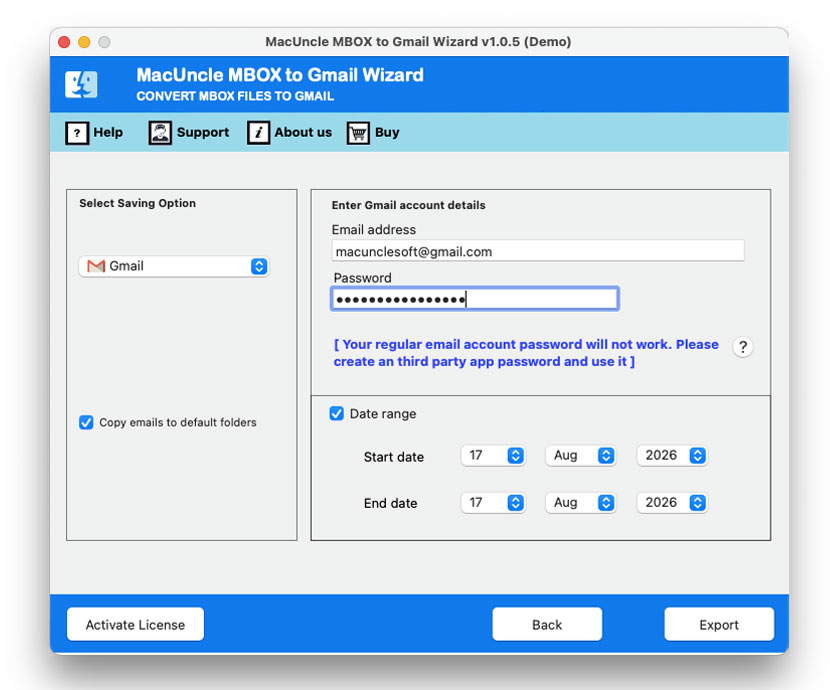
- Enter Gmail credentials and add IMAP details.
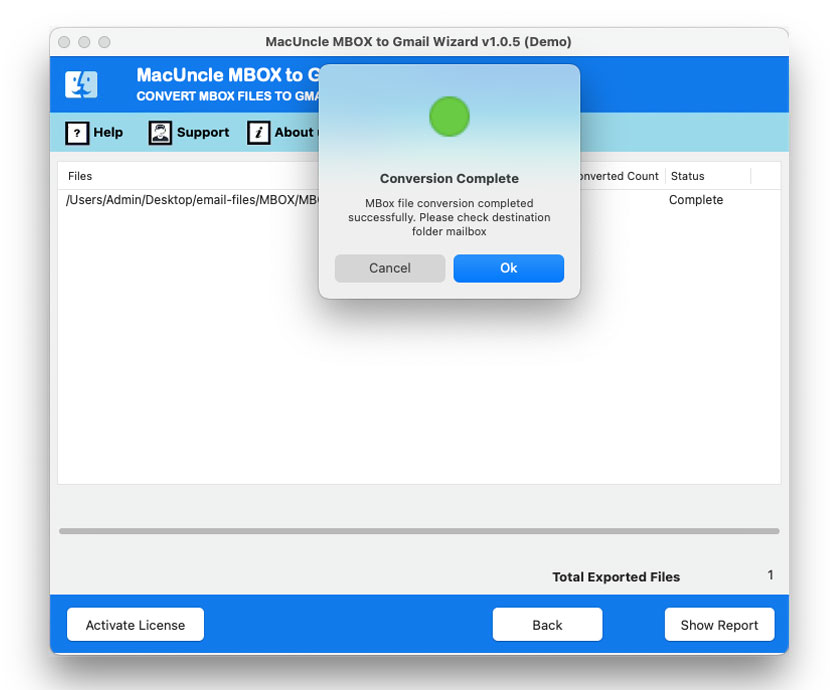
- Press the Export button to start the import process.
FAQs
Q) Can I directly import an MBOX file into Gmail using the Gmail web interface?
A) No, Gmail doesn’t offer a built-in option to upload or import files through its web interface. Therefore, the user should get software to upload all the mailboxes directly to the Gmail account.
Q) How to use Mozilla Thunderbird to import MBOX to Gmail?
A) The configuration option is to add Gmail to Thunderbird, then import the MBOX file into the local folder within Thunderbird. Further, you can move the files into the Gmail account folder from the local folder.
Q) How long does it take to import an MBOX file to a Gmail account?
A) If you are using the manual methods, it might take time to complete the whole process, as account configuration is required. Otherwise, using the suggested software here, the user can directly complete the process.
Q) Why can’t I drag and drop the MBOX into Gmail?
A) Gmail’s web interface is designed to manage emails that are already on the server. It does not have the functionality to read and process the MBOX files, which are a local archive format. Therefore, we need a program to parse the MBOX files and upload them to the Gmail account.
Conclusion
If you import MBOX to Gmail, you can consolidate the email archives and the benefits that come from Gmail’s features. It is a viable option to use the desktop email client for a smaller number of files and for those technically inclined users. However, the manual methods all come with a limitation. Therefore, using the recommended software, you can move MBOX files to a Gmail account.