How to Import MSG to Outlook? Complete Step-by-Step Guide


If you have MSG files that you want to move to the Outlook account, you are at the right place. The MSG files usually have individual emails exported from Outlook or saved manually for backup, sharing or documentation. While MSG files are useful but many users struggle when they want to import MSG to Outlook account, especially when they want to export in bulk.
The process isn’t as simple as double-clicking a file. Depending on your Outlook version and operating system, you may face issues like import errors, opening failures, or dragging limitations. This guide walks you through multiple methods to import MSG files into Outlook—both manual and automated—so you can choose the one that suits your needs.
What is an MSG File and Why Import It to Outlook Accounts?
MSG file is an Outlook-based email format which is created when users drag an email from Outlook and drop it to a location or save the emails individually. It contains the full structure of the emails, including Sender and Recipient details, Message body, Metadata, Formatting and Attachments.
Why do users want to import MSG to Outlook?
- To restore the old archives emails.
- Migrating data from other devices
- Collecting multiple individual emails into a single mailbox.
- To open the MSG file received from another user.
Method 1: Drag and Drop to Import MSG to Outlook
This is the easiest and is mostly done when there are only a few files.
- Open Outlook.
- Go to the folder where you want to import the MSG.
- Open the File Explorer and go to the folder with MSG files.
- Select the MSG files.
- Drag and drop them to the Outlook folder.
Limitation: It does not work for bulk MSG files. If the MSG files are corrupted, the procedure fails. It is very difficult to manage hundreds or thousands of MSG files.
Automated Method to Import MSG File to Outlook
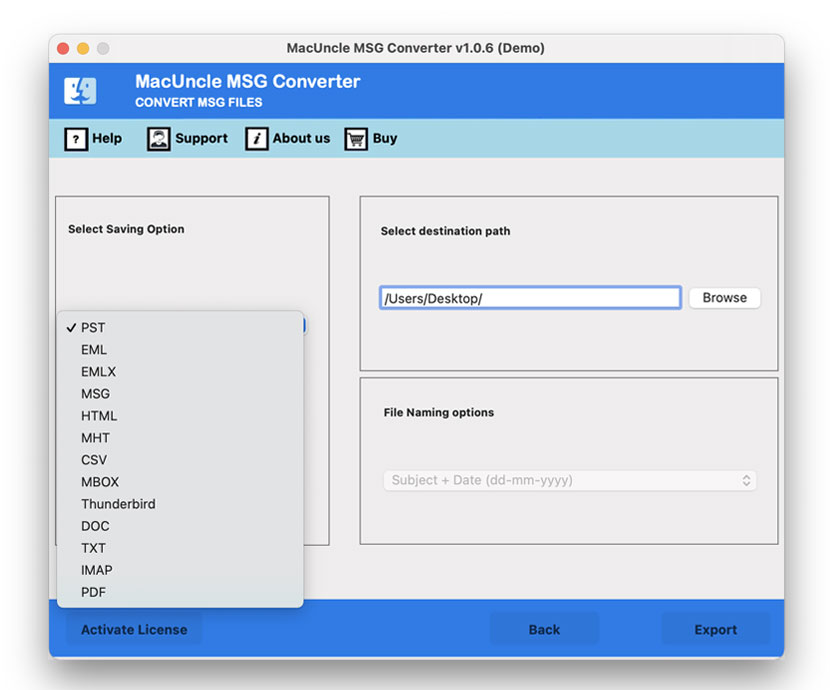
The MSG Converter is the apt one-way tool that has the option to process multiple MSG files and then directly import them to the Outlook account. It offers flexibility to choose between PST and IMAP options, which enables users to either convert or import the MSG files. There is no need for additional conversion steps, making the entire process faster and more convenient. It also ensures data integrity and maintains the original folder structure and email properties during the transfer of MSG to Outlook.
How to Import MSG Files into Outlook Accounts?
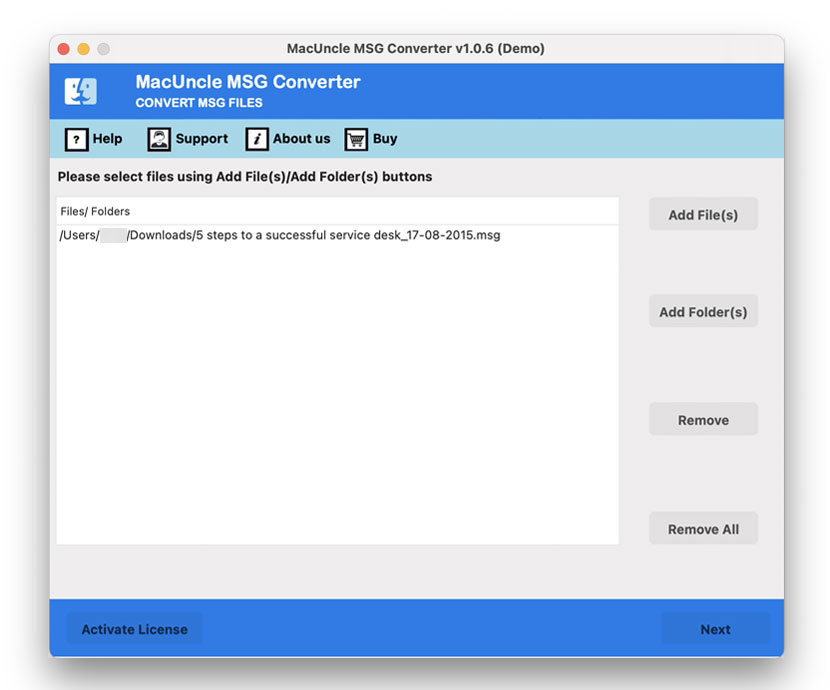
- Open the tool and start adding MSG files.

- Select using the check boxes. Press the Next button.
- Now choose PST or IMAP options from the list.
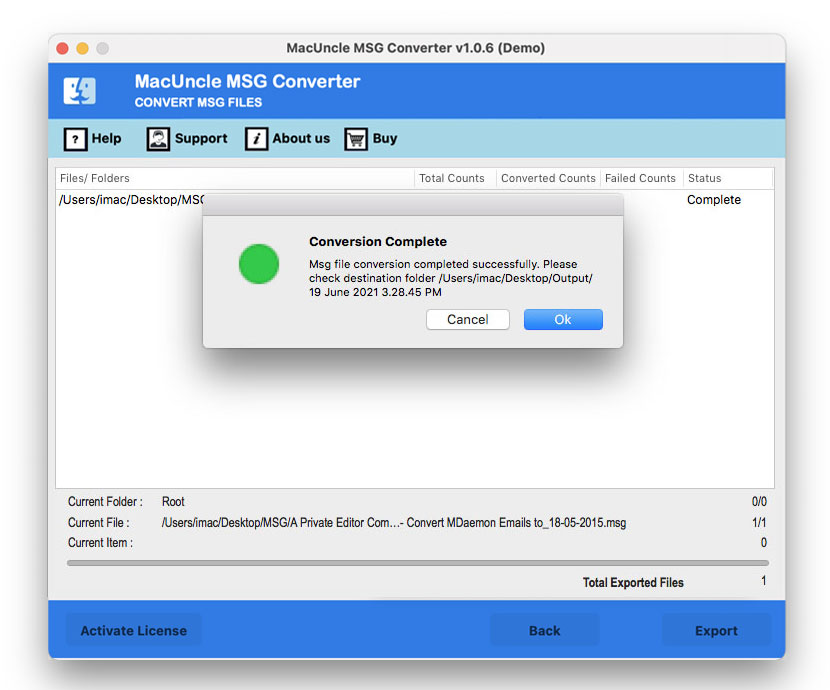
- Press the Export button.
Also, check out the related articles: Import MSG files to Gmail Account.
Common Issues with Importing MSG Files to Outlook
Error: Cannot Open MSG File
It is one of the most common errors that occur due to the following reasons.
- MSG File is Corrupted.
- The MSG files are created in Unicode but opened in ANSI Outlook.
- Incorrect Default program association.
Drag and Drop Method Not Working
- It usually occurs when:
- Outlook is not running with permissions.
- MSG files have special characters.
Conclusion
If you have the right method, the process of importing MSG to Outlook is not as complicated as it seems for multiple files. Whether you want to transfer multiple files or single files. The manual method approaches work well for smaller datasets, while professional tools are ideal for bulk or structured MSG files. Follow the steps in the guide, and you can easily import MSG to Outlook, restore archived emails or migrate the data without losing attachments or metadata.