How to Import Outlook Calendar to Apple Calendar?


Outlook and Apple Calendar are two popular calendar apps, and many people use both to keep track of their personal and business appointments. While Outlook is often used in the workplace, Apple Calendar is the default scheduling tool in macOS, iPhone and iPad. By importing Outlook Calendar into Apple Calendar, you can see all your appointments in one place without having to switch between apps.
We will take you through the process of importing an Outlook Calendar into Apple Calendar on a Mac using the manual options provided. Also, if you only have an Outlook for Mac (OLM) backup, we will provide a workaround to convert this into a format compatible with Apple Calendar.
Why Add Outlook Calendar to Apple Calendar?
Many working professionals these days tend to make use of Apple devices for personal usage & also navigate via the work environment, relying on Office 365 & Outlook. You may like your iPhone & Mac for personal use, but also require Outlook for certain corporate email requirements. Merging Outlook calendar with Apple calendar tends to form a seamless scheduling system with many benefits, as follows:
- Unified schedule view: By doing this, you would be able to view all your events in a single place with no need to repeatedly switch between apps.
- Real-time syncing: If you perform this merger, updates that are made in either of the 2 platforms quickly reflect across both systems easily.
- Universal access: You can access a complete schedule from all devices, whether it is your iPhone, Mac, or even Windows PC at work.
- Remove double-booking: this way, you can prevent scheduling conflicts by viewing all your commitments together.
- Cross-platform compatibility: Seamless transition starts happening between the Apple environment as well as Microsoft setting.
- Greater productivity: After adding calendars, you will spend less time handling calendars and have more time to focus on actual tasks.
Before You Start: Prior to starting this integration procedure to import Outlook calendar to Apple calendar, you must make sure that essential accounts & system needs are well in place.
- An active Apple ID (create one here if needed) and a Microsoft account or Office 365 subscription.
- Compatible Operating Systems: iOS 12+, iPadOS 13+, macOS Mojave (10.14) or later, and Outlook 2016+ (or Outlook on the web). Check your Mac’s version from the Apple menu > About This Mac, and your iPhone’s under Settings > General > About.
- All devices were updated to their latest OS to avoid sync issues.
- A backup of your current calendar data, just in case. In Apple Calendar, go to File > Export > Export… to save a copy before making changes.
Tip: If your goal is to analyse, share calendar events instead of importing them into Apple Calendar, then check out our guide – export Mac Outlook calendars to Excel.
How to Get the Outlook Calendar in Apple Calendar?
First, we will find the ways to sync the calendar in the Apple Calendar, and then the steps to move the Outlook calendar files for instant access rather than syncing.
Method 1: Live Sync via Exchange
Here’s the process to export Outlook calendar to Apple Calendar on your Mac:
- Open Apple Calendar.
- Now, click Calendar > Add Account inside the menu bar.
- Select MS Exchange.
- Go on to click Continue.
- Enter your Outlook account’s credentials.
- Verify that the Calendars checkbox is selected.
- Further, use Refresh Calendars inside the Accounts section for setting your preferred syncing frequency.
Once this setup is complete in its entirety, Outlook calendar events will be displayed within your Apple Calendar application. You can now confirm successful syncing by opening Calendar & then looking for specific Outlook events. If you had earlier used calendar delegation features in the Apple Calendar, you might need to disable them now for appropriate synchronisation functionalities.
For this, you have to go to Calendar > Preferences > Accounts > Delegation & uncheck all calendars.
Method 2: Manually Export/Import
- In Outlook, go to File > Save Calendar and export the calendar as an *.ics file.
- Open the Calendar.
- Go to File > Import, select the *.ics file, and choose the calendar to add to the events.
Note: This method does not reflect the future changes, but it is best for instantly importing an Outlook calendar to Apple Calendar. You will need to repeat these steps each time you update.
Quick Method to Import Outlook Calendar to Apple Calendar
Another quick approach to get the Outlook calendar in the Apple Calendar is to use the OLM to ICS Converter. If the requirement is to access the Mac Outlook calendar on Apple with ease, use the bulk conversion and directly import it to Apple Mail. This is the best way if you have the Outlook for Mac backup instead of the ICS calendar file. The above method won’t work since Apple Calendar cannot read the OLM files. Now, follow the steps below to know how to get the calendars in OLM to Apple Calendar easily.
How to Import Outlook Calendar to Apple Calendar?
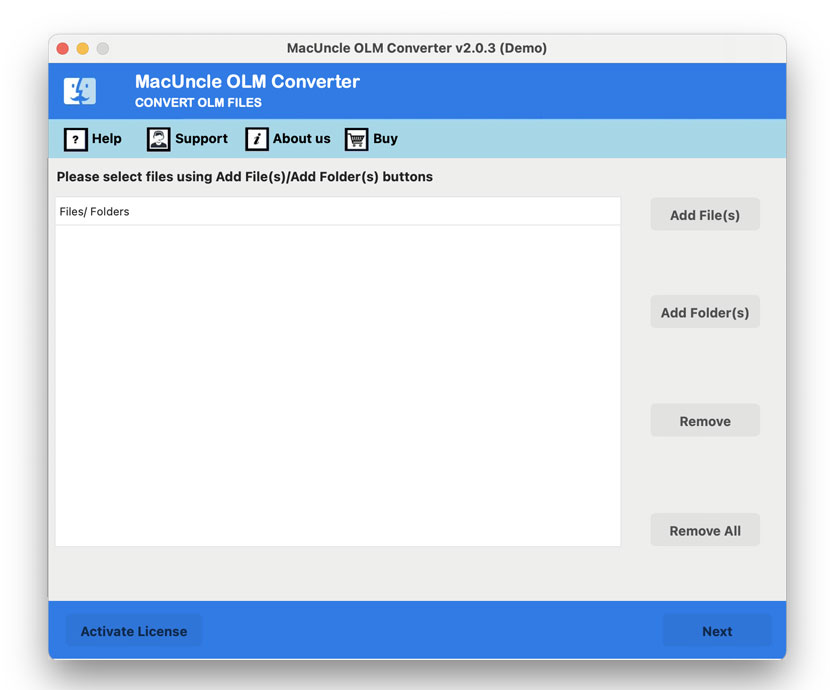
- Launch the software on the Mac system.

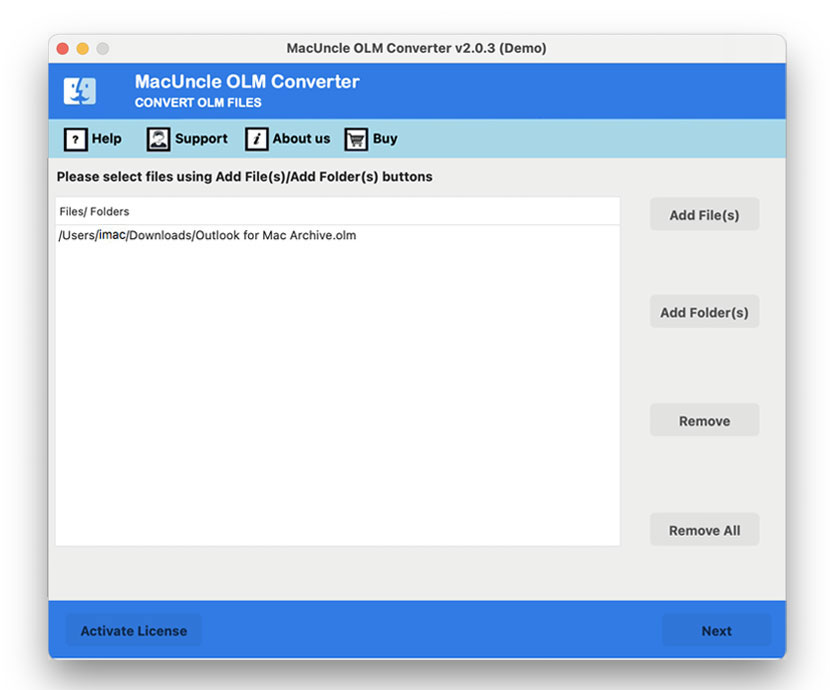
- Add OLM calendar files using the Add buttons. Press the Next button.
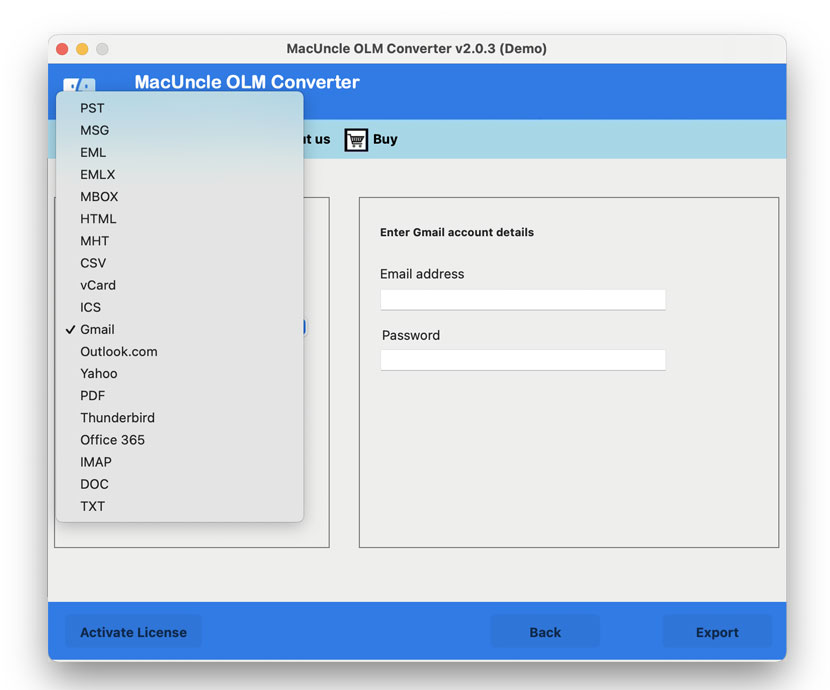
- From the saving option, choose ICS.
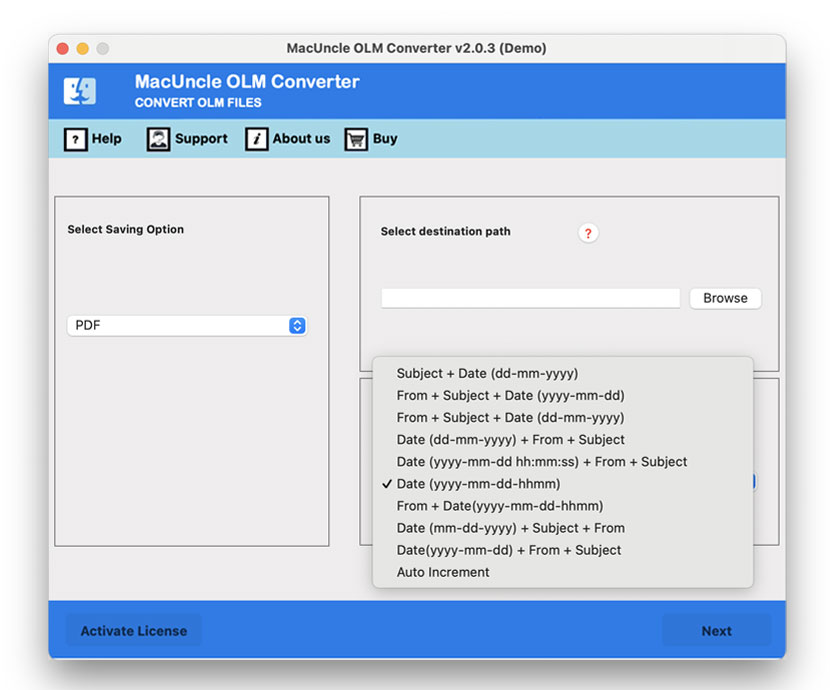
- Set a naming pattern to rename the resultant file.
- Press the Export button to start the conversion.
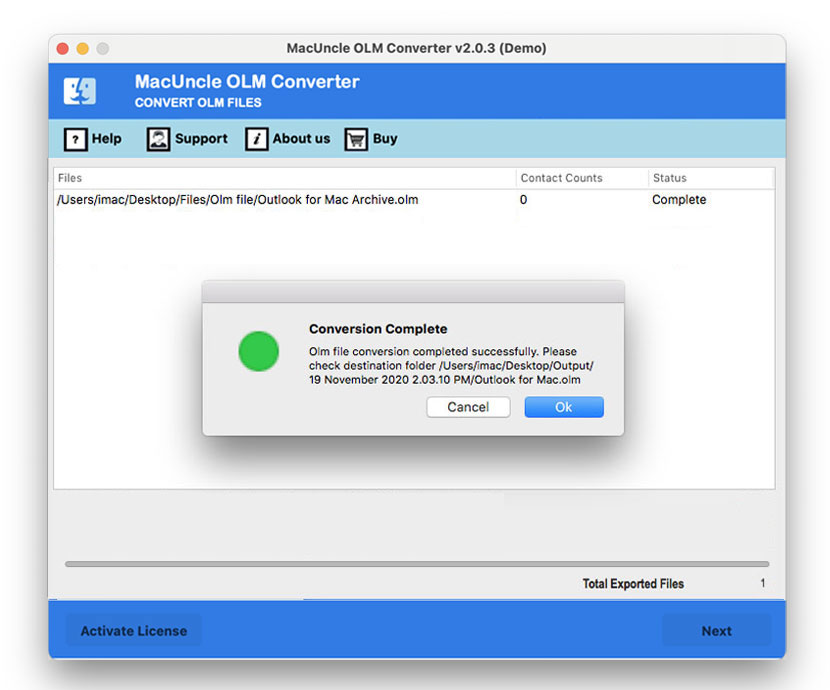
Now, we can import the resultant ICS file to the Apple Calendar as shown in Method 2.
Some Tips for Efficient Calendar Management after Merging
When this integration of your Outlook calendar with Apple calendar works seamlessly, the following tips will help you maintain an organised & efficient scheduling:
- Formulate a pretty consistent colour scheme across both these platforms for speedily identifying various types of events differently. Make use of distinctive colours for personal meetings, work appointments, travel entities, & family events. This type of visual differentiation will make scanning easy for you to schedule things better.
- Try configuring notifications very thoughtfully to avoid too many alerts. Try to set different notification timings for various types of events.
- Review periodically & clean up any old/unwanted calendar entries. Try removing all the outdated subscriptions so that sharing permissions remain appropriate. Keep such calendar names & descriptions, which are current & make sense.
- While forming events, make use of consistent naming conventions & also include relevant details in descriptions. This makes sure that your events are clear & useful irrespective of the platform you are seeing them from.
- Export calendar data regularly as backup files. Both Apple Calendar and Outlook Calendar tend to allow exporting to standard formats, which could be imported elsewhere if required.
FAQs
Q) Is it possible to add multiple Outlook calendars to Apple Calendar?
A) Yes, it is definitely possible to sync multiple Outlook calendars with Apple Calendar. Every calendar of yours from the MS Outlook account could be managed individually for better visibility in Apple Calendar, which provides you with granular control over which things would appear where.
Q) How frequently do these merged calendars synchronise?
A) Syncing frequency could be customised in Apple Calendar preferences. The options range from every five minutes to an hour. More frequent synchronisation makes use of more battery & data but gives speedier updates.
Q) Why are my Outlook calendar events not showing in Apple Calendar?
A) Common reasons could be an authentication issue, a disabled calendar toggled in account settings, a connection problem, or even outdated apps. You can check your account settings, update your device, or re-add Microsoft’s account.
Q) Is it possible to edit Outlook events from the Apple Calendar?
A) Yes, certainly, basic event editing (such as time/date/title/location, etc.) works across both platforms. But advanced Outlook features such as meeting responses & room booking have to be managed within Outlook itself.
Q) Does this merging affect the existing Calendar events?
A) No, not at all; such merging of calendars does not alter or delete any of the existing events.
Ending Notes
This blog will help you comprehend and help you understand how to import Outlook Calendar to Apple Calendar easily. So, all the best for this task to help you make the most out of both environments to work in a very systematic manner.