How to Restore Google Takeout Data on Mac & Windows? Solved


Want to restore Google Takeout data? Here we are with an expert guide to help you throughout the process. Multiple users rely on Google Takeout to export and back up their valuable data from a wide range of Google services. The real challenge starts when you download the backup and don’t know how to proceed further.
Unlike simple backup tools, Google Takeout does not provide any direct “restore” button. Instead, it delivers your entire data in downloadable archive files (ZIP or TGZ), which often leaves users confused about restoring Google Takeout data safely and effectively.
In this blog, let us learn how to restore Google Takeout data across different services such as Gmail, Google Drive, Contacts, and Photos, ensuring a smooth and secure recovery process.
What is Google Takeout?
Google Takeout is an official service that allows users to export a copy of their data from Google products, such as Gmail, Photos, Drive, and YouTube to create backups or use it outside the Google ecosystem. It allows users to manage their data exports at takeout.google.com. It covers most of the Google services including Search History, Chrome Bookmarks, Gmail, Google Photos, Maps and YouTube. It exports data in standard formats such as MBOX (for emails), JSON, VCF, and more.
Things to Remember Before Restoring
- Google Takeout does not support direct restore.
- Data comes in multiple formats such as MBOX, ZIP, JSON, etc.
- Each service needs a different method to restore data.
- Large data files often need extraction tools.
Also read: Before restoring, it is always recommended to create an additional backup by transferring Google Takeout to external drive.
How to Restore Google Takeout Data Manually?
Restoring Google Takeout data (MBOX, VCF, JSON files) requires manual re-importing into a specific service or using third-party tools. Let us discuss restoring Google Takeout data individually.
#1. Restore Gmail Data (MBOX Files)
Google Takeout exports the entire Gmail data in MBOX format, and it cannot be directly imported into Gmail again.
Using Thunderbird
- First, install Mozilla Thunderbird.
- Add your Gmail account using IMAP.
- Install ImportExportTools NG add-on.
- Import the MBOX file into Thunderbird.
- Lastly, drag & drop emails into your Gmail folders.
Tip: If you want to migrate the backup into another Gmail profile, read the detailed guide to import Google Takeout to new account safely.
#2. Restore Google Drive Data
Google Drive data is usually exported in its original format.
- First, extract the downloaded Takeout ZIP file.
- Now, open Google Drive.
- After that, click on New >> Upload Files/Folders.
- Now, upload the extracted files back to the drive.
#3. Restore Google Contacts
Contacts are exported in VCF (vCard) format.
- Start by opening Google Contacts.
- Now, click on the Import button.
- Upload the VCF file back.
- This way, contacts can be restored easily.
#4. Restore Google Photos
Photos are exported as images along with JSON metadata.
- Extract the Takeout archive.
- Now, open Google Photos.
- Upload all your images manually.
Note: Album structure may not be restored automatically.
#5. Restore Google Calendar
Remember, Calendar data is exported in ICS format.
- Start by opening your Google Calendar.
- Now, go to Settings >> Import & Export.
- Upload the ICS file.
- After this, select the destination location.
Limitations of These Manual Approaches
While the above methods offer a clean process, they still come with several drawbacks.
- Consumes a lot of time and effort.
- Users may face data loss and duplication.
- Does not support bulk data restoration.
- Incapable of preserving originality.
- Users must have technical knowledge.
How to Restore Google Takeout Data Professionally on Mac?
Since the manual approaches to restore Google Takeout data and emails involve high-level technicalities, some experts use and recommend Mac Google Takeout Converter to easily restore Google Takeout data. This solution offers multiple features for the users to complete the entire process in bulk with ease. You can install the solution on your Mac and understand its features and working process before even opting for its licensed version.
Powerful Features of the Solution
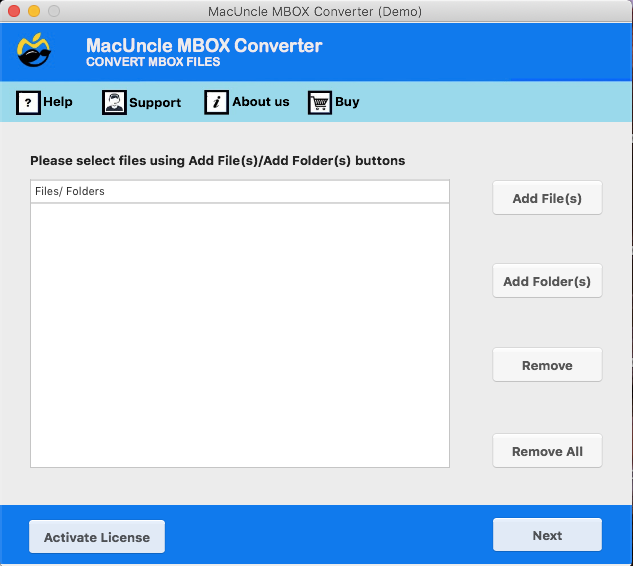
- Offers dual options: Add File and Add Folders to load data.
- Provides technical support 24/7 for unlimited assistance from experts.
- Offers quick and easy steps, suitable for even non-technical users.
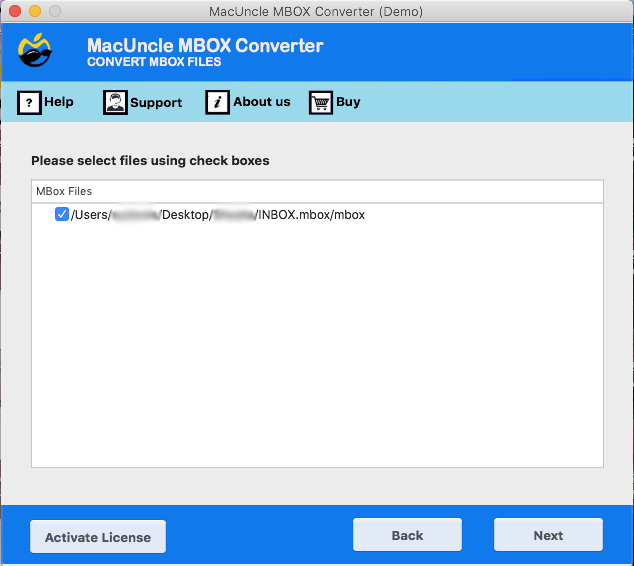
- Allows you to preview uploaded data before you restore Google Takeout data.
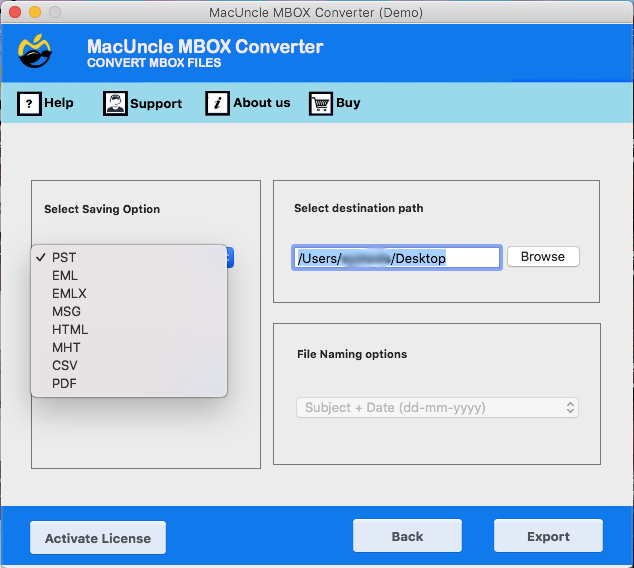
- Offers multiple file formats to save all data individually as per needs.
- Users can save the resultant data at a location of their choice.
- A standalone solution to restore Google Takeout data.
Quick Way to Use this Powerful Solution
- First, download and install the solution on your Mac.
- Choose from dual options to load all your desired files.

- Preview all the data that you have uploaded into the software to restore.

- Choose a file format of your choice from the Select Saving Option list.

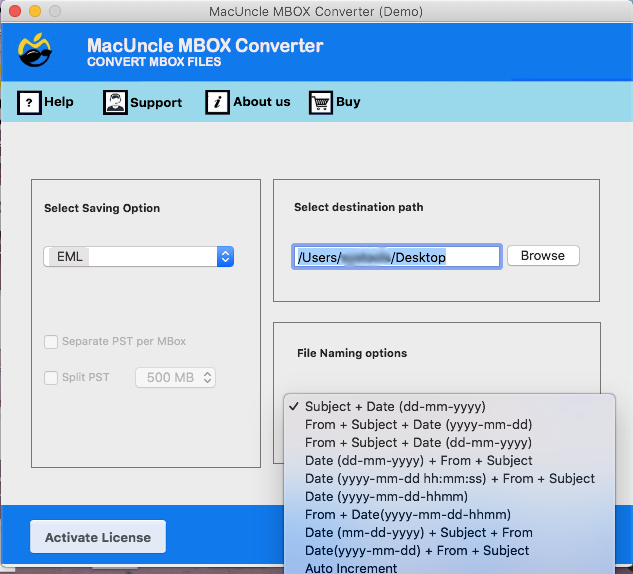
- Choose a destination location to save data and any combination of new names from File Naming Options.

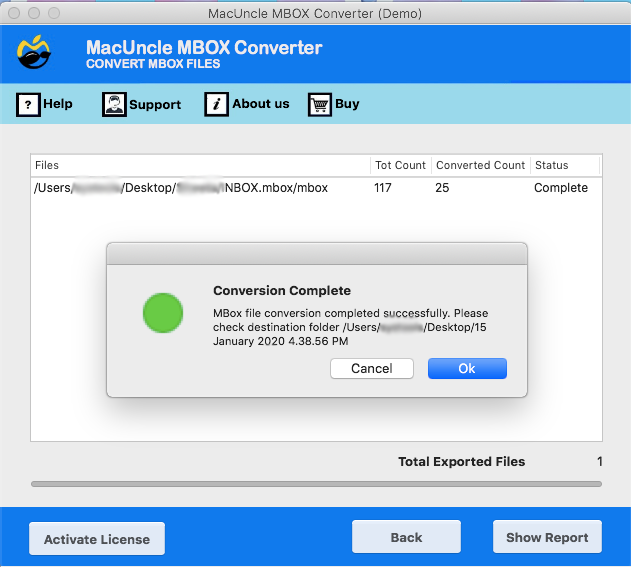
- Lastly, click on the Export button to complete the process.

It’s Time to Conclude
We discussed some best ways to restore Google Takeout data on Mac with safety. Choosing the right approach will make your data manageable and efficient. If you need any guidance or help, you can get in touch with our Technical Support Team any time and one of our experts will assist you with the process.