How to Send Gmail Messages to WhatsApp ?


Are you here to find out how to send Gmail Messages to WhatsApp? You might find different solutions on the internet for the same, but we are here to provide the simplest and most effective one for batch migrations of email messages.
Merging any two media enhances communication; unfortunately, there is no such method to integrate Gmail with WhatsApp directly. However, there we will explore all the possible manual as well as automated to acquire a few messages or a large number of email files in the Google accounts.
Why Does the User Want to Move Gmail Emails to WhatsApp?
It could be a personal or professional requirement; nevertheless, we will discuss the top traits which the migration of emails to WhatsApp could offer.
- Accessible by Multiple People: Sending Gmail messages to WhatsApp will bring widespread adoption and convenience. The data transferred using WhatsApp can be accessed by multiple people at once, which provides a medium for group discussion.
- Personalised Outreach: With WhatsApp, more direct and personal communication is allowed. Thus, we can share the email messages with others.
- Support Multimedia: The updates in WhatsApp are frequent. Earlier, the shareable file formats were limited; now we have a wide range of formats such as images, contacts, documents, links, etc. Therefore, we can easily share a vast majority of data within WhatsApp among multiple contacts.
In hindsight, the process of sending Gmail messages to WhatsApp can improve communication efficiency, information management, and personalised outreach.
Send Gmail Messages to WhatsApp – Standard Approach
There are some top ways by which emails can be shared on the WhatsApp messaging application. Check out the method below to send Gmail emails to WhatsApp.
Forward Emails to WhatsApp on the Desktop
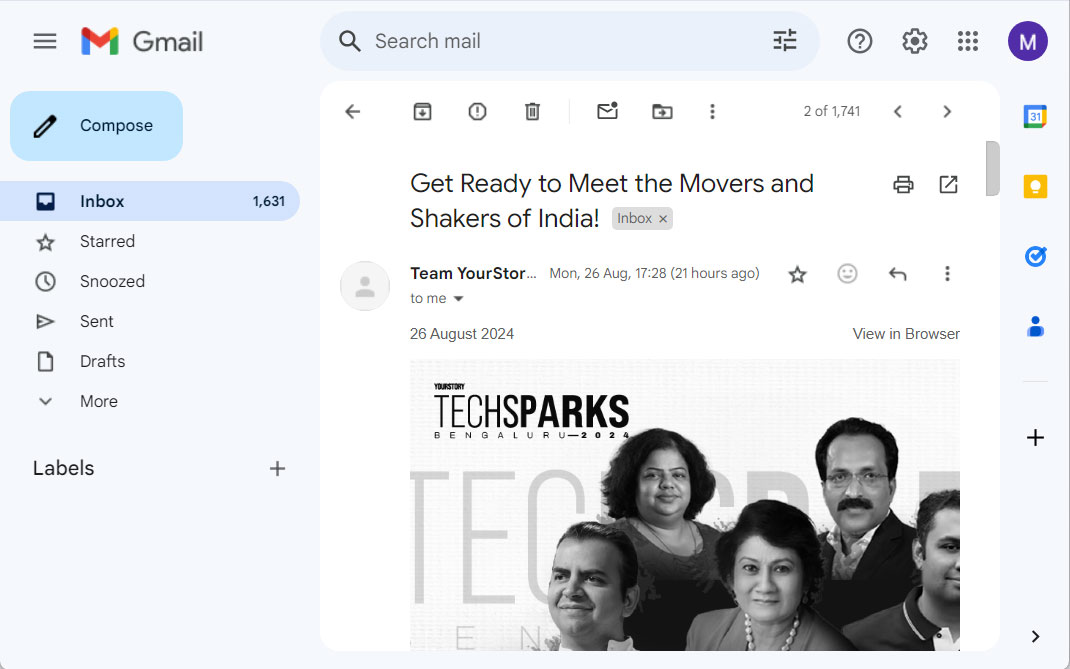
- On your device, open a Gmail account and choose an email.

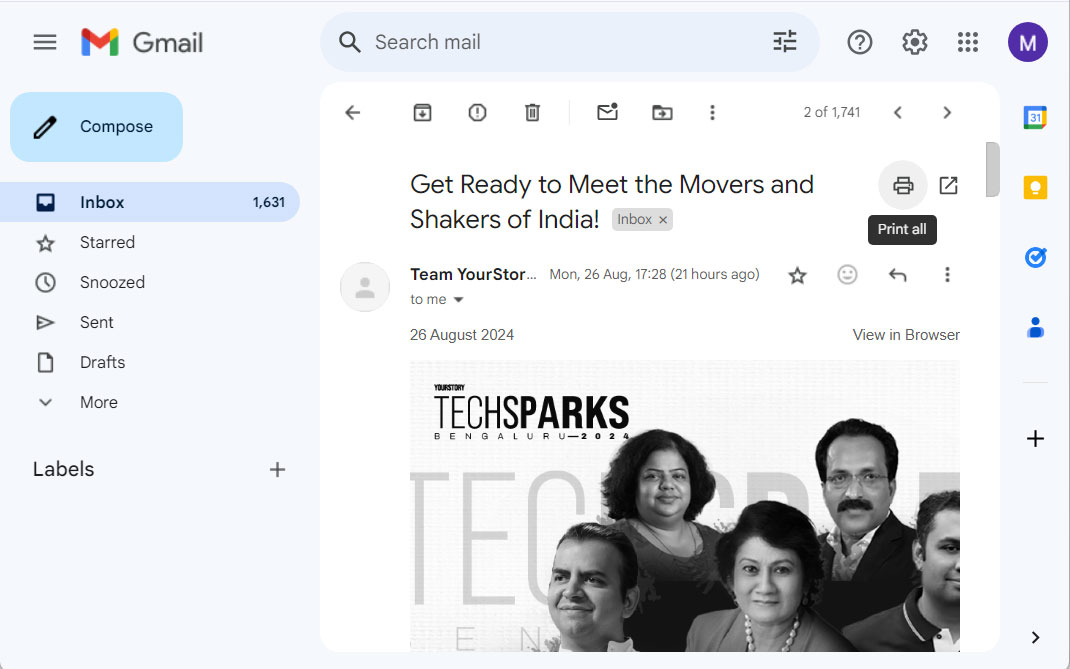
- Then, select the Print icon.

- Click the destination now, then select “Save as PDF“.
- Finally, select the location to save the file.
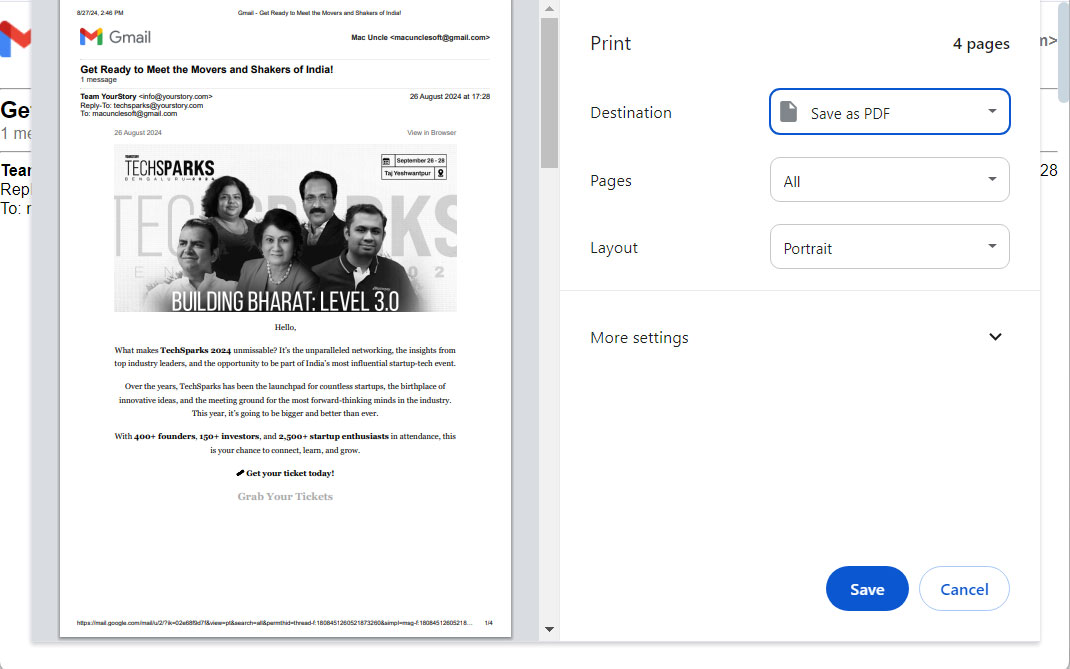
Now, you can add the documents created here to WhatsApp using the “Attach” option.
Send Gmail Emails to WhatsApp Via Mobile Device
If you want to send an email from your Mobile device as an attachment.
- Sign in to your Gmail account on your phone.
- Right-click on the email. Choose Forward > Forward as an attachment.
- Simply share it over WhatsApp after that.
Limitations of using the Manual Approach:
- Loss of Email Structure: When you change an email to a PDF to send Gmail messages to WhatsApp, you lose the dynamic features and structure of the original email.
- Limited Search and Accessibility: Once transformed to a PDF and shared through WhatsApp, the recipient may also find it more difficult to look for specific information in the e-mail as compared to gaining access to a stay e-mail.
How to Send Emails from Gmail to WhatsApp ?
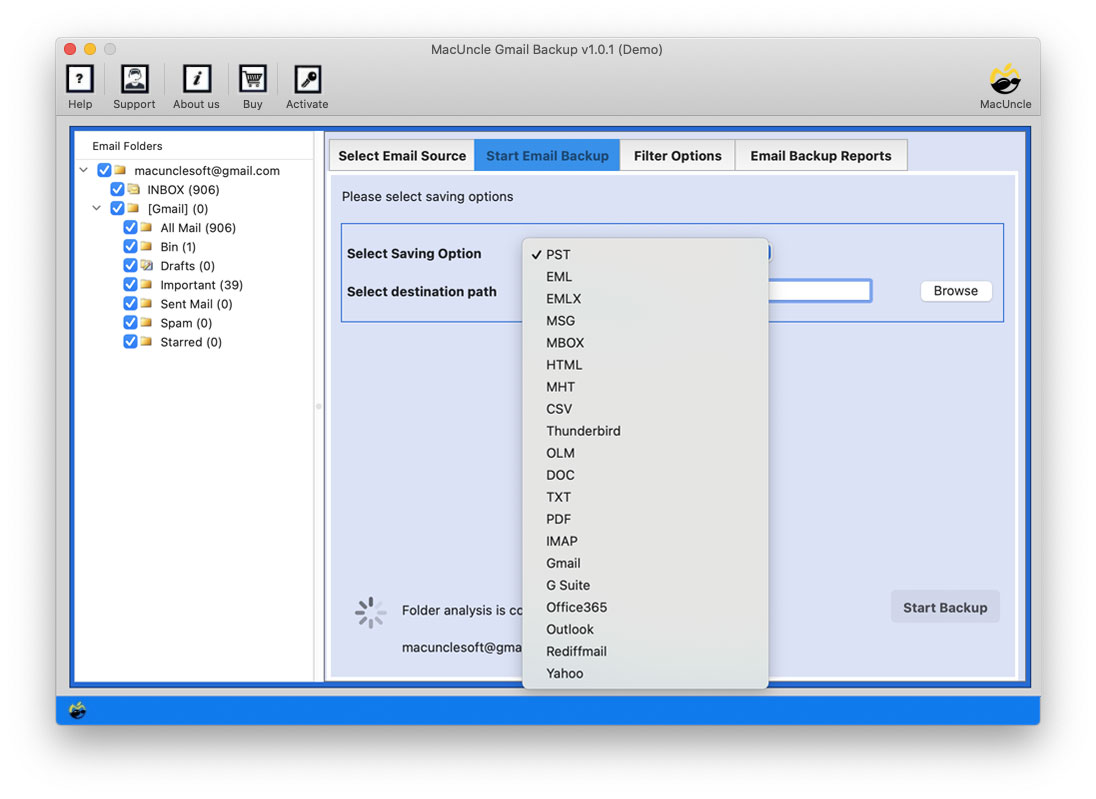
With the MacUncle Gmail Backup Tool, we can send Gmail emails to WhatsApp after converting the email files to PDF format. After storing the files in any location, transfer the files to WhatsApp using the Desktop version. Export the files to any document format to transfer easily from Google Mail to WhatsApp. With the tool, forward Gmail messages to WhatsApp in batches.
Steps to Send Gmail Emails to WhatsApp Messenger
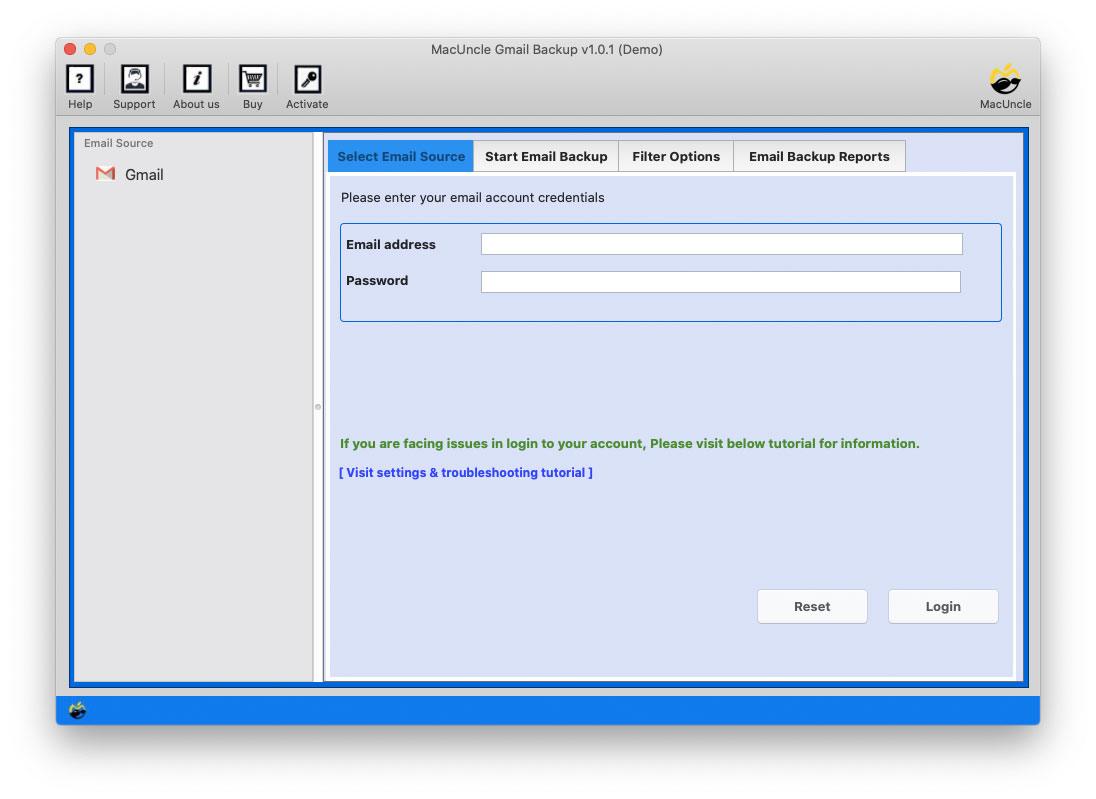
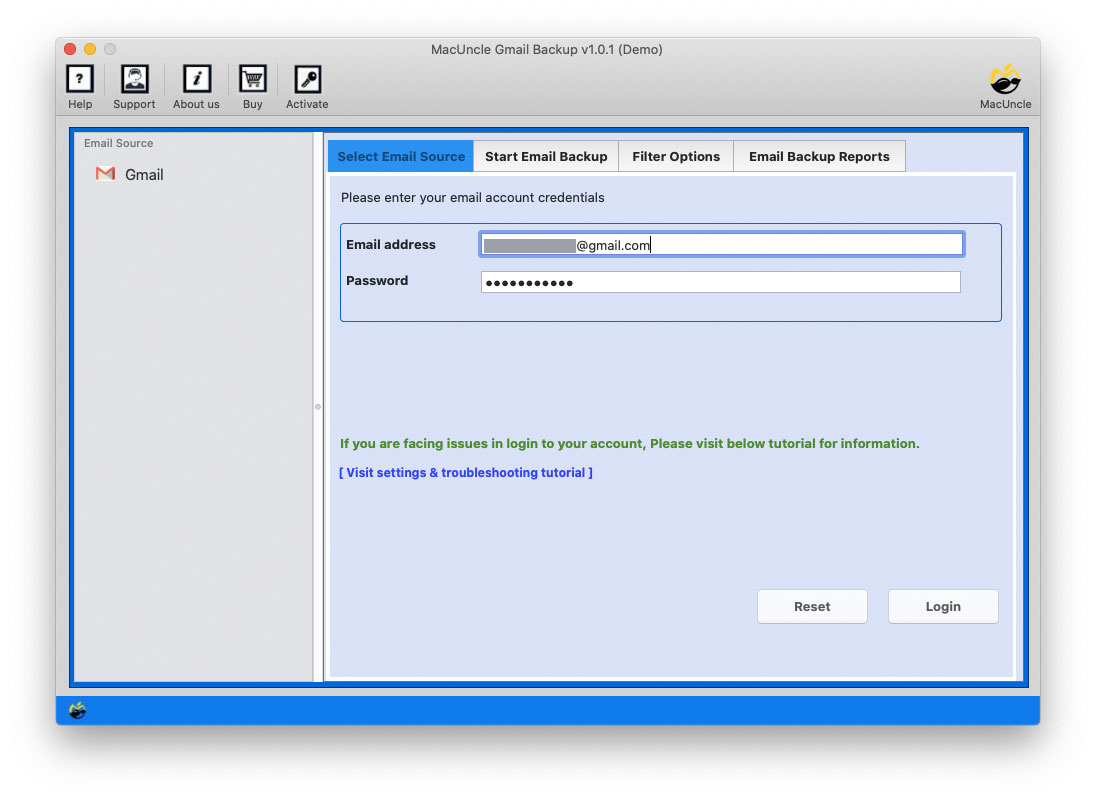
- Launch the software to get the Gmail emails.

- Enter the Gmail Credentials into the software interface. Press the Login button.
- Select the desired PDF file from the left panel.
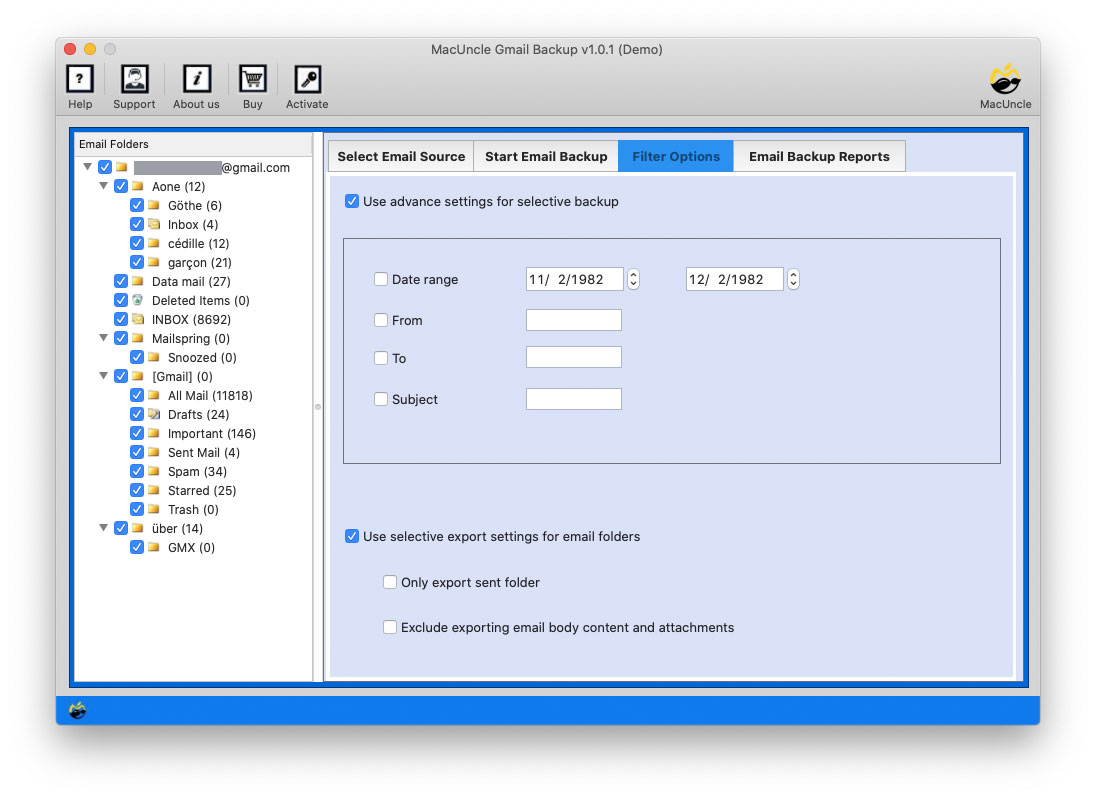
- Set the filter option to selectively export the files.
- Press the Start Backup button to save Gmail emails to WhatsApp.
Use the same toolkit to Export Gmail Emails to Google Drive.
A Software with Multiple Features to Send Gmail Messages to WhatsApp
Using the above-mentioned application, we can send emails from Gmail to WhatsApp. Since using backup software is to create copies of the emails from the account. Whereas it can get the emails in a format that can be added to WhatsApp.
- Email Backup and Export: The software typically permits users to return their Gmail emails, including attachments, to local drives or other email clients. This could involve exporting emails in numerous formats, which include PST, EML, or MBOX.
- Conversion to Supported Formats: You will get the option to convert Gmail emails into files compatible with other structures or programs. For instance, you are converting emails to a layout that may be imported without problems into a messaging app.
- Customisation and Filtering: Backup software often has options to selectively back up emails, folders, or labels.
Frequently Asked Questions
Q) How to share an email with the WhatsApp group?
A) Use the software and export Gmail emails in PDF file format. Then, share the emails directly to the account.
Q) Does the software provide an option to send attachments from Gmail?
A) Yes. The email attachments are exported along with the email files.
Q) What are the requirements to use the software to send Gmail messages to WhatsApp?
A) MacUncle does not possess any additional requirements to use the software to move emails from the Gmail account to the WhatsApp messenger application.