How to Import Shaw Email to Outlook Account?


Shaw Webmail is really the top email service in Canada, and a lot of people are looking to get their emails or email access through Microsoft. Since Shaw webmail works on IMAP, we’re able to set it up right in Outlook without any problem. However, if you want to move all your old emails, say goodbye to the proper way. So here is a complete tutorial on different workarounds to finish the migration.
Many users prefer to consolidate the email access via MS Outlook – for its rich features, offline working option, offline access, calendar integration and the email management capabilities.
Whatever the reasons are for switching email providers, creating a local backup, or simply wanting the emails from Shaw within Outlook, the guide covers the exact approach that aligns with the need. We can use the manual configuration method and automated backup approach, so that the user has the freedom to choose the one that suits their requirements.
Why Migrate Shaw Email to Outlook Account?
Like any migration, there are some personal and professional reasons why users choose to move their Shaw Webmail data to an Outlook account.
- Offline Access: Outlook has the option to read, write and organise the email while being offline. This makes it even more reliable, as there are instances when we need to access the emails without any internet connection.
- Advanced Features: Outlook is packed with built-in features such as task management, calendar integration, and meeting scheduling. It is more than just an email client, which makes the users want to transfer the emails to the Outlook account.
- Data Backup: Outlook has a robust option for backing up important emails, contacts, and calendar data. User can export the data as *.pst files, and get all the critical information which can be at risk in the event of system failure, migration or accidental deletion.
- Performances at peak: Outlook is designed to handle a large volume of emails, attachments, etc., without compromising the speed or stability. It ensures uninterrupted productivity for both individuals and large organisations.
Manual Method – Configure Shaw Webmail in Outlook via IMAP/POP3
The more direct free approach is configuring Shaw mail as an IMAP or POP3 account in Outlook, and this allows it to sync or download the emails directly.
Enable IMAP Access in Shaw Webmail
- Sign in to Shaw Webmail via webmail.shaw.ca.
- Click on the Settings option.
- Go to Mail Settings > Account Settings.
- Locate the IMAP/POP3 section and ensure IMAP Access is enabled.
- Save the settings.
Add Shaw Account to Outlook
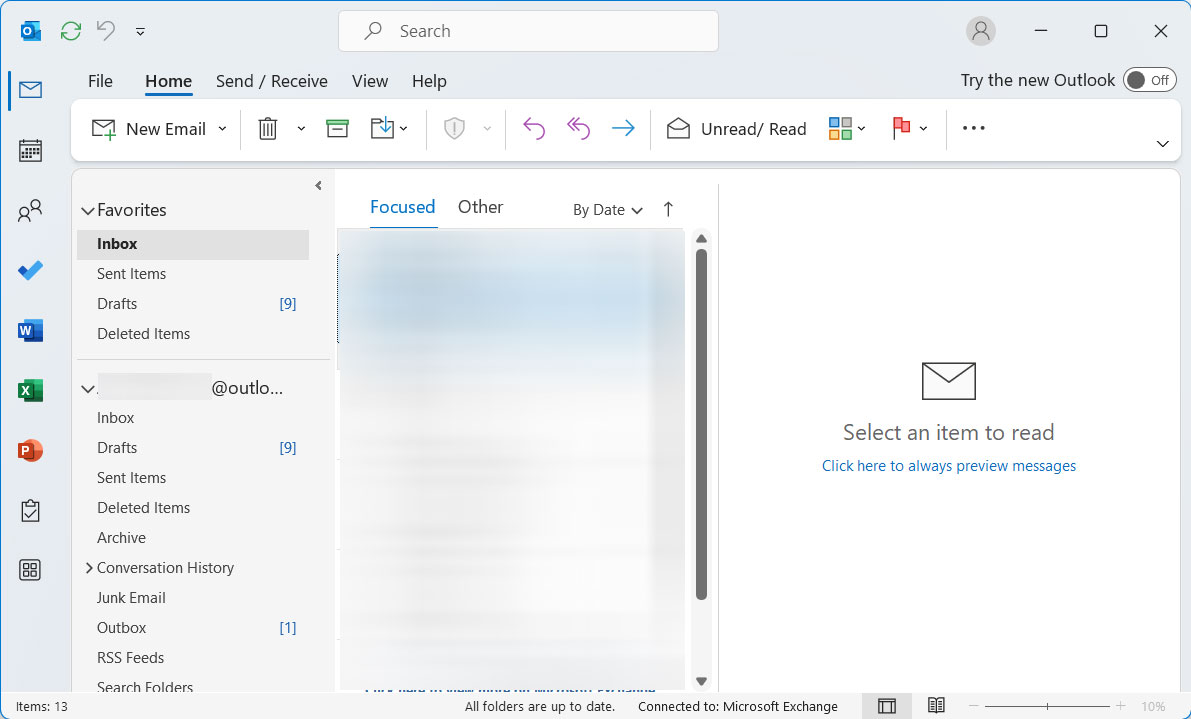
- Open MS Outlook on the Computer.

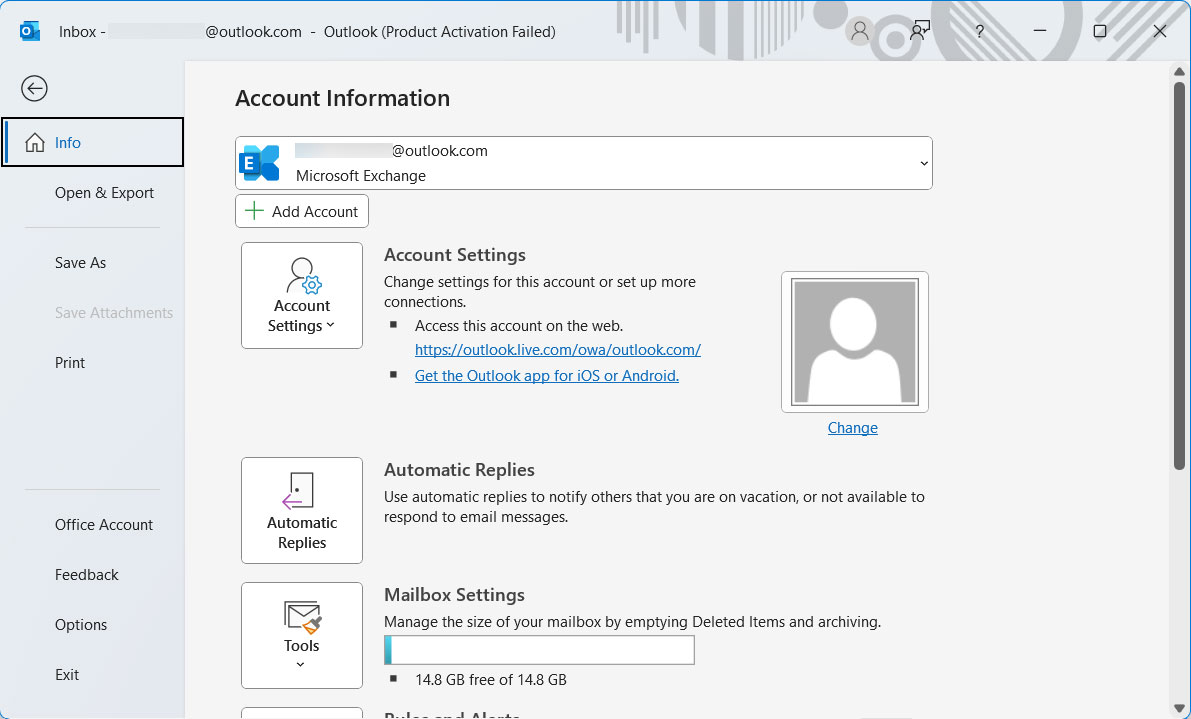
- Go to File > Add Account.
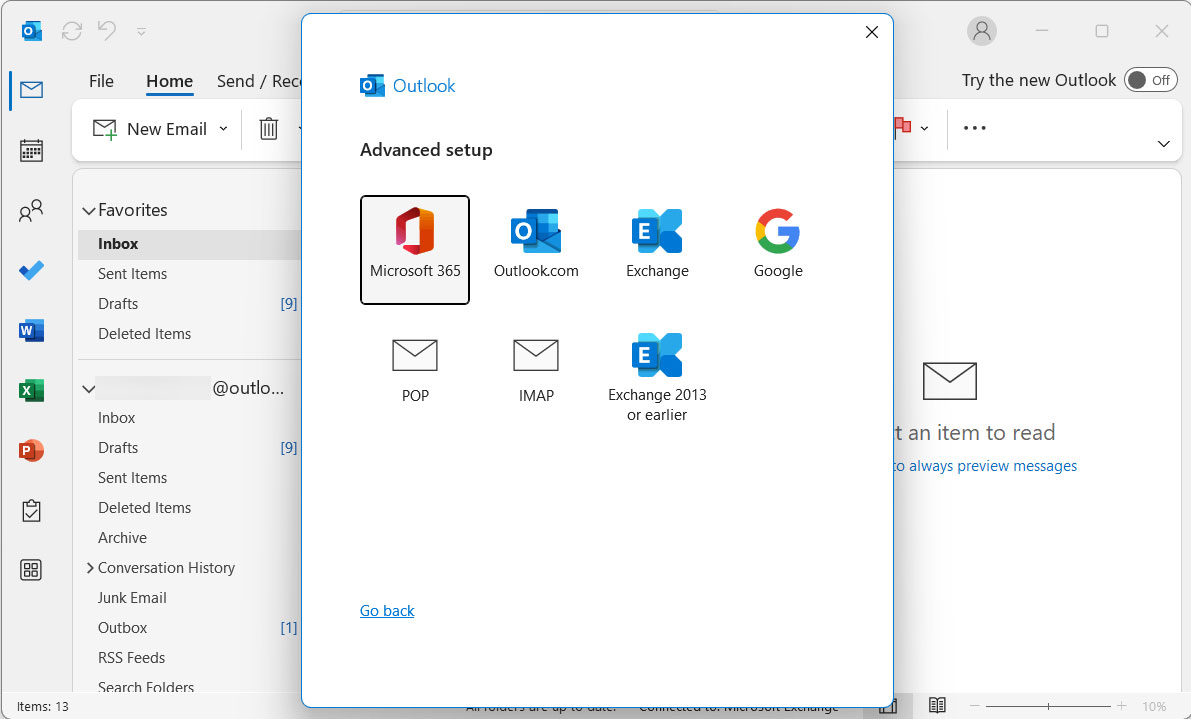
- If prompted for account type, select IMAP.
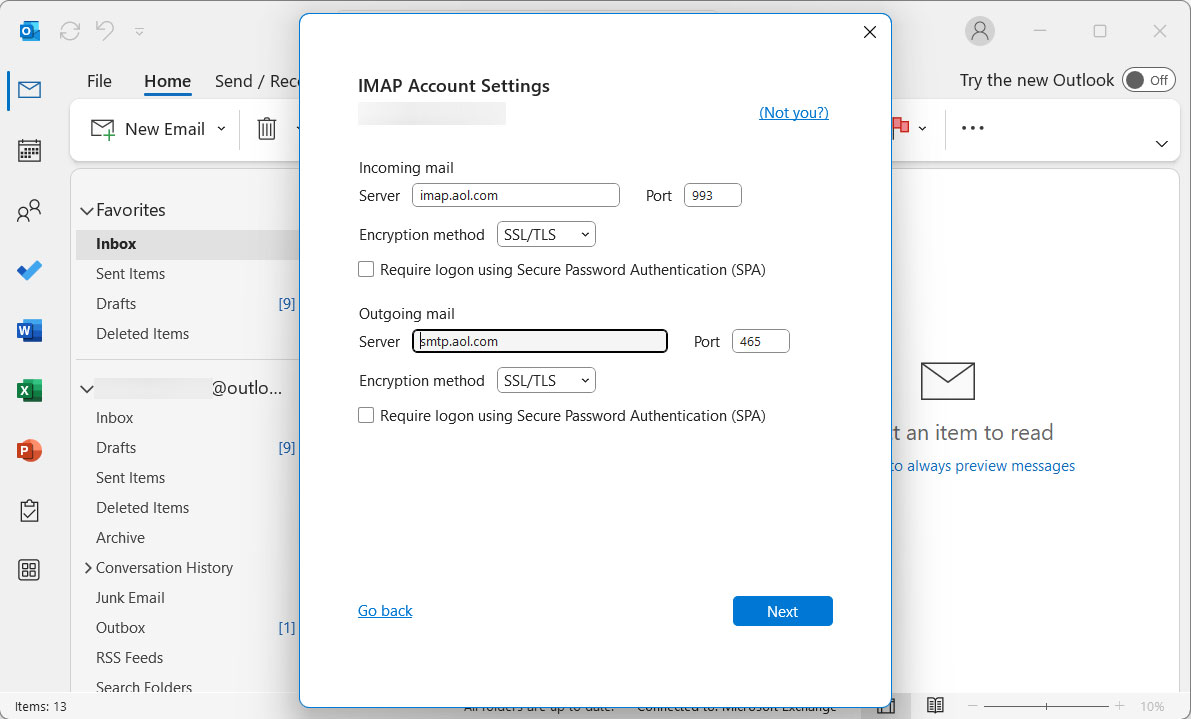
- Incoming server: imap.shaw.ca with Port: 993 and SSL Encryption.
- Outgoing server: smtp.shaw.ca with Port 587 and TLS Encryption.
- Enter Shaw Webmail password and click Next.
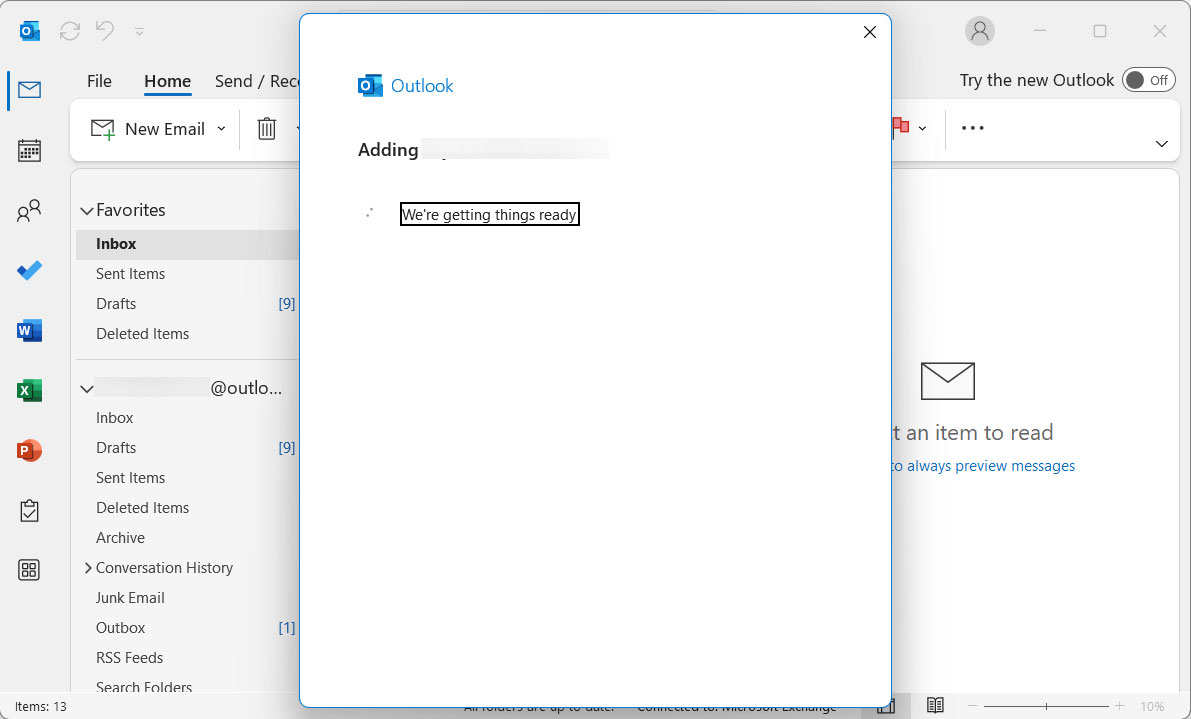
- Now, Outlook will verify the settings and complete the account setup.
- Click Done to finish.
Sync and Download Email
- Now the Shaw account will show up in the left pane of Outlook.
- Click Send/Receive to start syncing emails from Shaw’s servers.
- All the emails will download in the Outlook inbox from the Shaw mail server.
- Thus, all the emails will be in the Outlook account.
Use POP3 Instead of IMAP to Transfer Shaw Emails to Outlook
If you prefer to download emails to Outlook and remove them from the Shaw server, you can use the POP3.
- Incoming POP3 Server: pop.shaw.ca
- Port: 995
- Encryption: SSL/TLS
- Outgoing SMTP: smtp.shaw.ca | Port: 587 | TLS
Related: Discover the easiest ways to transfer Shaw Email to Gmail without losing any data.
Automated Method – Import Shaw Email to Outlook Account
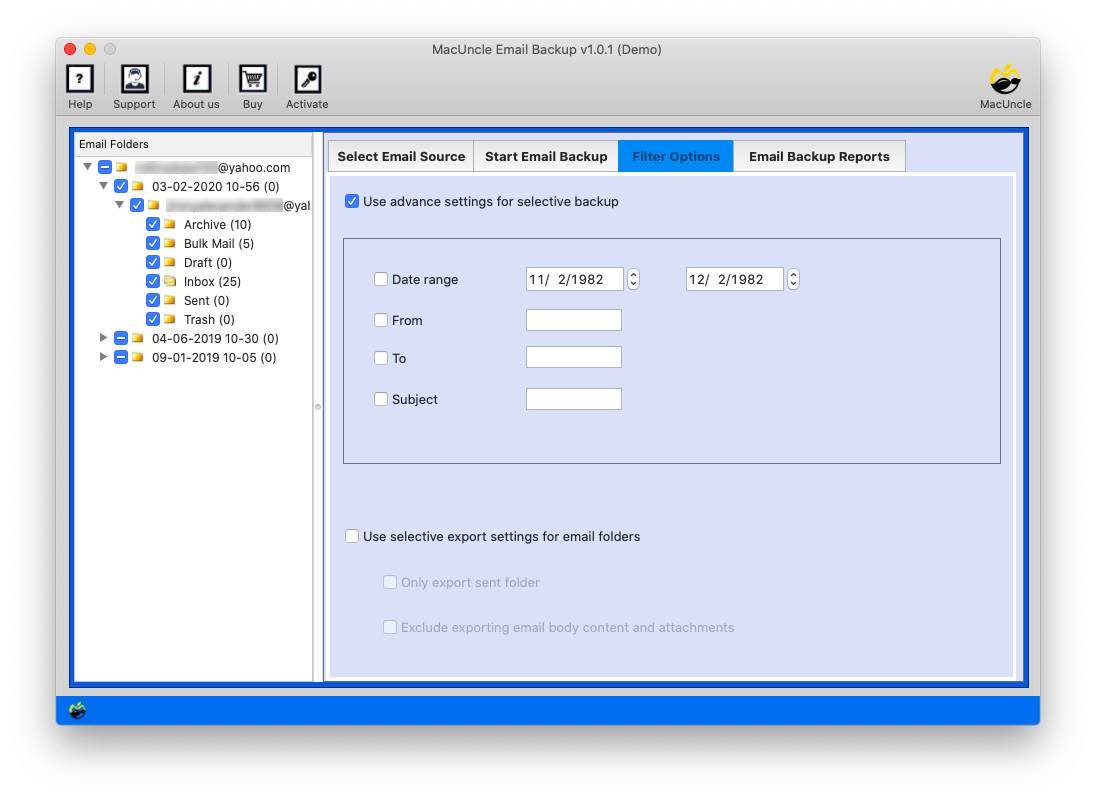
For users who want a more reliable, fast and easy method, then get the Email Backup Tool. The tool has an option to export Shaw emails directly to the Outlook account. Either perform a direct migration, or save the emails in a format compatible with the Outlook application, such as PST, EML or MSG. For more details, check out the step-by-step procedure:
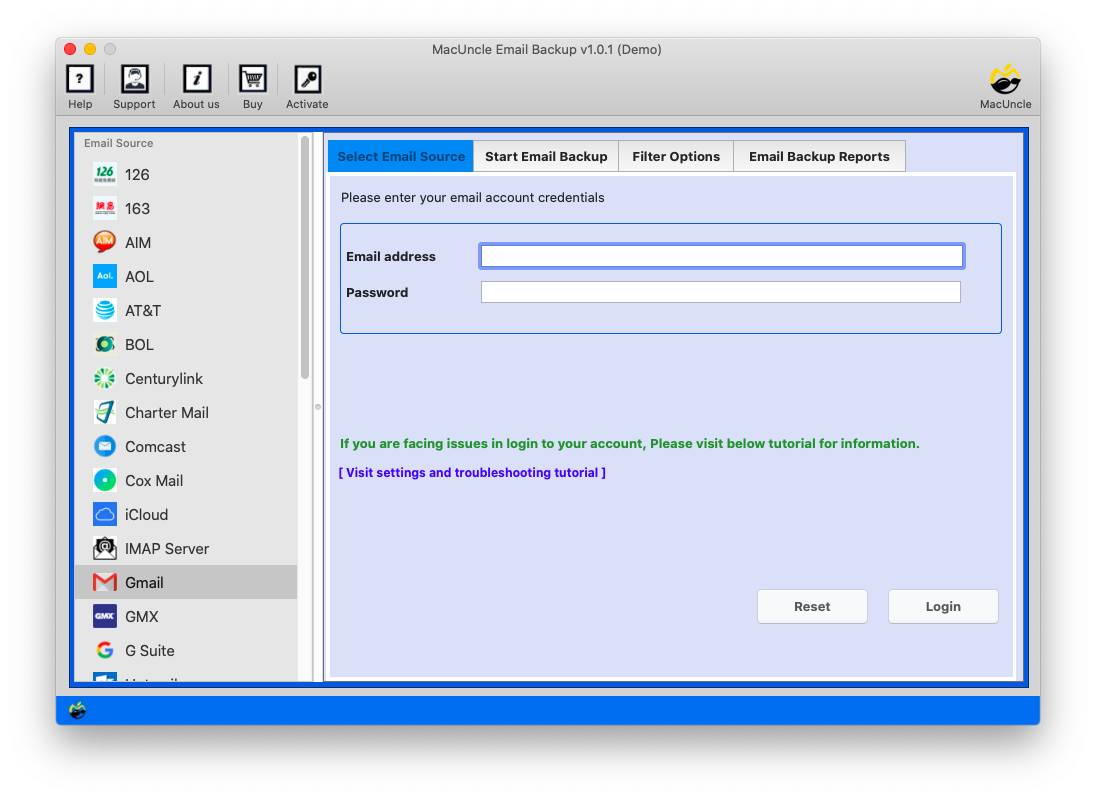
- Start the application on the system.

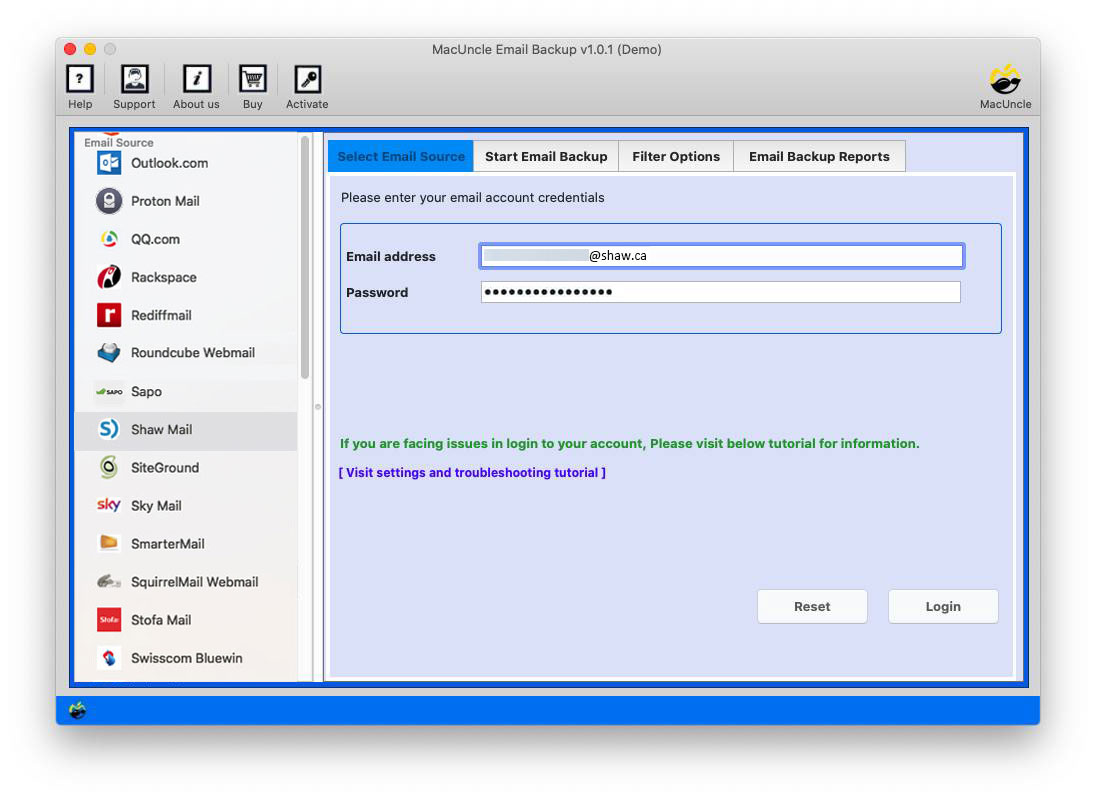
- Choose Shaw Mail and enter the Email Address & password. Press the Login button.
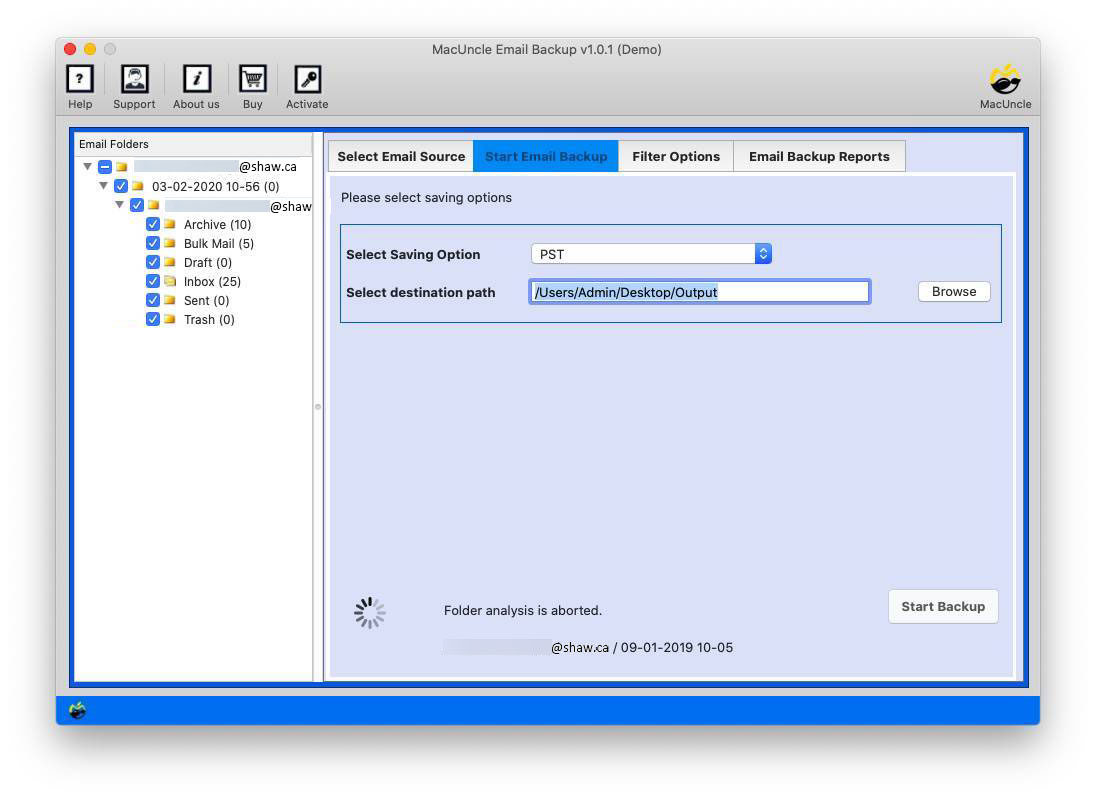
- Now, choose any email folder and a saving option.
- If selected IMAP, enter Outlook and IMAP details.
- Click the Filter option to import Shaw email to Outlook selectively.
- Press the Start Backup button to start the process.
How to Import the Exported Files to Outlook?
If you have opted to save the emails in PST files, then we need to do an additional step to import those files into Outlook:
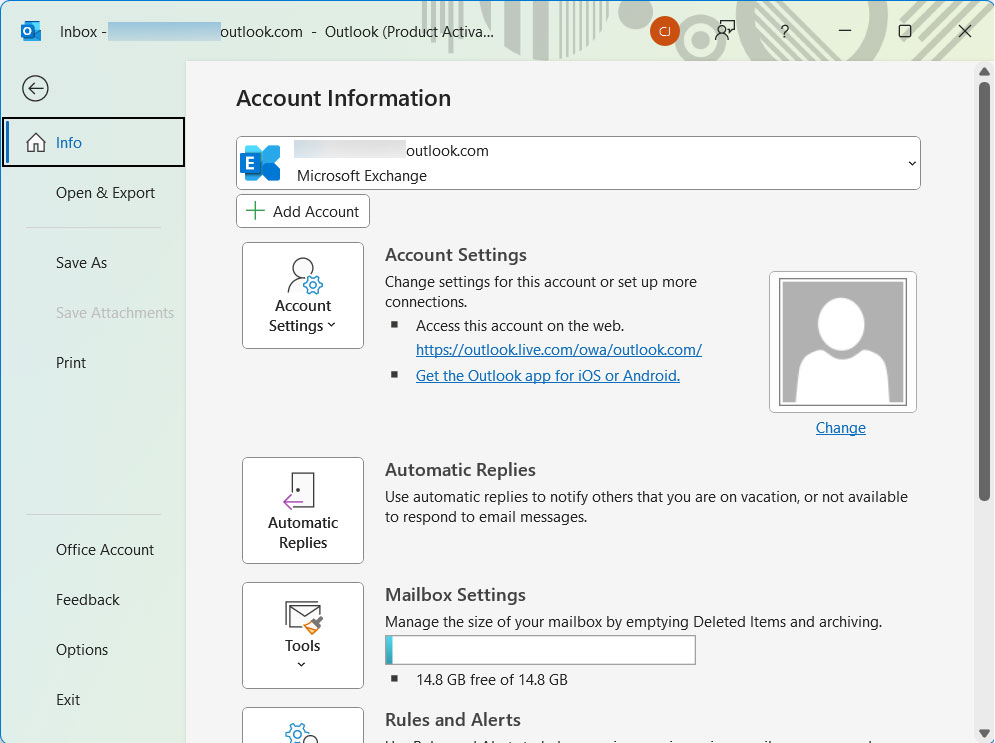
- Open MS Outlook.

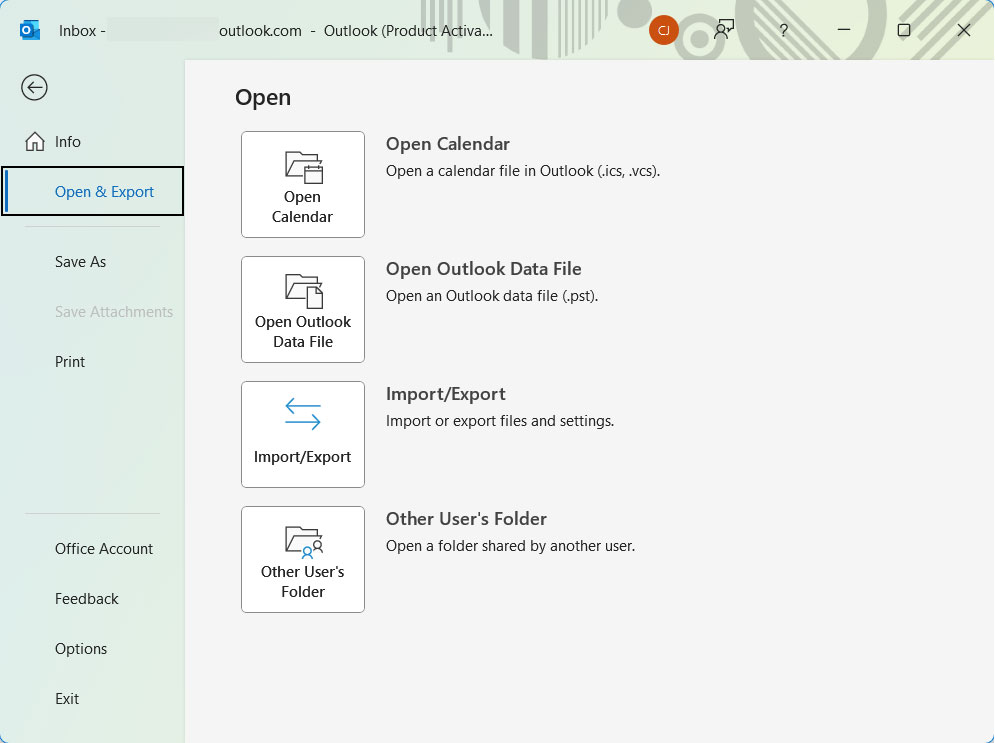
- Go to File > Open & Export > Import/Export.
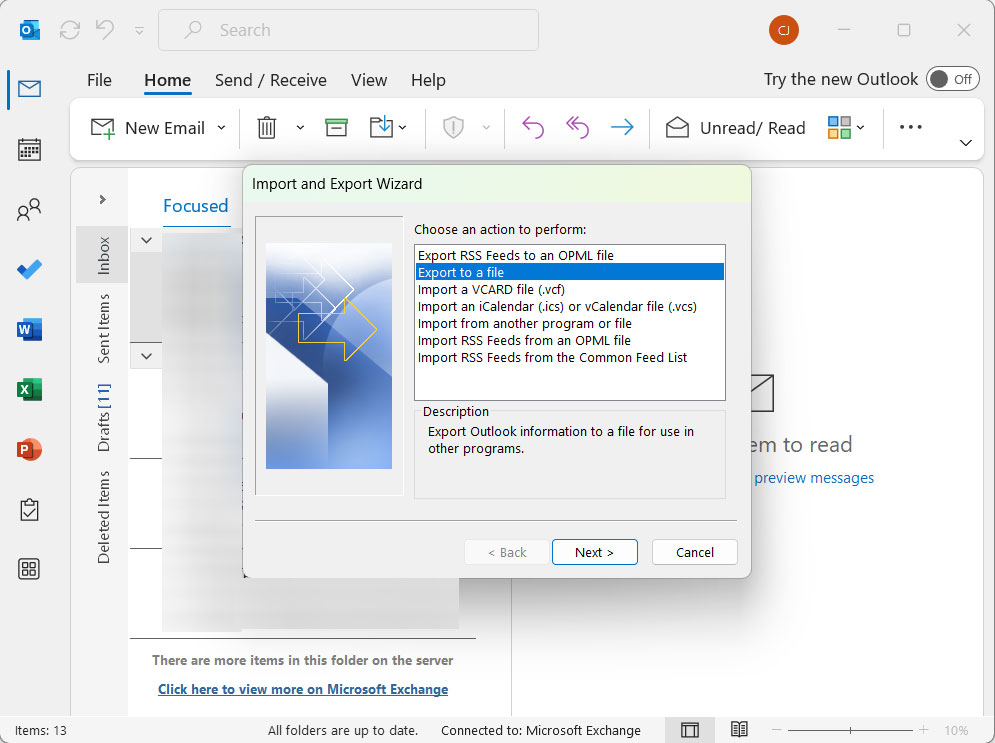
- Choose Import from another program or file, then click Next.
- Select Outlook Data File (.pst) and click Next.
- Click Browse and go to the PST file location.
- Select the folder to import the file into.
- Click Finish.
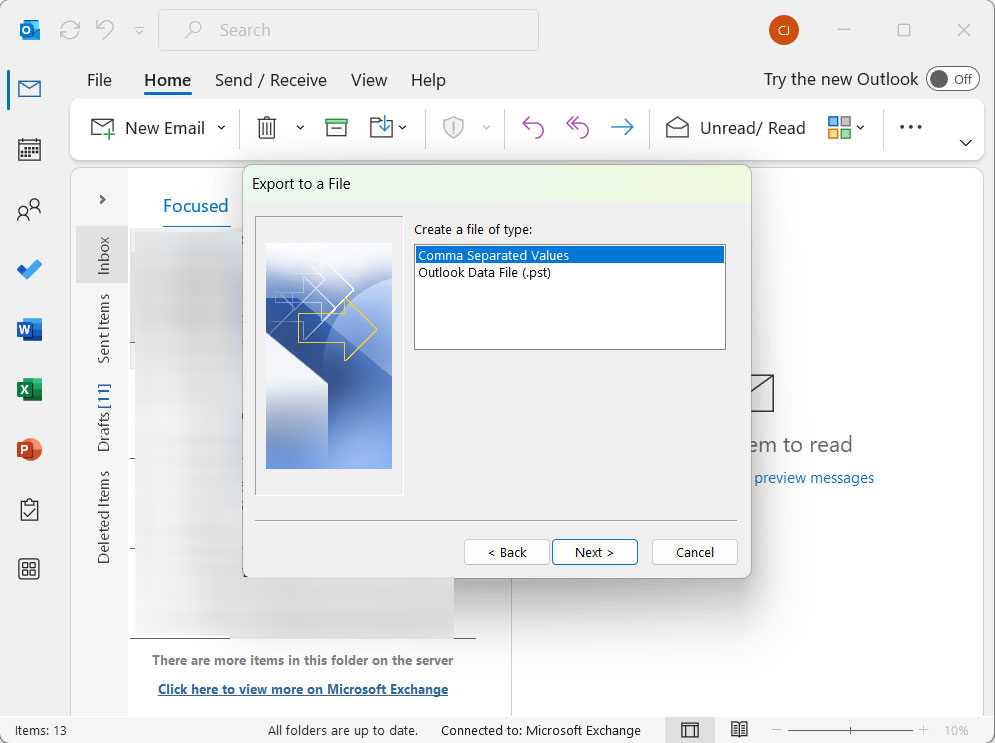
Now, Outlook will import all the emails from the PST file. Thus, Shaw’s emails are not fully in the Outlook account.
Conclusion
Migrate the emails from Shaw Webmail to MS Outlook with the two methods mentioned in the article here. The manual method, IMAP/POP3 method, is a free option that is applicable for small mailboxes or users who are comfortable with email settings, while the automated method is the superior choice for large mailboxes, complete data preservation and a hassle-free experience. Any method you choose, make sure to verify the migration, keep a backup of the PST file and test the Outlook setup.